

How to Hyperlink in Word
Add, Edit, and Remove Hyperlinks in Word to Connect Text, Email, and Web Pages Easily
Try this Course with a Free Trial

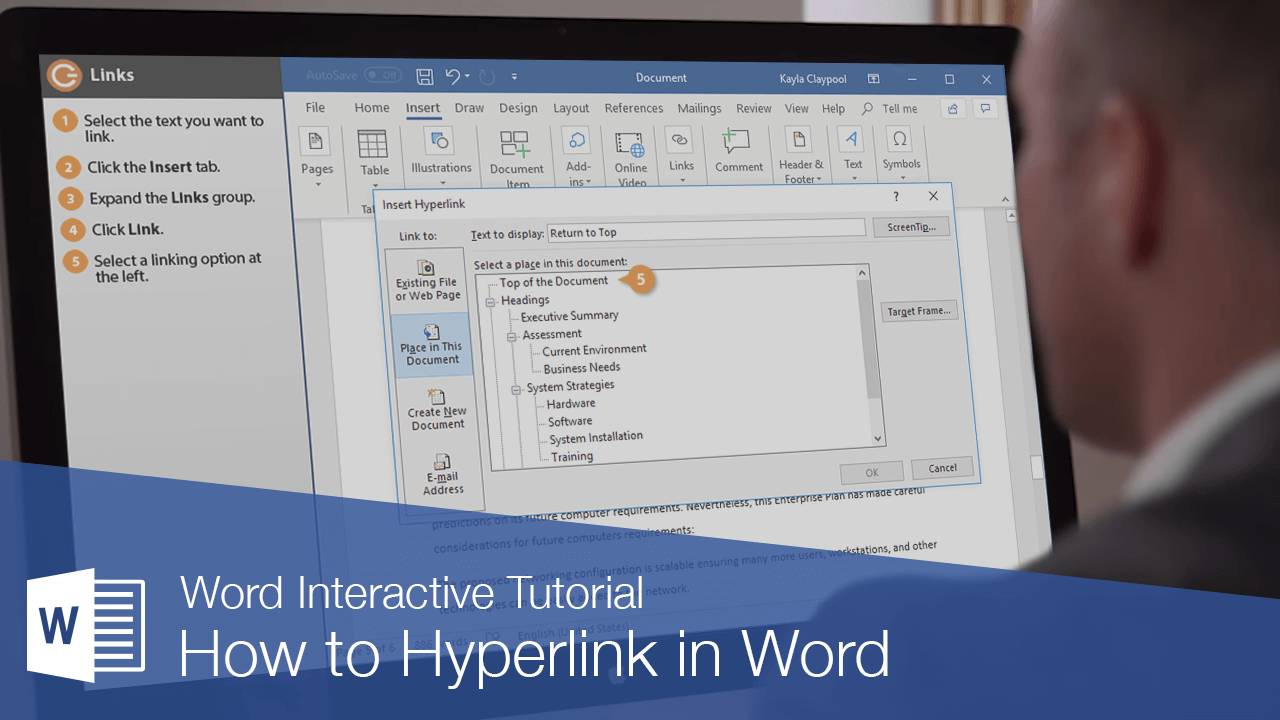
A hyperlink in Word acts just like one you see on a webpage or email. When you hyperlink text or graphics, they become clickable and connect you to outside information or to somewhere else within your document.
Insert a Link
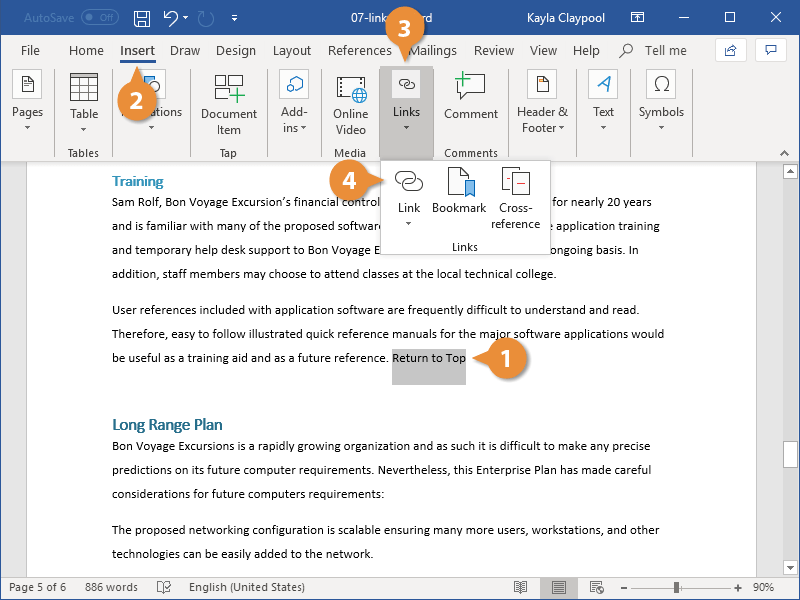
- Select the text or graphic you want to use as a hyperlink.
- Click the Insert tab.
- Expand the Links group, if necessary.
- Click the Link button.
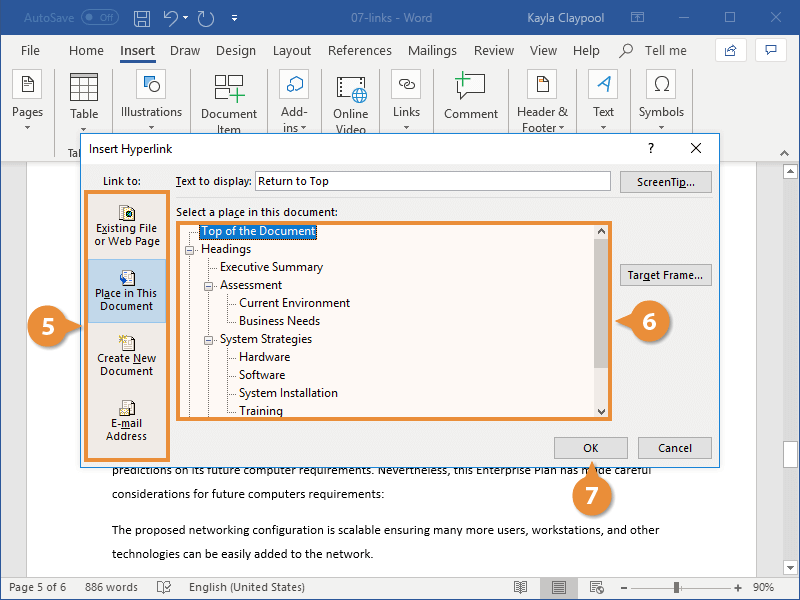
- Select the type of object you want to link to on the left side of the dialog box:
- Existing File or Web Page: Creates a link that takes you to another document, a file created in another program like an Excel worksheet, or to a webpage.
- Place in This Document: Jumps to a heading or bookmark in the same document.
- Create New Document: Creates a new Word document, then inserts a hyperlink to the new document.
- E-mail Address: Creates a clickable email address that will create a new email message when clicked.
- Specify where the link should lead to:
- Click OK.
Press Ctrl + K.
Depending on what you’re linking to, you’ll have different options here. Specify an external file or webpage, a heading or bookmark in the document, a new file name, or an email address.
The selected text is turned into a hyperlink that will go to the specified location (or create a new email message or document) when you hold the Ctrl key and click it.
To edit a hyperlink, right-click it and select Edit Hyperlink. To delete one, right-click it and select Remove Hyperlink.