

Word Count in Word
Check Word Count, Character Count, and Page Statistics to Track Document Length
Try this Course with a Free Trial
Find the Word Count
The Word Count feature is useful if you have a writing assignment that is limited to a specific number of words.
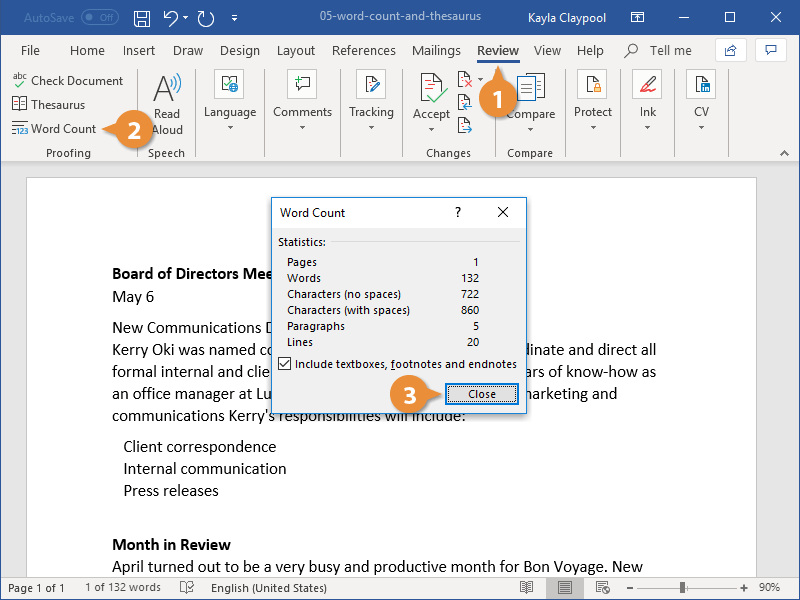
The word count is always displayed in the status bar at the bottom of the screen, next to the page number. If you need to see a more detailed count of words, open the Word Count dialog box.
- Click the Review tab on the ribbon.
- Click the Word Count button in the Proofing group.
You can also click the word count in the status bar to open the Word Count dialog box.
Here you can see not only the word count, but also a character count (both with and without spaces), a paragraph count, and a line count.
- Click Close when you're done.
The Word Count dialog box closes.
Use the Thesaurus
Use Word’s built-in thesaurus to help you find synonyms of a word. For example, you can use the thesaurus to replace the ho-hum word “good” with one of its synonyms, such as “beneficial,” “capable,” or “excellent.”
- Select the word you want to replace.
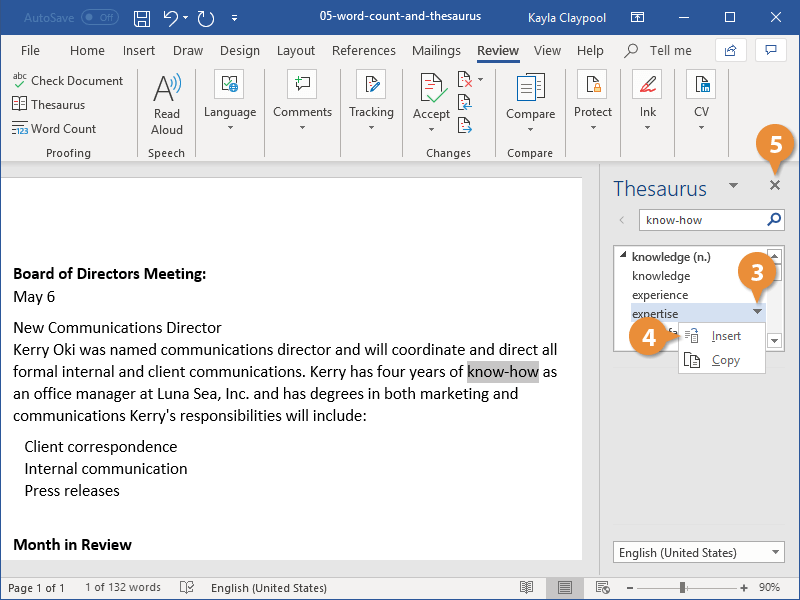
- On the Review tab, click Thesaurus.
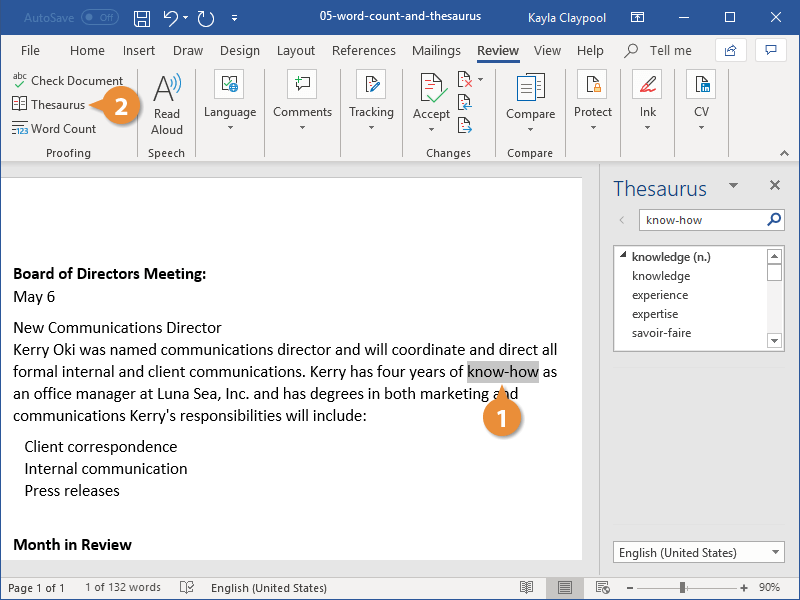
The Thesaurus pane at the right shows a list of words with similar meanings to your selection. If a word has multiple meanings, each meaning will have its own list of synonyms.
- Hover over a new word and click the menu arrow.
- Click the Insert button.
Your selection is replaced with the new word.
- Close the Thesaurus pane when you’re done.
Right-click a word. Select Synonyms and then select a new word from the list.