

How to Print in Word
Set Up Page Layout, Select Printers, and Adjust Print Settings for Word Documents
Try this Course with a Free Trial
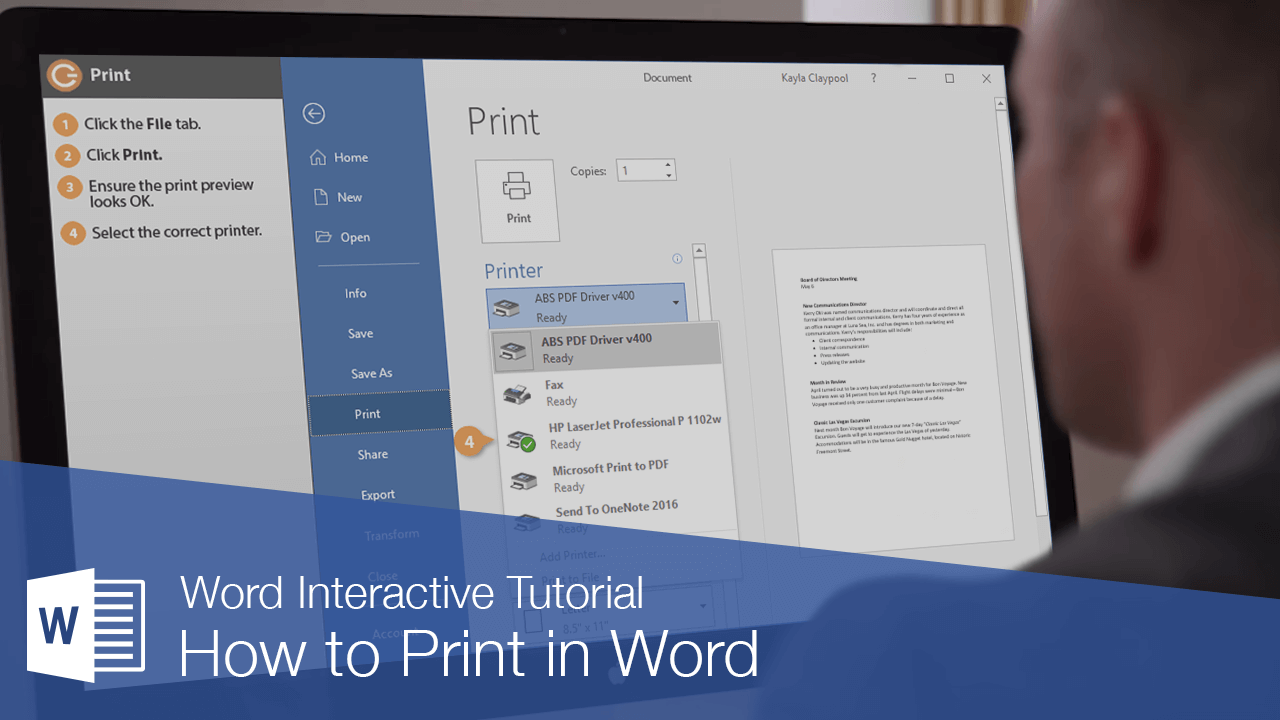
When you’re ready to print a document, and if you have a printer connected to your computer, you can preview a document and print it.
Print a Document
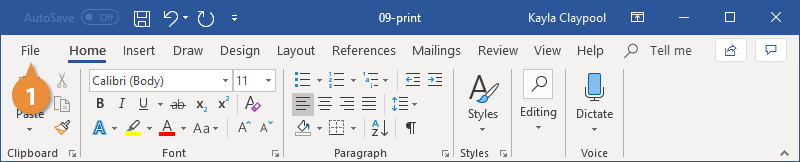
- Click the File tab.
- Click Print.
- Examine the print preview on the right side of the screen to ensure the document appears correct.
- Select the correct printer by clicking the Printer list arrow and selecting it from the list.
- Adjust the printer settings using the options below the printer, described in the following table.
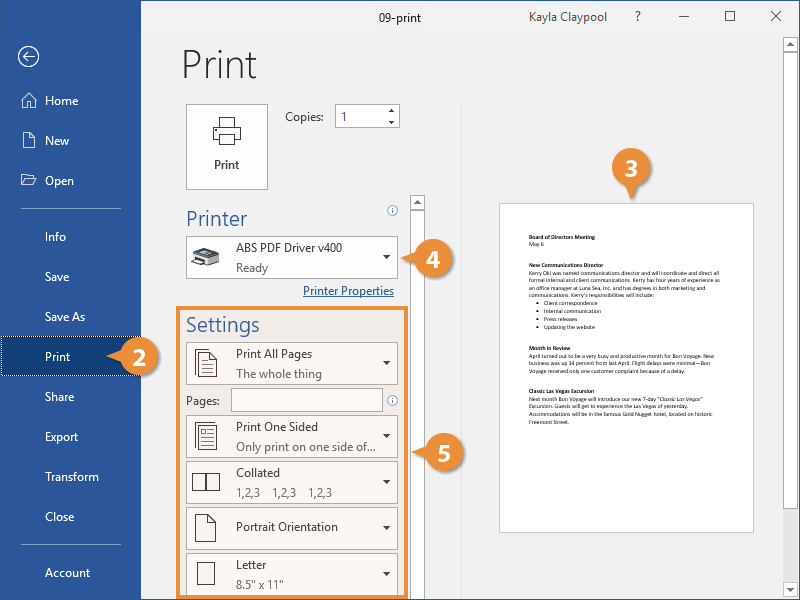
- Set the number of copies in the Copies text field.
- Click Print.
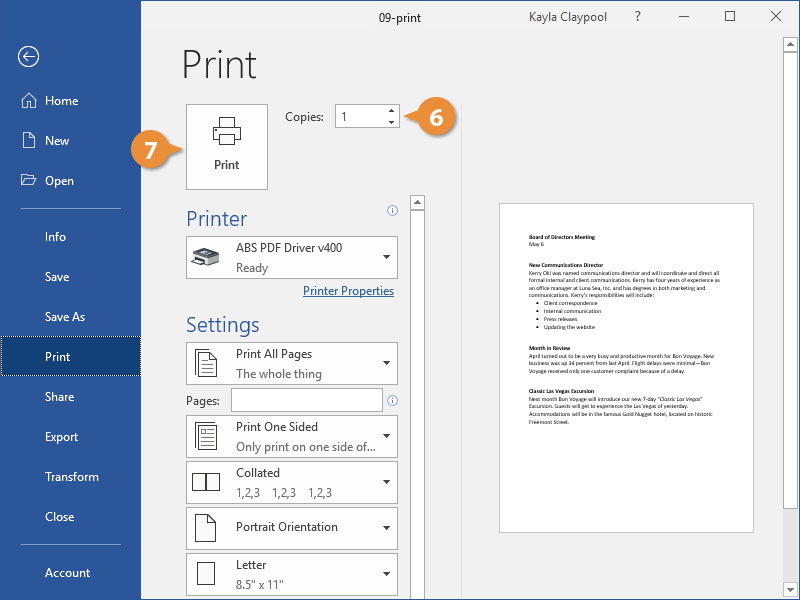
The document is sent to the printer.
Press Ctrl + P.
| Print Settings | |||
|---|---|---|---|
| Print Range | Print the whole document, a certain page range, a single section, or just even or odd pages. | ||
| Print One Sided / Both Sides | Print the document one-sided, enable a printer’s two-sided printing function, or manually flip the pages during printing. | ||
| Collate | Collating prints multiple copies of the document all the way through (1, 2, 3, 1, 2, 3), while printing uncollated prints multiple copies of each page together (1, 1, 2, 2, 3, 3). | ||
| Orientation | Select Portrait (taller) or Landscape (wider). | ||
| Page Size | Select the size of paper you’re printing on. | ||
| Page Margins | Adjust the margins between the edge of the page and the text. | ||
| Pages Per Sheet | Arrange multiple pages on a single sheet. | ||