

Windows Update
Keep Your PC Secure and Running Smoothly by Managing and Installing Windows Updates
Try this Course with a Free Trial

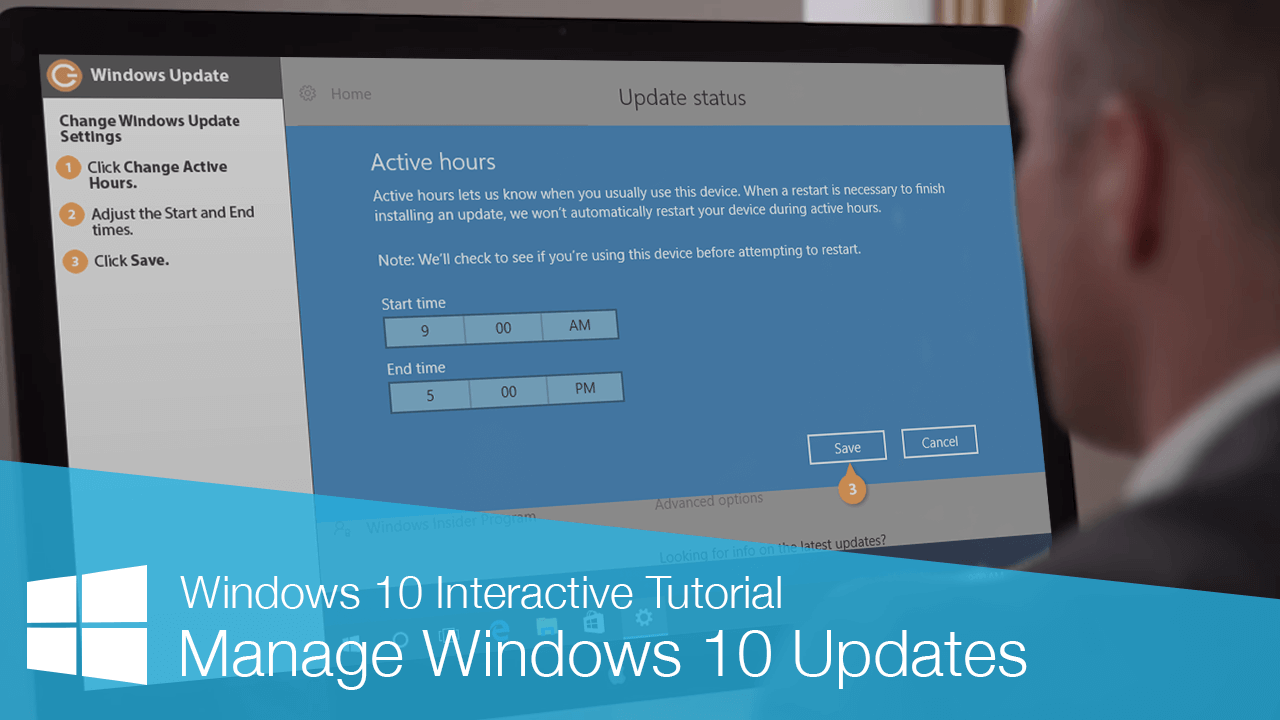
Occasionally, Microsoft updates Windows 10 with bug fixes, security patches, and new features. Microsoft automatically downloads Windows 10 updates, asks you to schedule a time to restart your PC, and then installs the update according to that schedule. You can also manually check your computer for updates.
Check for Updates
If you've bypassed an update, or Microsoft hasn't provided an automatic update, you can manually check your computer for them.
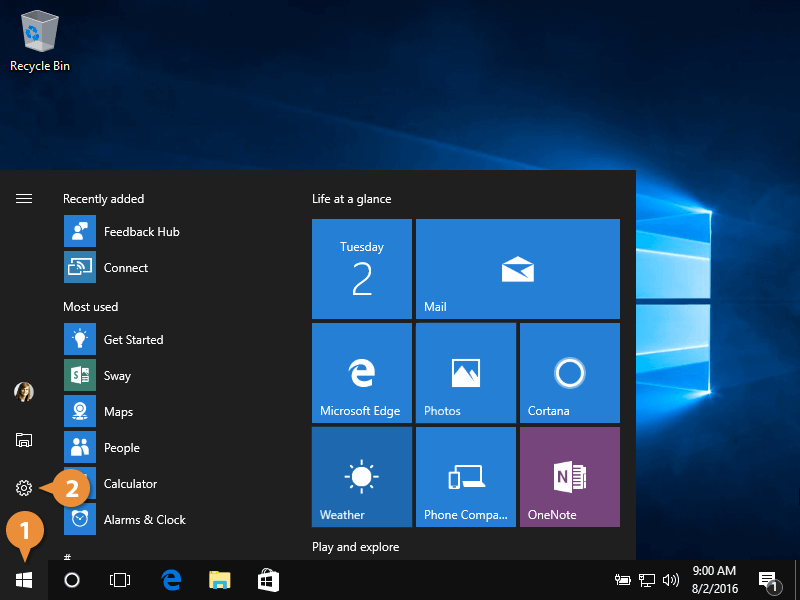
- Click the Start button.
- Click the Settings button.
Settings categories appear.
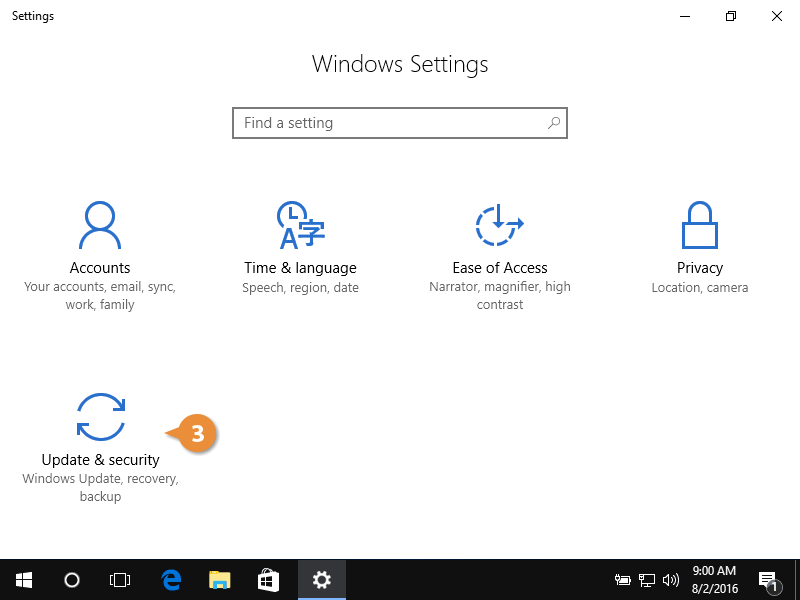
- Choose Update & security.
Update, security, and backup settings appear.
- Choose Windows Update.
- Click Check for updates to view any available updates.
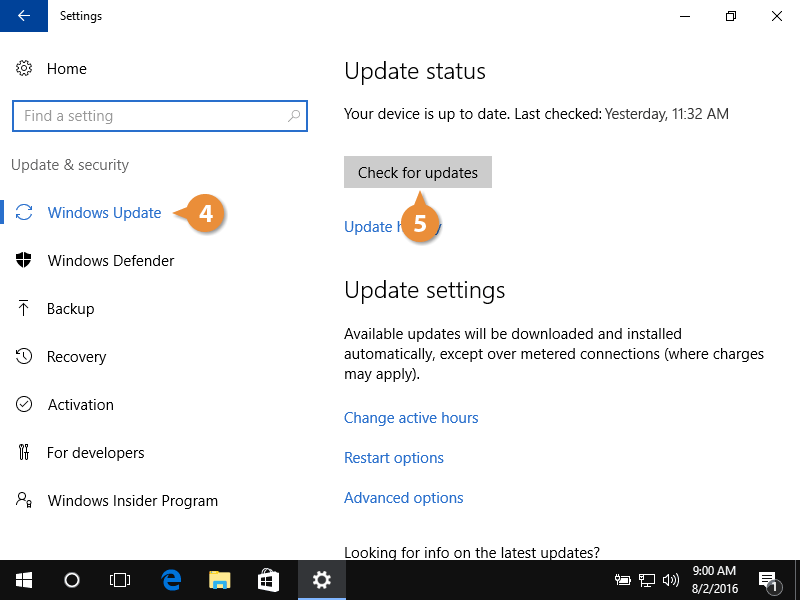
Any available updates will download and install automatically.
Change Windows Update Settings
You can't completely turn off automatic updates; however, you can make some changes using the Advanced Options feature. Microsoft will restart your computer when it's not in use to perform necessary updates.
- Click Advanced options.
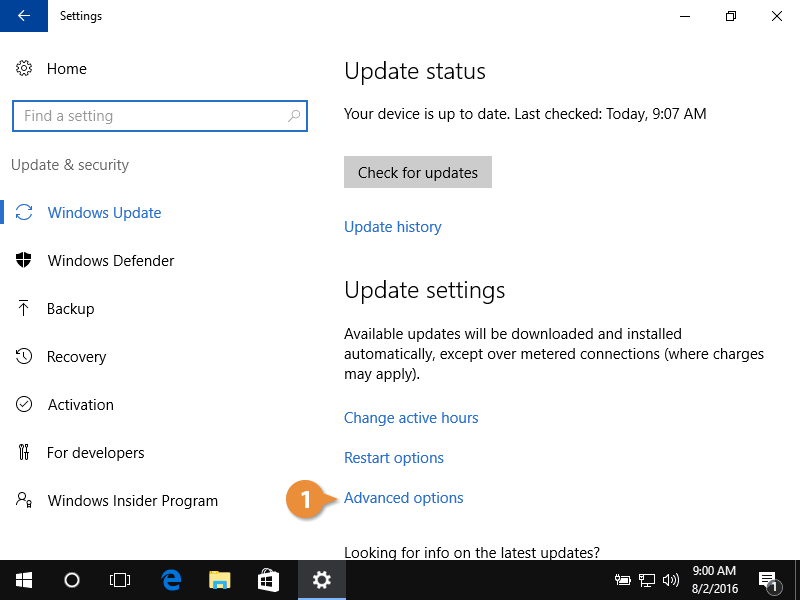
- Select an option under the following sections.
- Update Options: Update other Microsoft products, automatically download updates, and turn on/off restart reminders.
- Pause Updates: Temporarily prevent updates from installing for up to 35 days.
- Choose when updates are installed: Specify how long feature and security updates can be deferred.
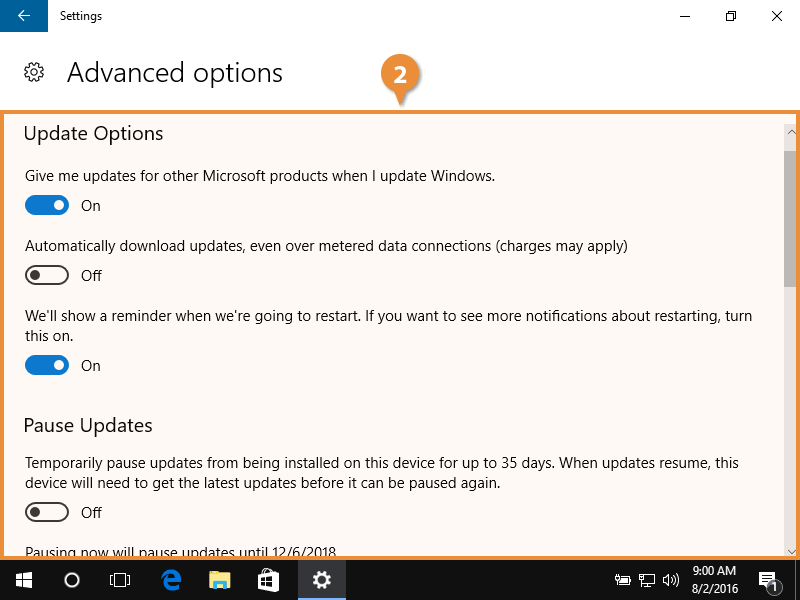
- Configure additional settings, if desired.