System Restore Windows
Recover Your PC by Using System Restore to Fix Errors and Revert Windows Settings Safely
Try this Course with a Free Trial

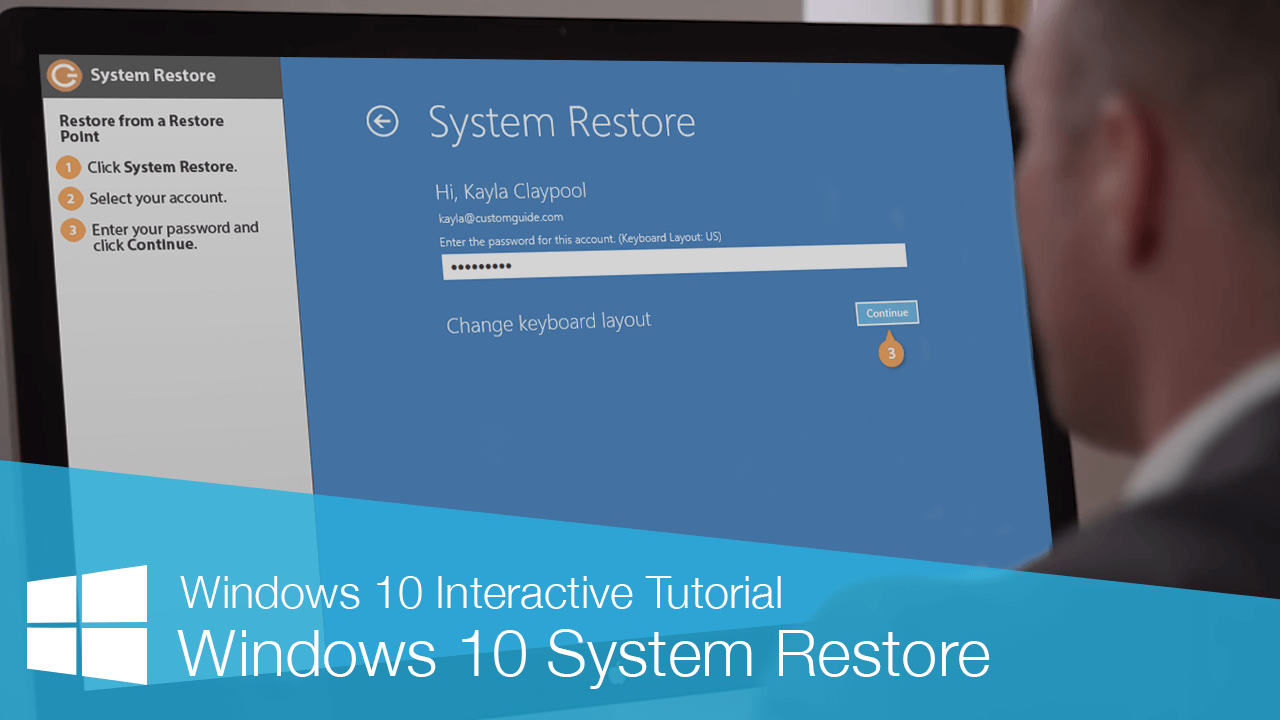
Windows provides troubleshooting tools to help restore computer performance.
System Recovery Options
Follow these steps to complete a system recovery.
- Click the Start button.
- Click the Settings button.
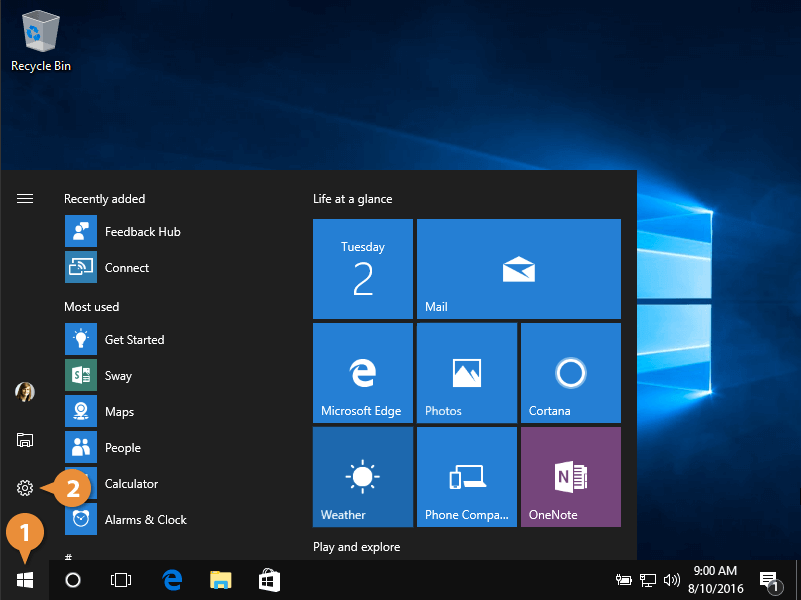
Settings categories appear.
- Click Update & security.
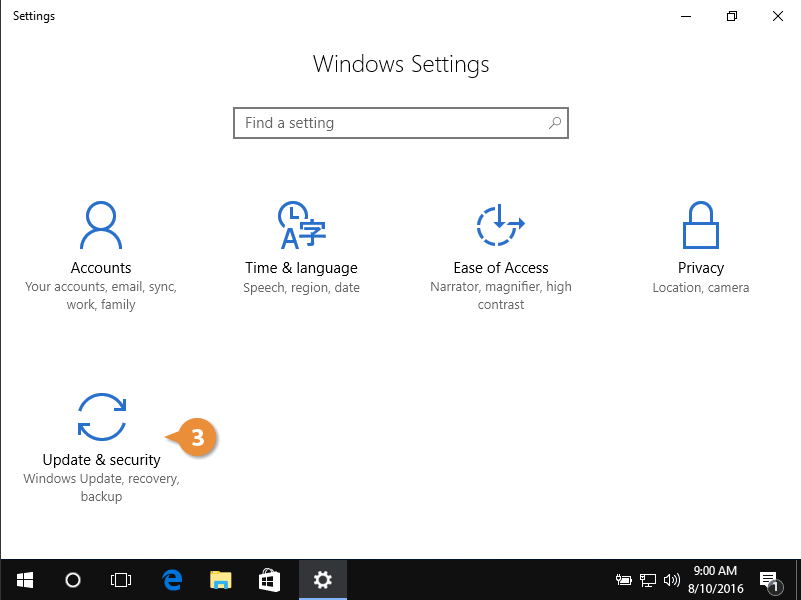
Update, security, and backup settings appear.
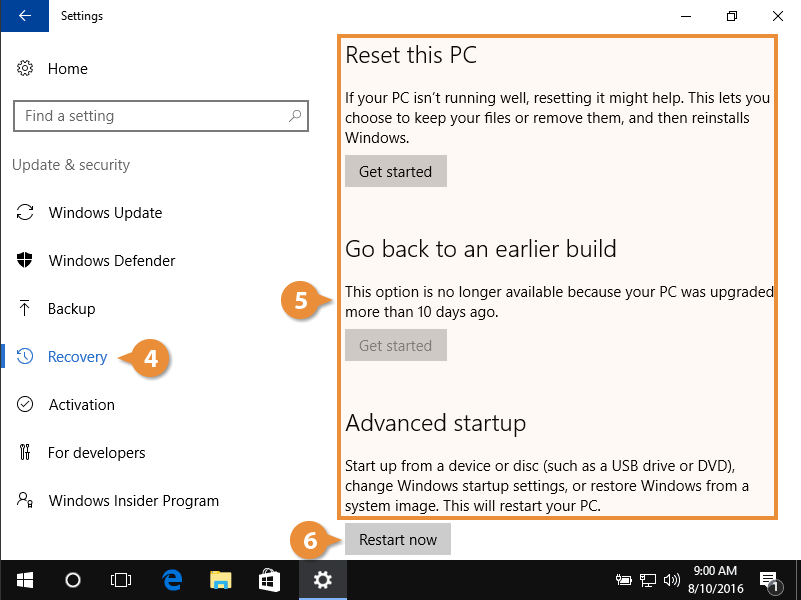
- Choose Recovery.
- Click an option.
- Reset this PC: Reinstall Windows while maintaining personal files. This should only be chosen for extreme issues.
- Go back to an earlier build option: Restores Windows to an earlier version. This might not work, depending on your most recent update.
- Advanced startup: Restart your computer into recovery mode, allowing for advanced troubleshooting.
- Advanced startup: Restart your computer into recovery mode, allowing for advanced troubleshooting.
- Click Restart now.
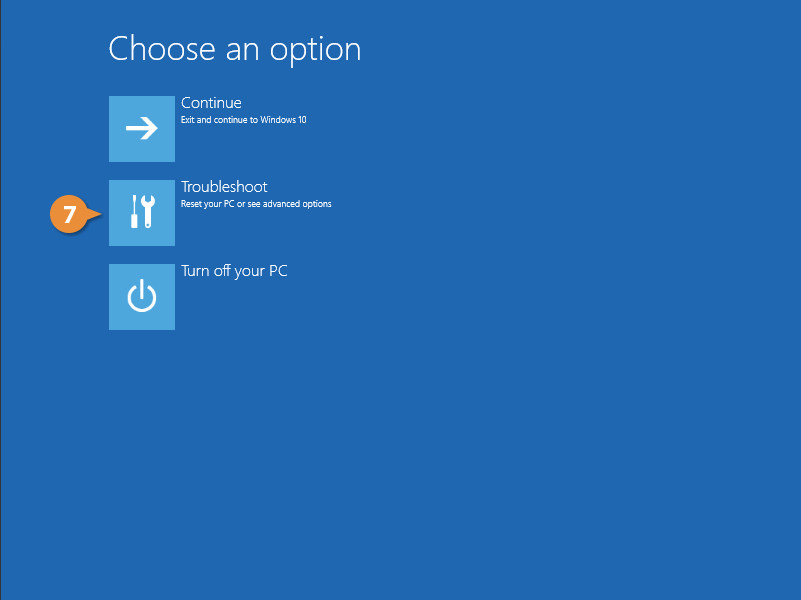
- Choose Troubleshoot.
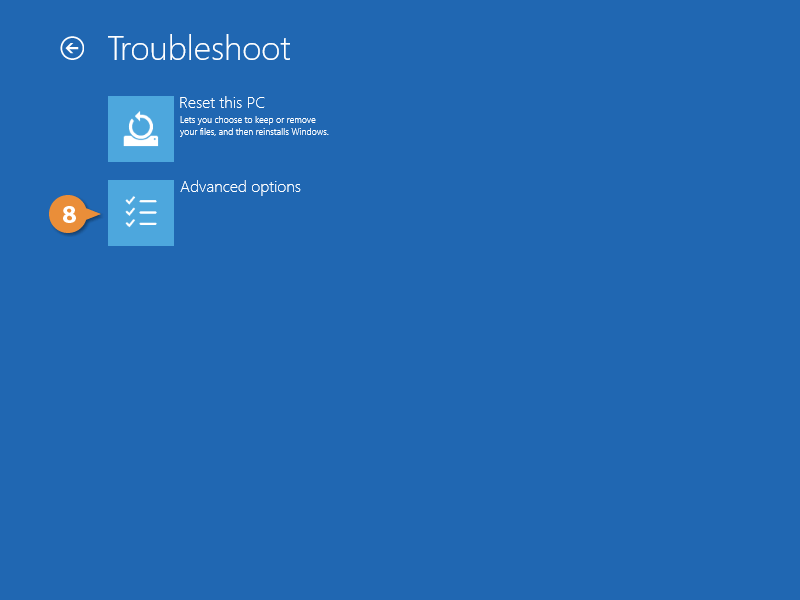
- Choose Advanced options.
- Select an option.
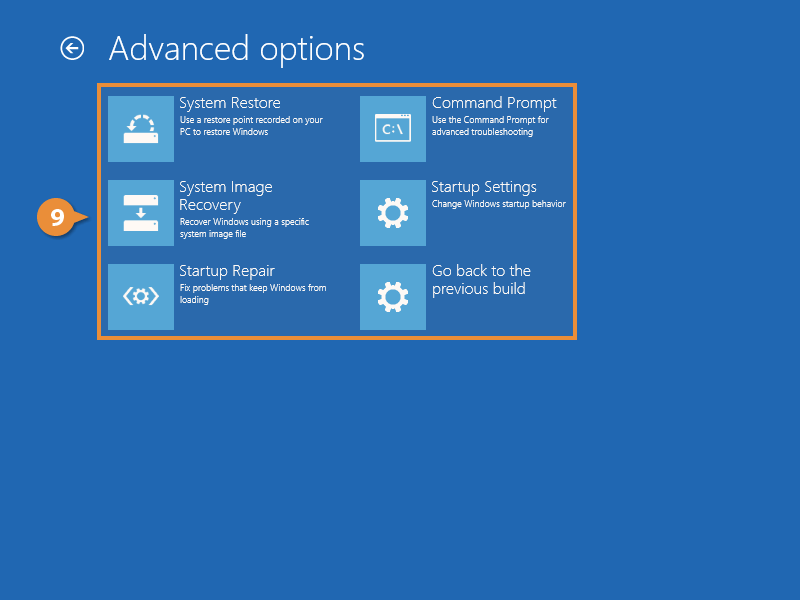
This table details the available advanced system recovery options.
| Advanced Option | Description |
|---|---|
| System Restore | Reload an older restored file. Restored files are automatically created each week and before a major upgrade. This is helpful to use for poor computer performance after installing a new device or update. |
| System Image Recovery | Restore a complete copy of your computer system. |
| Startup Repair | Automatically search for and fix issues causing Windows to boot incorrectly. |
| Command Prompt | Load a text-based command line. |
| Startup Settings | Boot Windows in Safe Mode. |
Turn on System Protection
Before you can restore a previous version of Windows, turn on system protection.
- Enter Control in the search field.
- Choose Control Panel.
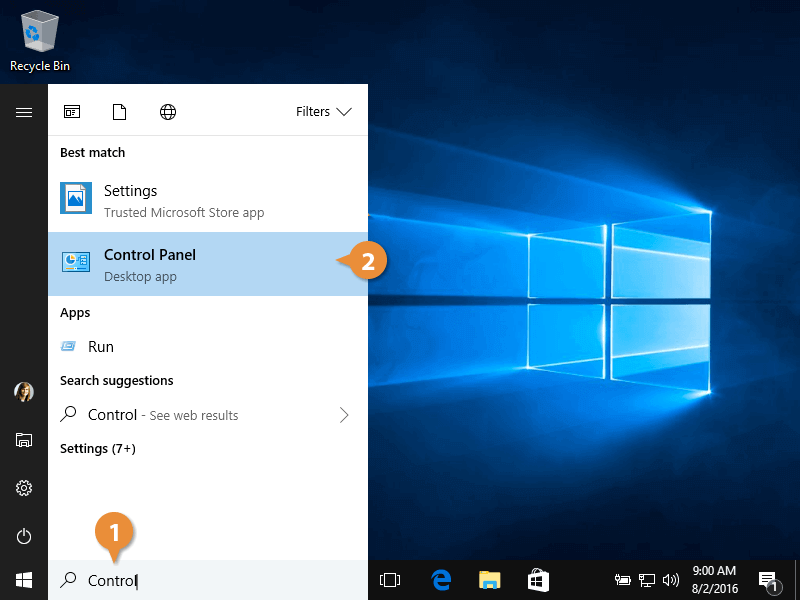
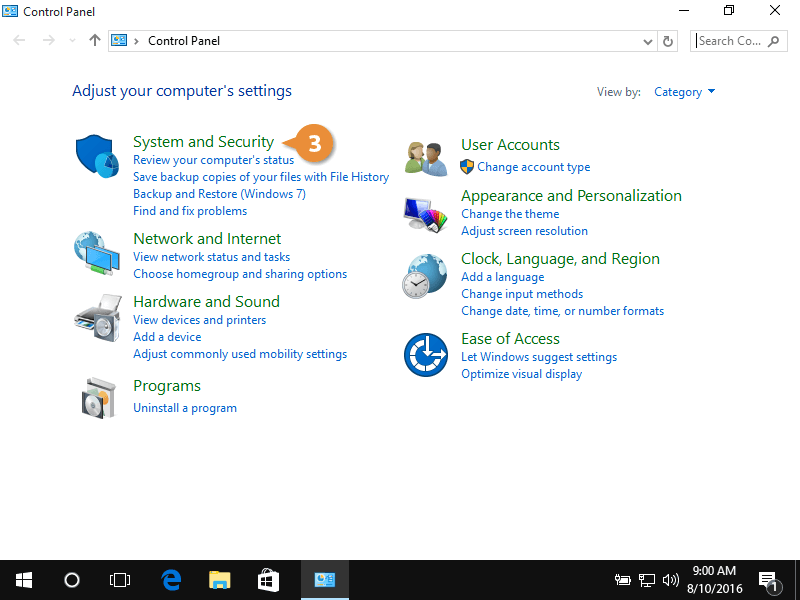
Your computer settings appear.
- Click System and Security.
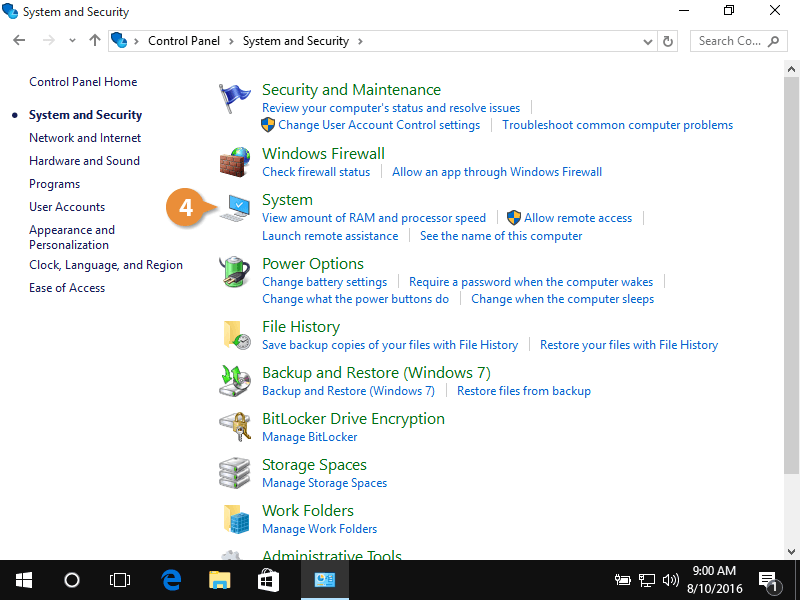
- Click System.
- Click Advanced system settings.
- Click the System Protection tab.
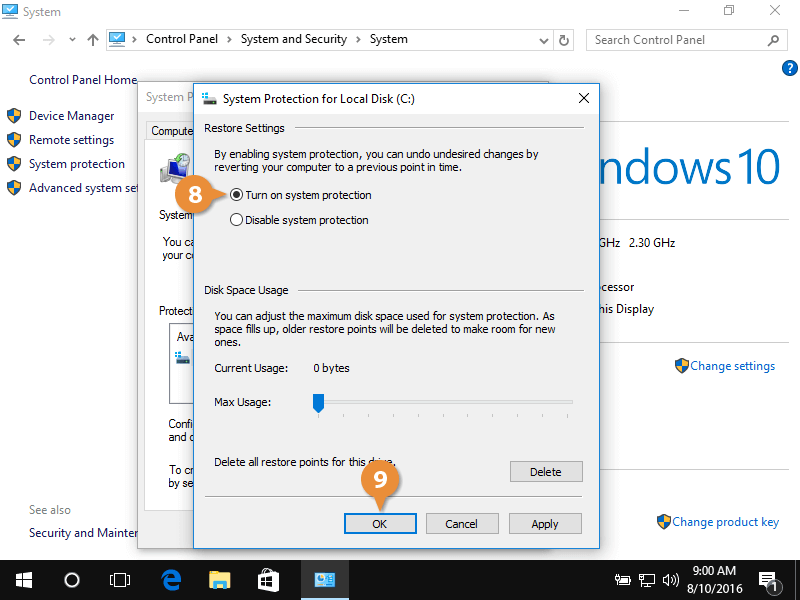
- Click Configure under Protection Settings.
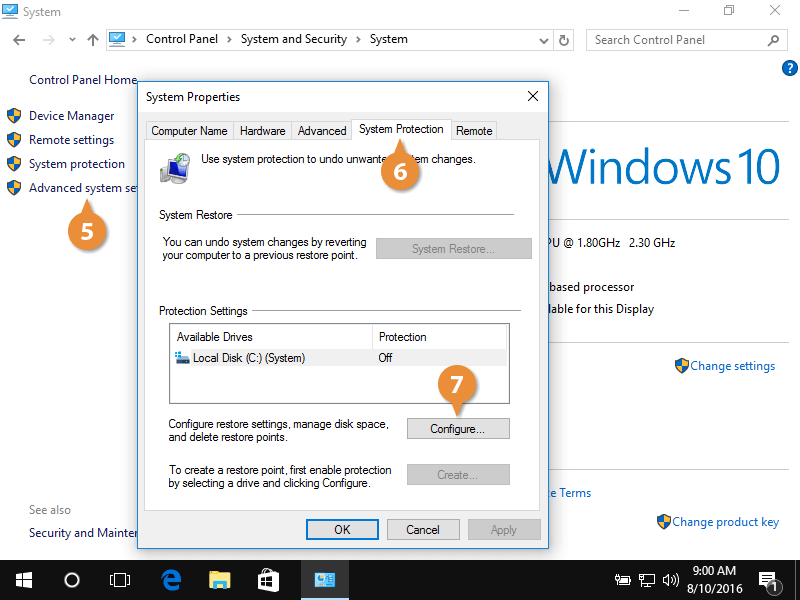
- Select Turn on system protection.
- Click OK or Apply.
Create a Restore Point
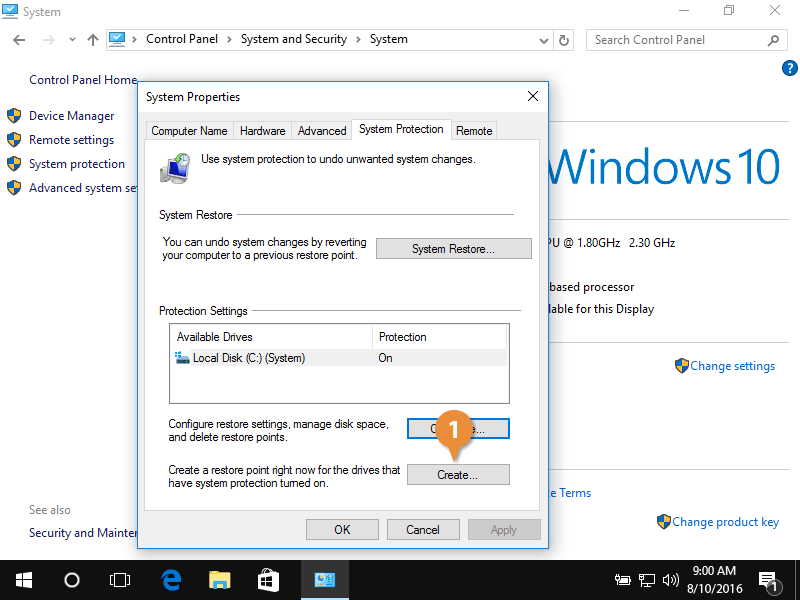
Here's how you create a restore point.
- Click Create under Protection Settings from the System Protection tab.
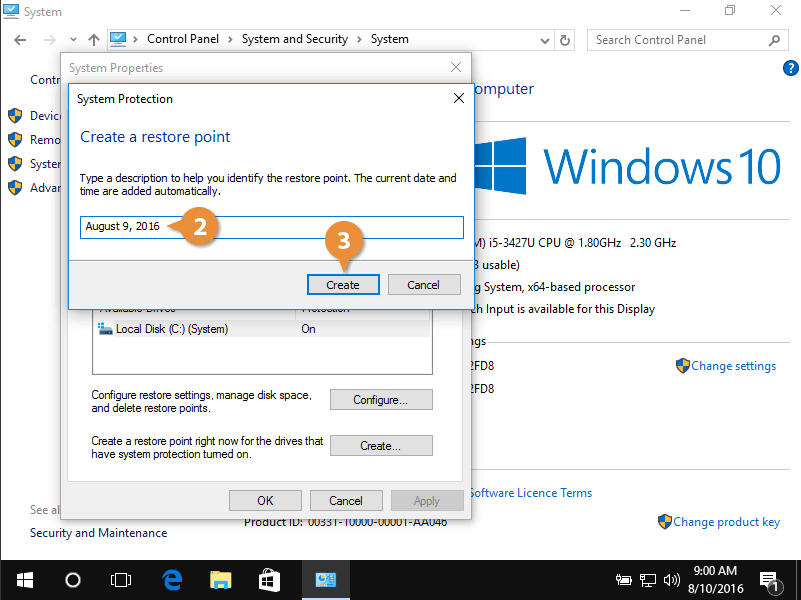
- Type a description for the restore point.
- Click Create.
Restore from a Restore Point
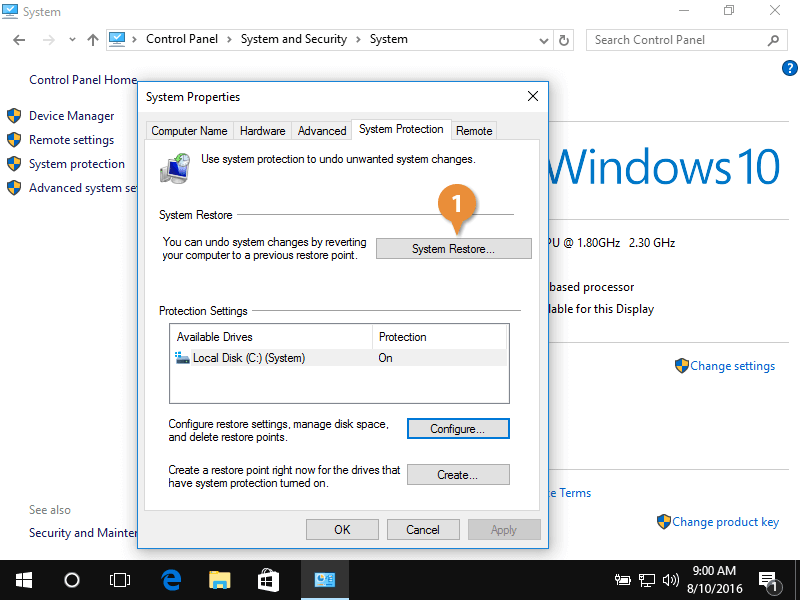
Follow these steps to restore Windows back to the previous day's version.
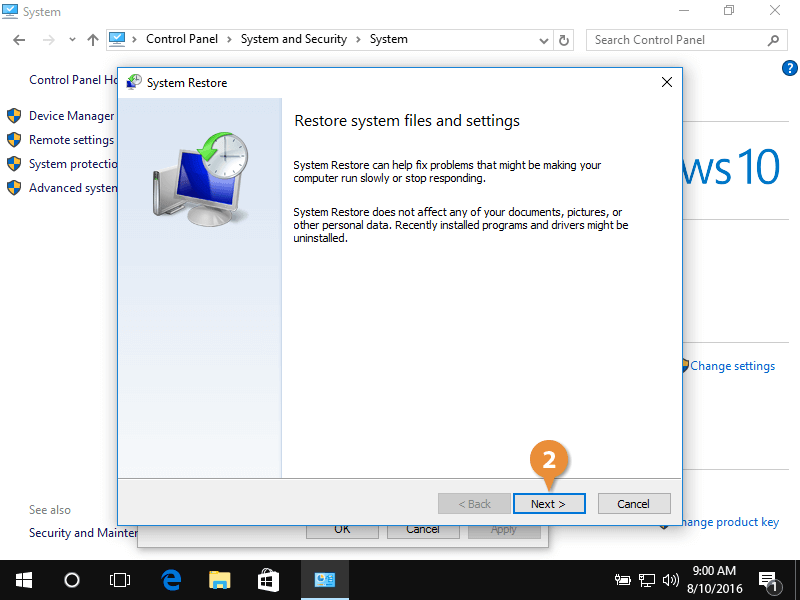
- Click System Restore from the System Protection tab.
- Click Next.
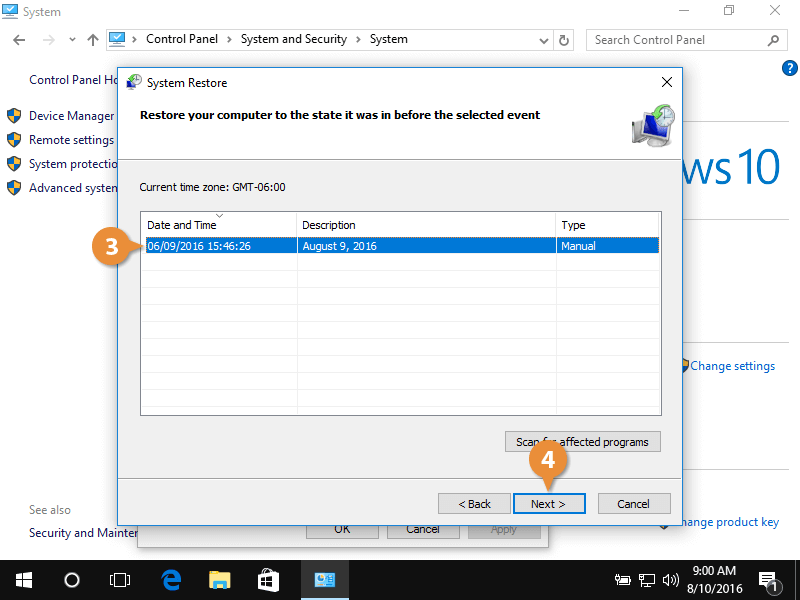
- Select a restore point.
- Click Next.
- Confirm the restore point and system restoration, and then click Finish.
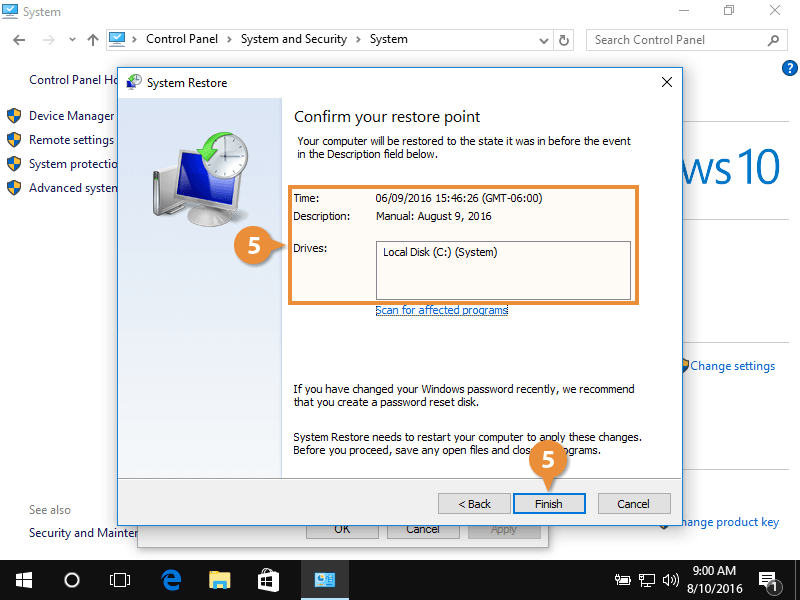
Once a system restoration begins, it can't be stopped.
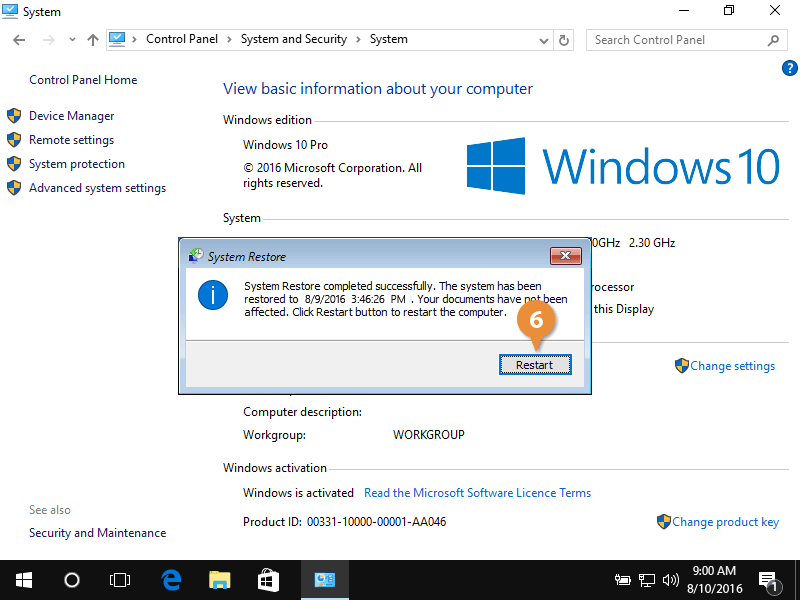
- Once your computer restores the files and data, click Restart.