Improve Battery Life in Windows 10
Optimize Power Settings and Manage Background Apps to Extend Windows 10 Battery Life
Try this Course with a Free Trial

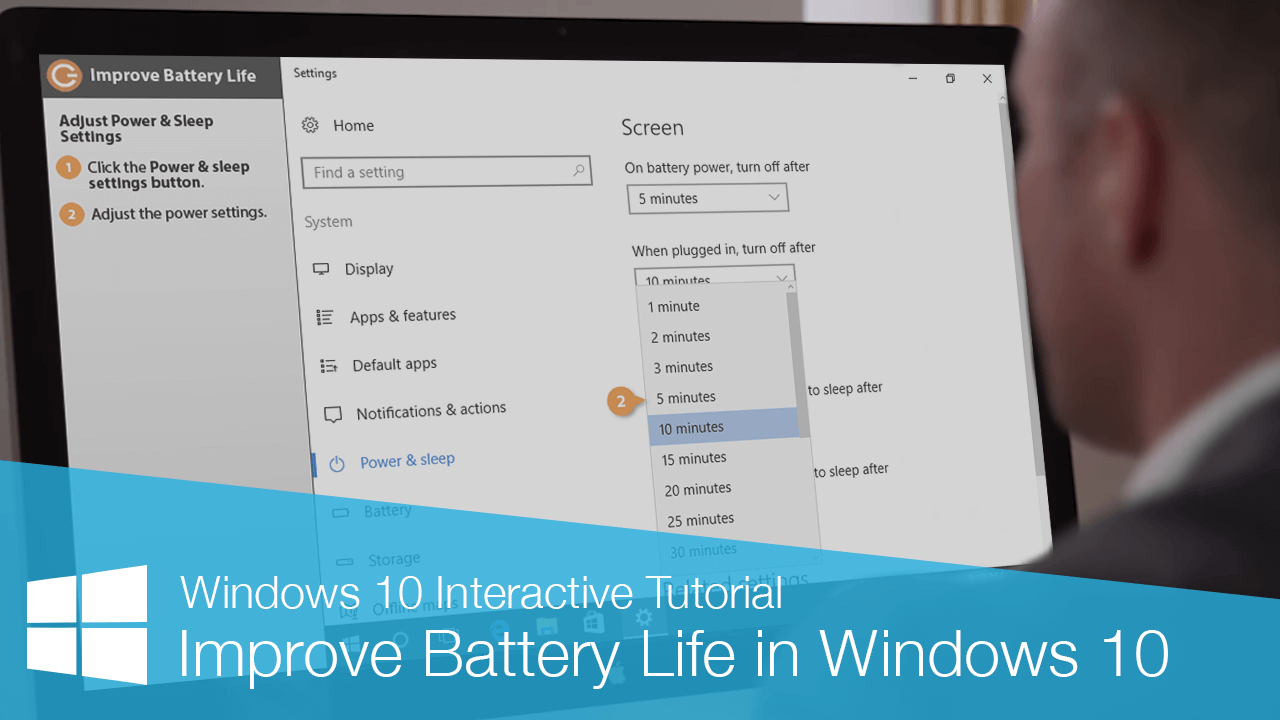
Adjusting battery saver to automatically turn on at a higher battery level, lowering the screen brightness, and allowing your computer to sleep sooner after inactivity occurs are all techniques for improving your battery life.
Adjust Battery Saver
When you turn on your computer's battery saver feature, Windows limits background activity and notifications to conserve battery life.
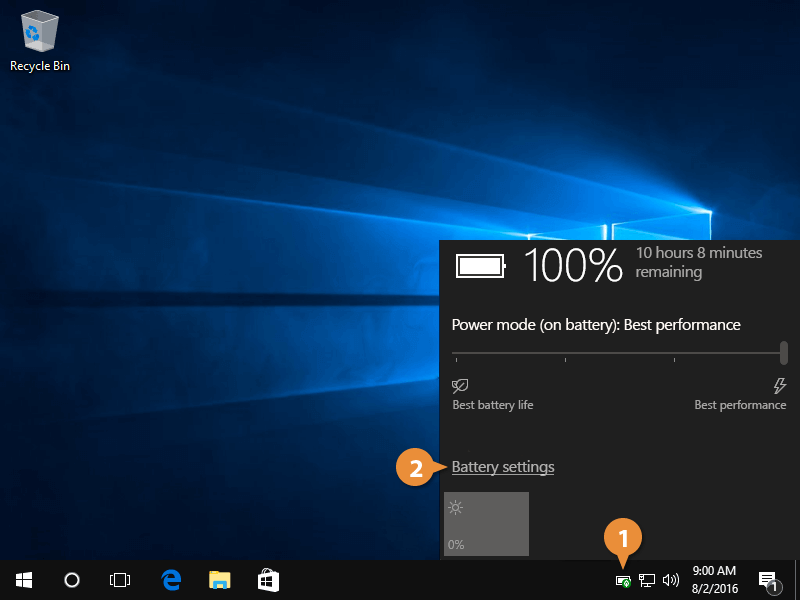
- Click the Battery Status icon.
View your battery power and performance mode, which ranges from best battery life to best performance.
- Click Battery settings.
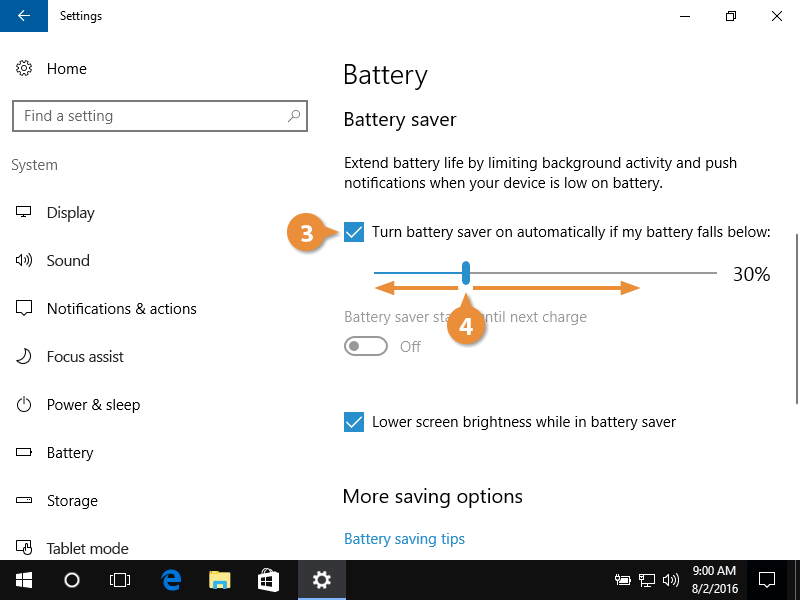
- Check the Turn battery saver on automatically if battery falls below check box.
- Adjust the threshold to trigger battery saver mode, as desired.
Adjust Screen Brightness
Lowering your computer screen brightness will also help you save battery power.
- Click the Start button.
- Click the Settings button.
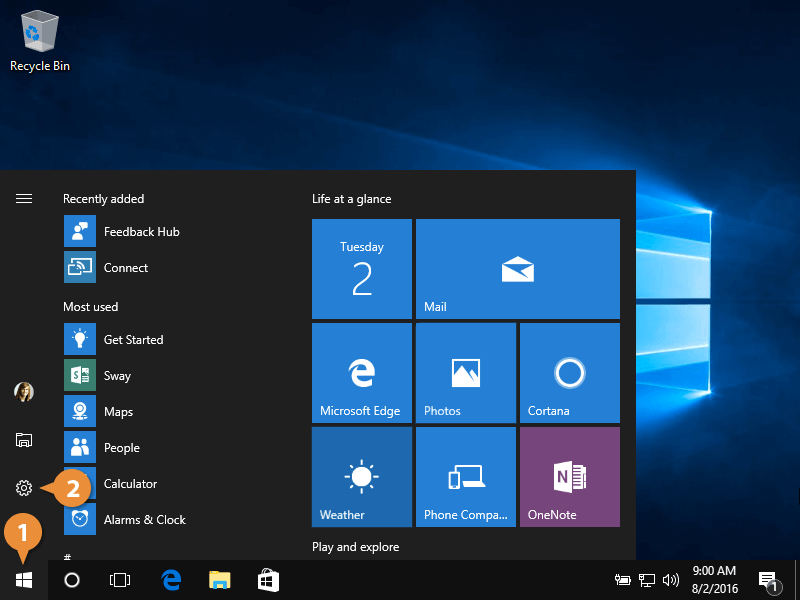
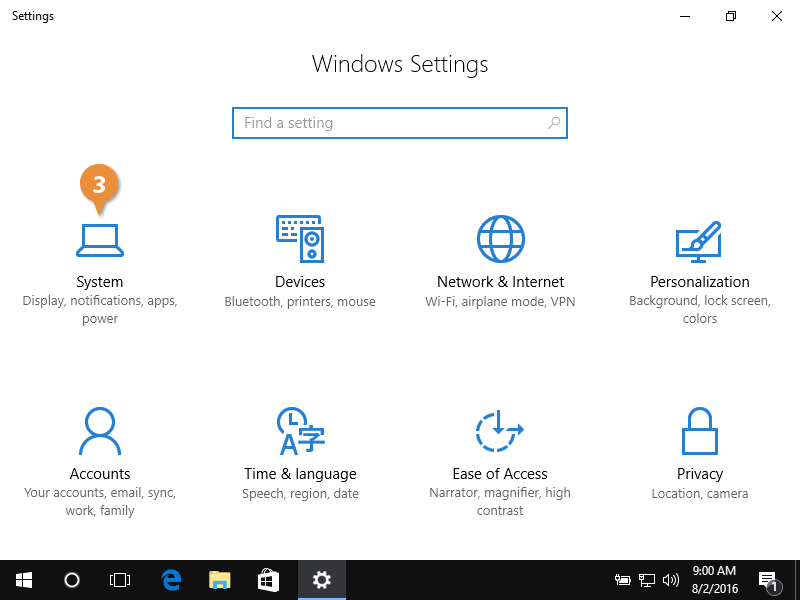
Settings categories appear.
- Choose System.
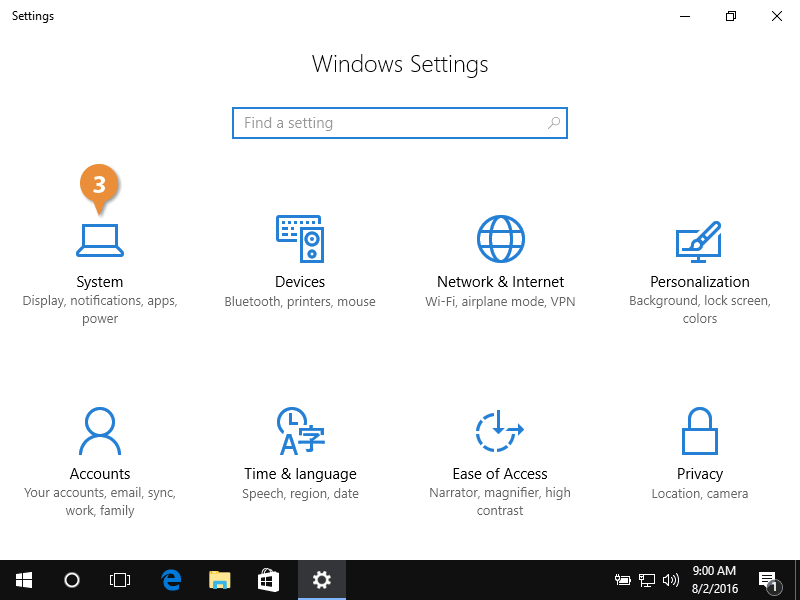
- Adjust the Change brightness slider to the desired brightness level.
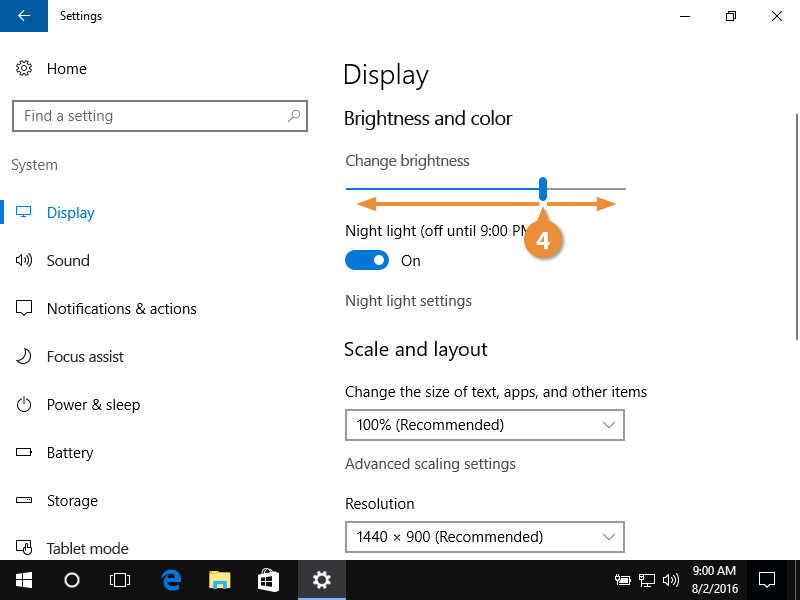
If you're using a desktop PC or external monitor, you may not have a brightness slider in your Settings menu. Instead, use the buttons on your monitor to adjust brightness.
Adjust Power and Sleep Settings
Adjust advanced power settings, which include how long Windows waits before it saves power.
- Click the Start button.
- Click the Settings button.
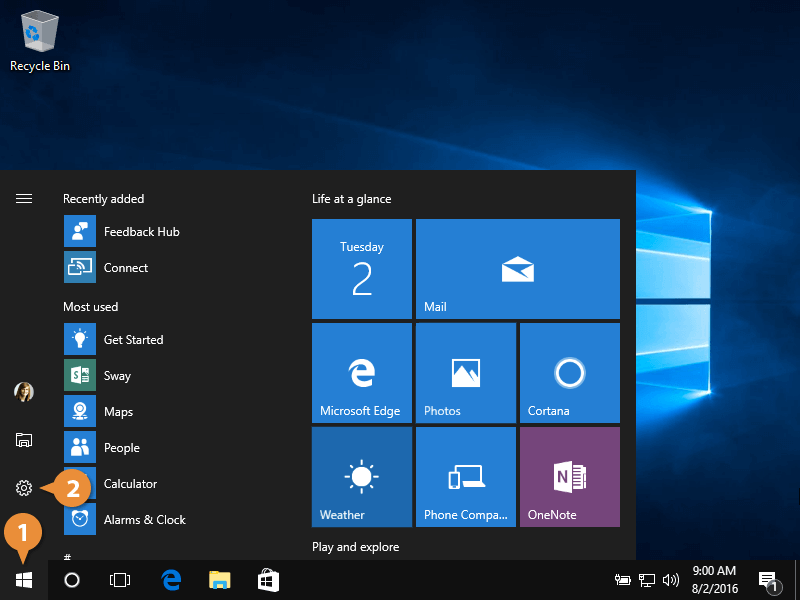
Settings categories appear.
- Choose System.
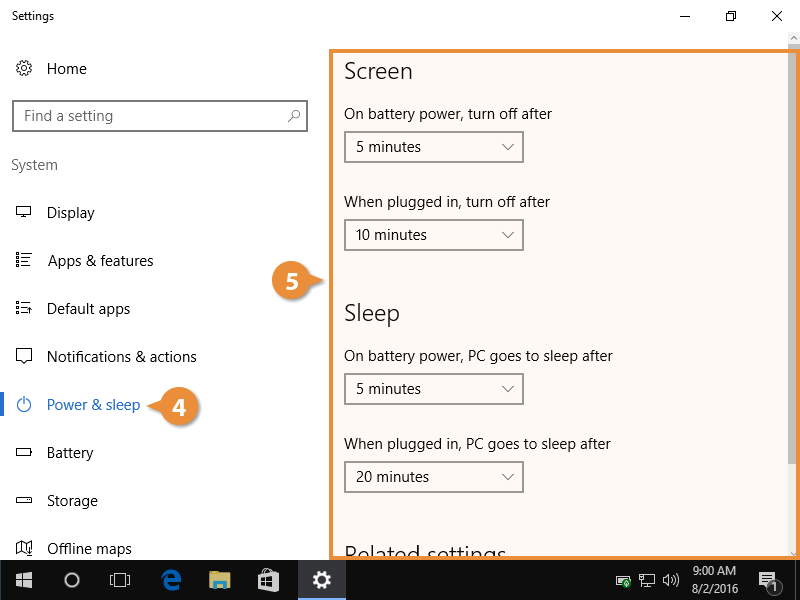
- Choose Power & sleep.
- Choose when Windows turns off your screen and when your computer goes to sleep.