

View Registers
View registers to filter entries, spot errors, and reconcile balances with confidence
Pruebe este curso con una prueba gratuita

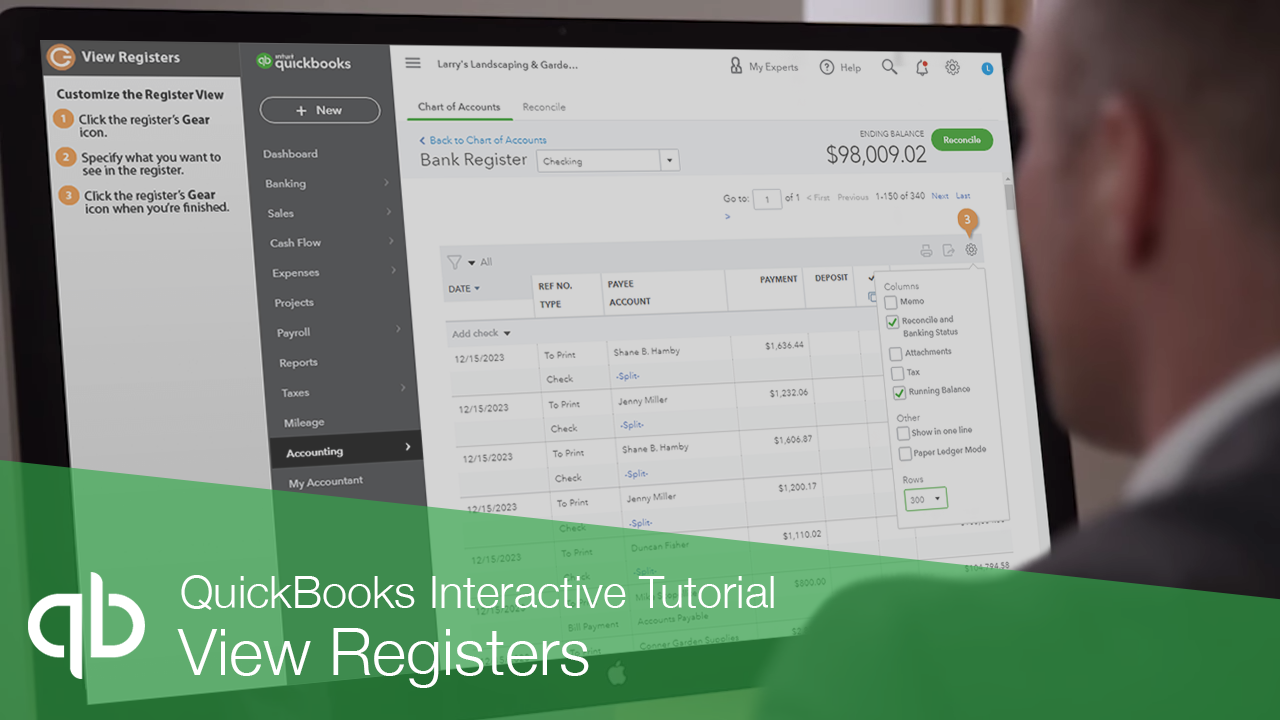
In QuickBooks, an account register is a list of all the transactions that are in an account, and if you’ve been good about reconciling your accounts, the account’s balance.
View an Account Register
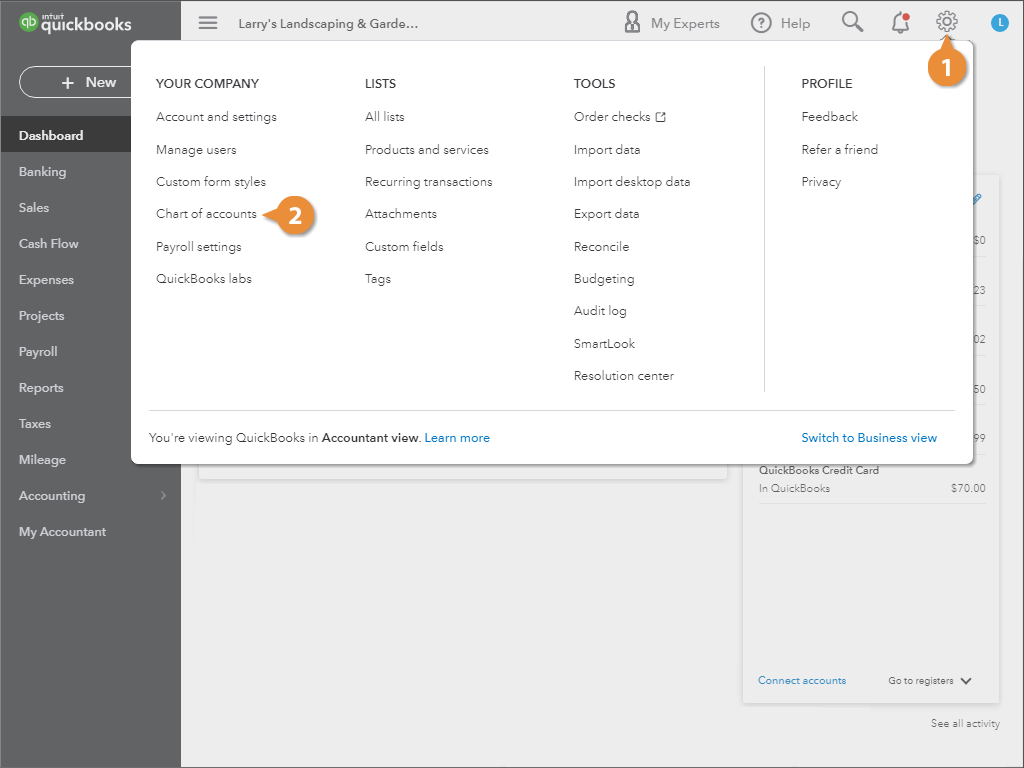
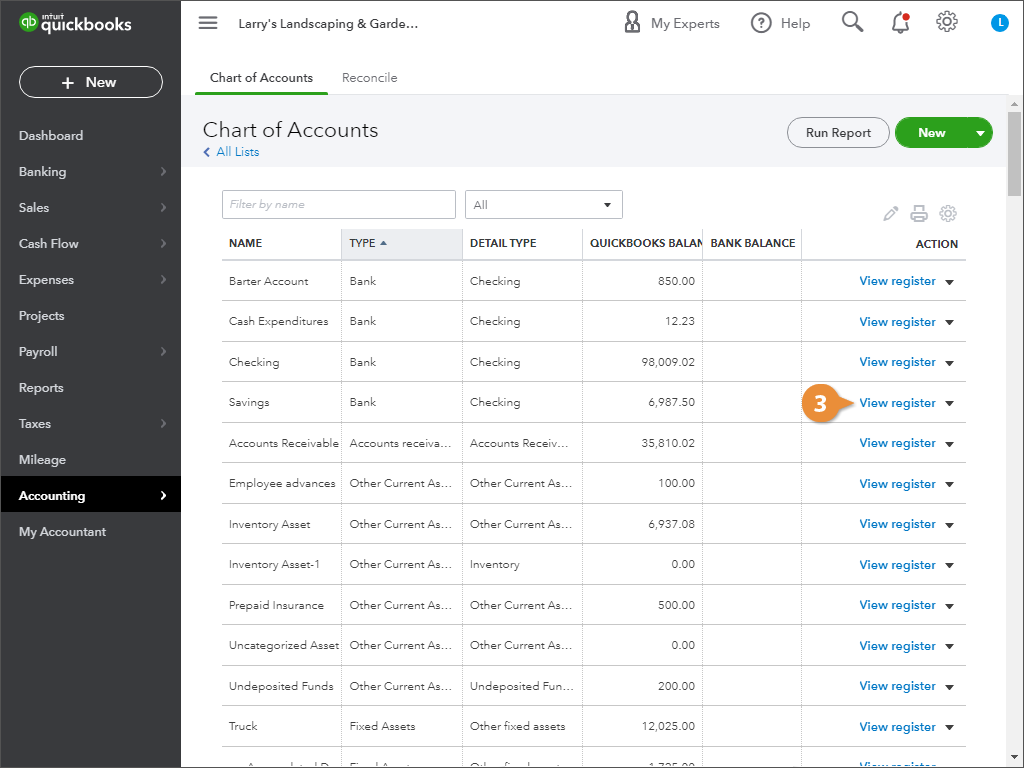
Account registers can span across many pages, depending on how many transactions are in the account. You can use these controls to navigate between the pages of the register.
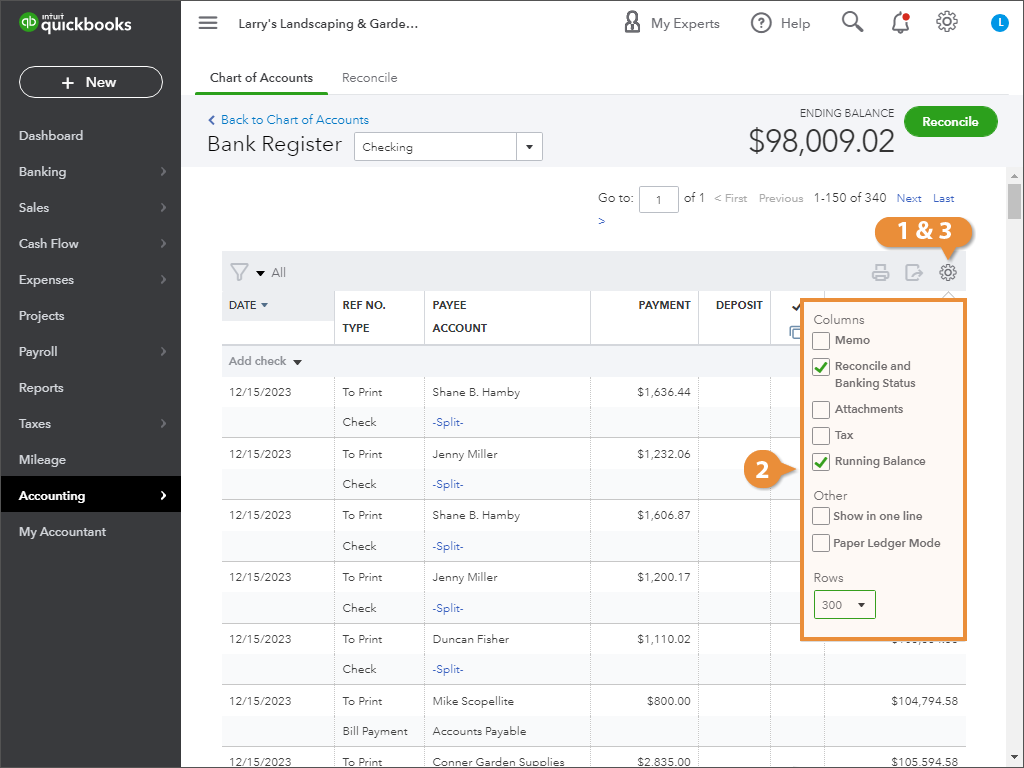
Customize the Register View
- Click the register’s gear icon.
- Specify what you want to see in the register.
- Click the register gear icon when you’re finished.
Sort Transactions
You can sort the list of transactions by date, reference number, type of payment, or reconcile status. By default, transactions are sorted by date, with your most recent transactions listed first.
- Hover over the column header you want to sort by.
- Click the column header to sort the register by that column.
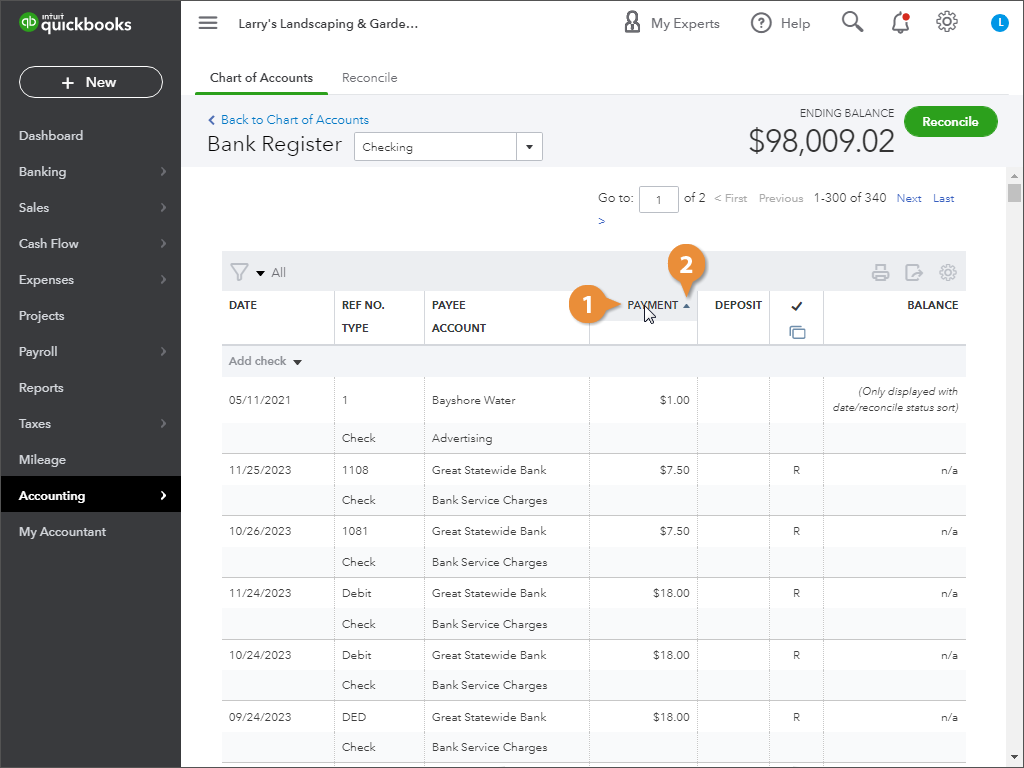
- Click the column header again to change the sort order.
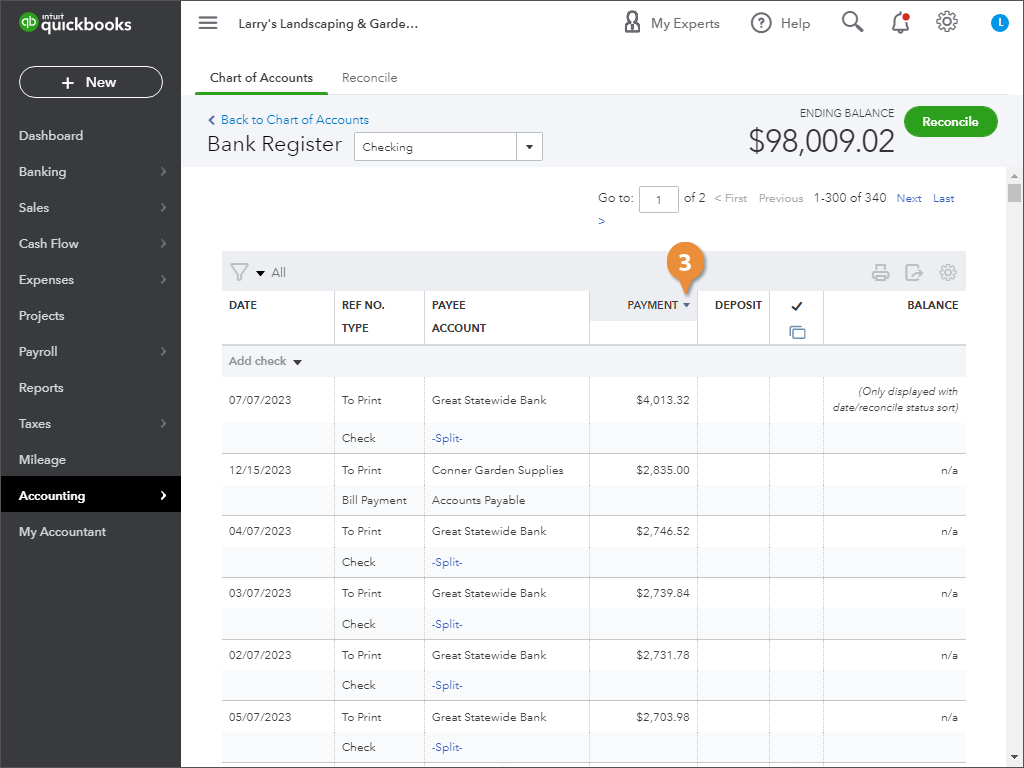
Arrows appear in the column header, indicating that you can sort the column.