
Set Up Online Banking
Connect QuickBooks Online banking feeds, auto-import transactions, and speed up monthly reconciliations
Try this Course with a Free Trial


Connecting your bank and credit card accounts to QuickBooks Online is a great way to track your deposits and expenses without having to enter everything manually.
QuickBooks can connect to many online bank accounts and can automatically download the last 90 days of transactions from your bank.
Set Up Online Banking
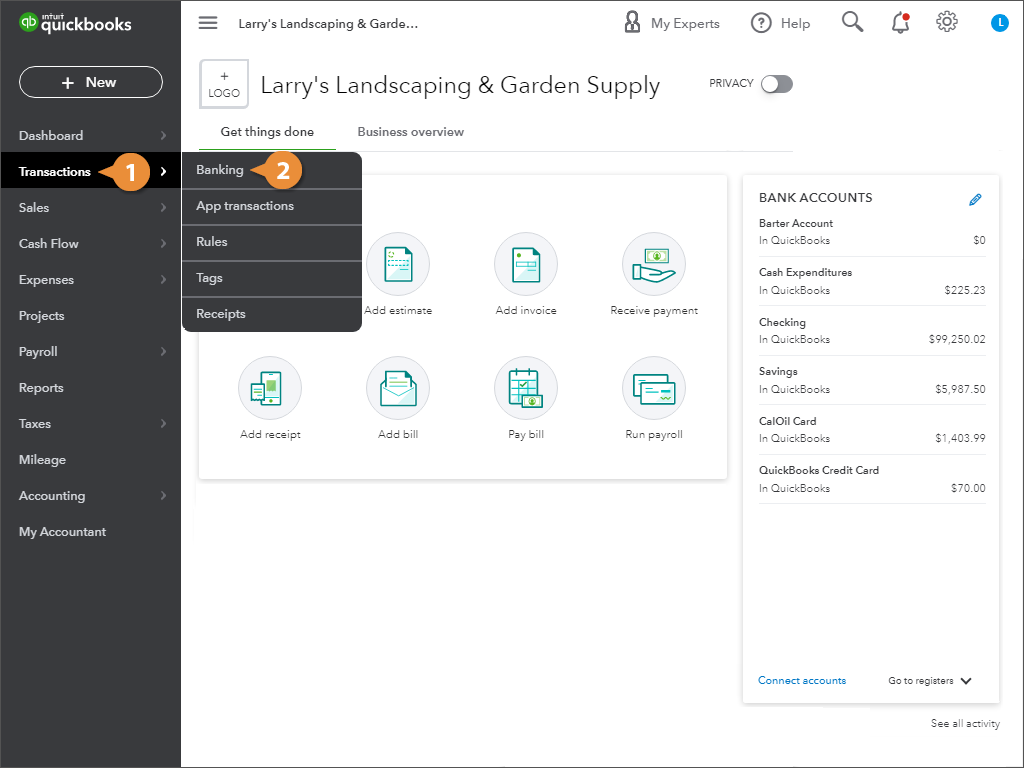
- Click Transactions.
- Select Banking.
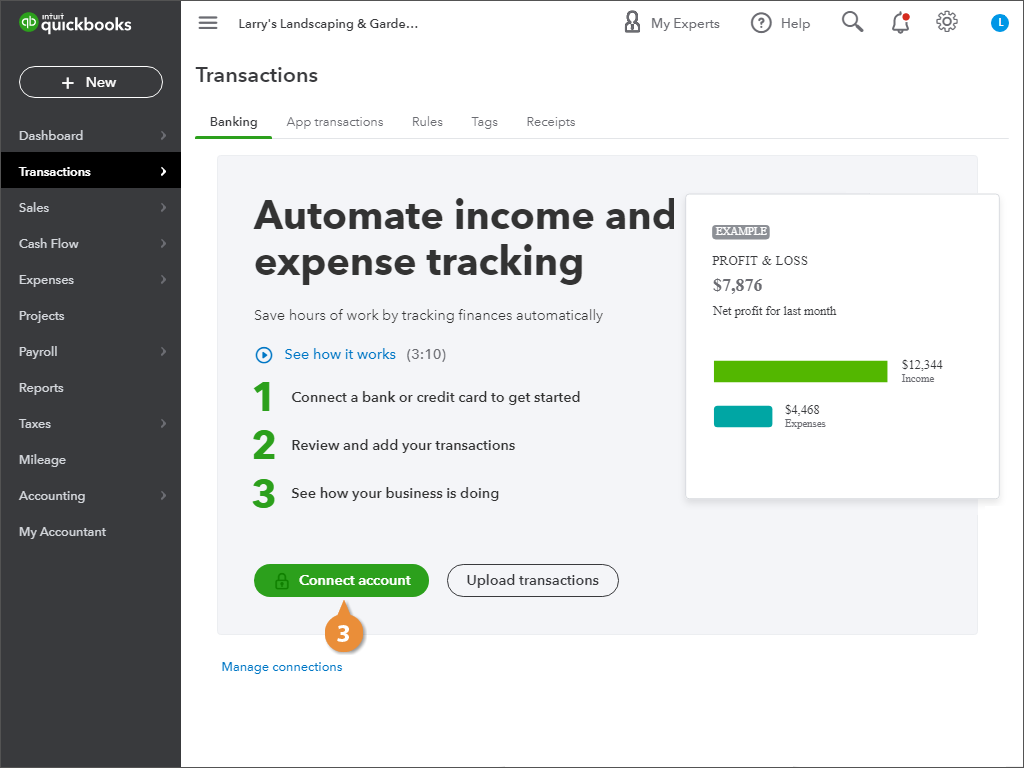
- Click Connect Account.
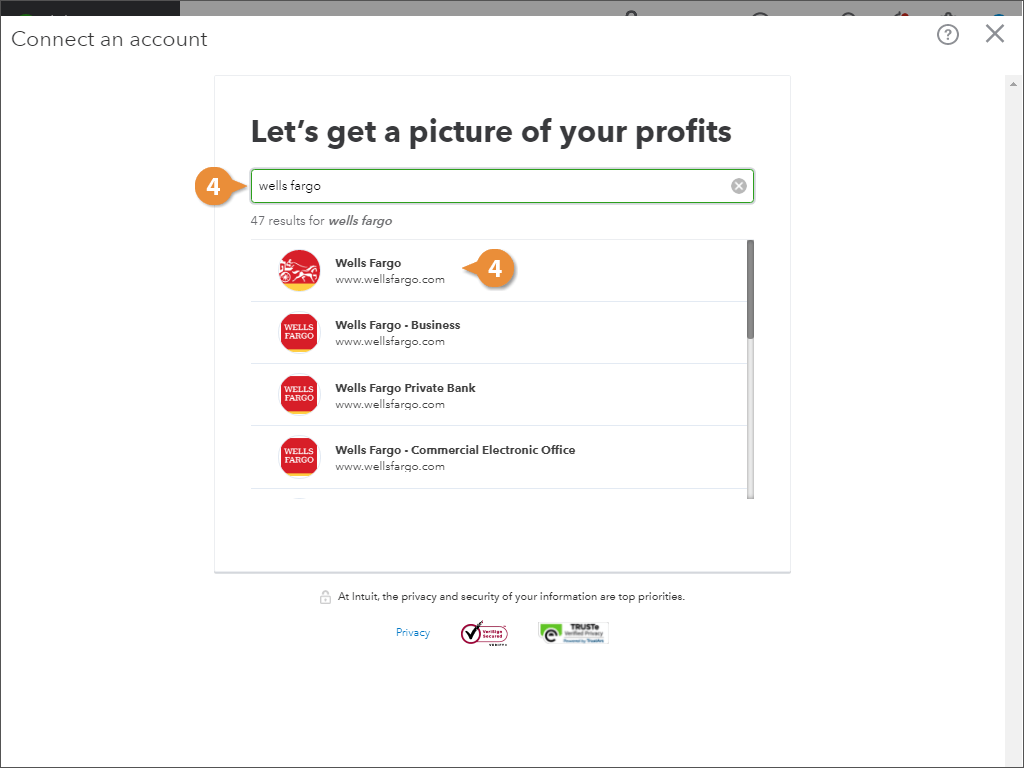
- Enter your bank name or URL and select it from the list.
- Click Continue.
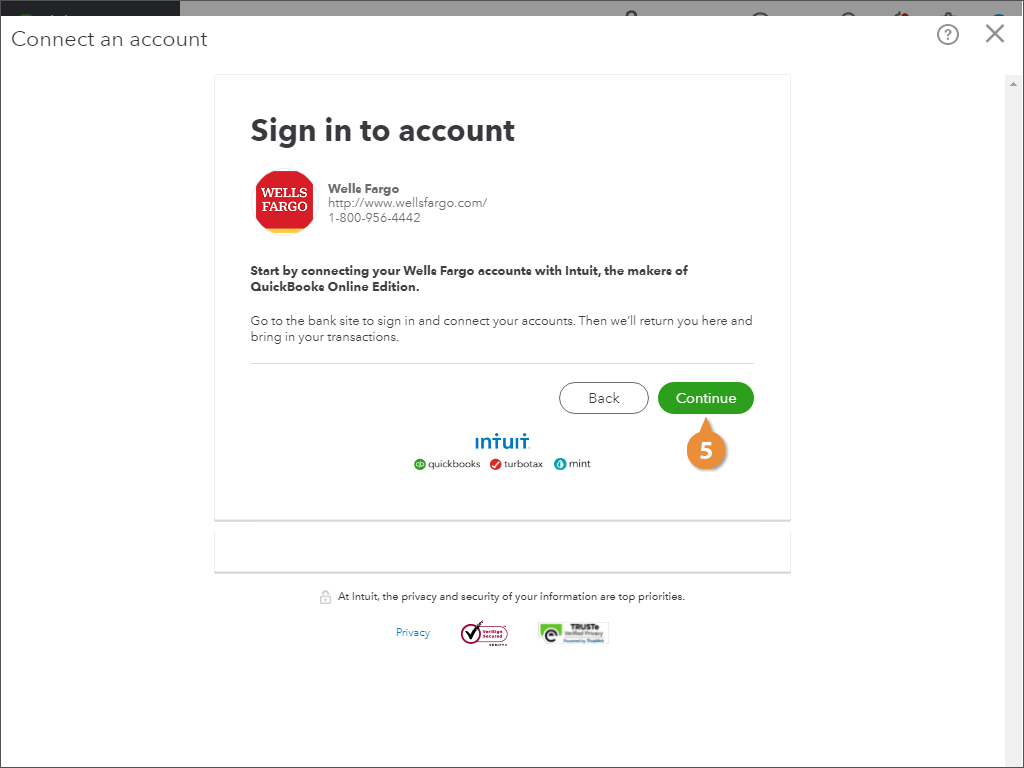
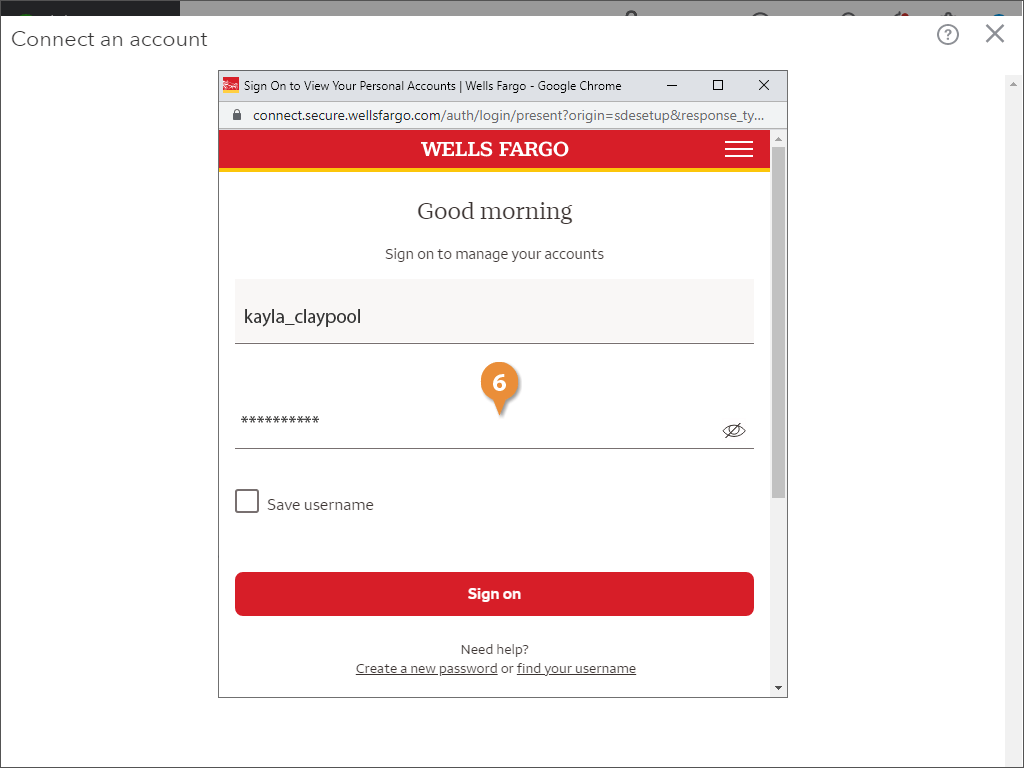
- Enter the credentials and any other information that your online banking requires.
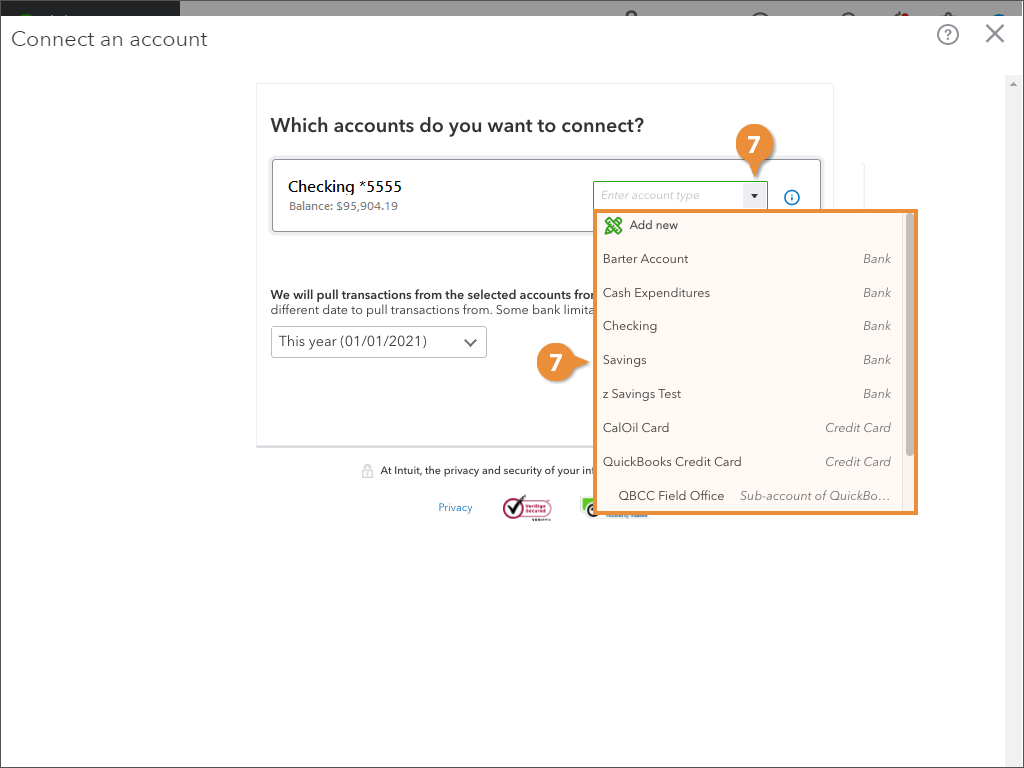
- Select the QuickBooks account you want to link with online banking.
- Click Connect.
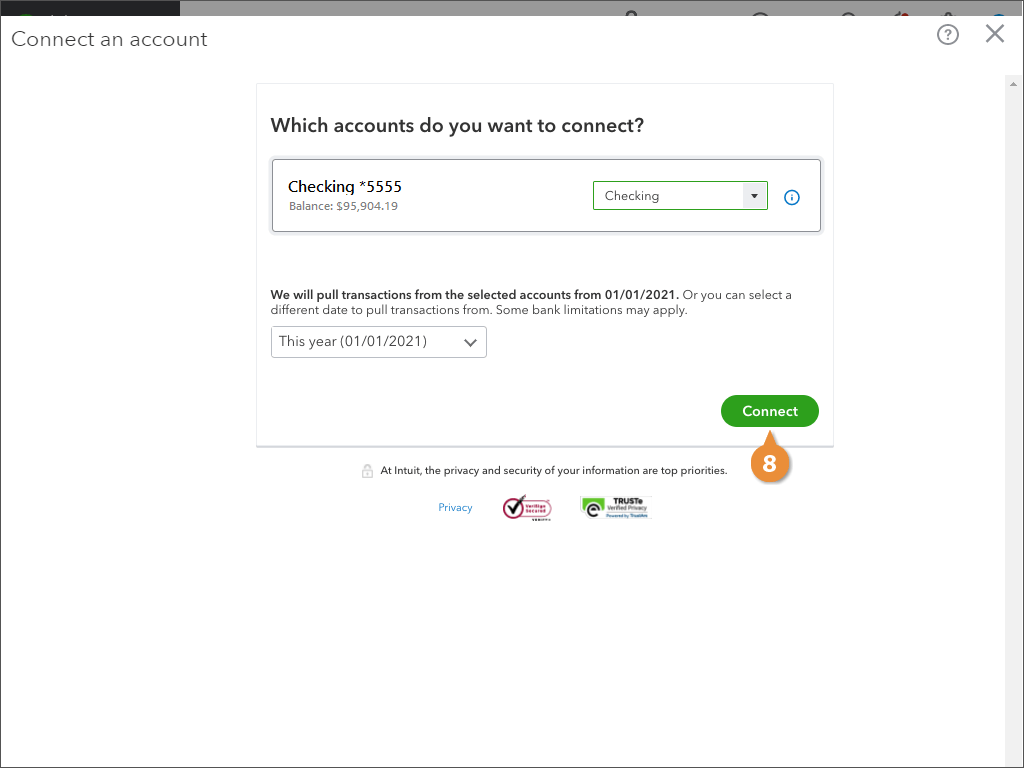
QuickBooks downloads the transactions from the bank account into the specified QuickBooks account.
Once the transactions are finished downloading, QuickBooks displays the bank feed; you’re ready to review and categorize the downloaded transactions into QuickBooks.