Download Bank Transactions
Import bank transactions, categorize each line, and post to the right accounts for accurate books
Try this Course with a Free Trial


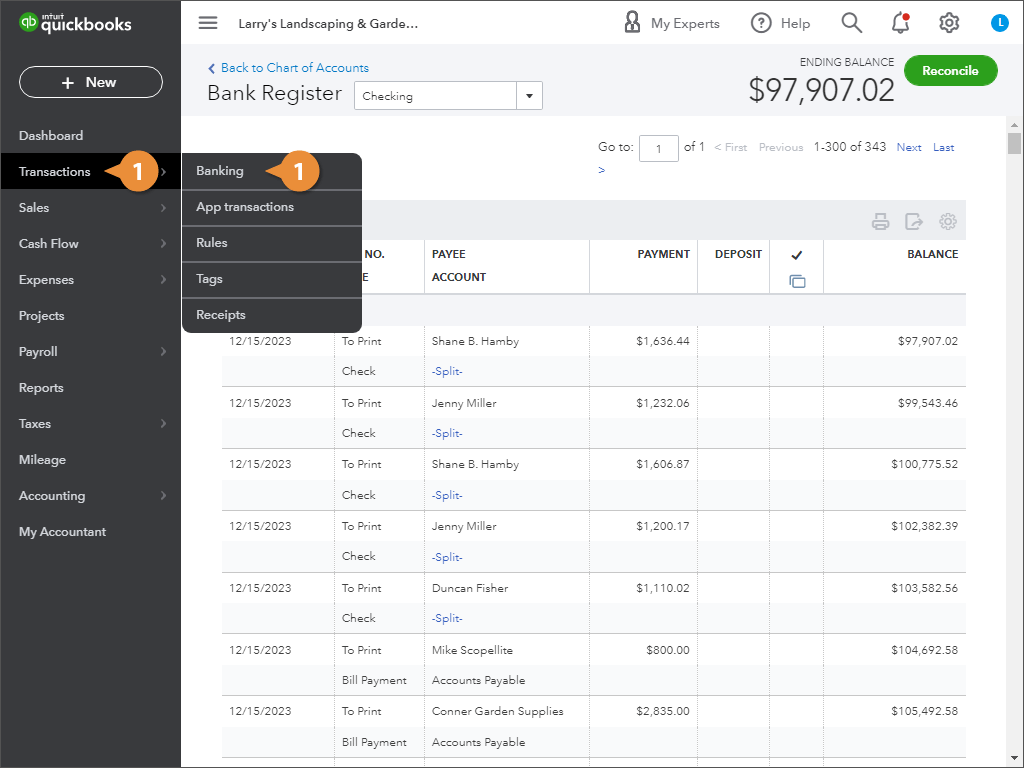
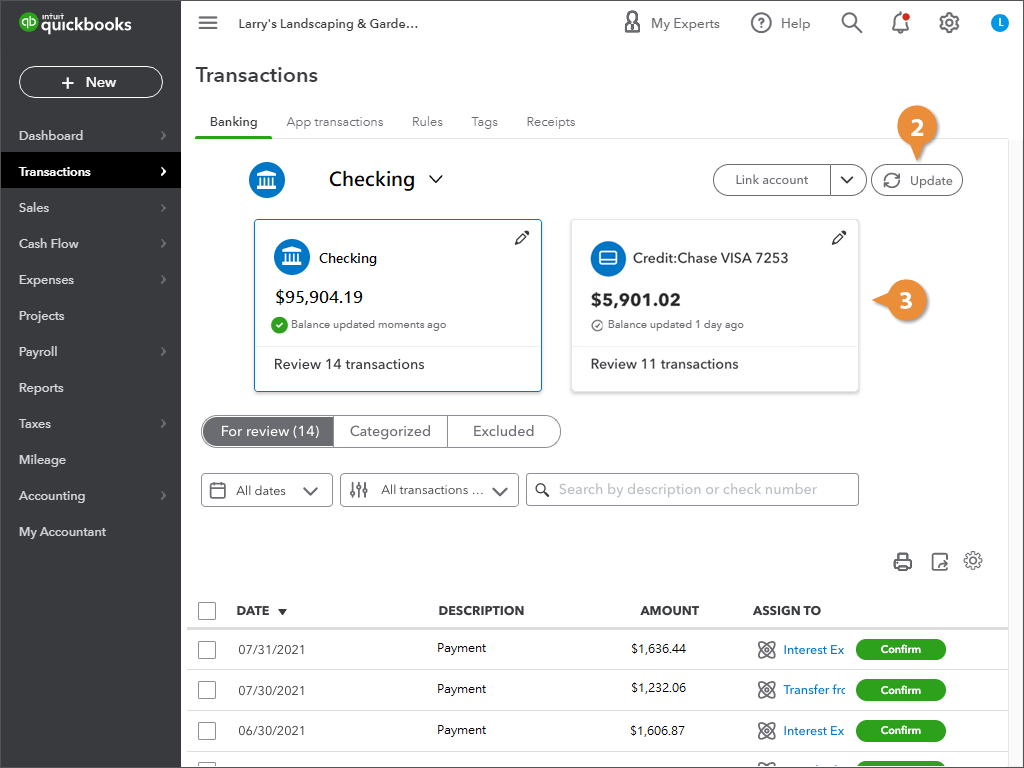
Once you’ve connected your online banking accounts with their corresponding QuickBooks accounts, you can download the last 90 days of bank transactions and import them into QuickBooks.
Download Bank Transactions
Review Transactions
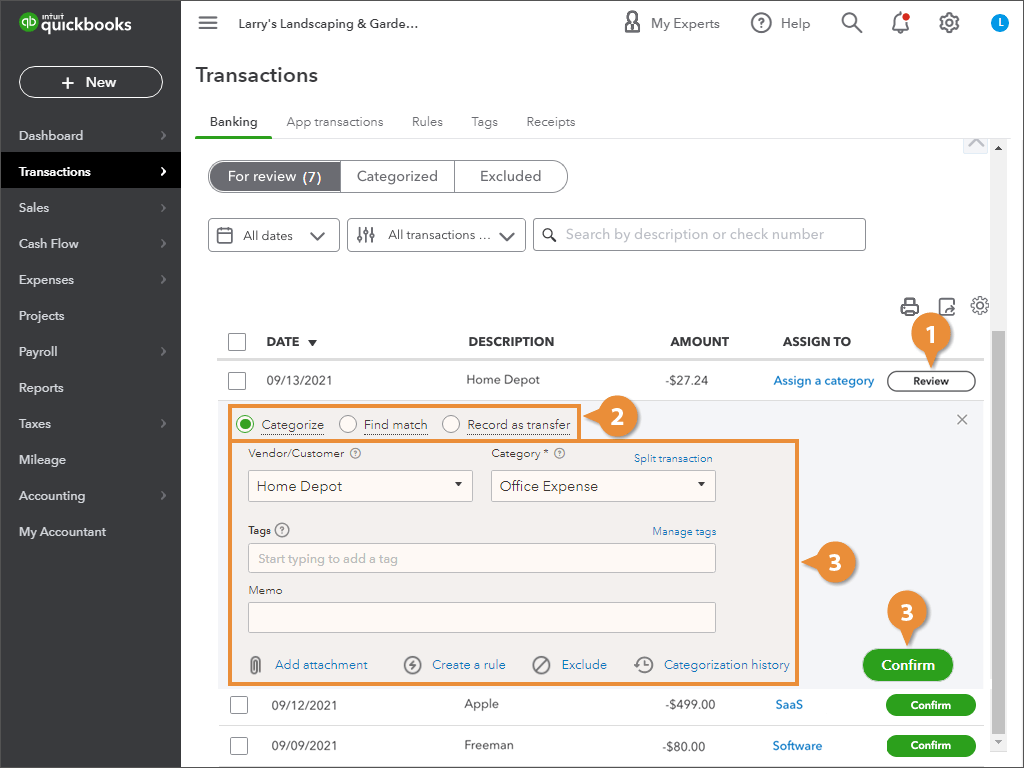
Transactions that aren’t recognized by a bank rule are labeled with a Review button; you’ll need to manually review, categorize, and confirm them.
- Click the Review button next to the transaction.
- Select the most appropriate action, based on the transaction:
- Categorize to add a transaction you know isn’t in QuickBooks.
- Find match to link the transaction to an existing QuickBooks record and avoid duplicates.
- Record as transfer when you move money between two bank accounts.
- Enter the information requested by the screen and click Confirm or Save.
Confirm Transactions
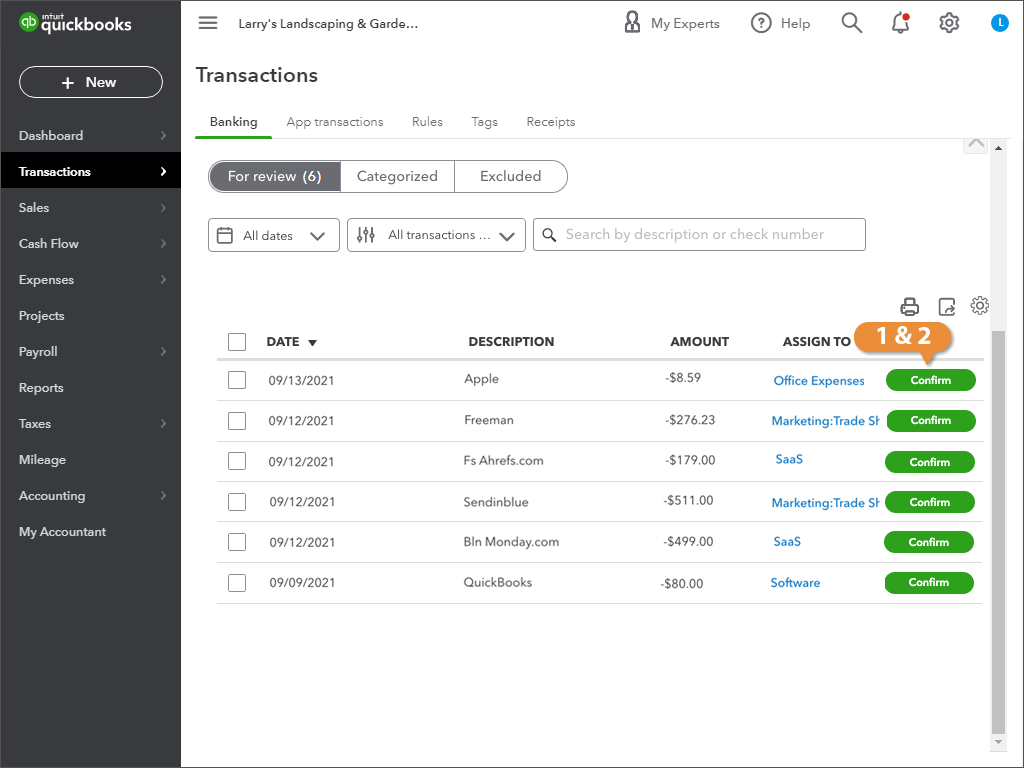
QuickBooks can automatically categorize some transactions, as it learns how you categorize banking transactions and based on any online banking rules that are set up. Recognized transactions can either be added to QuickBooks automatically, or require you to confirm them first.
- If the Description and Assign To information is correct: Click Confirm.
- If the Description or Assign To information isn’t accurate: Fix the data, then click Confirm.
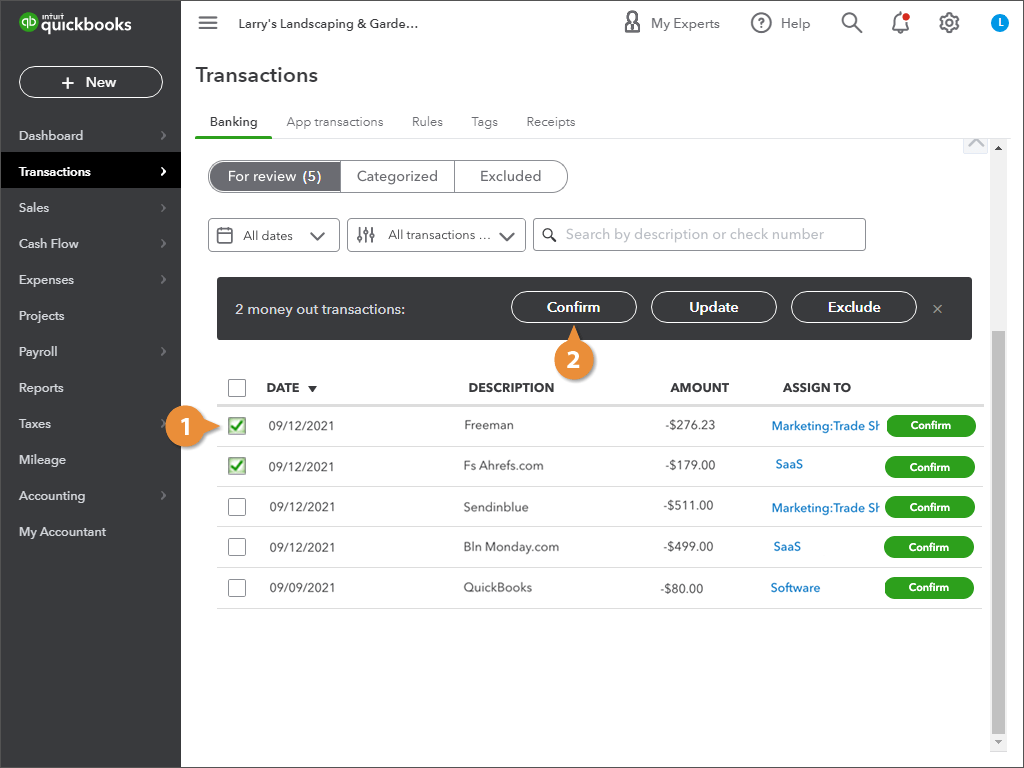
Batch Confirm
- Review and select multiple confirmed transactions.
- Click Confirm in the header to add the selected transactions.
View Categorized Transactions
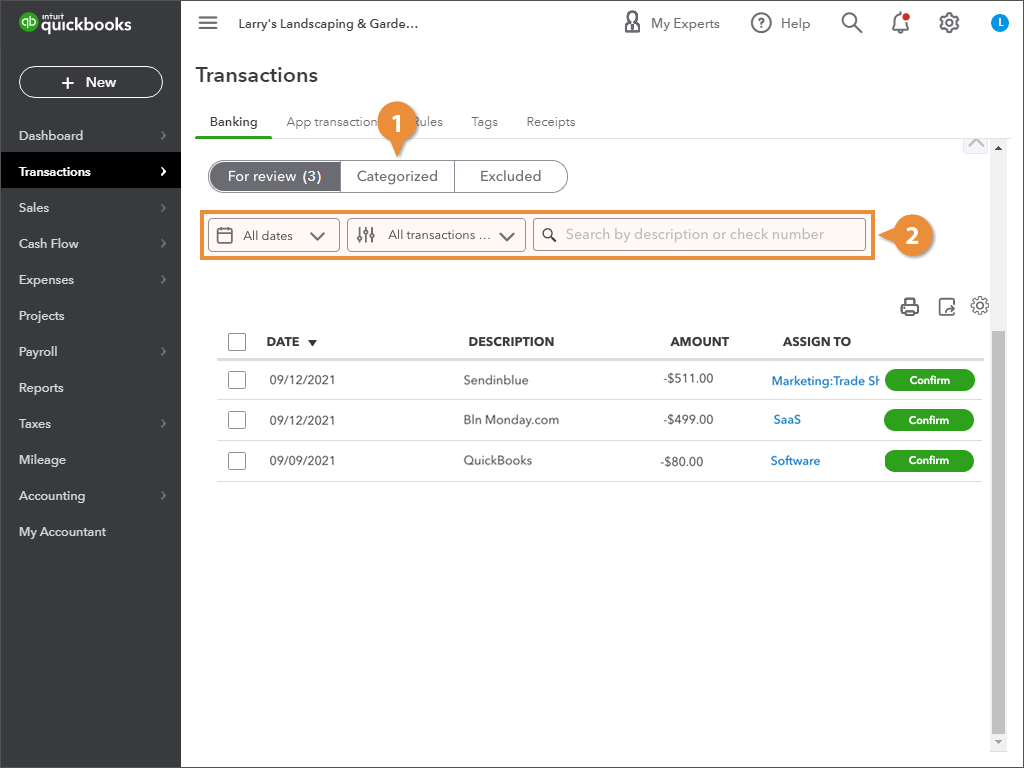
- Click the Categorized tab.
- (Optional) Use the filters and search controls.