How to Start Slideshow in Powerpoint
Begin Your Presentation in PowerPoint Using Slideshow Mode and Presenter Tools
Try this Course with a Free Trial

There are multiple ways you can deliver a PowerPoint presentation, such as distributing paper handouts or by running the presentation on a computer. Running a presentation on a computer is the preferred method because it gives you the most control over the presentation and allows you to use multimedia, animation, and other effects.
Start and End a Slide Show
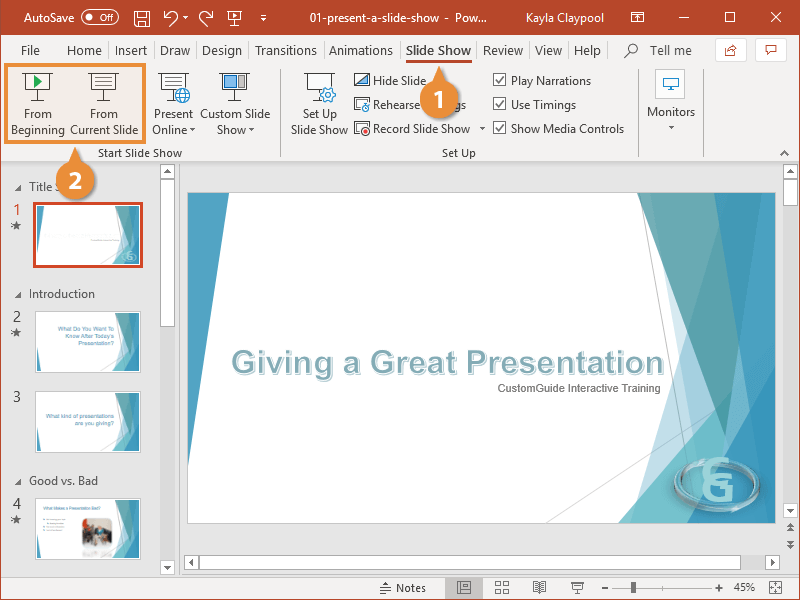
- Click the Slide Show tab on the ribbon.
- Select From Beginning or From Current Slide.
You can also press F5 on your keyboard or click the Slide Show button in the status bar to start the presentation.
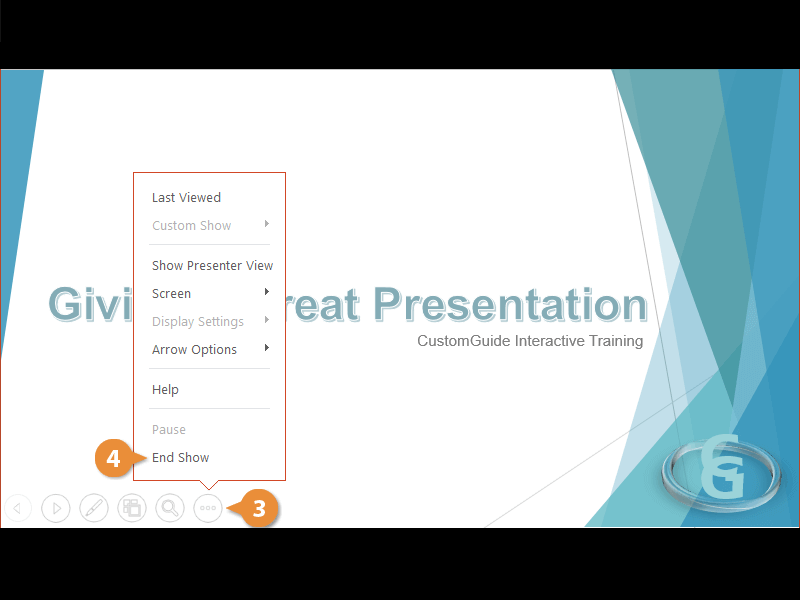
- To exit the presentation and return to normal view, click the Options button.
- Select End Show.
Pressing the Escape key also ends the presentation.
Move Through Slides
There are navigation buttons located at the bottom-left of a slide when presenting. You can use these to navigate a presentation or use navigation keystroke shortcuts on the keyboard.

Keyboard Shortcuts for Presenting a Slide Show
| Action | Keyboard Shortcut |
|---|---|
| Advance to the next slide | Click the left mouse button or press any of the following keys on the keyboard: Enter, Spacebar, ?, ?, N, or Page Down. |
| Go back to the previous slide | Press any of the following keys on the keyboard: ?, ?, P, or Page Up. |
| Jump to a specific slide | Type the slide number and press Enter. |
| Display a white screen | Press W. |
| Display a black screen | Press B. |
| Turn on the laser pointer | Hold the Ctrl key and click and hold the left mouse button. |
| Turn on the pen tool | Press Ctrl + P. |
| End the presentation | Press the Esc key. |
Switch Programs
Sometimes when you're in a presentation, you'll need to switch to a different program to present information.
- While presenting, click the Options button.
- Select Screen.
- Select Show Taskbar.
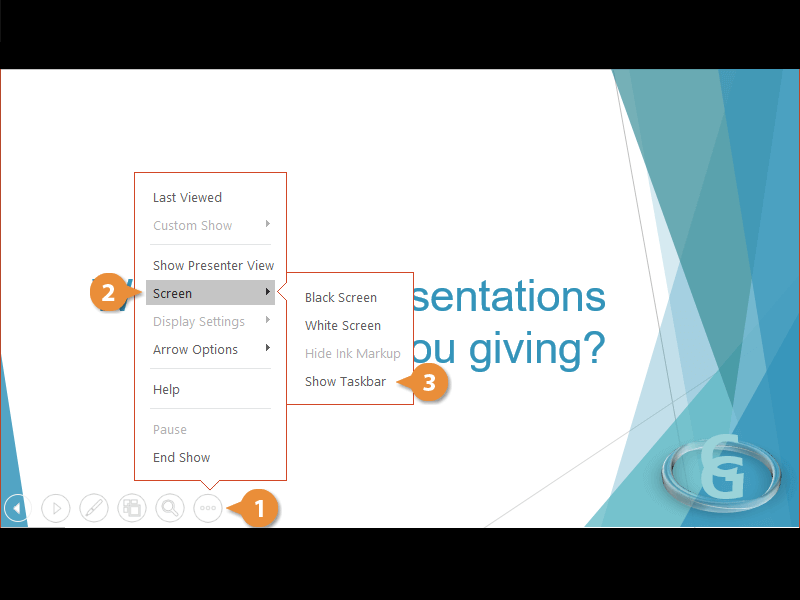
The taskbar pops up at the bottom and now you are free to navigate.
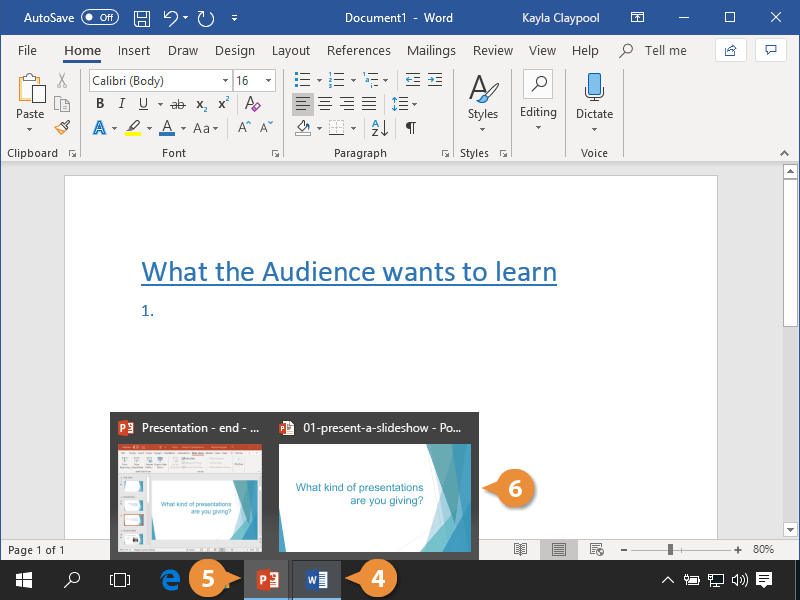
- Click the program you need to jump to.
- When you’re ready to switch back, just click the PowerPoint icon in the taskbar.
- Select the presentation.