

Outlook Spell Check
Automatically check spelling and grammar in Outlook before sending your emails
Try this Course with a Free Trial
Spelling and grammar mistakes can be embarrassing. So, as you compose an email, it’s a good idea to check for spelling errors. Fortunately, Outlook is helpful in identifying spelling and grammar errors in your messages. By default, Outlook checks for spelling and grammar errors as you type, underlining misspelled words in red and double-underlining grammar errors in blue.
Use AutoCorrect
Outlook recognizes several common errors and will use AutoCorrect to automatically fix them for you. For example, AutoCorrect will automatically change the misspelling “teh” to “the.”
Just type—AutoCorrect will fix common typos after you press the spacebar.
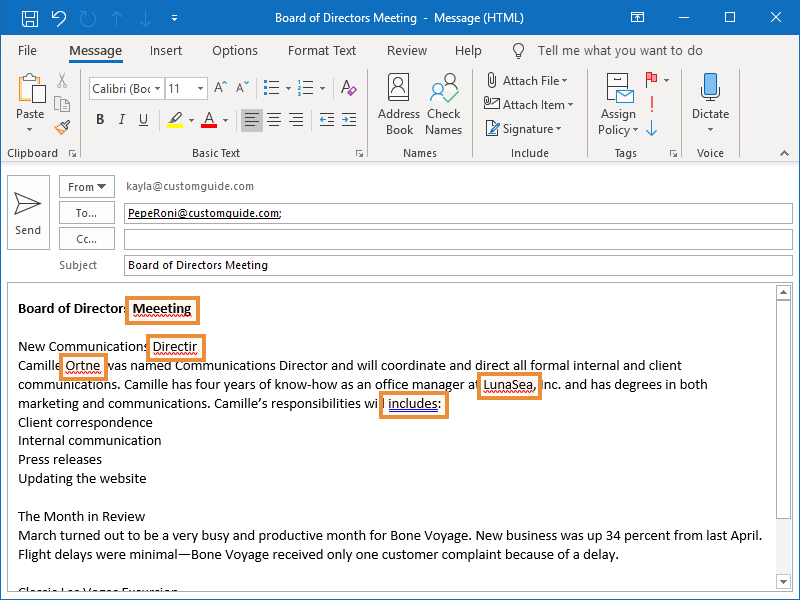
Spelling and Grammar Errors
Spelling and grammar errors are automatically identified as you type.
- Potential spelling errors are underlined in red.
- Potential grammar errors are double-underlined in blue.
Correct a Spelling or Grammar Error
You can fix spelling and grammar errors by manually editing the text or by right-clicking the error to view possible corrections.
- Manually make the corrections.
OR...
- Right-click the error.
- Select the suggestion you want to use from the menu.
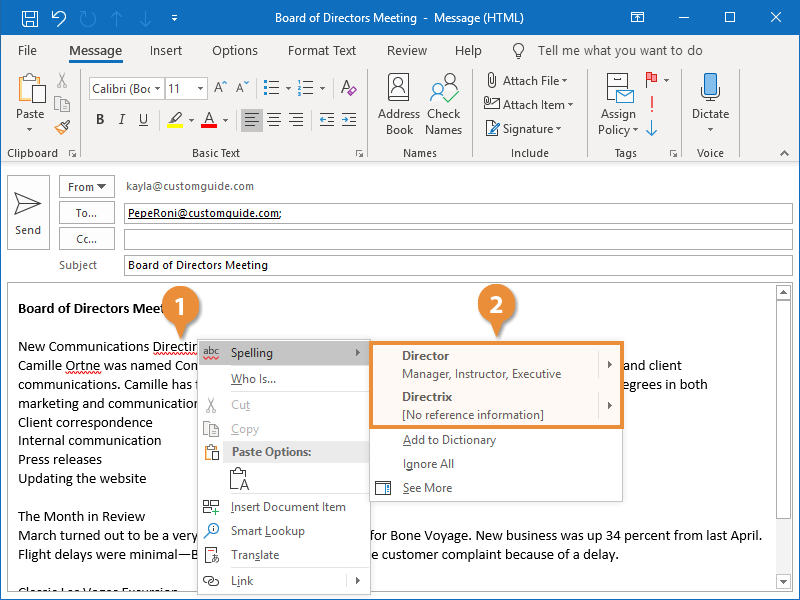
Outlook corrects the spelling of the word and the red underline disappears.
Ignore a Spelling or Grammar Error
Sometimes a word that is spelled correctly will be flagged as an error. This is common with last names and company names. When this happens, you can tell Outlook to ignore the error.
- Right-click the error.
- Select Ignore All.
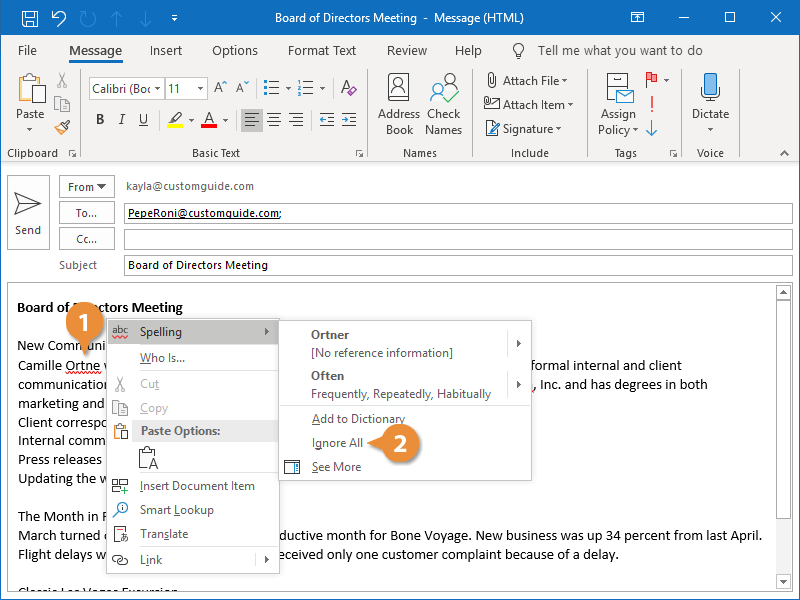
Outlook ignores the error.
Add a Word to the Dictionary
If you frequently see a correctly spelled word that is flagged as an error, you might want to consider adding it to the Dictionary so it won’t be flagged in the future.
- Right-click the word flagged as an error.
- Select Add to Dictionary.
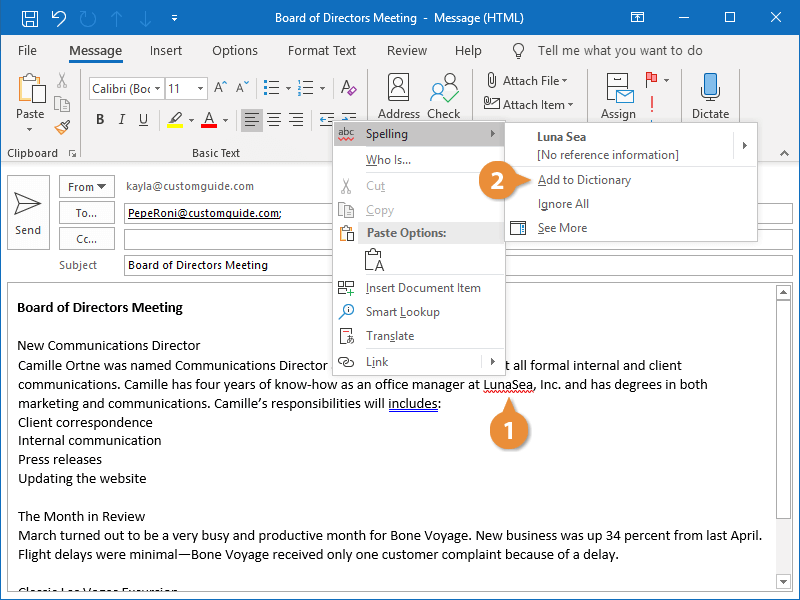
The word is added to Outlook's Dictionary.
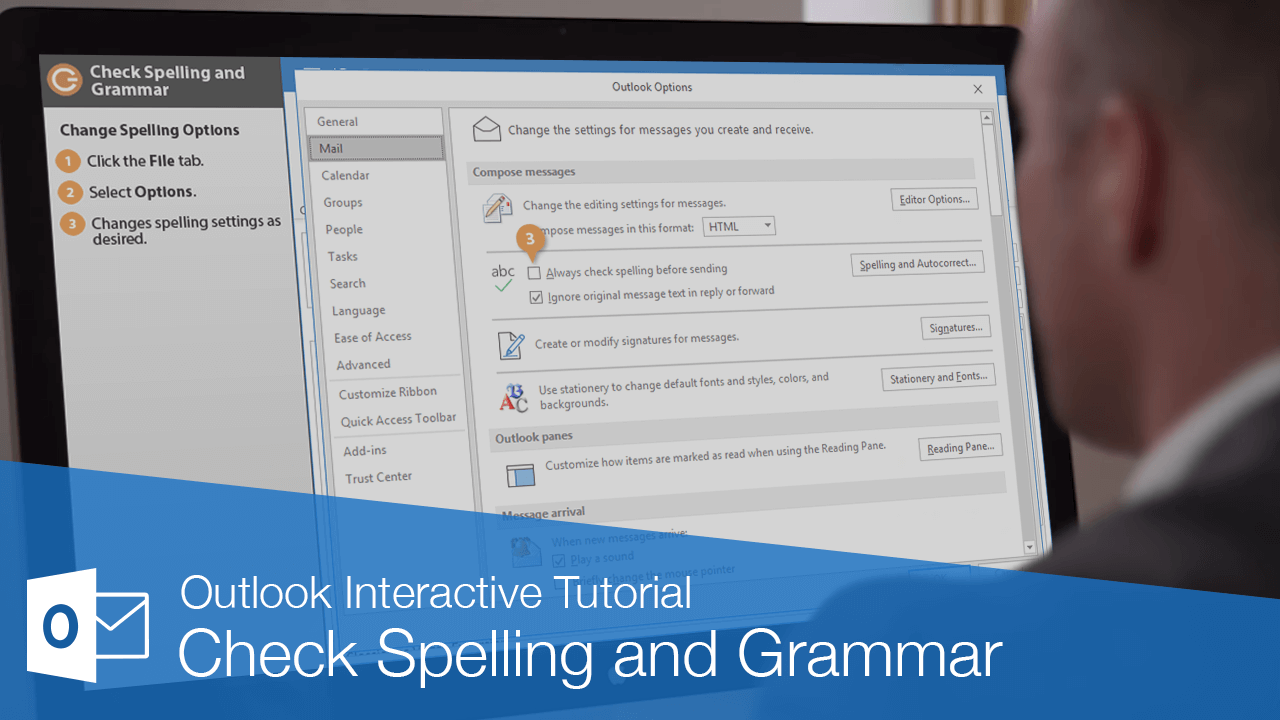
Change Spelling Options
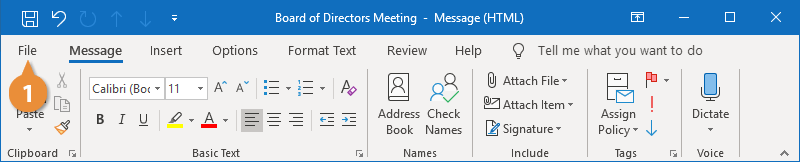
- Click the File tab.
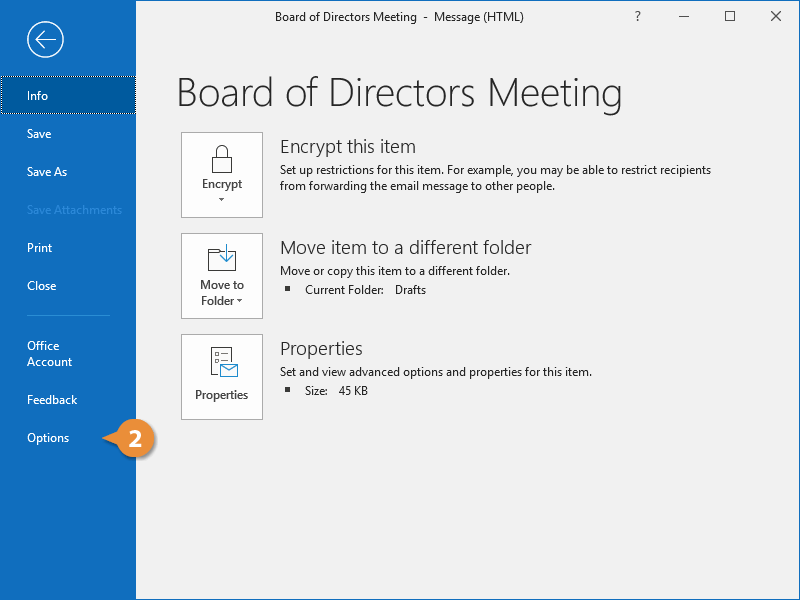
- Select Options.
- Select Mail.
- Change the available spelling settings.
- Always check spelling before sending toggles whether a spellcheck is automatically performed before sending an email.
- Ignore original message text in a reply or forward toggles whether the original text in a replied-to or forwarded email is also checked for spelling and grammar.
You can also click the Spelling and Autocorrect button to access more proofing options, including whether to skip words in uppercase or those containing numbers.
- Click OK.
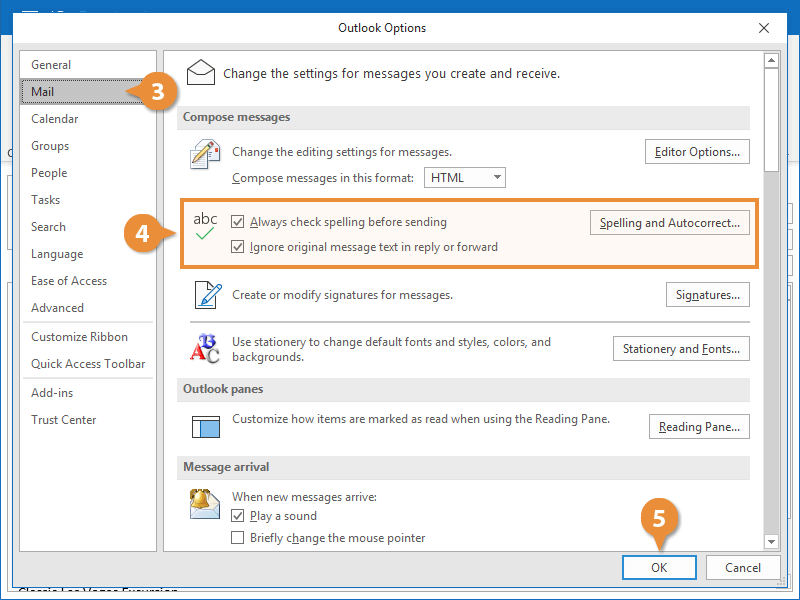
The spelling settings are updated.