

How to Respond to Outlook Meeting Invite
Accept, Decline, or Propose a New Time for Outlook Meeting Invites Easily
Try this Course with a Free Trial

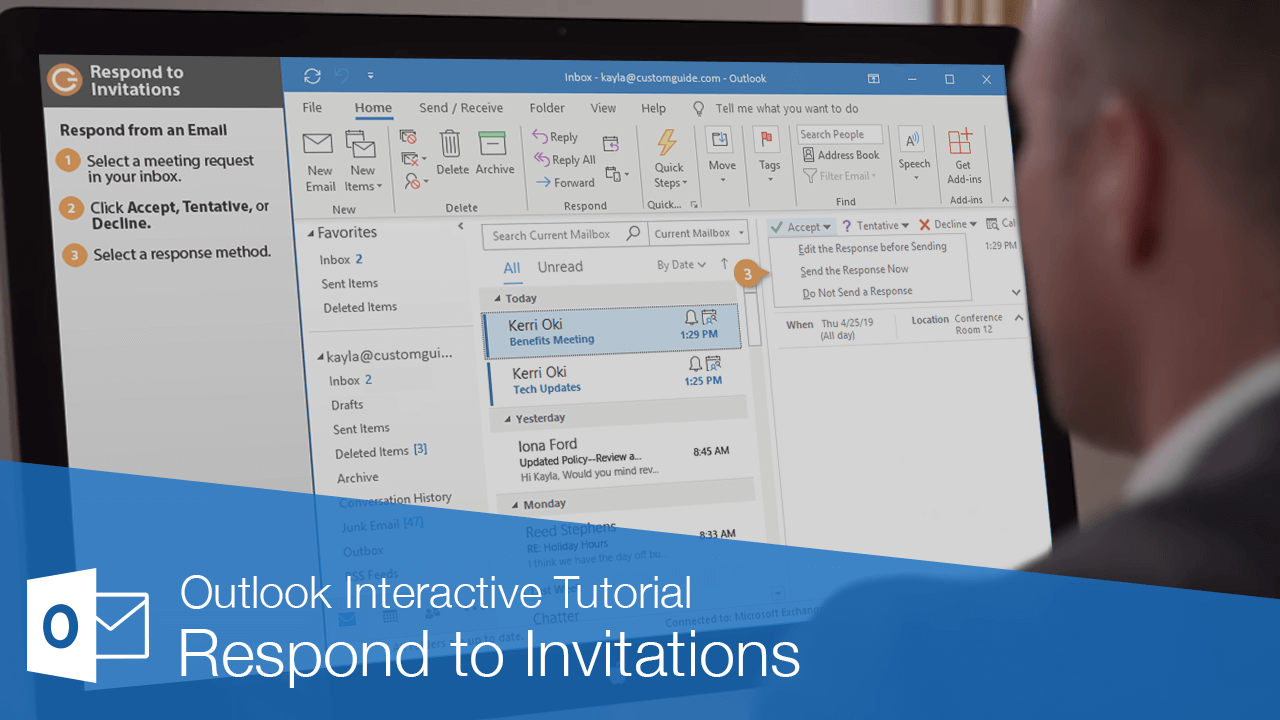
Staying on top of your own invitations is another way your Calendar works to make life easier. There are a few different ways to respond to invitations in Outlook, ensuring your response will be received in a timely and professional manner.
Respond from an Email
Whenever someone sends you a meeting request, you receive an email that has a special meeting request icon.
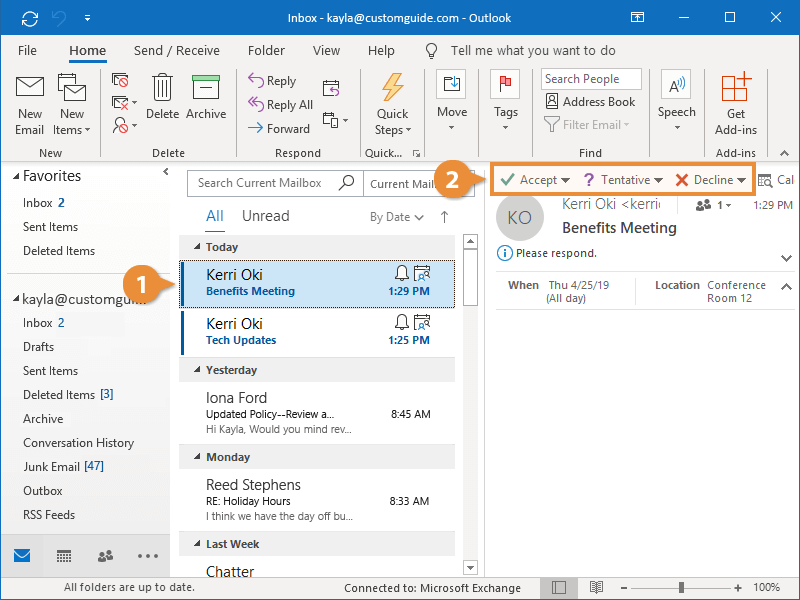
- Select a meeting request in your inbox.
Once the meeting is selected, you will see response buttons appear in the Reading Pane.
- Click Accept, Tentative, or Decline.
- Accept: Accept the meeting request.
- Tentative: Inform the meeting coordinator that you might be able to attend the meeting but can’t yet confirm.
- Decline: Decline the meeting request.
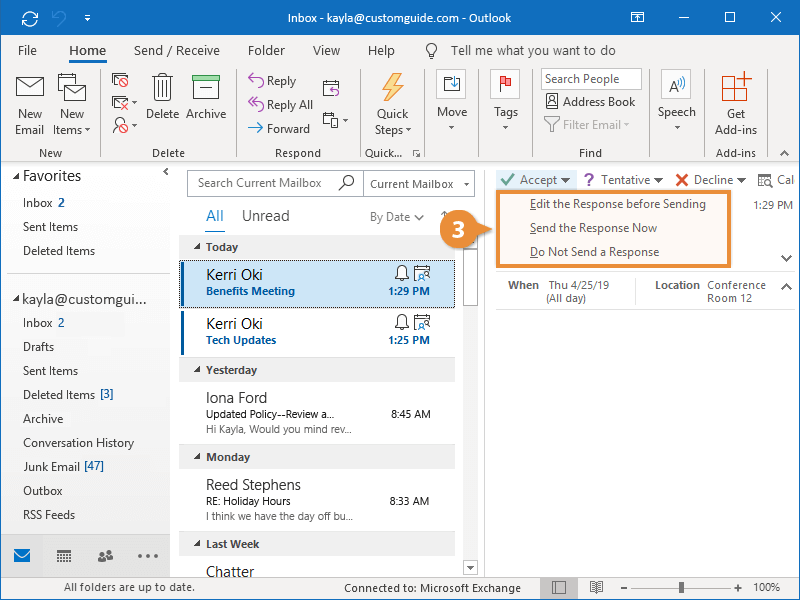
For each response, you have the option to attach a personal message to your RSVP, or simply respond to the meeting invite without sending any comments to the meeting organizer.
- Select an RSVP option.
Depending on how you respond, a reply is sent, and the event will appear on your calendar.
Respond from the Calendar
You can also respond to a meeting request directly from the calendar.
- While viewing the calendar, select the meeting you need to respond to.
Any appointments you’ve been invited to but haven’t yet responded to will appear in your calendar, but in a washed-out color.
- Click the Accept button, Tentative button, or Decline button on the Meeting Series tab.
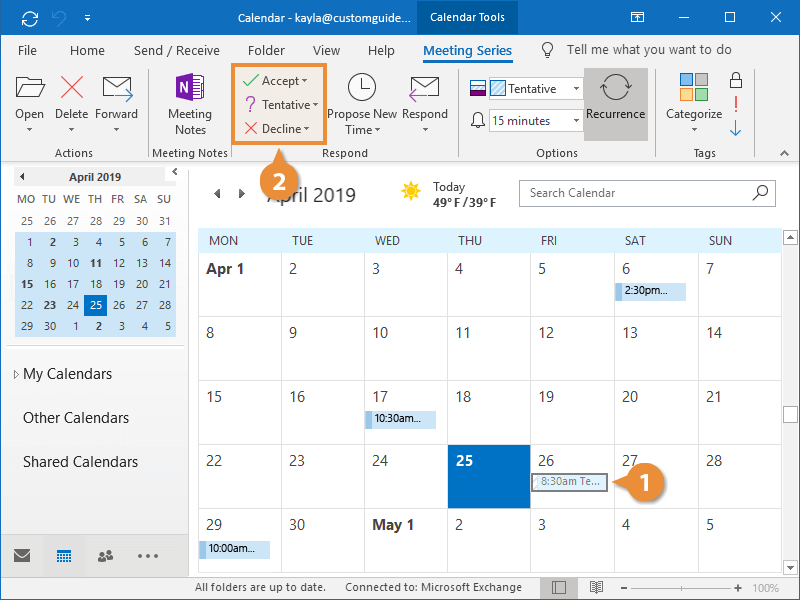
You also have a choice of how you’d like to RSVP to the invitation.
- Select a response method.
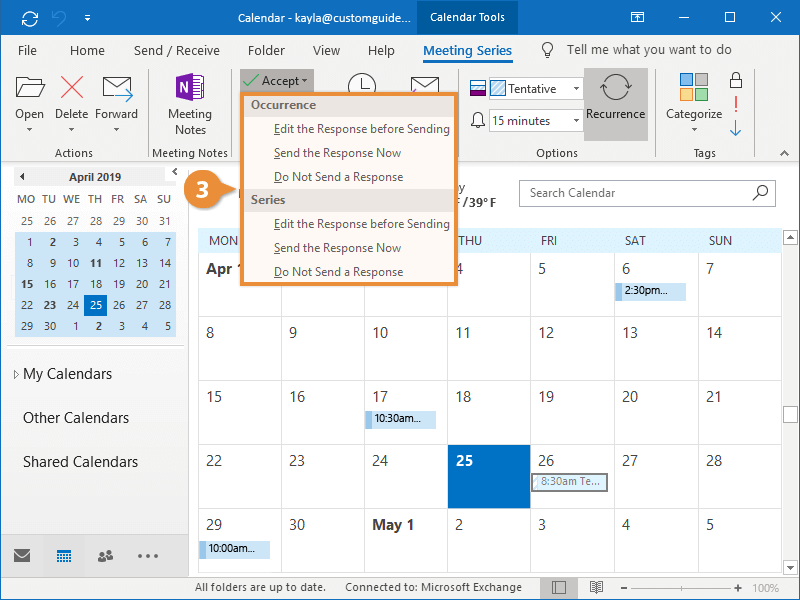
Depending on the option you chose, a message is sent to the meeting organizer and the meeting remains in your calendar, no longer in a washed-out color.