

Password Protect Onenote
Secure sensitive notes by adding password protection to your OneNote sections
Try this Course with a Free Trial

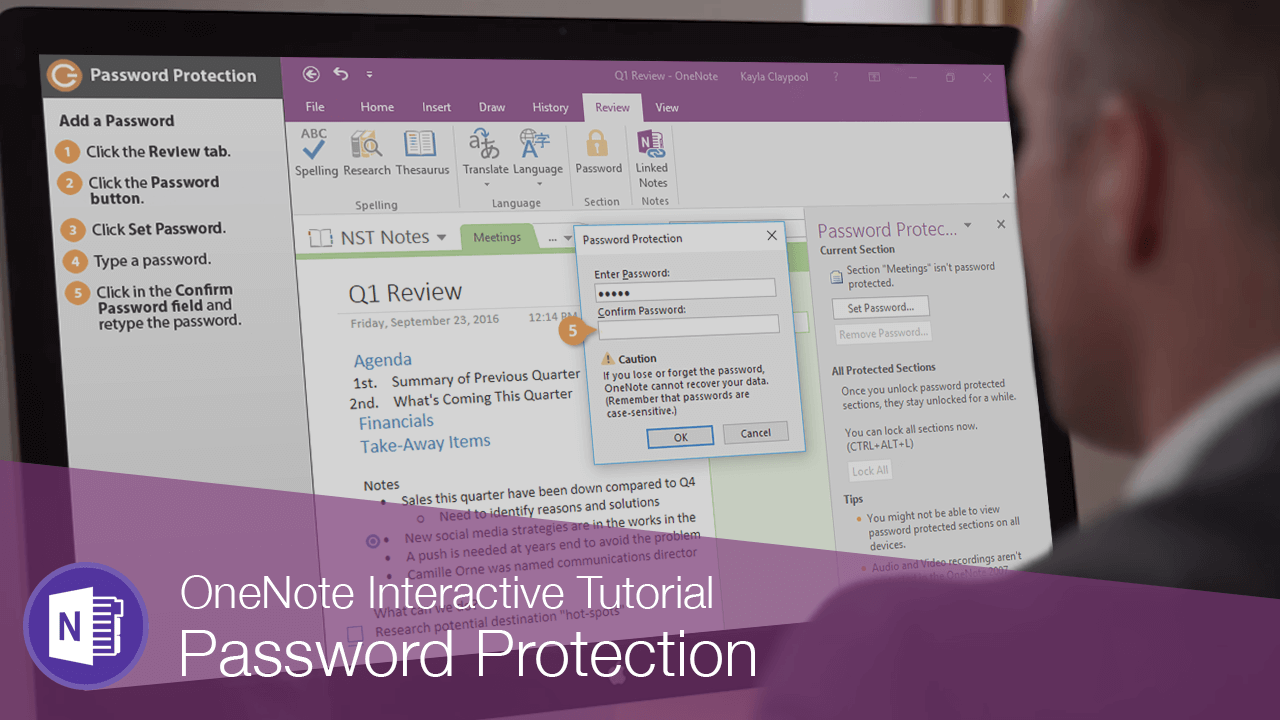
If you need to add some protection to your notebook, add a password to one or all of its sections.
Add a Password
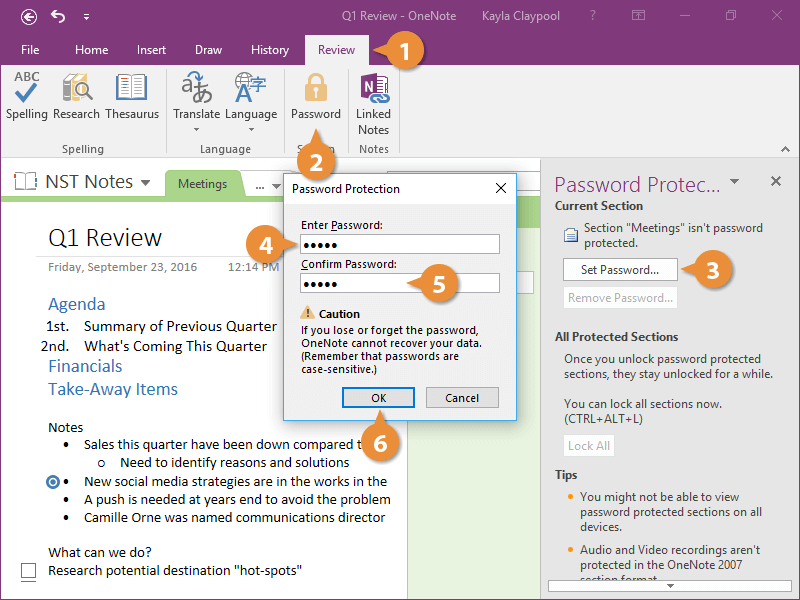
- Click the Review tab.
- Click the Password button.
- Click Set Password.
- Type a password.
- Click in the Confirm Password field and retype the password.
- Click OK.
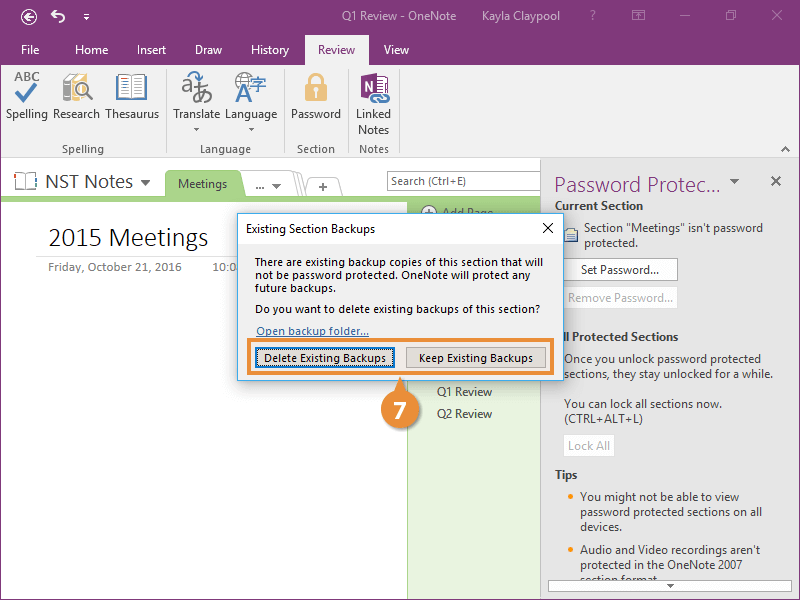
The dialog box lets you know there are backup copies of the notebook that aren't protected.
- Select a backup option.
Password Options
Now that there's a password set, you have the option to lock all the sections if you don't want anything to be seen.
- (Optional) Click Lock All.
- Hover over the down arrow at the bottom of the pane.
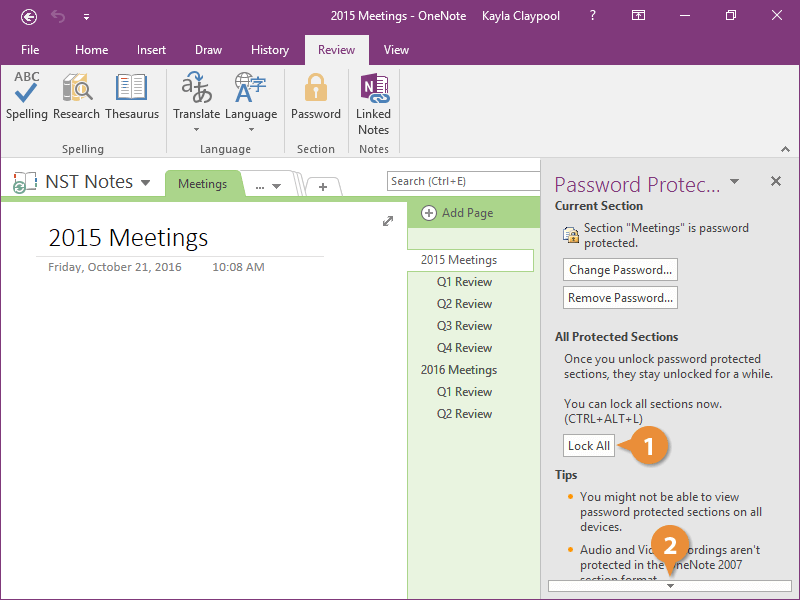
- Click Password Options.
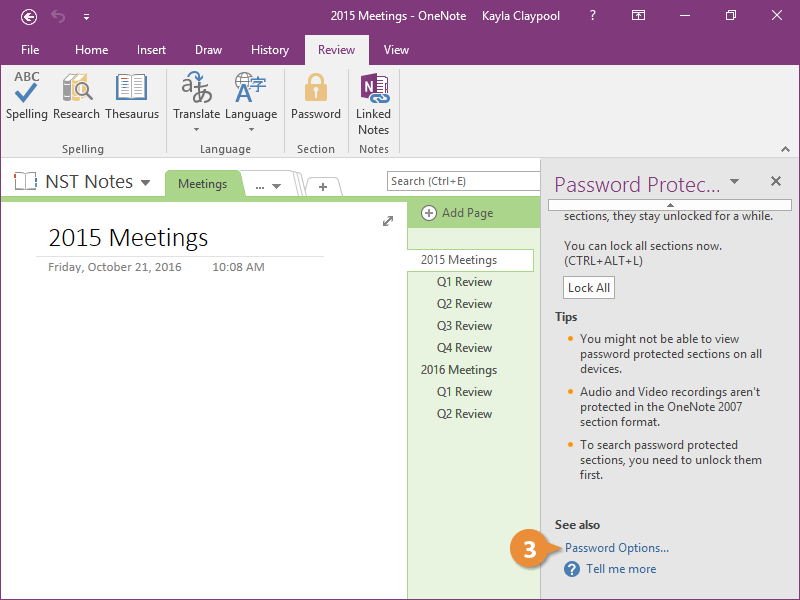
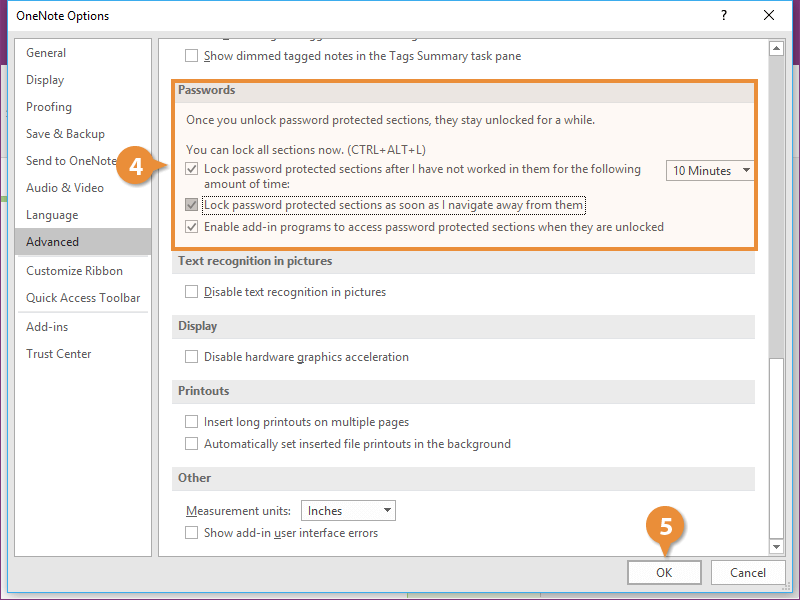
The OneNote Options dialog box opens and you see some password settings. You see here that the default is to have a section stay unlocked for ten minutes after you're done working in it.
- Modify the password options.
- Click OK.
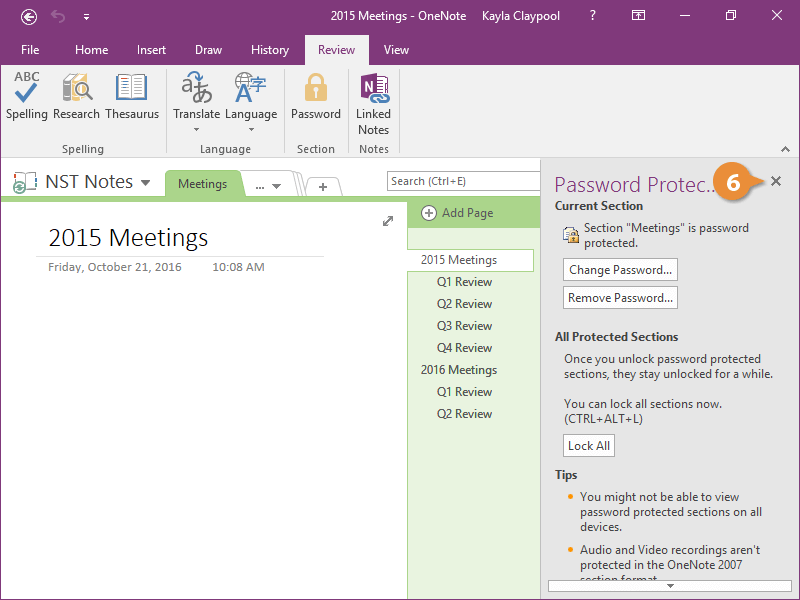
- Close the Password Protection pane.
Unlock a Section
- Navigate to a different section.
- Navigate to the protected section.
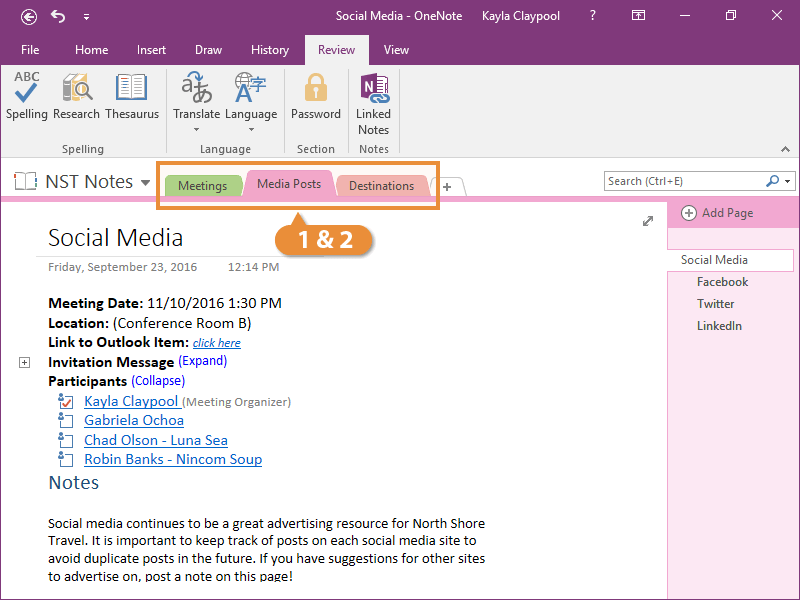
You are locked out and can't see the notes.
- Click the notebook page.
- Enter a password and click OK.
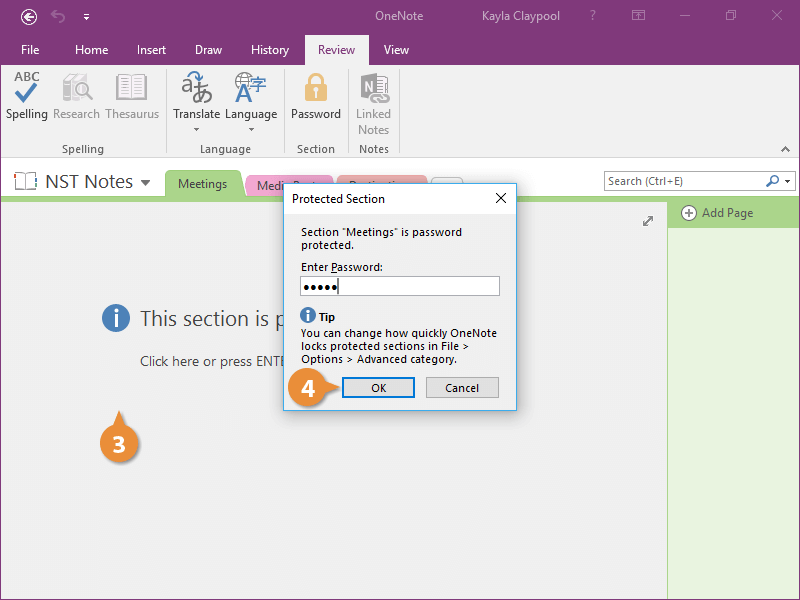
The section is unlocked and you can now edit the notes once again.
Remove a Password
Now if you no longer need a section to be protected, you can remove the password.
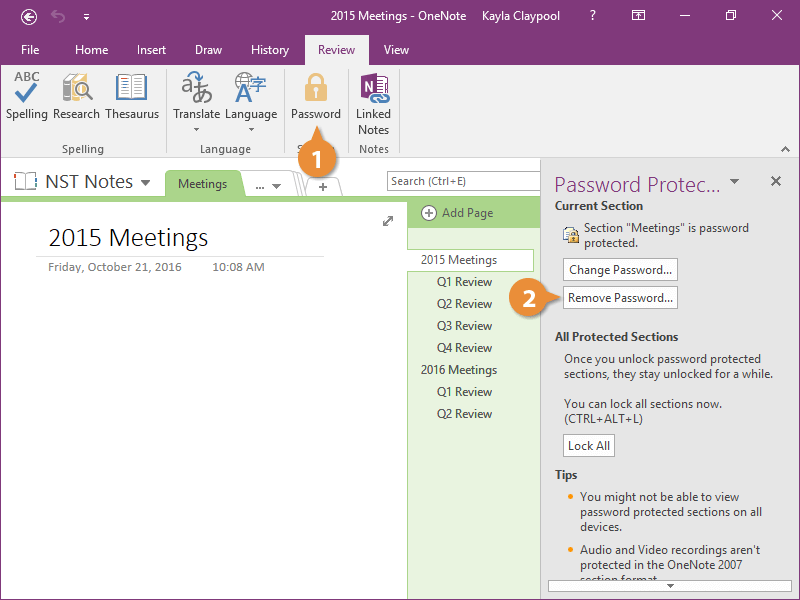
- Click the Password button on the Review tab.
- Click Remove Password.
You can also change the password here if needed.
- Enter the password and click OK.
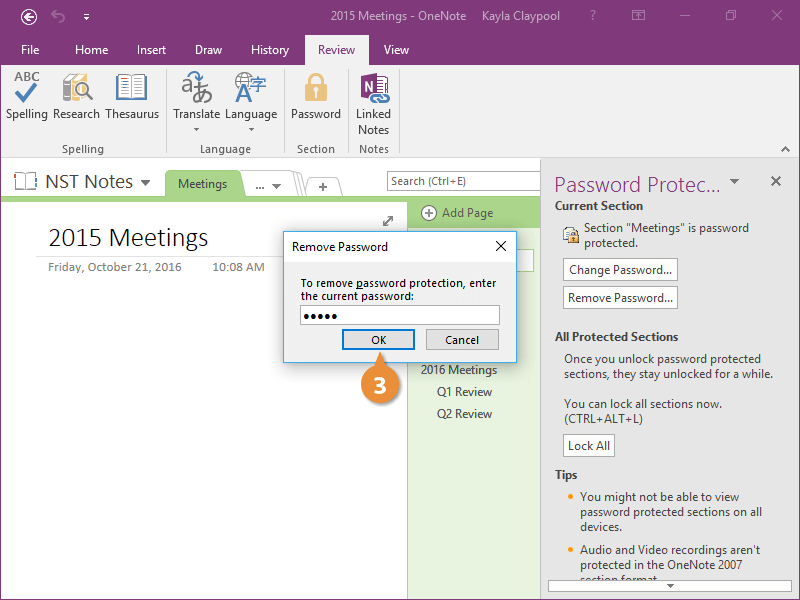
The password is removed from the section.