

Sync Changes
Ensure your notes stay updated across all devices by syncing OneNote changes automatically
Try this Course with a Free Trial
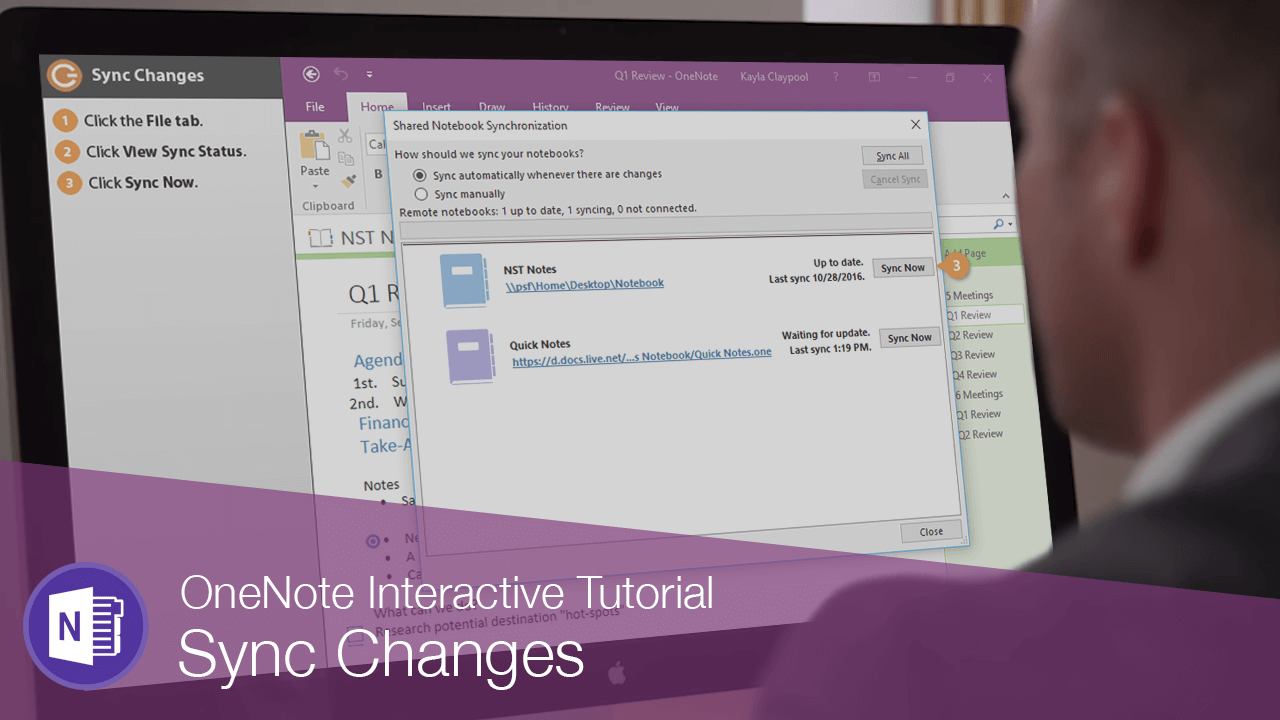
Once other people start making changes to a shared notebook, the changes are automatically saved periodically. You can also manually sync the changes.
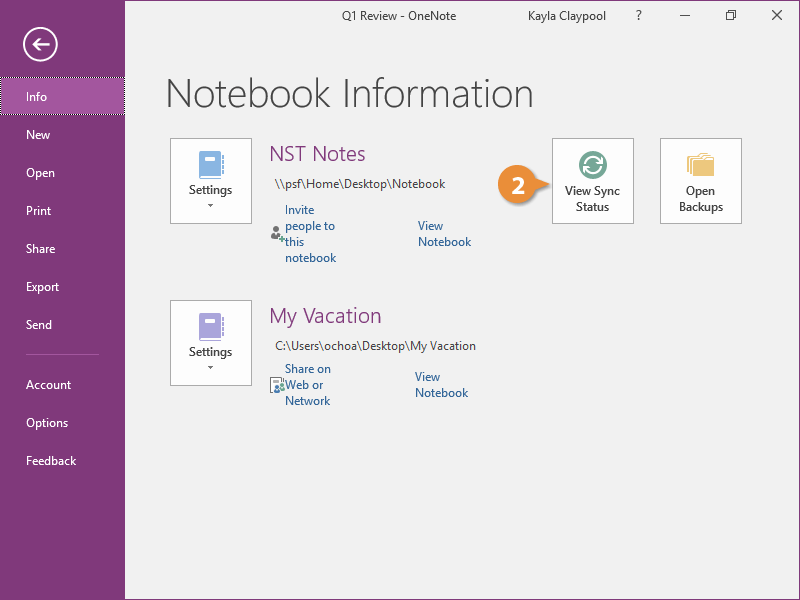
- Click the File tab.

- Click View Sync Status.
This dialog box shows when the open notebooks were last updated.
- Click Sync Now.
- Click Close.
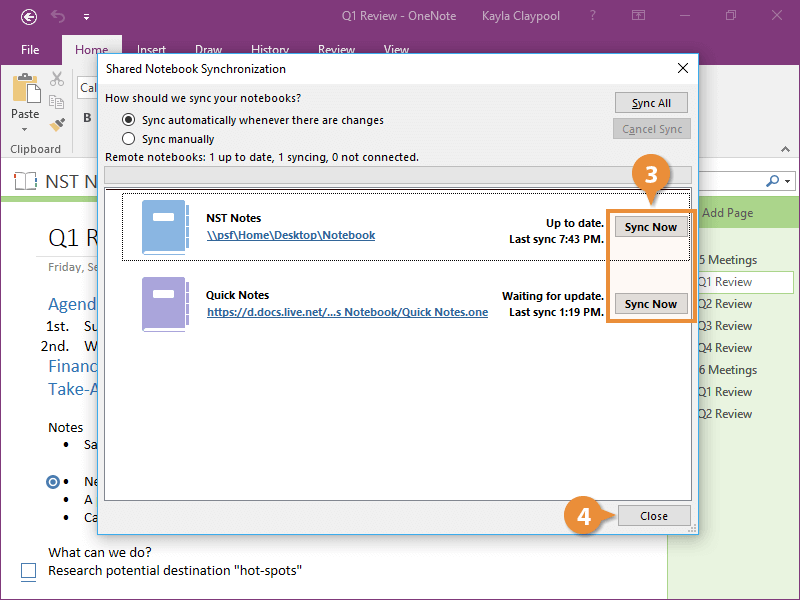
The notebook is synced with all the changes.