

Start a Chat
Learn How to Send Direct Messages and Group Chats in Microsoft Teams for Better Collaboration
Try this Course with a Free Trial
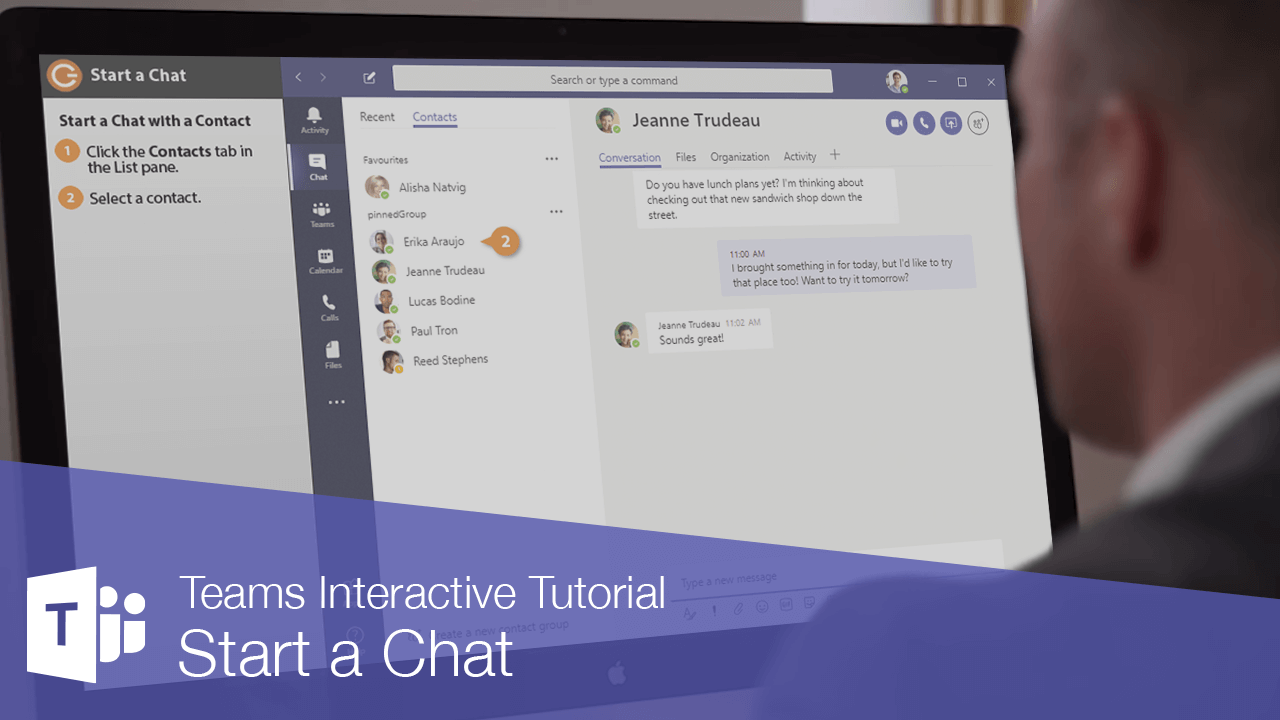
You can use Teams to chat with other members of your organization one-on-one, or in groups.
Start a New Chat
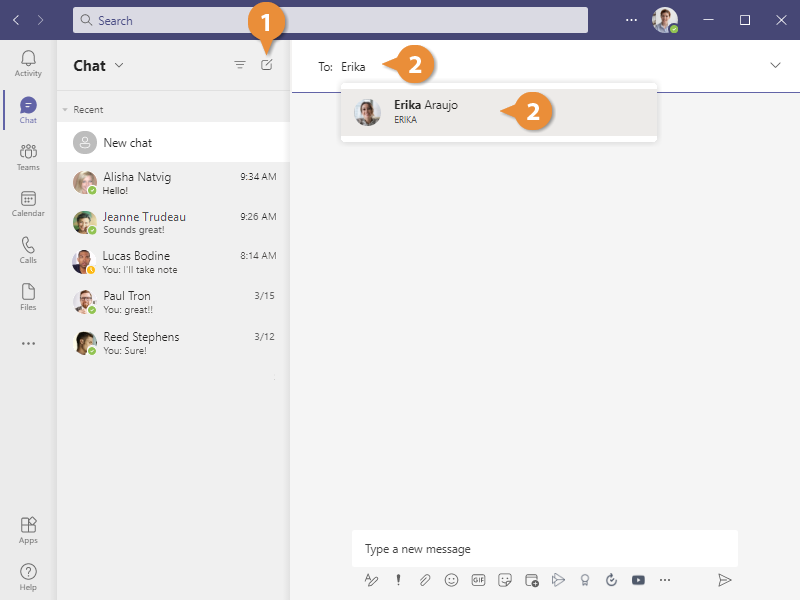
- Click the New Chat button.
Teams switches to Chat view, and a new blank chat is started.
- Enter the name of the person you want to chat with in the
To field, then select them from the search results.
- Enter a message in the message box at the bottom of the Content pane.
- Click Send.
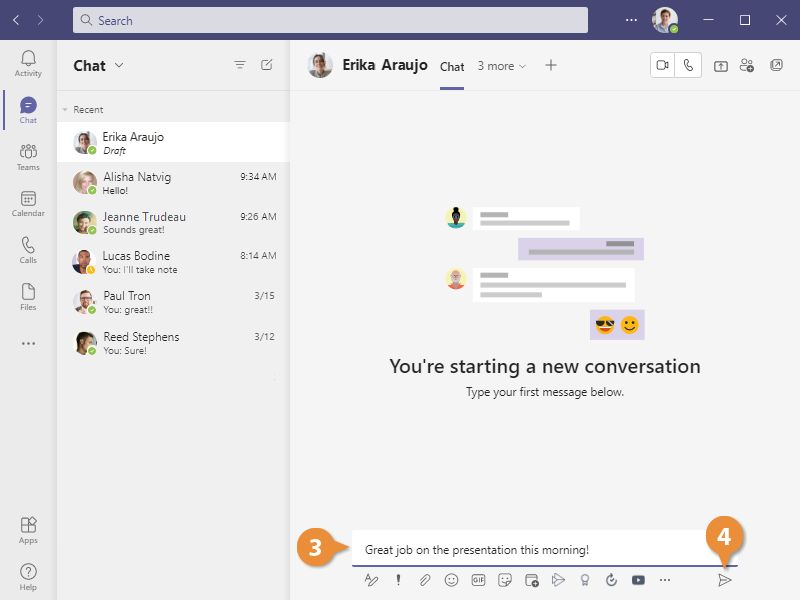
The message is sent to the chat recipient.
View a Recent Chat
While you're in Chat view, the List pane displays all the recent chats you've had. This lets you easily manage multiple chats at once and return to a recent chat quickly.
- Select a chat from the Recent list.
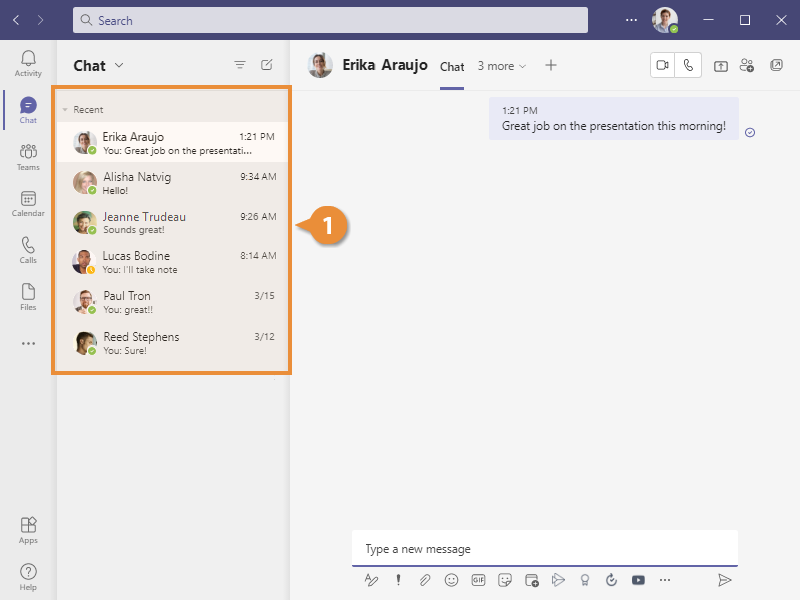
The chat displays in the Content pane.
Start a Chat with a Contact
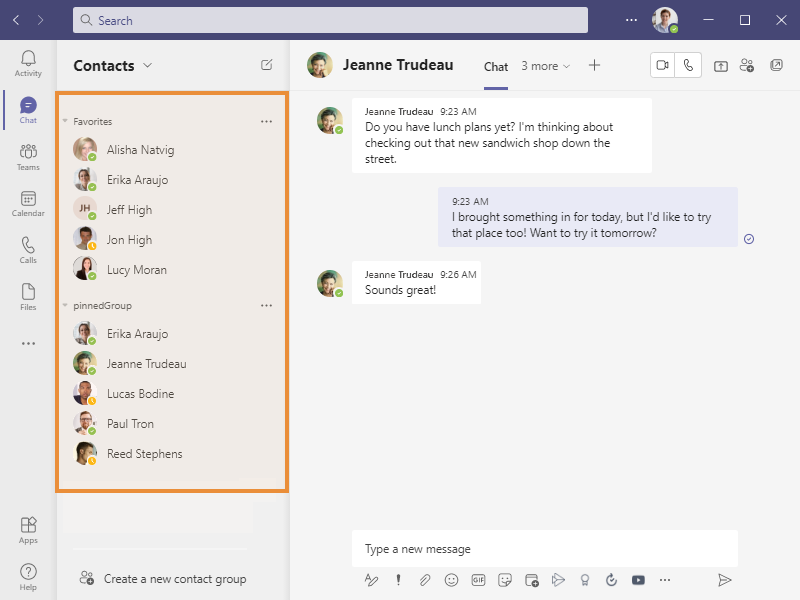
You can also browse your Contacts list and start a new chat with a contact there.
- Click the Chat heading at the top of the List pane
- Now select Contacts.
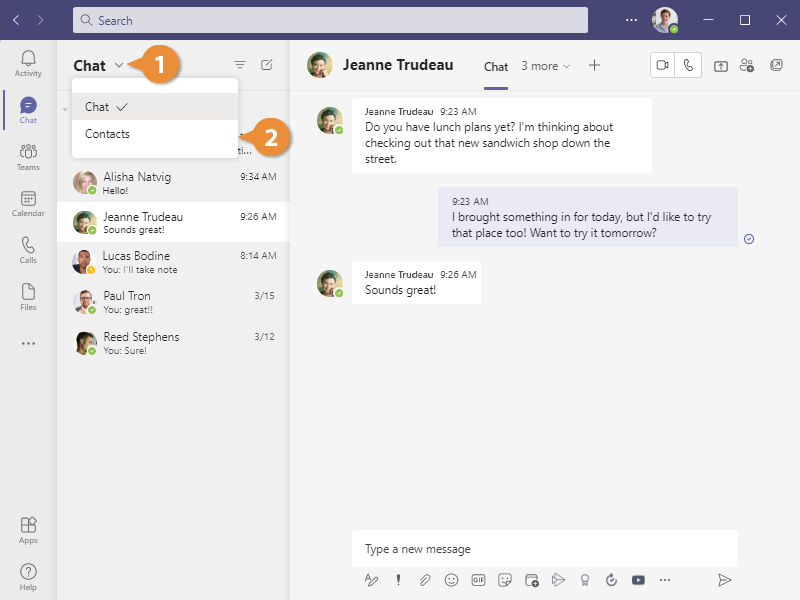
If you’ve never chatted with that contact before, a new chat is started. Otherwise, you’re brought back to your last chat with them.
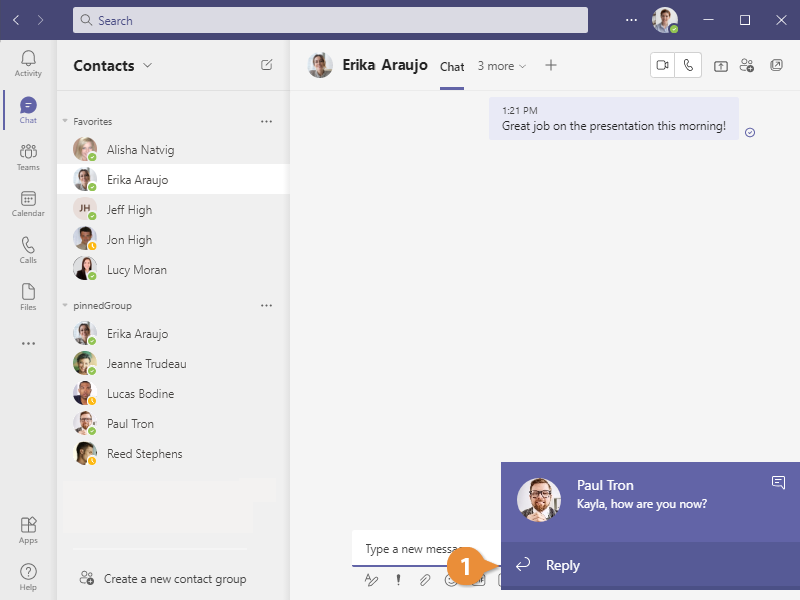
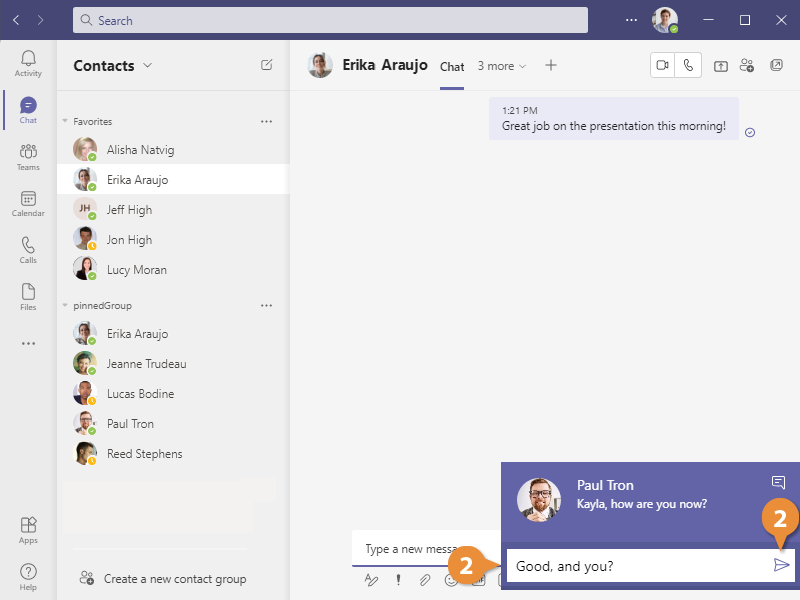
Whenever someone sends you a message, a pop-up notification will appear on-screen. This will include who the message is from, a short preview of the message, and the option to quickly reply.
- Click Reply in a notification pop-up.
The Reply button changes to a text field, where you can enter a reply.
- Enter a reply and click Send.
The message is sent. If you want to continue the conversation, you can view the entire chat thread.
- Click a notification to view the message in context of the full thread.
The full chat thread appears in the Content pane.