

Format Chats
Customize and Format Messages in Microsoft Teams to Make Your Chats Clear and Engaging
Try this Course with a Free Trial
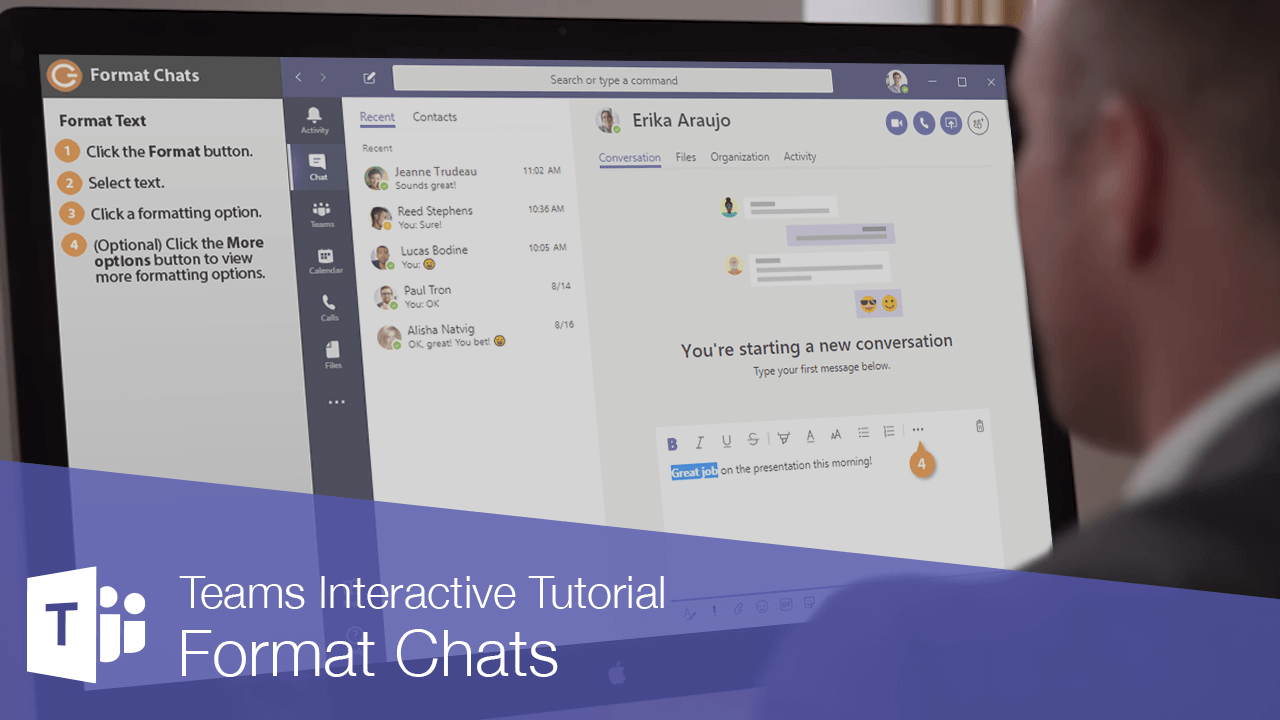
Your chats in Teams are not limited to plain text. You can add style to your chat messages with plenty of formatting options.
Format Text
- Click the Format button below the chat message compose box.
Formatting buttons appear above the compose box.
- Select the text you want to format.
- Click a formatting option.
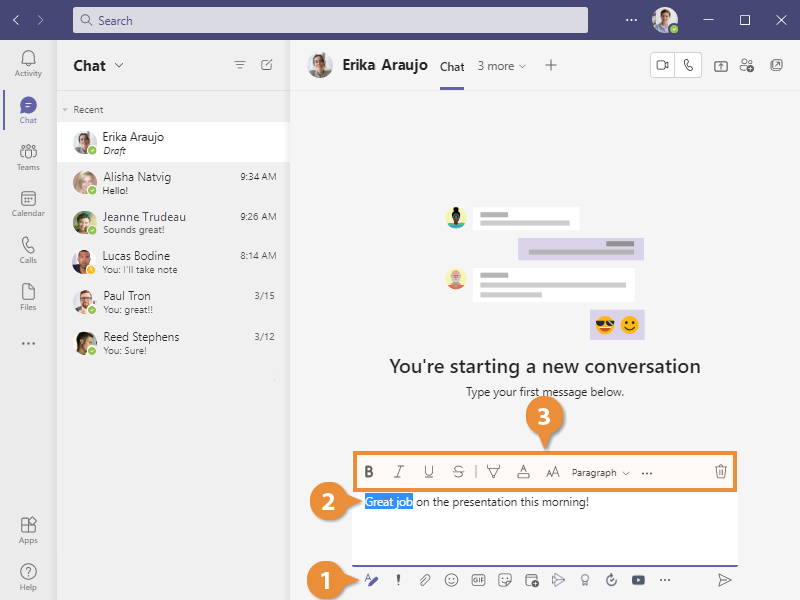
You can use the standard text formatting options, like bold, italic, and underline, as well as change the highlight color, text color, and font size.
- (Optional) Click the More Options
button to view more formatting options.
From here, you can insert a link or monospaced code snippet, change the paragraph formatting to add multiple heading levels, or even insert a table.
- Click Send.
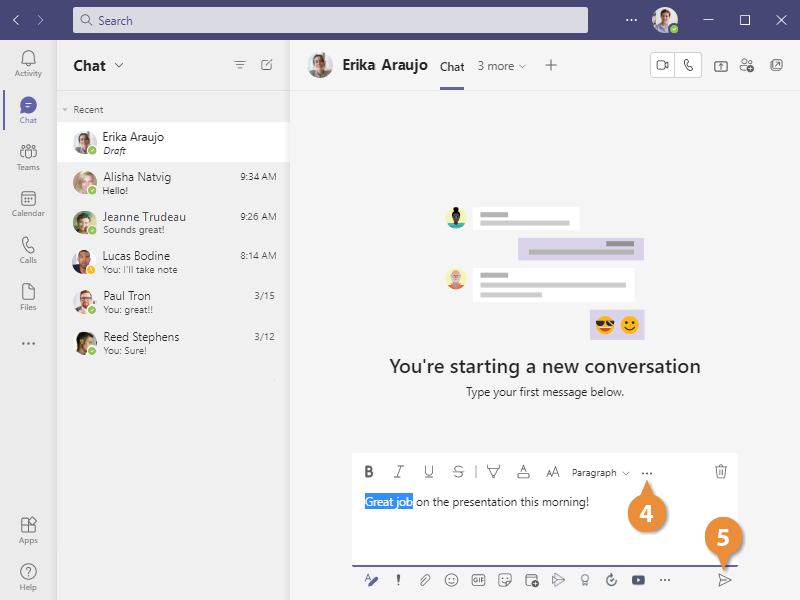
The message is sent, with the extra formatting applied.
Use Quick Text Formatting
You can also apply some basic formatting when writing a message, without having to open the Format options. Teams supports a few markdown formatting options, which lets you use some text shortcuts to apply formatting on the fly as you type.
| Formatting | Code | Example |
|---|---|---|
| Bold | *Bold* | Bold |
| Italics | _Italics_ | Italics |
| Strikethrough | ~Strikethrough~ | |
| Link | [Link text](URL) | Link Text |
| Unordered List | * List item | |
| Numbered List | 1. List item | 1. List item |
Send Important and Urgent Messages
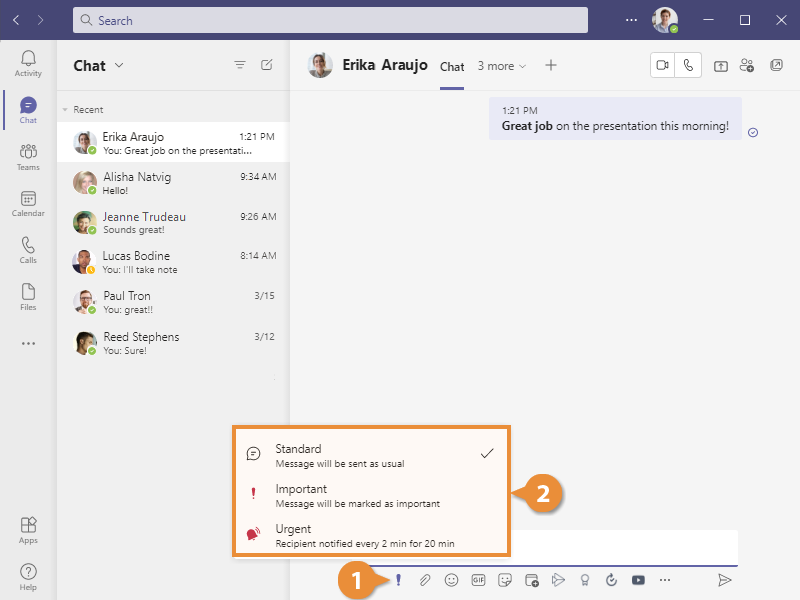
You can choose to mark a chat message that you send as Important or Urgent, if it’s crucial that the recipient see it as soon as possible.
- Click the Set Delivery Options button below the compose box.
- Select an importance level for the message.
- Standard: The message will be sent as usual, showing the recipient a notification when it's received
- Important: The message will be flagged as important when received.
- Urgent: The recipient will receive a new notification every two minutes for 20 minutes, until the message is read.
- Enter a message.
- Click Send.
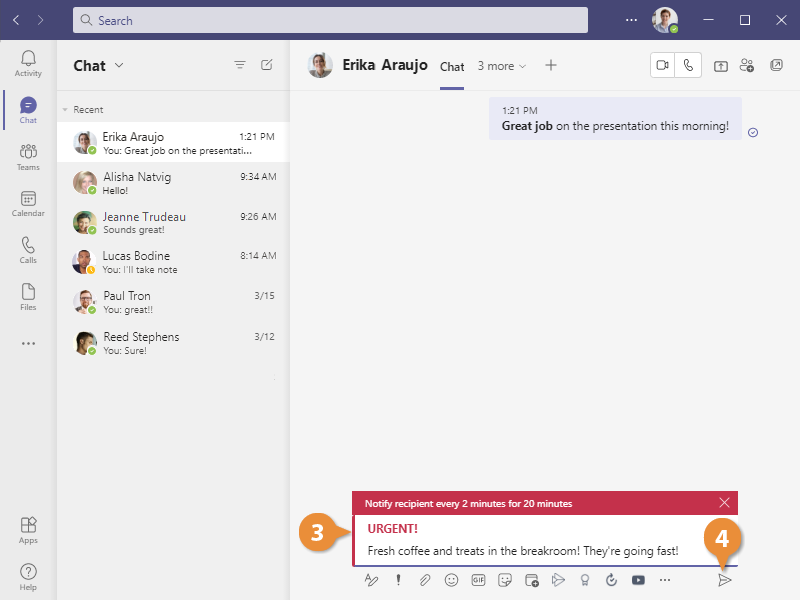
The message is sent and will appear as Important or Urgent to the recipient.
Use Emoji, GIFs, and Stickers
If your organization’s culture is a bit more casual, you can send emoji, GIFs, and stickers as part of your chat messages.
- Click the Emoji, GIF, or Sticker button.
- Search for or browse emoji, GIF, and sticker categories.
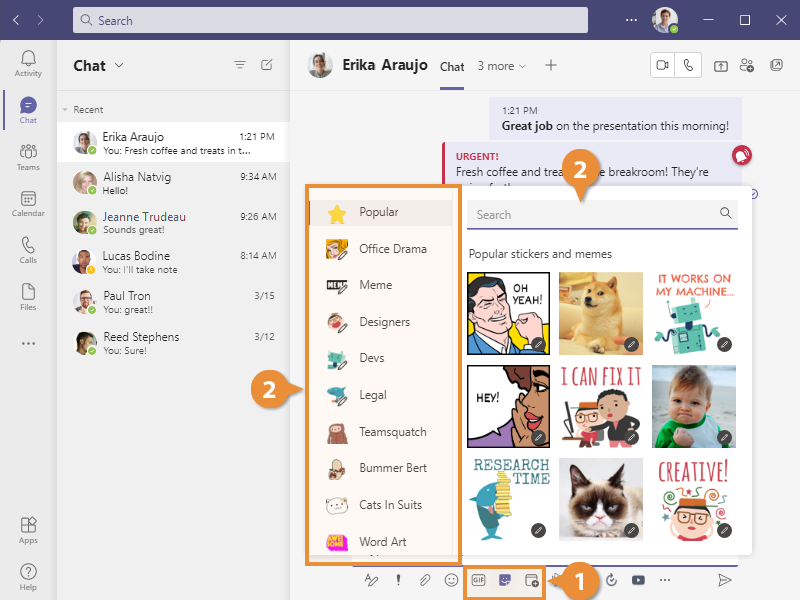
- Select an emoji, GIF, or sticker.
- Click Send.
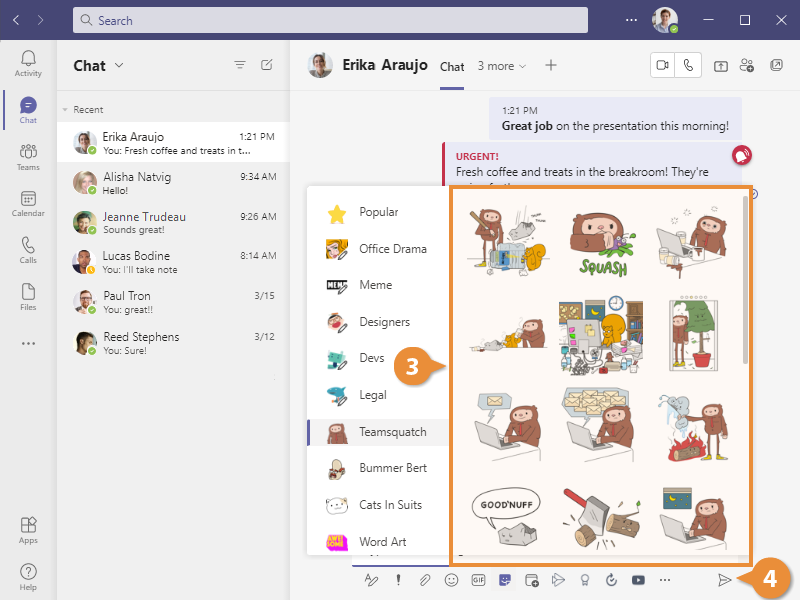
The emoji, GIF, or sticker is sent in the chat thread.