

Move and Skip Slides
Rearrange or Hide Slides in Google Slides to Control the Flow of Your Presentation
Try this Course with a Free Trial

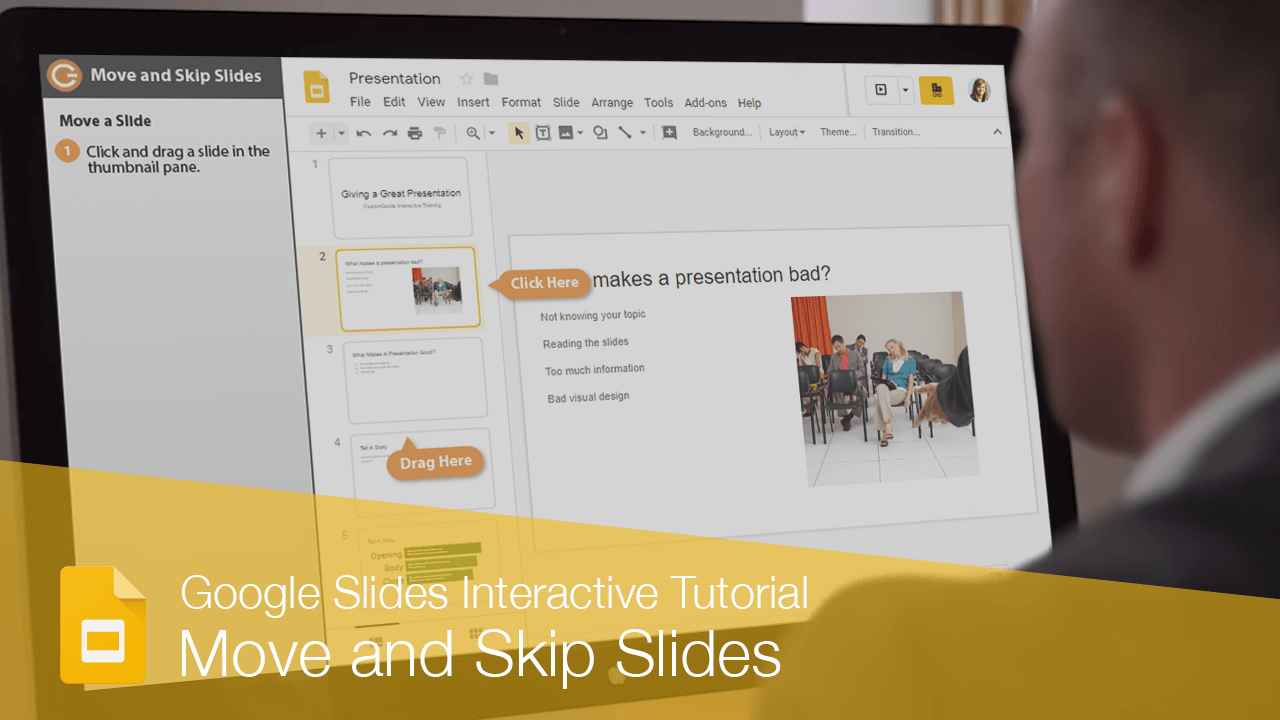
Sometimes you'll need to rearrange slides to update the sequence of your presentation.
Move a Slide
- Click and drag a slide in the thumbnail pane.
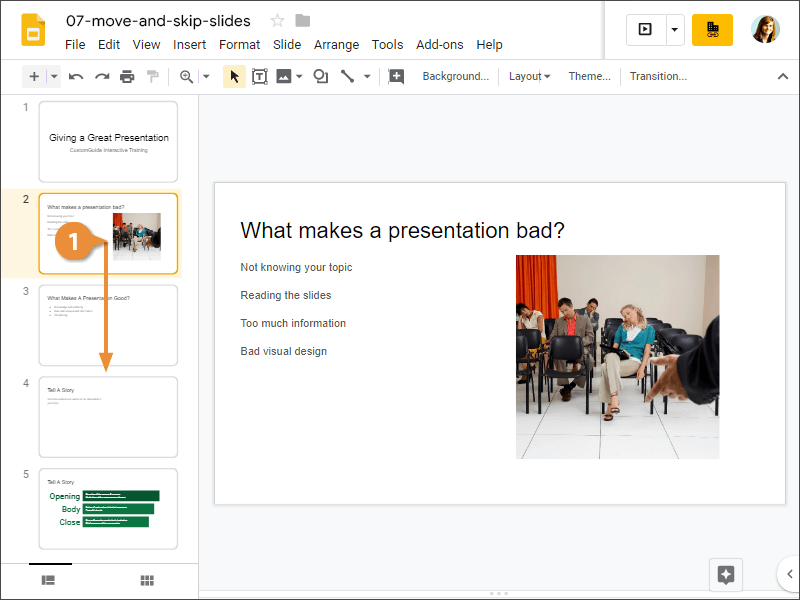
A horizontal line appears as you drag the slide, indicating where the slide will be moved. When you release the mouse button, the slide is dropped in the new location and all slides in the presentation are renumbered accordingly.
Skip a Slide
You can also set slides so that they're skipped when presenting.
- Select a slide.
- Click Slide on the menu bar.
- Select Skip slide.
- With a skipped slide selected, click Slide on the menu bar.
- Select Skip slide.
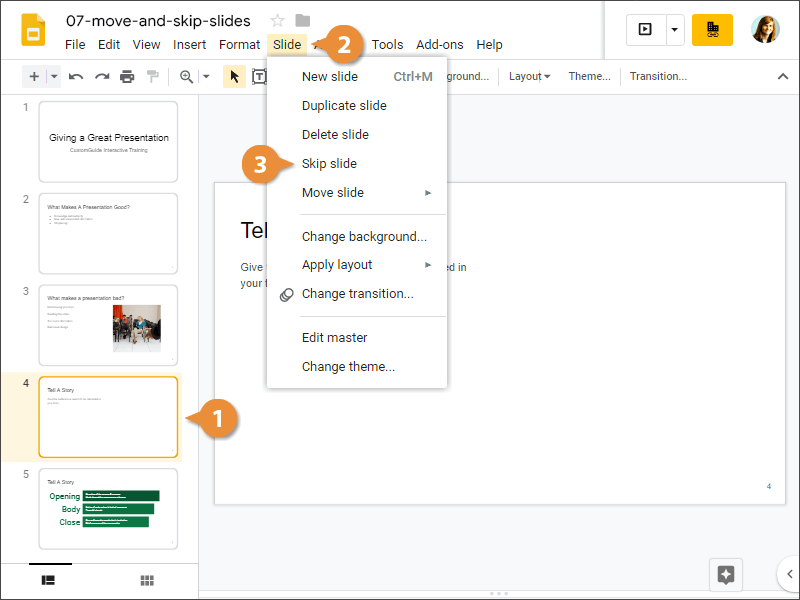
An icon appears over the slide thumbnail, indicating that it won't appear when the presentation is run.
Unskip a Slide
Once you're ready for a skipped slide to be included again, you can unskip it.
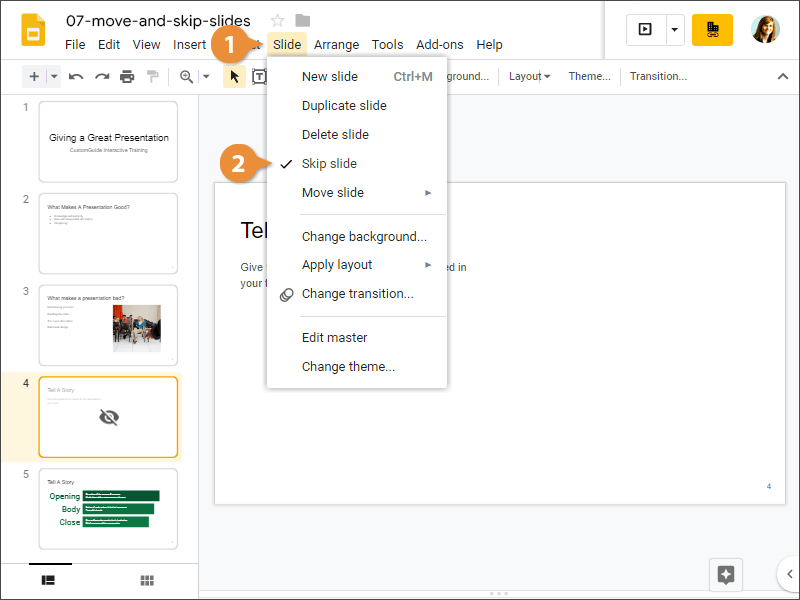
The selected slide will be included in the presentation once again.