How to Embed a Video in Google Slides
Insert YouTube or Drive Videos in Google Slides to Make Presentations More Interactive
Try this Course with a Free Trial

You can insert videos in your presentations to add a little flair and emphasize your point. Just make sure to keep the videos short, so that they don't become the main event.
Insert a Video
Videos that are inserted from a file are embedded directly into the Slides presentation, so the presentation file size will increase when videos are inserted.
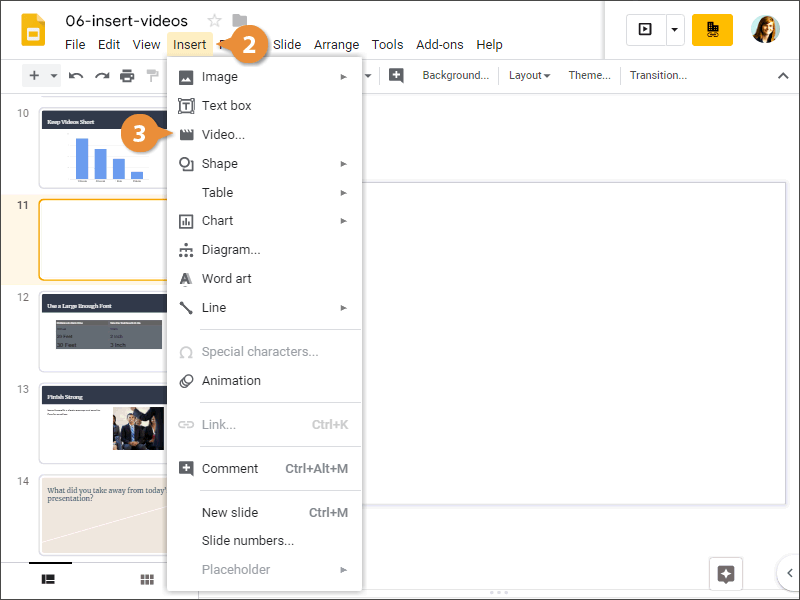
- Select the slide you want to add a video to.
- Click Insert on the menu bar.
- Select Video.
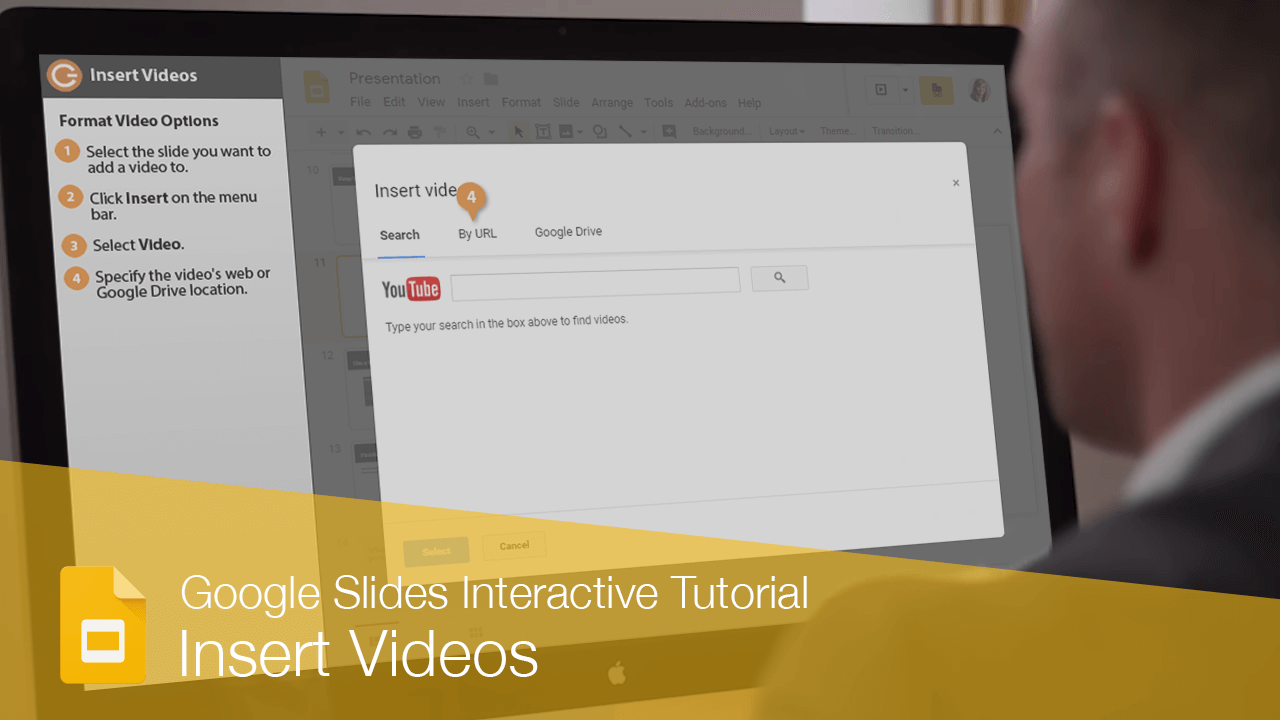
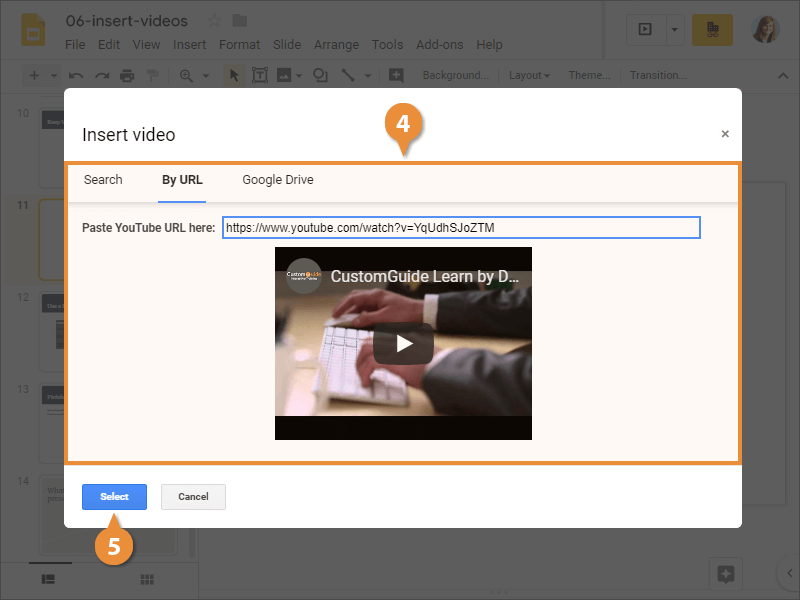
The Insert video dialog box opens, giving you a few ways to add a video to your presentation.
If you want to search YouTube for a video, you can do that here. Otherwise, you can paste the URL of a specific YouTube video, or insert a video that you have saved to your Google Drive.
- Specify the video's web or Google Drive location.
- Click Select.
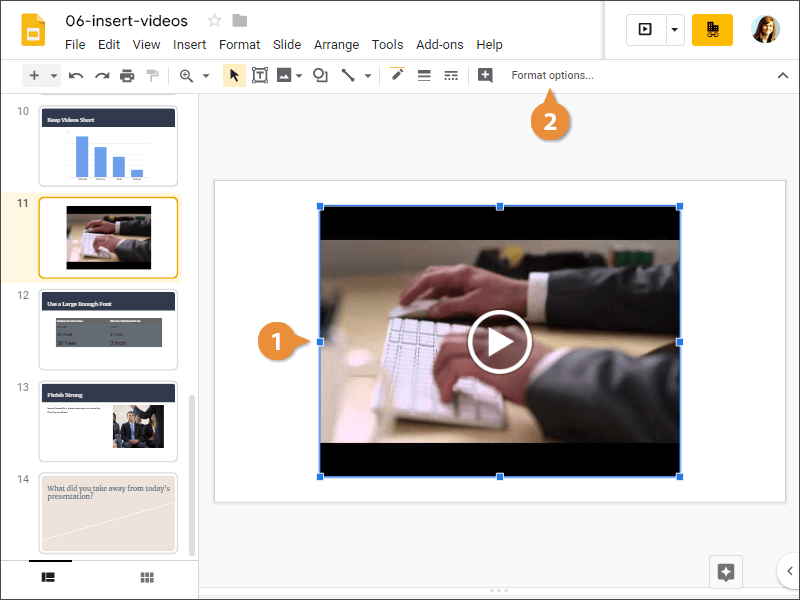
The video is inserted and can be resized and moved around just like any other object.
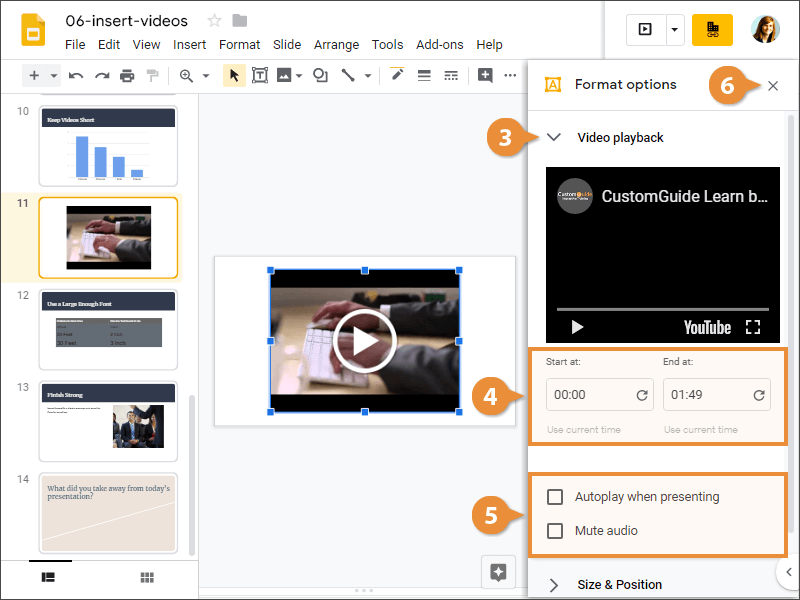
Format Video Options
There are a few playback options that let you change how the video will play during the presentation.