
How to Collaborate on Google Slides
Work Together in Google Slides by Sharing, Commenting, and Editing in Real Time
Pruebe este curso con una prueba gratuita

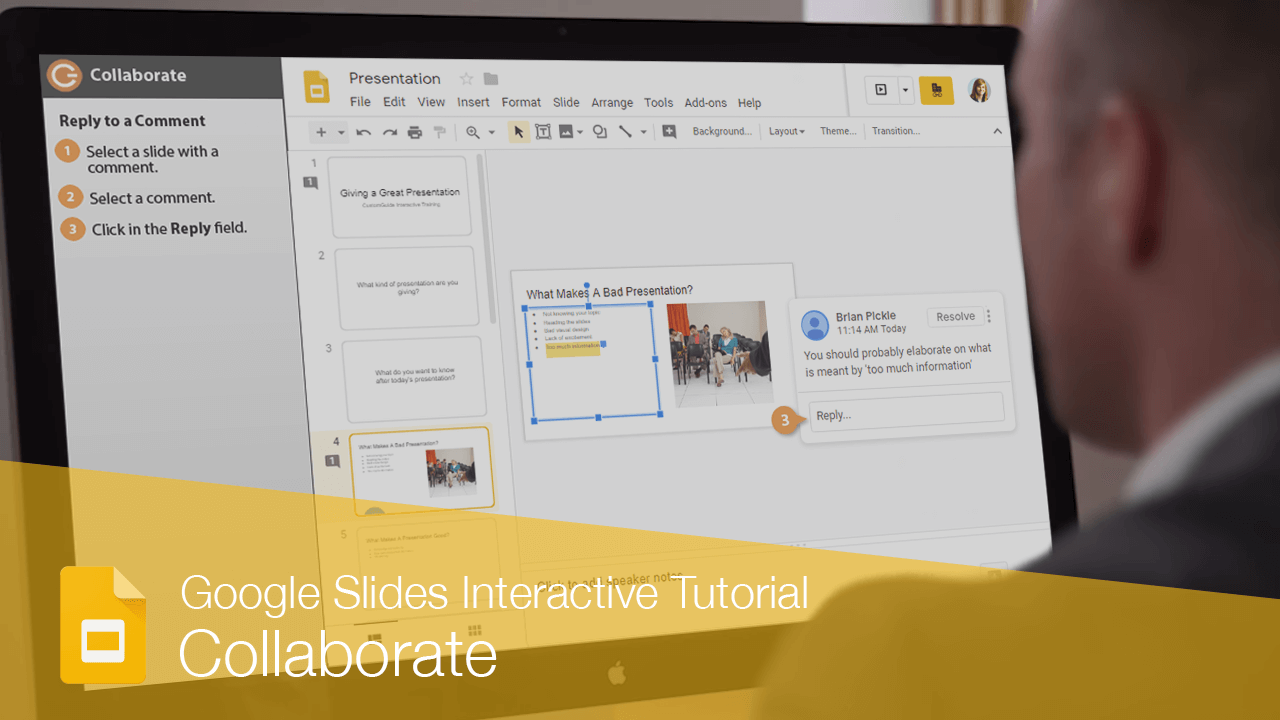
When you're working with others on a shared presentation, everyone with editing permissions will be able to make changes. When someone else is working in the same presentation as you, you'll see what part of the presentation they're working on, and their changes will appear as they make them. Changes you make will likewise be visible to everyone else editing the presentation.
Add Comments
You can add comments to a presentation to give feedback without editing the presentation's contents.
- Select what you want to comment on.
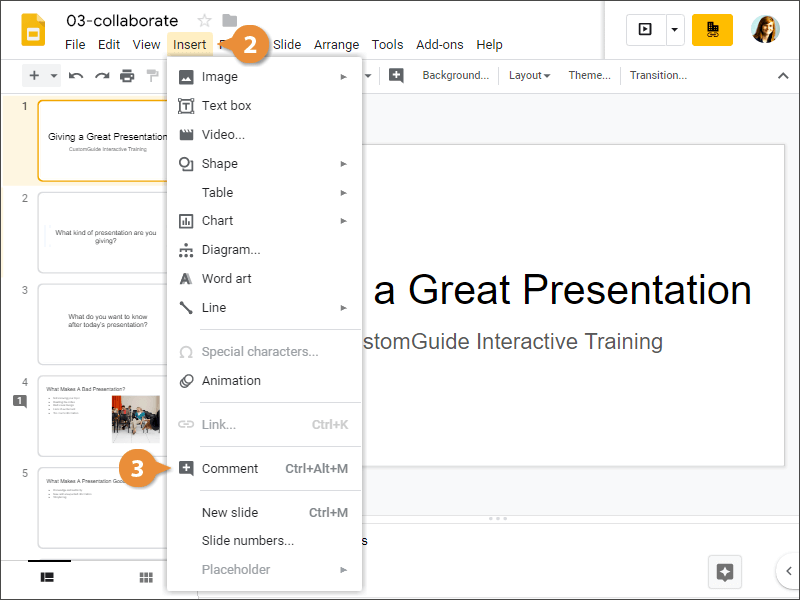
- Click Insert on the menu bar.
- Select Comment.
A comment balloon appears next to the slide.
- Type a comment into the text field and click Comment.
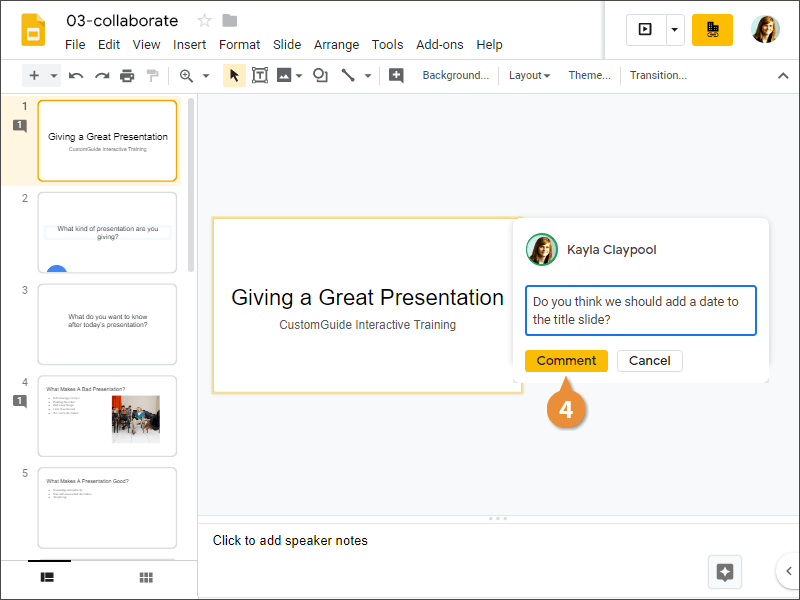
The comment is added and can be seen whenever the slide is selected.
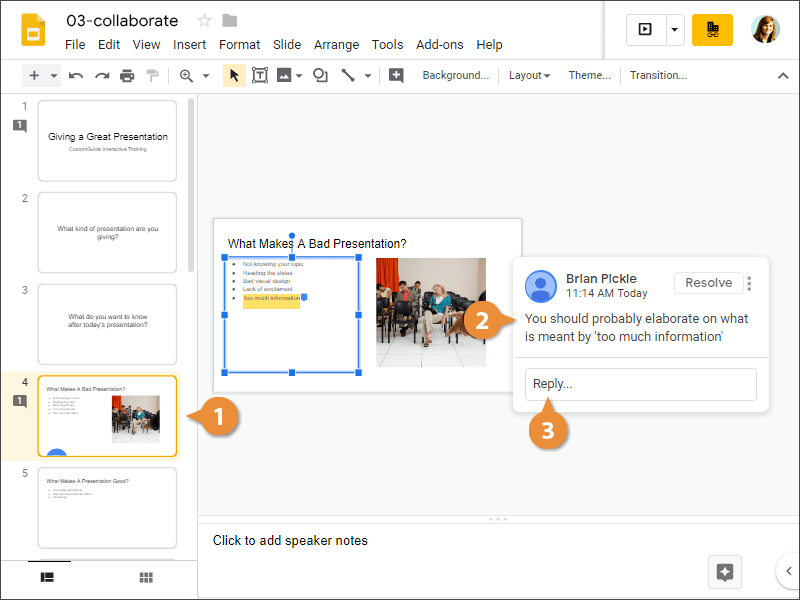
When someone else adds a comment, you can reply to it to give your own feedback. A slide with a comment will be marked by a comment icon in the slide navigation pane.
- Select a slide with a comment.
The comment automatically appears once the slide is selected.
- Select a comment.
- Click in the Reply field.
- Type a reply and click Reply.
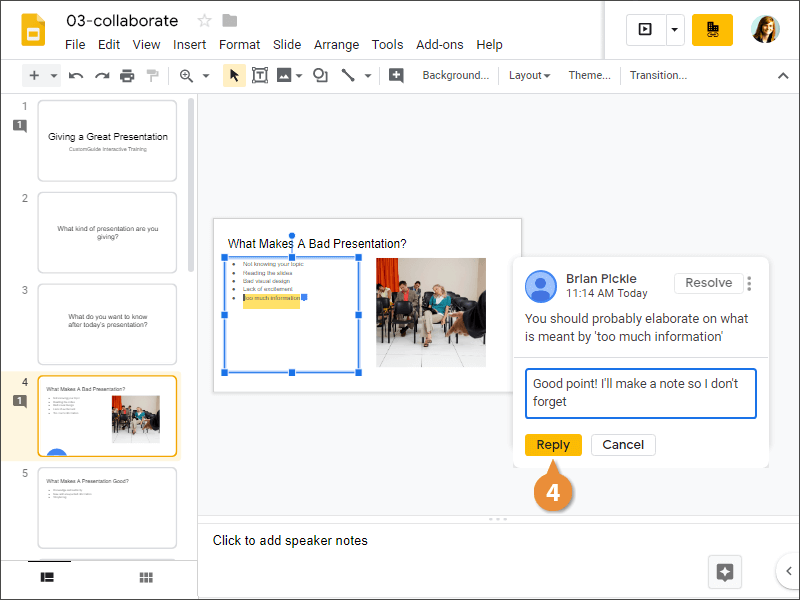
Your reply is added to the comment balloon.
Resolve a Comment
Once a comment is no longer needed, you can mark it resolved. Resolved comments will no longer appear on a presentation.
- Select a slide with a comment.
- Click the Resolve button.
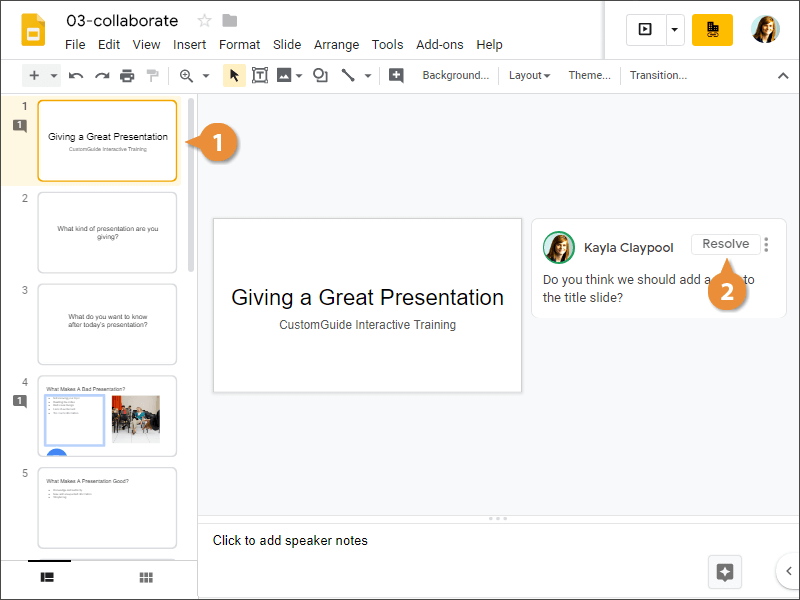
The comment is resolved and will no longer appear.
- Type a reply and click Reply.
- Type a comment into the text field and click Comment.