

How to Add Slide Numbers in Google Slides
Insert Page Numbers in Google Slides to Track and Reference Slides Easily During Presentations
Pruebe este curso con una prueba gratuita


You may find it helpful to display slide numbers on your presentation so your audience has an easy way to reference a slide of interest.
Add Slide Numbers
- Click Insert on the menu bar.
- Select Slide numbers.
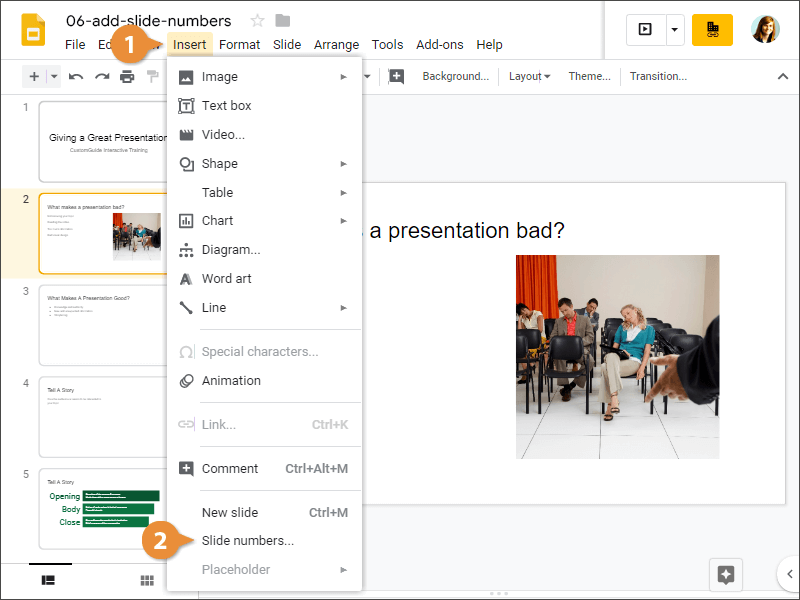
The Slide numbers dialog appears with some options.
- Select On, if necessary.
- (Optional) Click the Skip title slides check box.
- (Optional)Apply to selected or Apply.

There you have it! Slide numbers are added to the bottom corner of each slide in the presentation, except the title slide, if omitted.
If slides are inserted, deleted, or re-sequenced, the numbering will automatically update.
Remove Slide Numbers
Removing slide numbers is just as simple.
- Click Insert on the menu bar.
- Select Slide numbers.

- Select Off.
- Click Apply.

Now the numbering has been removed from all the slides in the presentation.