Google Slides Themes
Apply and Customize Themes in Google Slides to Create Consistent, Professional Presentations
Try this Course with a Free Trial

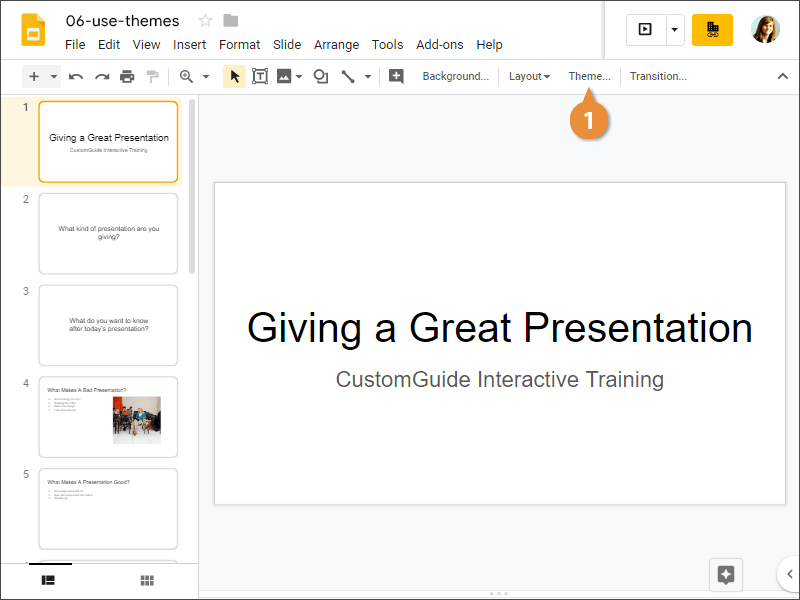
Apply a Theme
- Click the Theme button on the toolbar.
The Themes pane opens, displaying thumbnail previews of the available themes.
- Select a theme.
- Close the Themes pane.
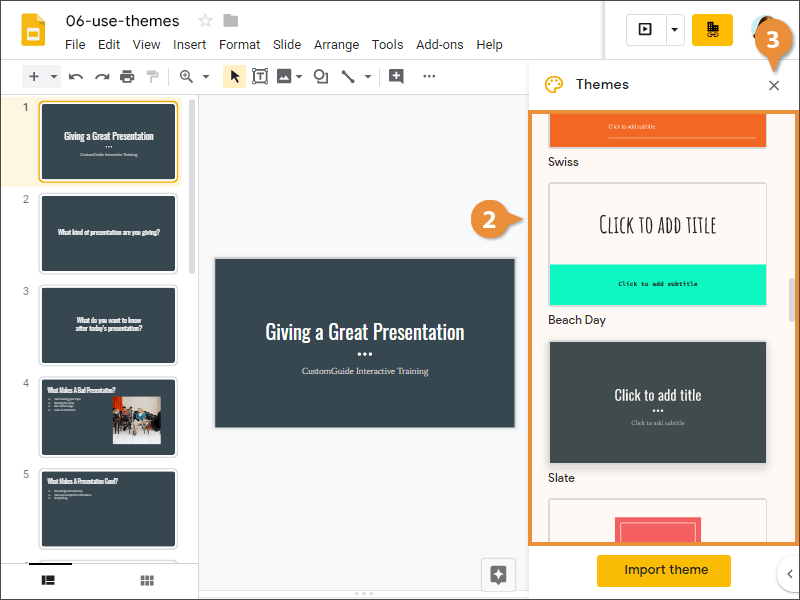
Notice that a theme affects nearly everything in the presentation. The font has changed, as well as the color of the text and background. Some decoration has even been added between the title and subtitle on this slide.
Update a Theme
If a theme is almost perfect but needs a change or two, you can update a theme.
- Modify the formatting of text that uses a theme style.
This updates the selected instance of the theme element, but all other instances remain unchanged.
- Right-click the updated text box.
- Select Update in theme.
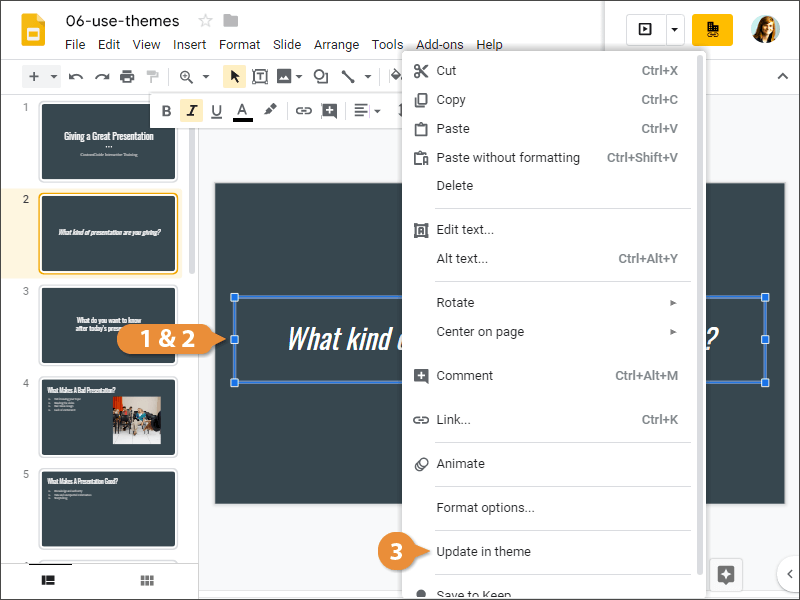
All instances of this element type (e.g. section header) in the presentation are updated.
Edit a Master Layout
Finally, if you want to edit a theme directly, you can view the master slide and make changes there.
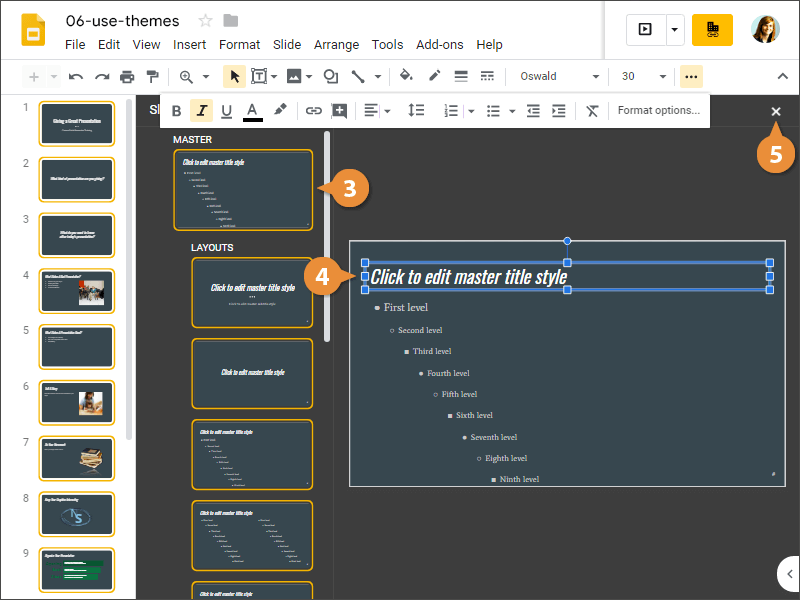
- Click View on the menu bar.
- Select Master.
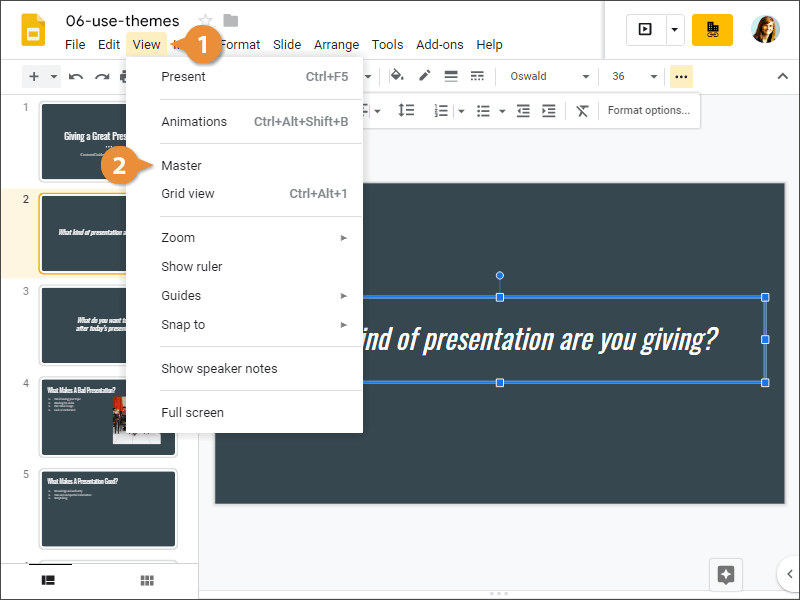
The Master view displays every slide layout used in the theme. Changing anything on one of these layouts will change it in every slide using that layout. You can also change the top master, which will affect all of the layouts.
- Select a slide layout.
- Modify text formatting on the selected layout.
- Close Master view.