Find and Replace
Search for Words and Instantly Replace Text in Google Slides to Save Time Editing
Try this Course with a Free Trial

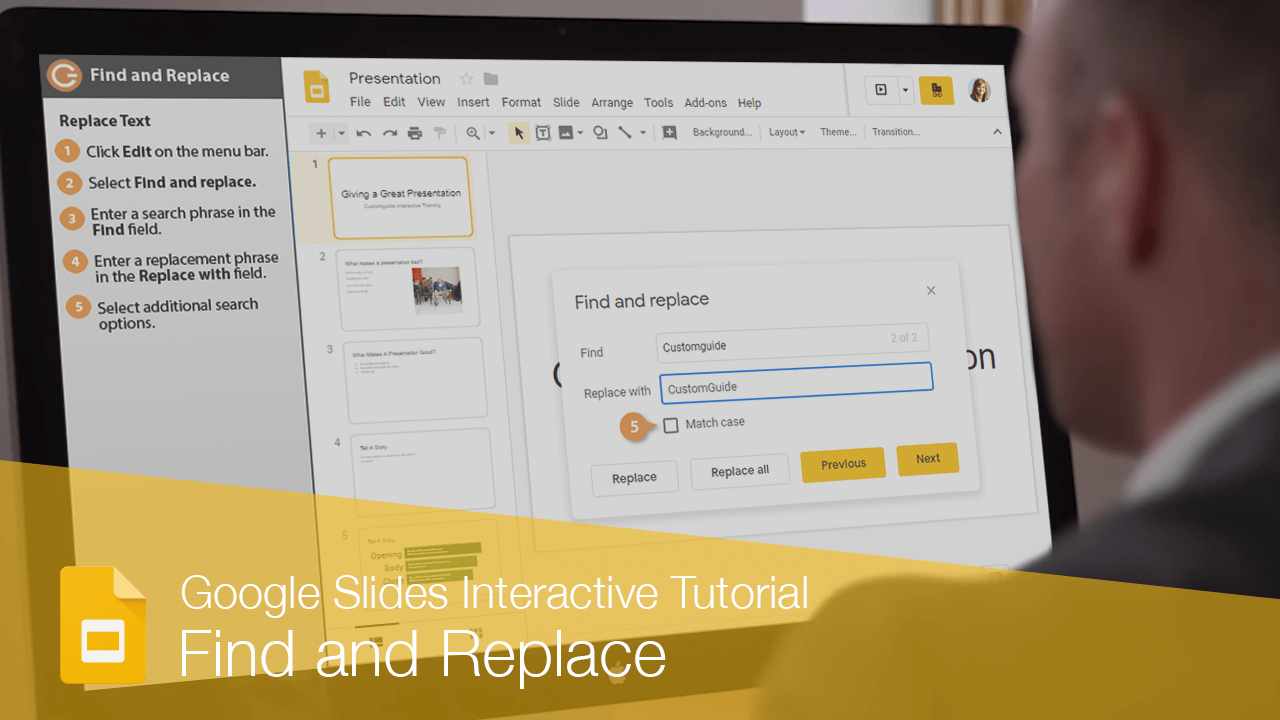
Sometimes you'll have some text you need to find somewhere in your presentation, but you're not sure where it is. Luckily, you can search a presentation using the Find feature.
Find Text
Find makes it very easy to find specific words and phrases in a presentation.
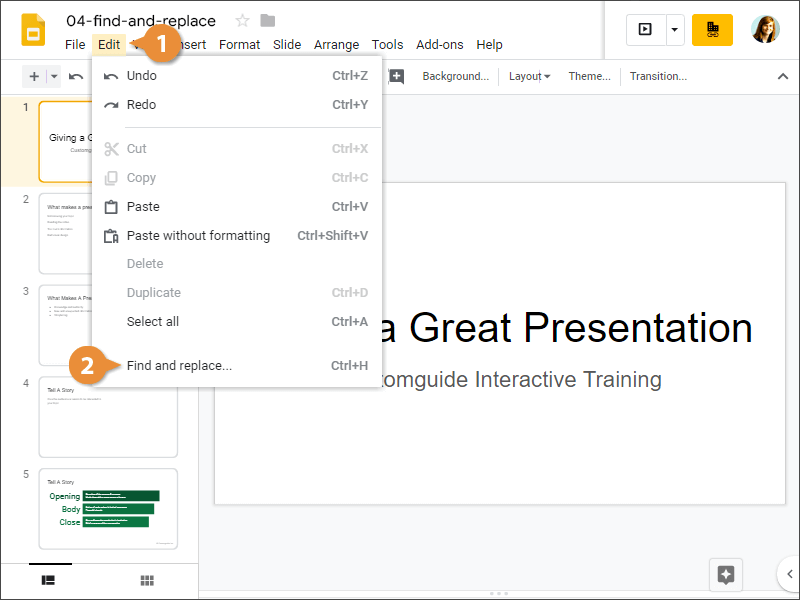
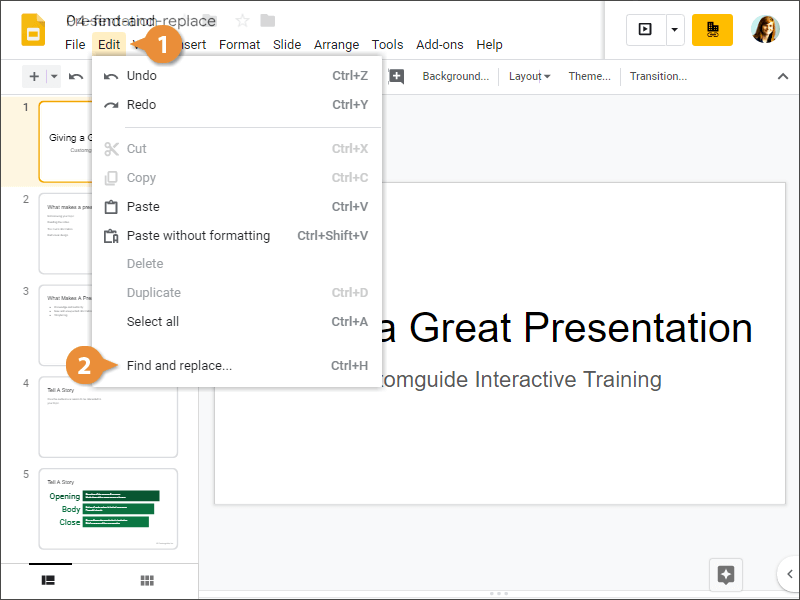
- Click Edit on the menu bar.
- Select Find and replace.
Press Ctrl + H.
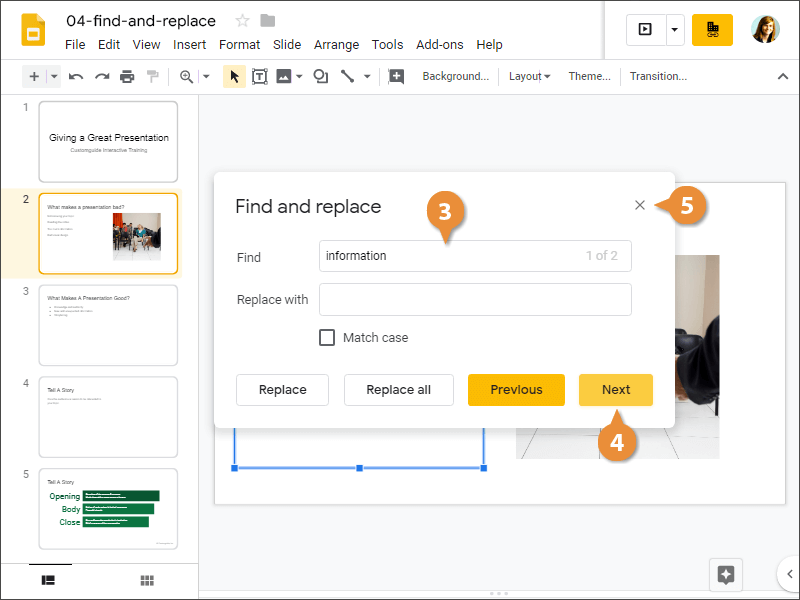
- Enter a search phrase in the Find field.
- Click Next.
If this isn't the slide you were looking for, just keep clicking Next until you find it. You can also click Previous to move back in the order.
- Click the Close button.
Replace Text
If you have a word in your presentation that needs to be replaced, you can use Find and replace to fix it instead of going through each slide and fixing it manually.
- Click Edit on the menu bar.
- Select Find and replace.
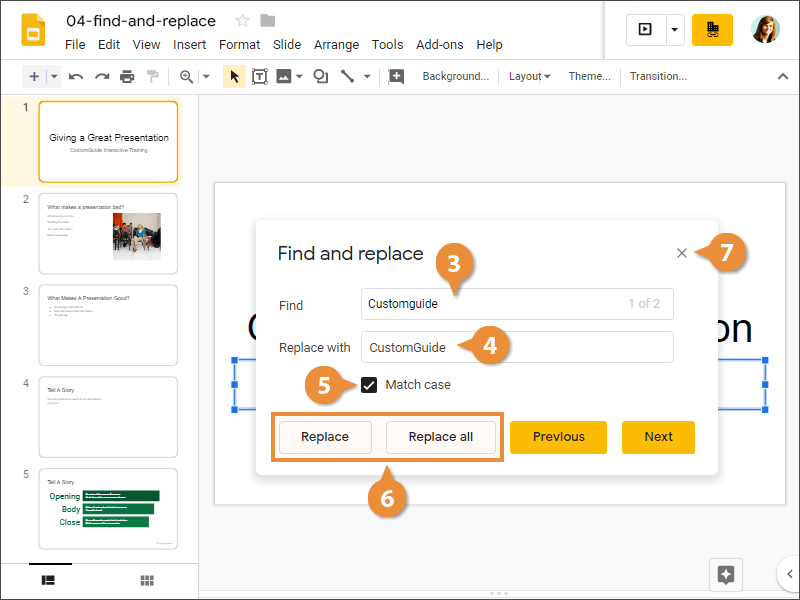
- Enter a search phrase in the Find field.
- Enter a replacement phrase in the Replace with field.
- (Optional) Select additional search options.
- Select a replacement option.
- Replace: Changes one at a time.
- Replace all: Changes everything at once.
- Click the Close button.