

Paste Special Google Sheets
Use Paste Special Options to Transpose and Format Data in Google Sheets
Try this Course with a Free Trial

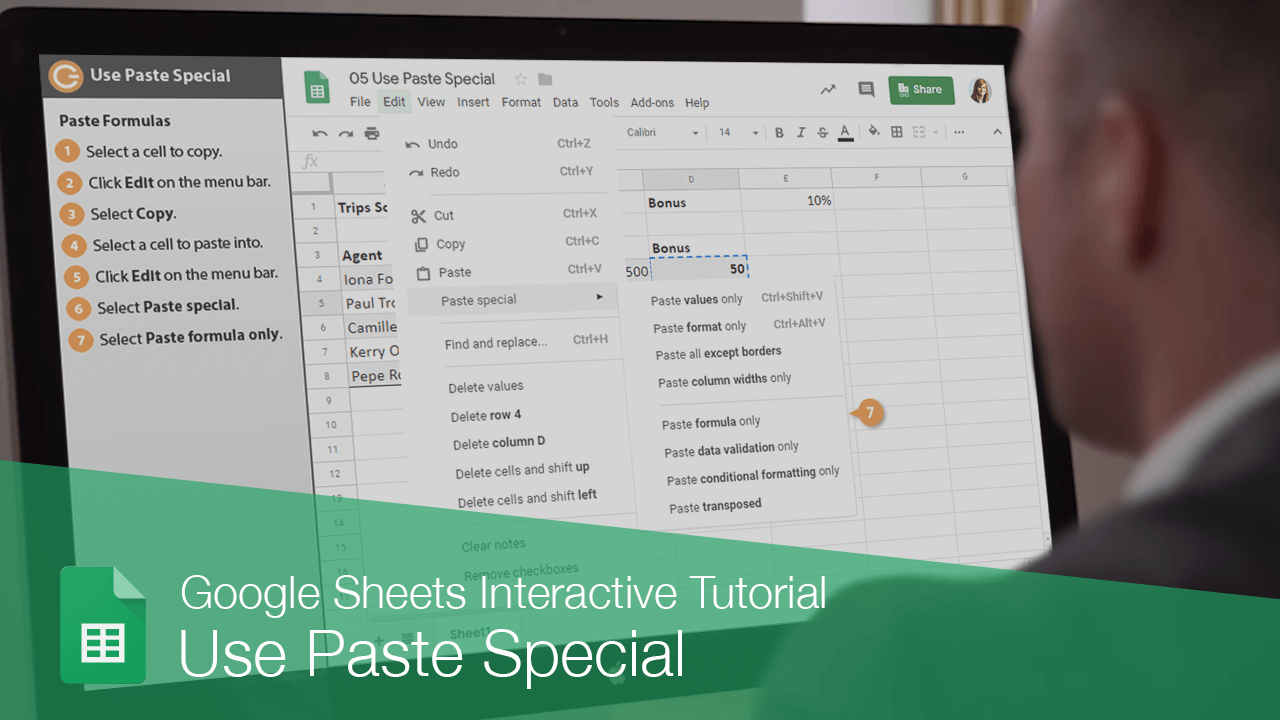
When you copy cell data, there are many ways it can be pasted. Some examples include:
- Transpose Data: Copy columns to rows or vice versa.
- Paste Values: Paste the results or values from a formula instead of copying and pasting the formulas themselves.
- Paste Formulas: Copy formulas from a cell or cell range and apply it elsewhere.
Paste Formulas
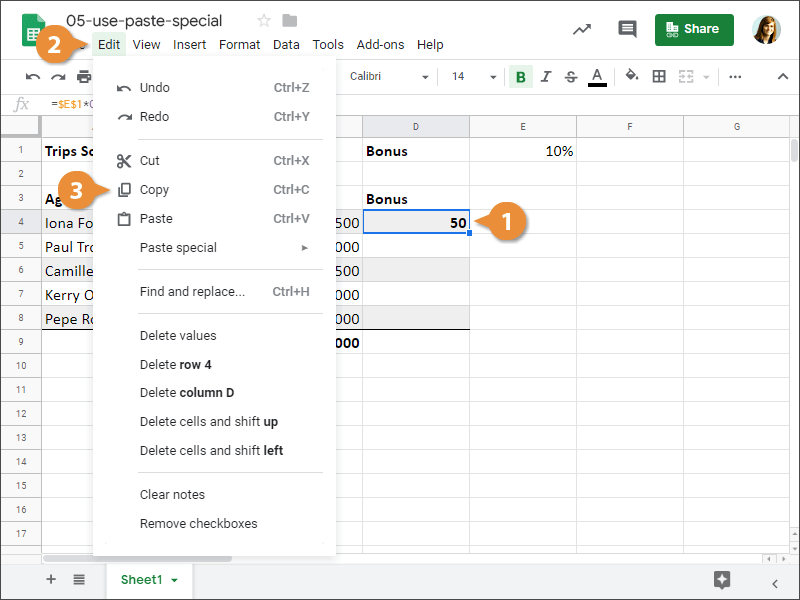
- Select a cell that has a formula you want to copy.
If this cell contains a formula and some formatting, both will be copied and pasted by default.
- Click Edit on the menu bar.
- Select Copy.
- Select a cell to paste into.
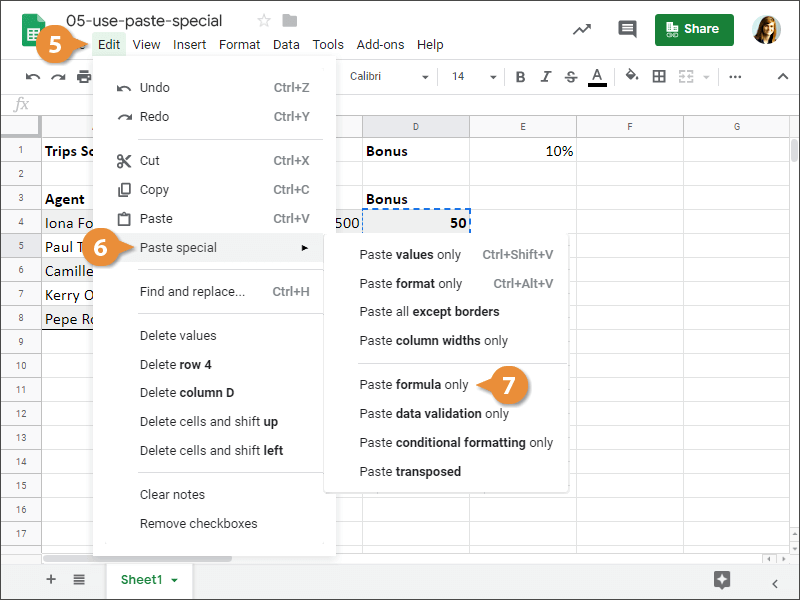
- Click Edit on the menu bar.
- Select Paste special.
The Paste Special options lets you paste aspects of the copied cell.
- Select Paste formula only.
The formula is copied to the selected cell.
Paste Values
You can paste only the values as displayed in the cells, instead of the formulas that are used to calculate those values.
- With a cell copied, click a cell to paste into.
- Click Edit on the menu bar.
- Select Paste special.
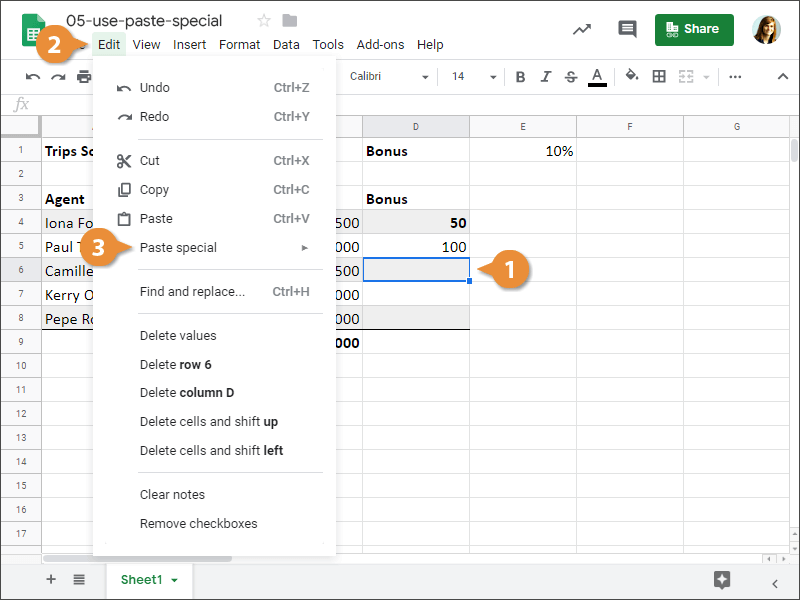
- Select Paste values only.
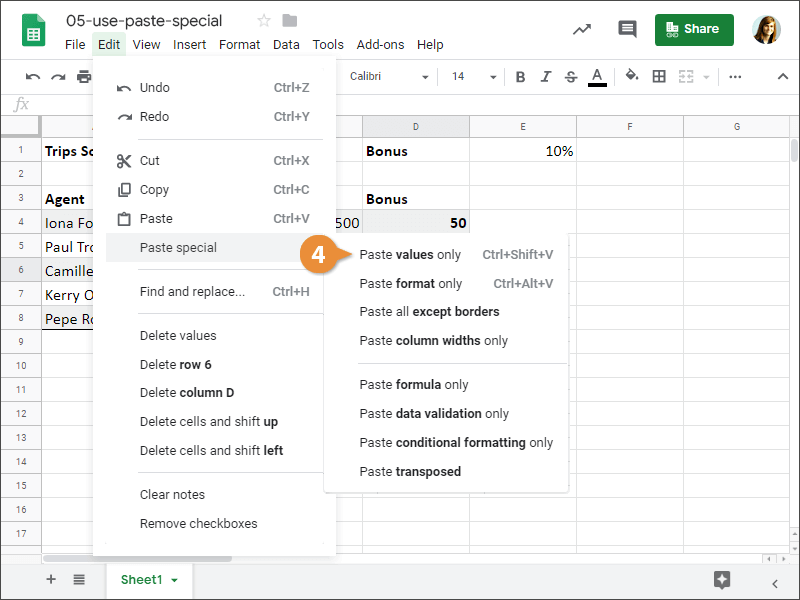
Sheets pastes the values of the copied cell into the selected cell.
Transpose Data
You can also transpose data, or paste it so that its data is rotated from its rows and columns.
- Select a range of cells.
- Click Edit on the menu bar.
- Select Copy.
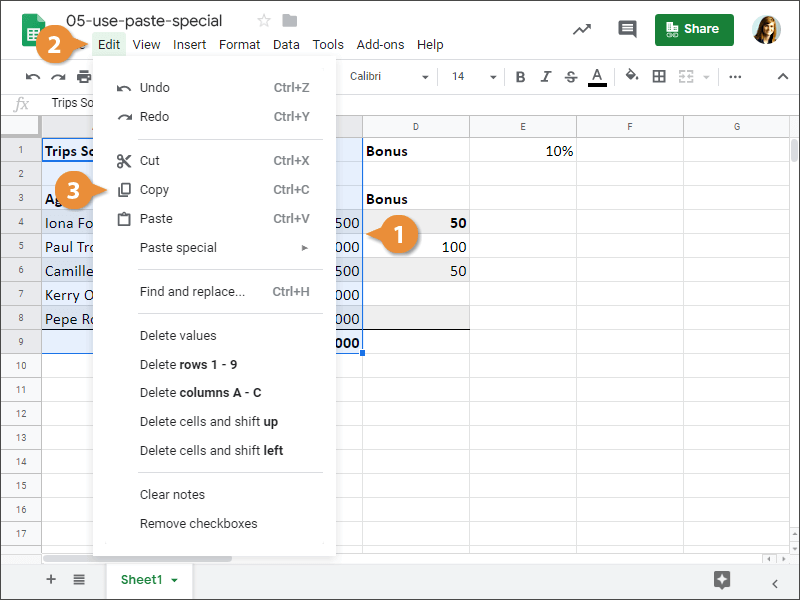
- Select a cell to paste into.
- Click Edit on the menu bar.
- Select Paste special.
- Select Paste transposed.
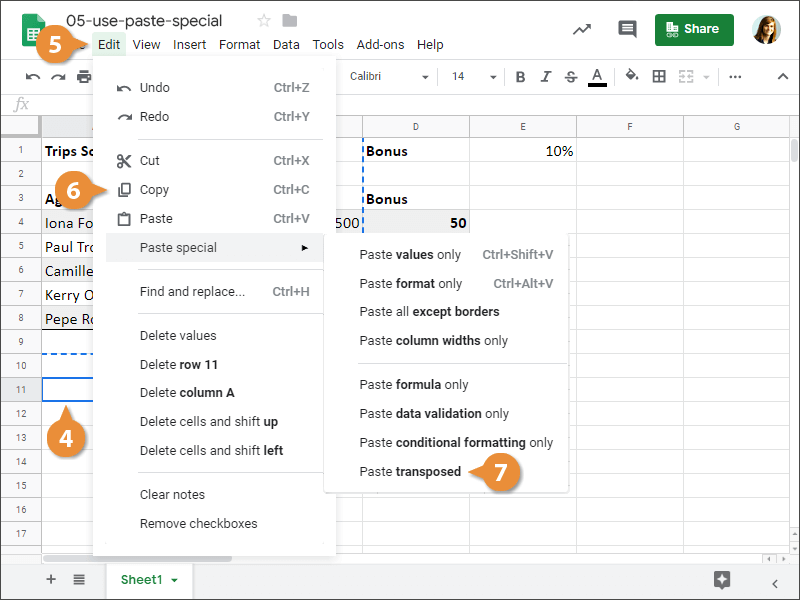
The cell range you copied earlier is pasted with the rows and columns flipped.