
How to Collaborate on Google Sheets
Work Together in Google Sheets by Adding Comments, Notes, and Real-Time Edits
Try this Course with a Free Trial
When you're working with others on a shared spreadsheet, everyone with editing permissions will be able to make changes.
When someone else is working in the same spreadsheet as you, you'll see their cell selection, and their changes will appear in real-time.
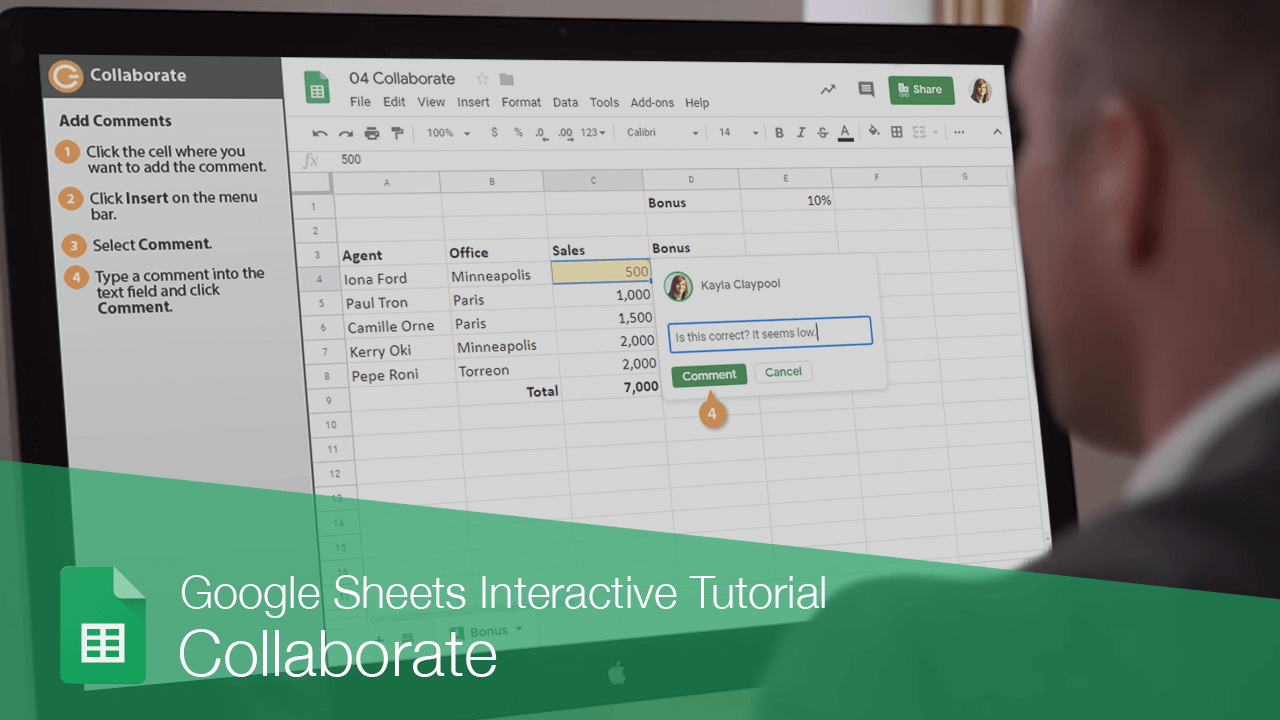
Add Comments
You can also add comments to a spreadsheet.
- Click the cell where you want to add the comment.
- Click Insert on the menu bar.
- Select Comment.
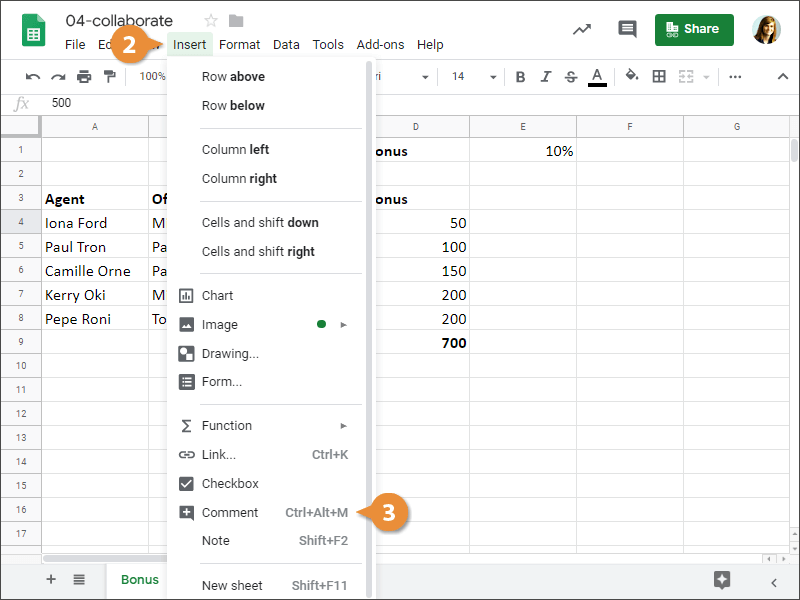
Right-click a cell and select Comment.
A comment balloon is added off to the side.
- Type a comment into the text field and click Comment.
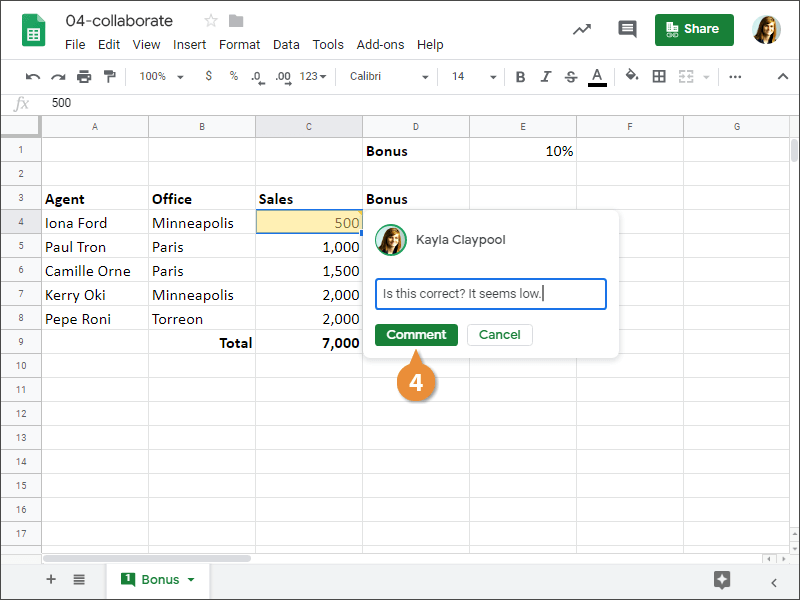
The comment is added and a comment indicator appears in the upper-right of the cell.
View a Comment
If you see a comment indicator on a cell, you'll want to view the comment text so you can address it as needed.
- Point to the cell with the comment.
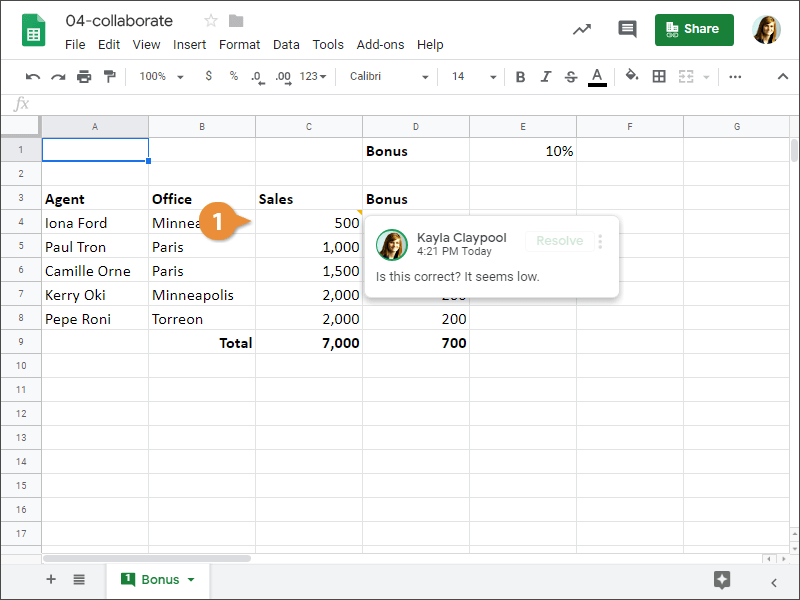
The comment appears in a comment balloon.
When someone else adds a comment, it will appear alongside yours. You can see exactly where their comment was added based on what appears highlighted nearby.
- Click a comment.
- Click in the Reply field.
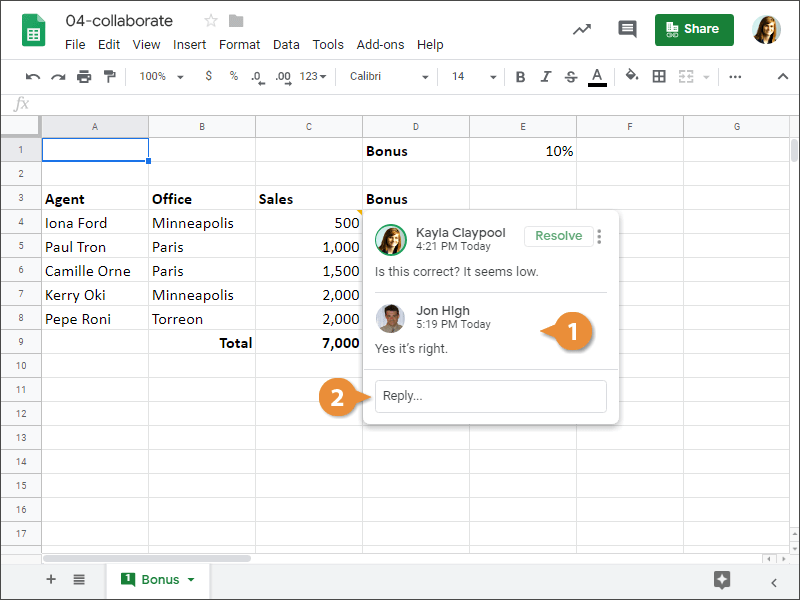
- Type a reply and click Reply.
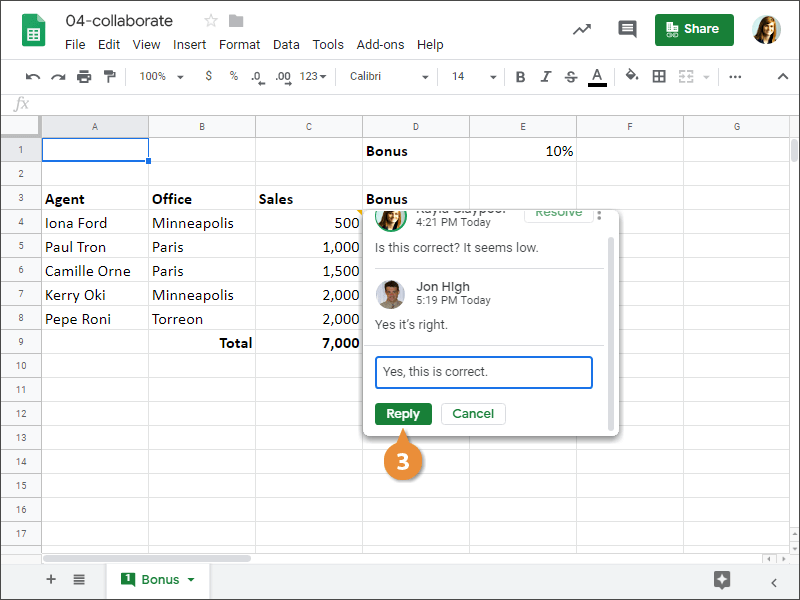
Your reply is added to the comment balloon, forming a thread.
Resolve a Comment
Once you've taken someone's feedback into account and addressed the issue, you can mark a comment as resolved.
- Click a comment.
- Click the Resolve button.
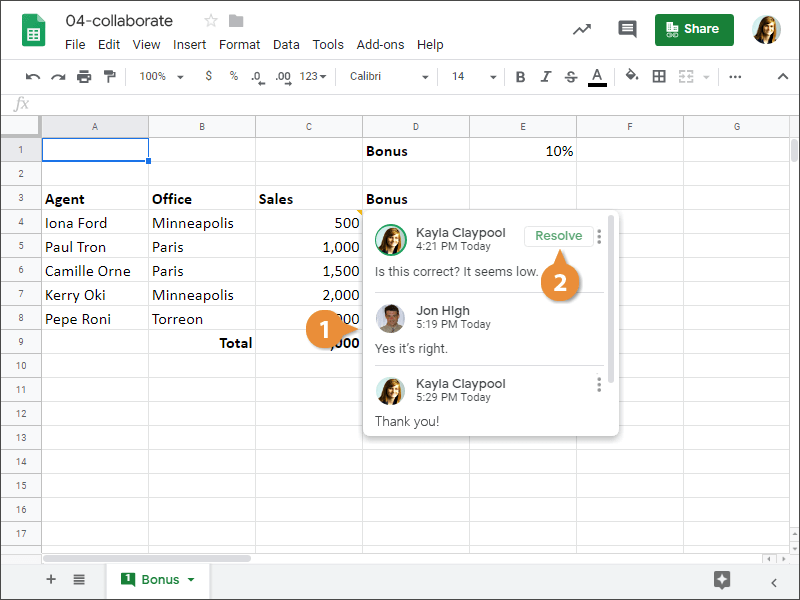
The comment is resolved and will no longer appear in the spreadsheet.