

Google Sheets Create New Spreadsheet
Start a New Google Sheets File and Organize Your Data Efficiently
Try this Course with a Free Trial
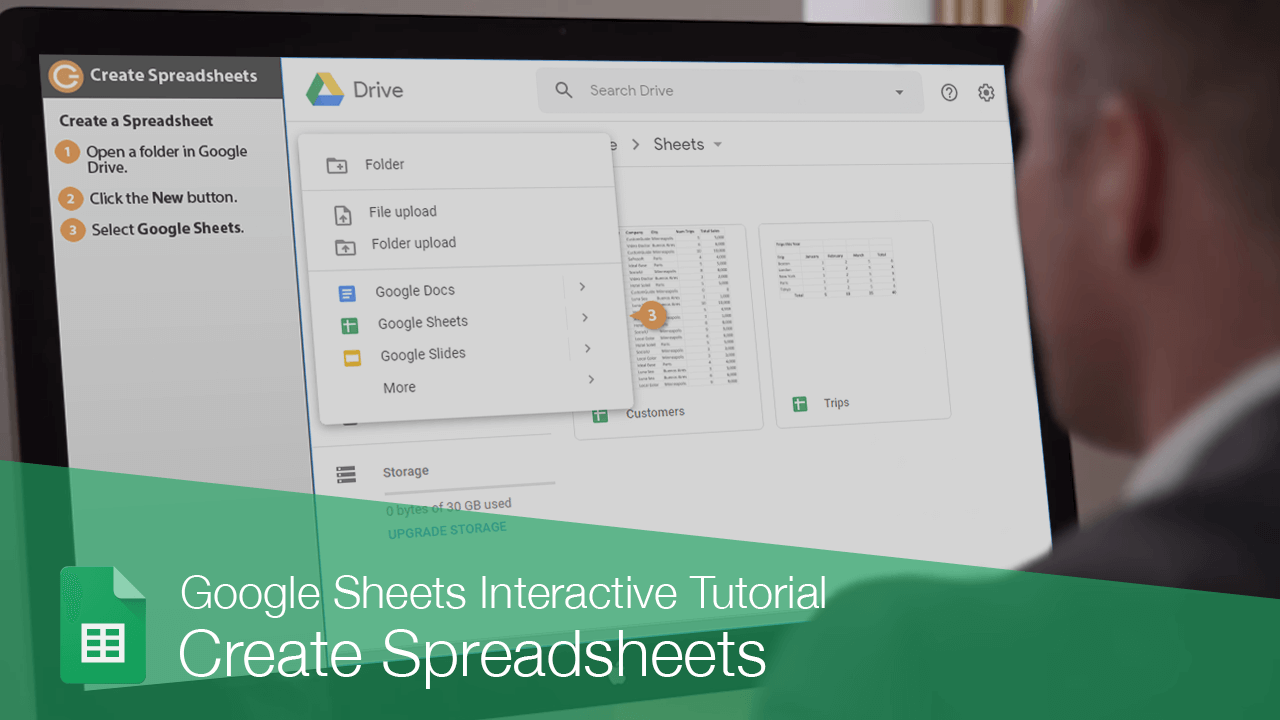
Creating a new spreadsheet is one of the most basic commands you need to know in Google Sheets. You can create a new, blank sheet or create a new sheet based on a variety of pre-designed templates.
Create a Spreadsheet
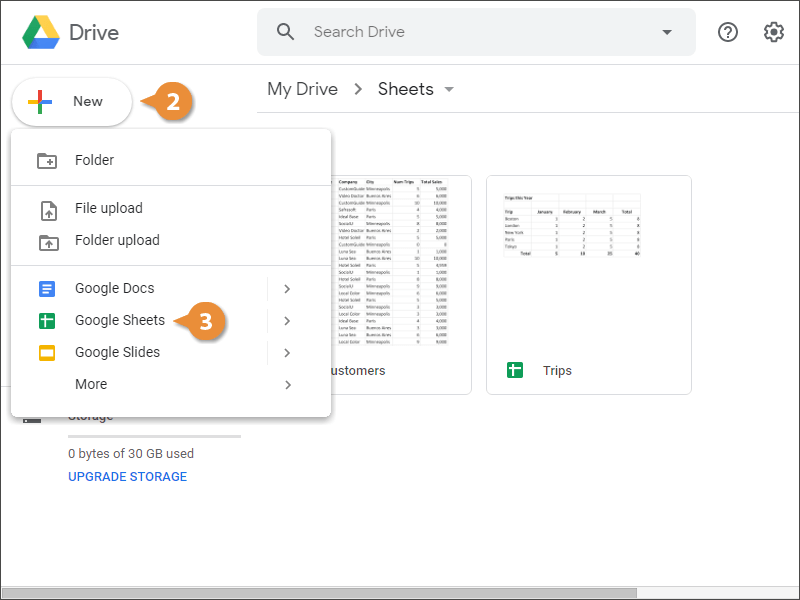
- Open a folder in Google Drive.
- Click the New button.
- Select Google Sheets.
A new, blank workbook is created, and you can start entering data.
Name a Spreadsheet
- Click in the name field above the spreadsheet.
- Type a new name, then press Enter.
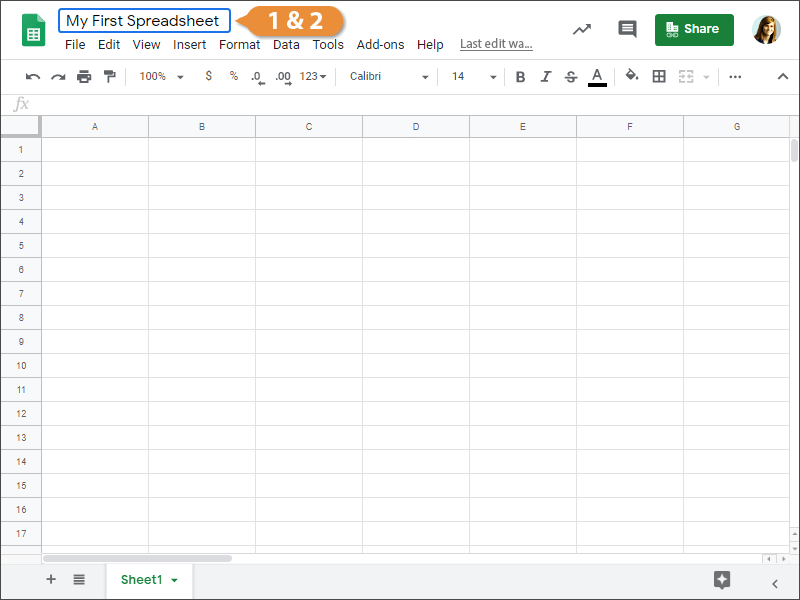
The file is renamed.
Save and Close
As long as you're connected to the internet, Google Sheets will automatically save your work.
- Make sure that changes have been automatically saved.
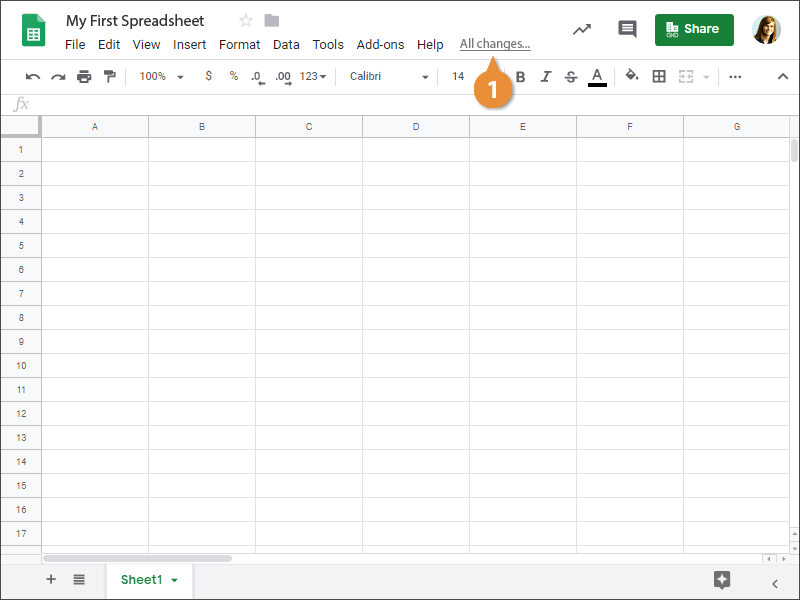
The spreadsheet is saved and will appear the same once you reopen it.
Create a Spreadsheet from a Template
If you need help getting started with a common document, such as a budget, schedule, or calendar, you can use one of Sheets' templates instead of starting from scratch.
- Click New.
- Click > next to Google Sheets.
- Select From a template.
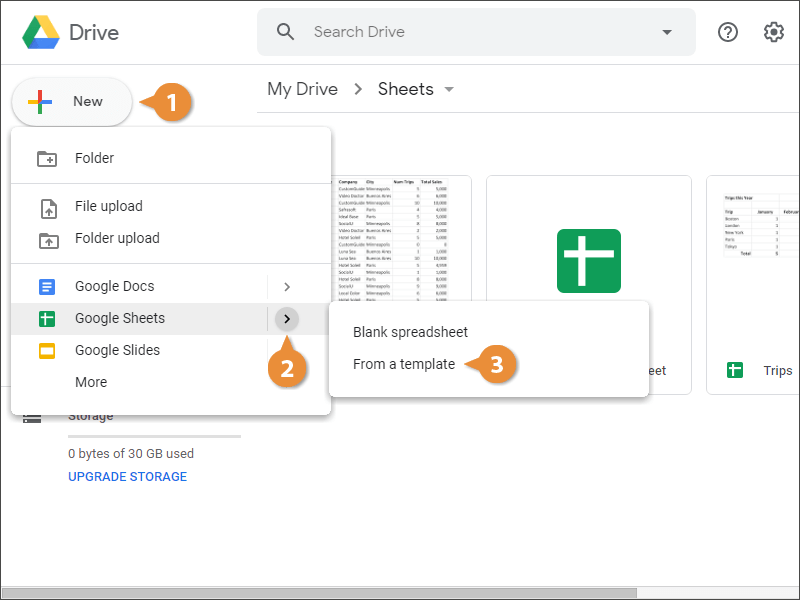
The Template gallery appears, with tabs that sort templates into two groups. The first tab is for templates you, or others in your organization, have submitted. The second tab is for built-in templates.
- Select a template gallery.
There are plenty of templates available, organized into categories.
- Select a template.
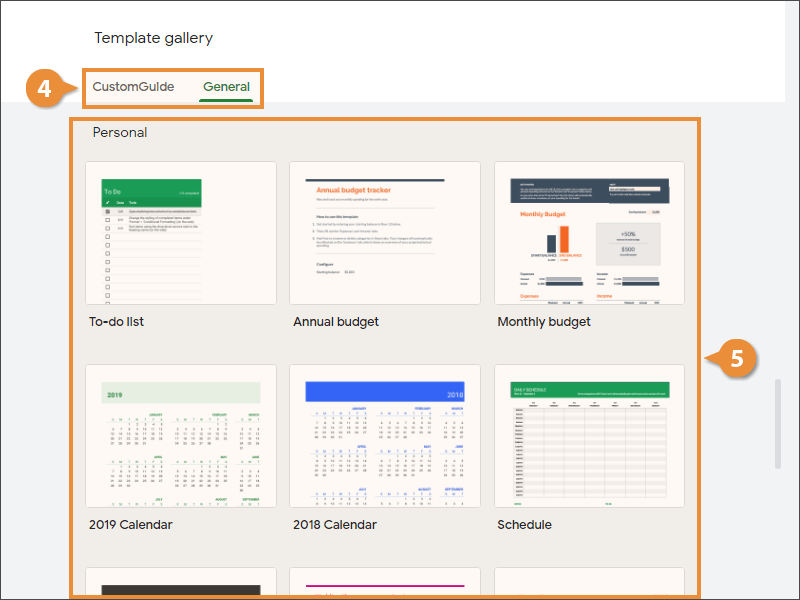
A new spreadsheet is created using the template, with its design elements and placeholder data appearing.
- Make sure that changes have been automatically saved.