

Google Sheets Conditional Formatting
Use Conditional Formatting to Highlight Trends and Important Data in Google Sheets
Try this Course with a Free Trial

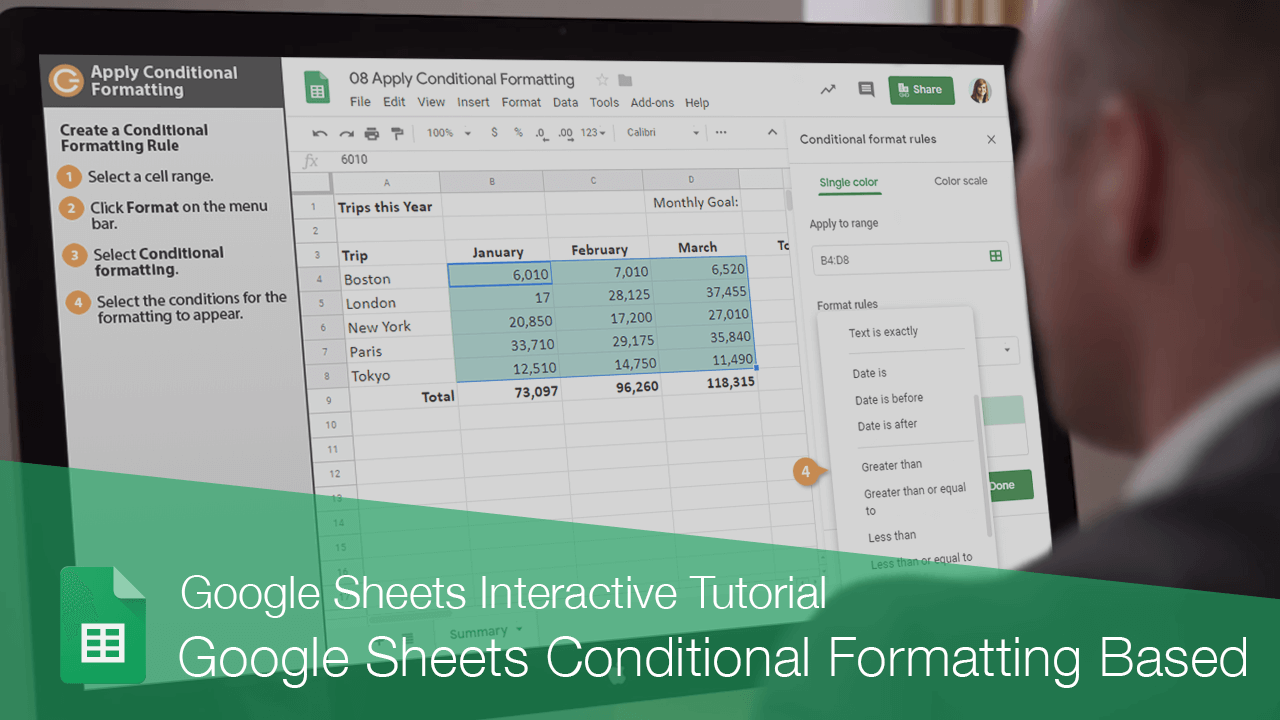
You can apply certain formatting to cells that meet criteria that you set. This is called conditional formatting.
Create a Conditional Formatting Rule
- Select a cell range.
- Click Format on the menu bar.
- Select Conditional formatting.
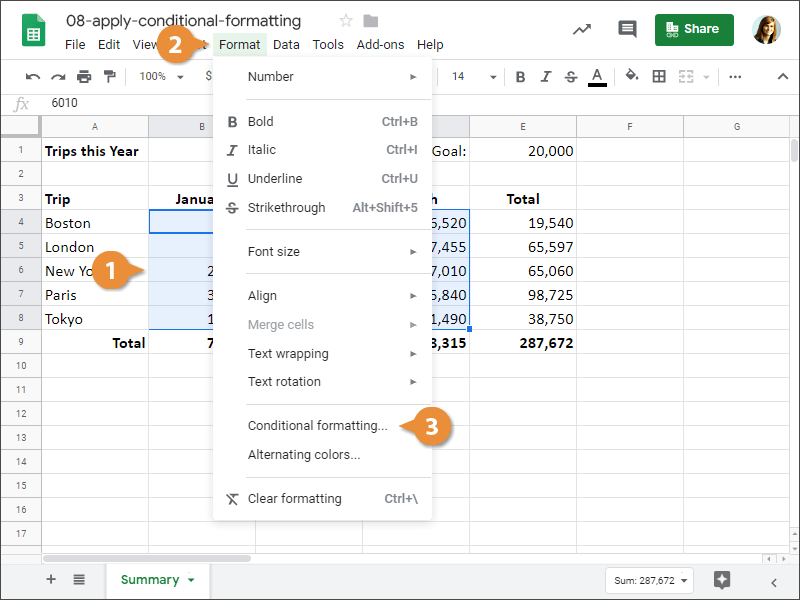
The Conditional format rules pane appears, and a new rule has been started.
- Select the conditions for the formatting to appear.
- Customize the formatting that will appear when the conditions are met.
- Click Done.
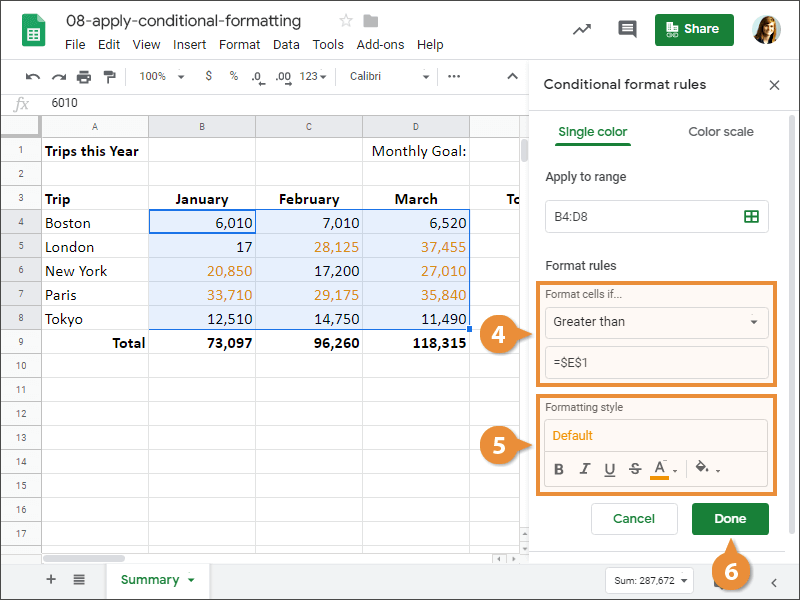
The rule is saved.
| Condition | Description |
|---|---|
| Is empty | Applies formatting for empty cells. |
| Is not empty | Applies formatting for cells that aren't empty. |
| Text contains | Applies formatting for cells that contain specified text. |
| Text does not contain | Applies formatting for cells that do not contain specified text. |
| Text starts with | Applies formatting for cells that start with specified text. |
| Text ends with | Applies formatting for cells that end with specified text. |
| Text is exactly | Applies formatting for cells that exactly match the specified text. |
| Date is | Applies formatting for cells with dates that match a specified date. |
| Date is before | Applies formatting for cells with dates that are before a specified date. |
| Date is after | Applies formatting for cells with dates that are after a specified date. |
| Greater than | Applies formatting for cells with values that are greater than a specified value. |
| Greater than or equal to | Applies formatting for cells with values that are greater or equal to a specified value. |
| Less than | Applies formatting for cells with values that are less than a specified value. |
| Less than or equal to | Applies formatting for cells with values that are less than or equal to a specified value. |
| Is equal to | Applies formatting for cells with values that are equal to a specified value. |
| Is not equal to | Applies formatting for cells with values that are not equal to a specified value. |
| Is between | Applies formatting for cells with values that are between two specified values. |
| Is not between | Applies formatting for cells with values that are not between two specified values. |
| Custom formula is | Applies formatting for cells with custom formulas. |
Delete a Conditional Formatting Rule
- Select a cell within the conditional formatting range.
- With the Conditional Format Rules pane open, click the Remove rule button.
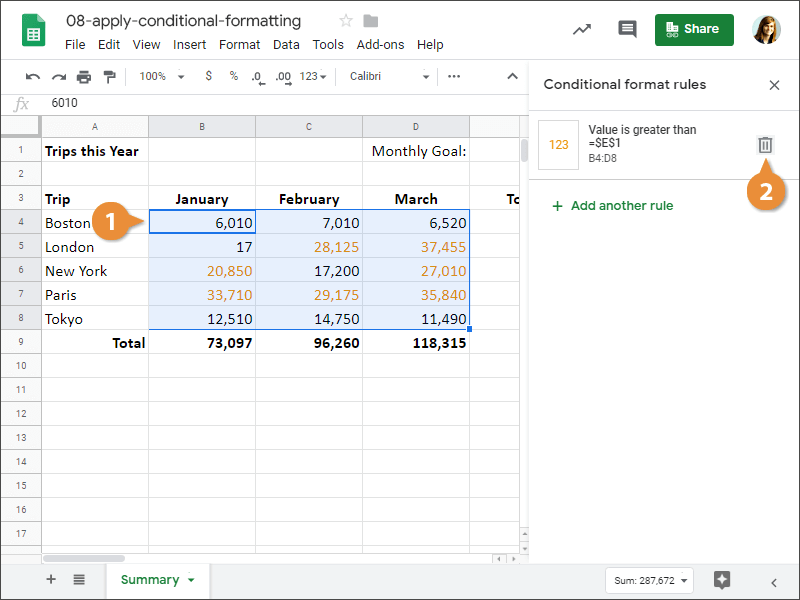
The rule is deleted.