
How to Print Google Forms
Print a Google Form or Save It as a PDF for Easy Sharing and Record Keeping
Try this Course with a Free Trial
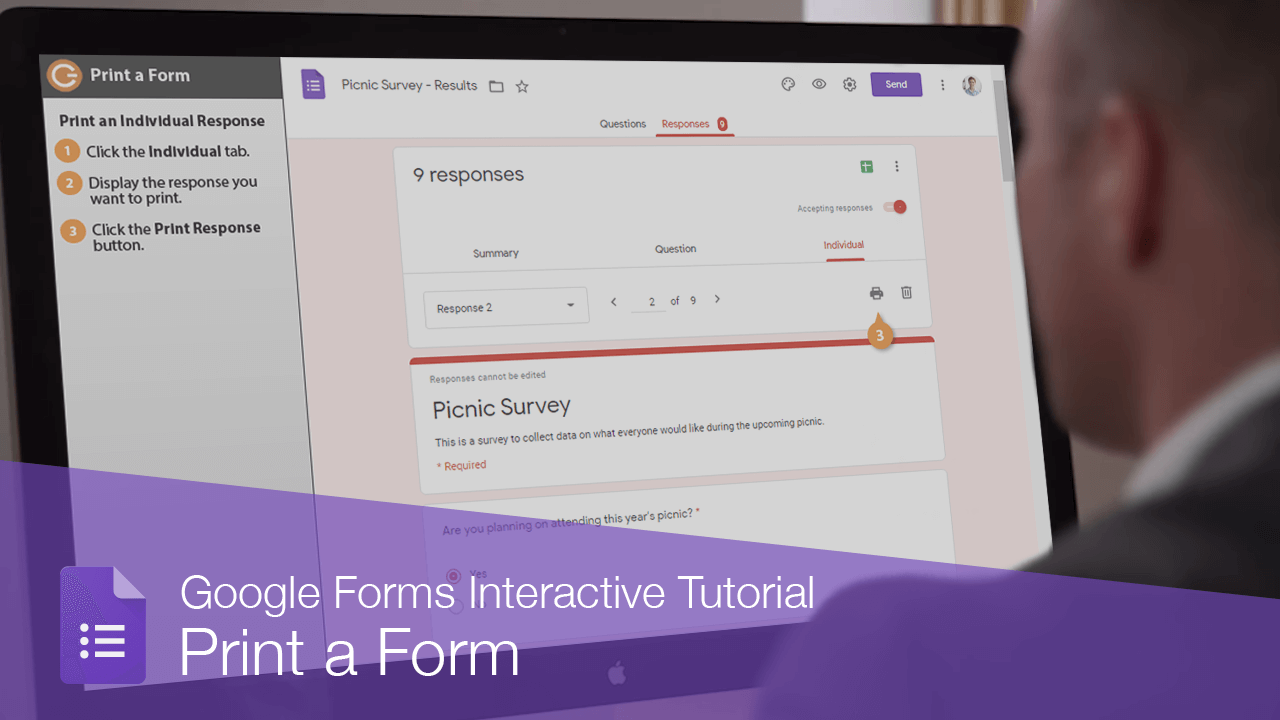
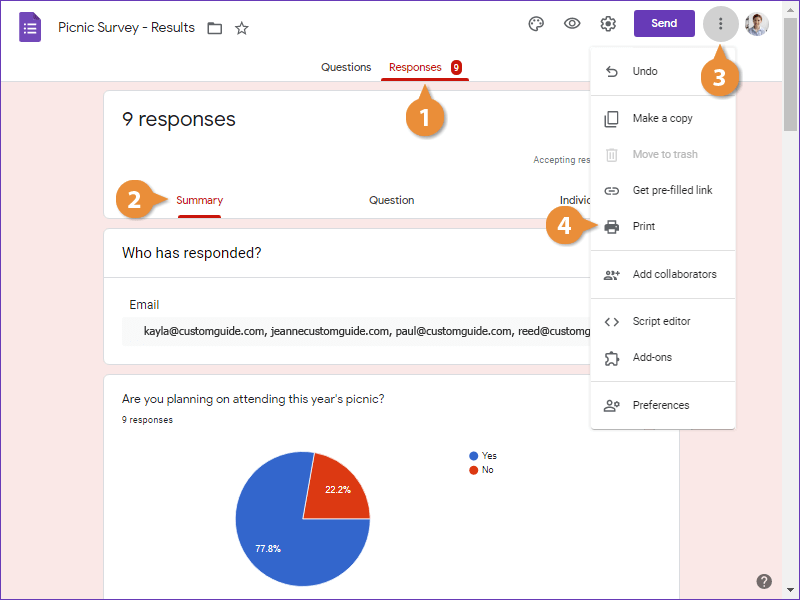
There's not just one way to print a form. You can print out a form's questions, print out a summary of all responses together, or print out an individual person's responses to review separately.
Print Questions
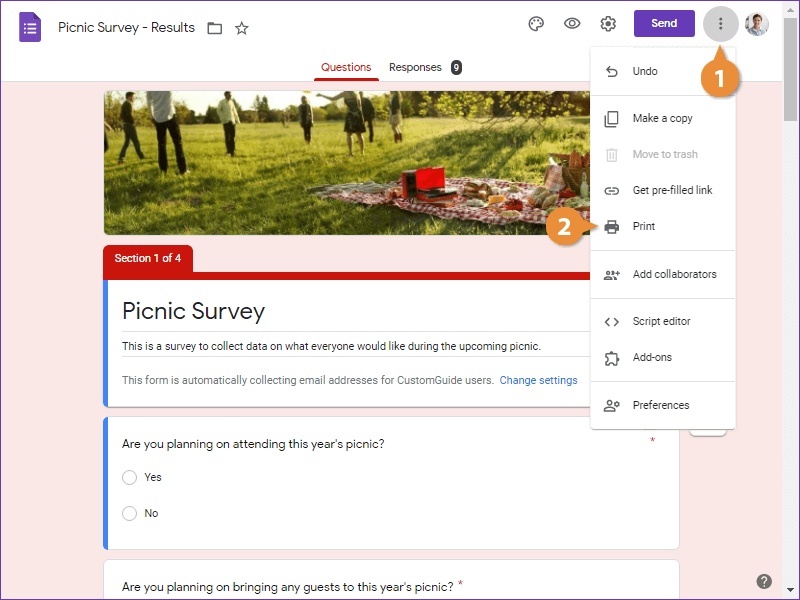
- While viewing the Questions tab, click the More button.
- Select Print.
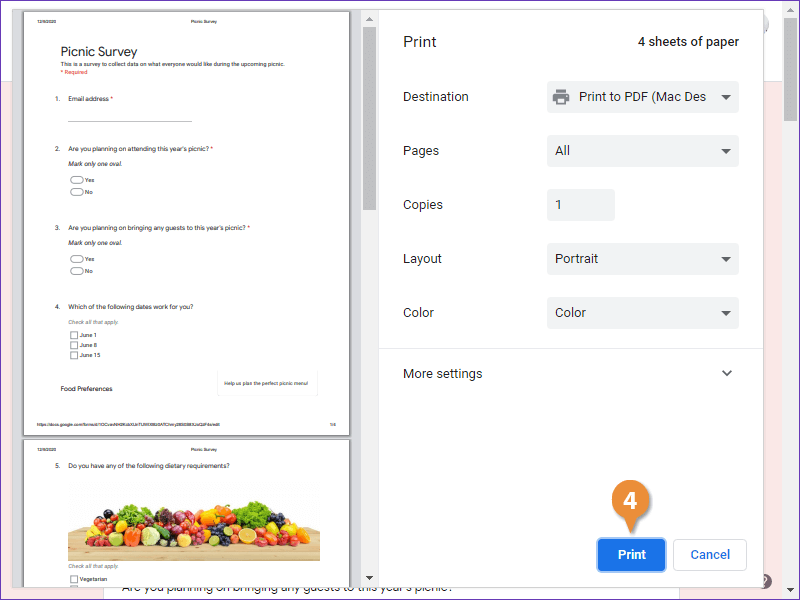
The Print dialog box appears, displaying both a print preview and the print settings. In the print settings, you have access to some standard options like which printer to use, how many copies to print, and the page layout.
- Configure the print settings.
- Click the Print button.
Print a Summary of Responses
Print an Individual Response
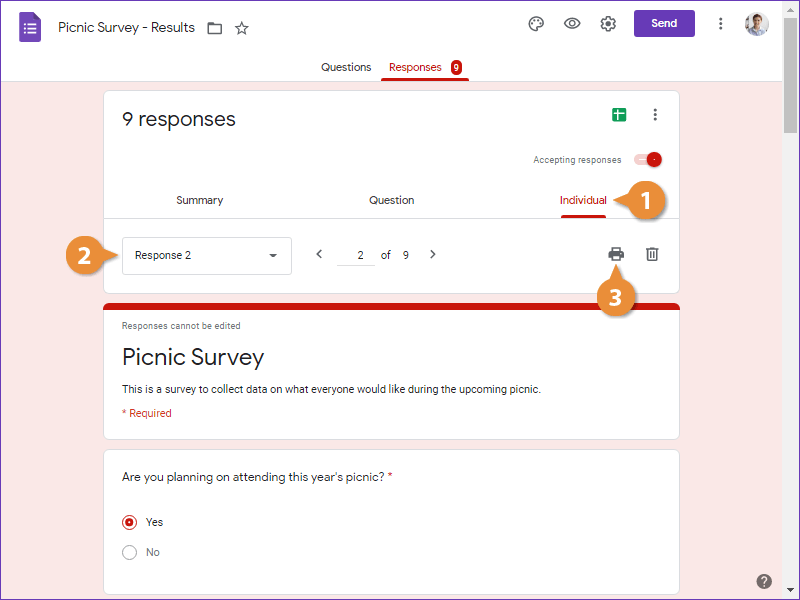
- Click the Individual tab.
- Display the response you want to print.
- Click the Print Response button.
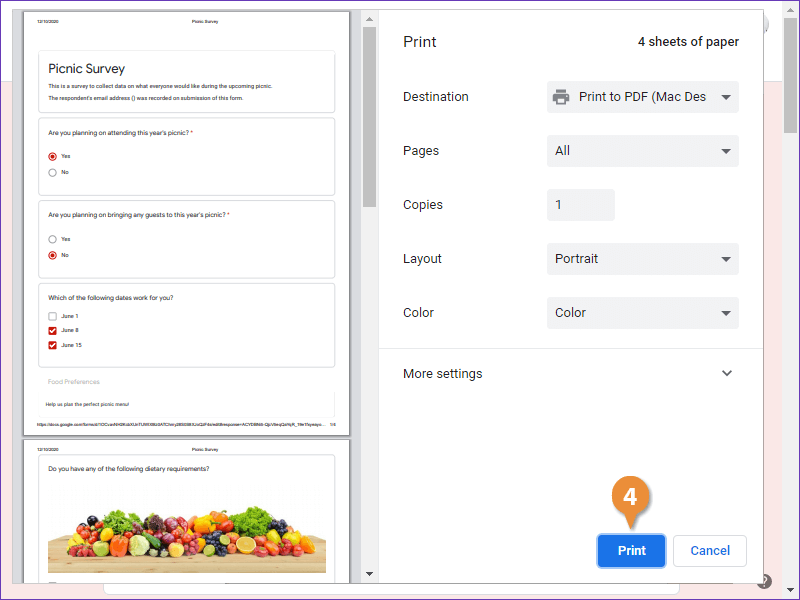
- Configure the print settings and click Print.
This view lets you view how each person responded to the questions in the form.
The Print dialog box appears once again. You can see in the print preview that all of the questions appear filled out with the answer they submitted.
Print All Responses
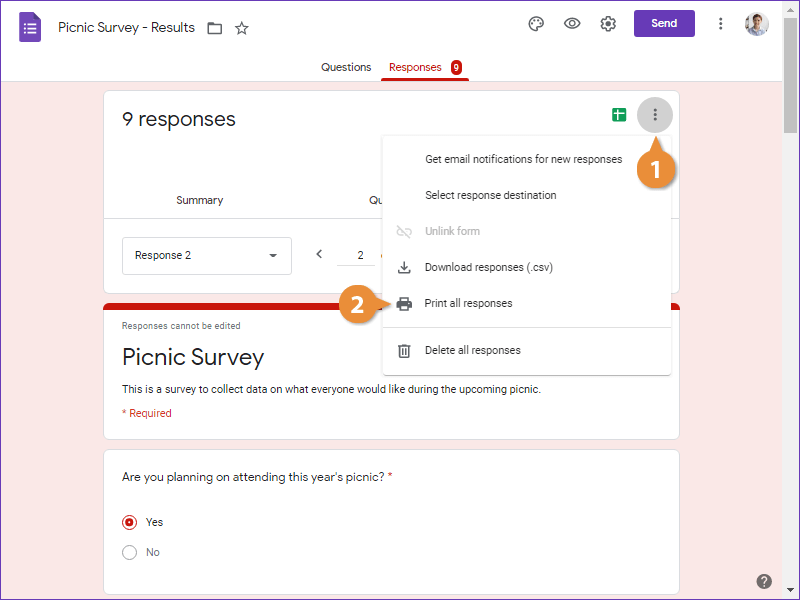
- While viewing the Question or Individual tab, then click the More button.
- Select Print all responses.
- Configure the print settings and click Print.
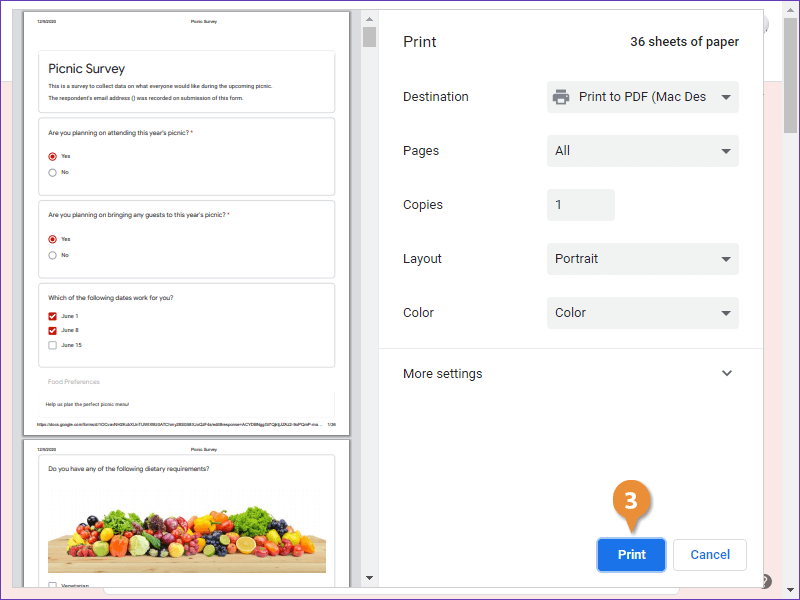
The Print dialog box opens one last time, and the print preview looks just like the one for the individual response. However, you can see based on how many pages are going to print that these pages are now prepared for every response, instead of the one that was selected.