Grade and Return a Quiz
Review Answers, Assign Scores, and Return Graded Quizzes in Google Forms
Try this Course with a Free Trial
There are two ways to grade and return a quiz with Google Forms. If the quiz contains all true/false or multiple choice questions with definitive answers, you can set it to grade the quiz and release the results immediately. If there are questions you need to assess, like in this quiz here, you'll have to manually grade those questions, then return the quiz.
View Quiz Responses
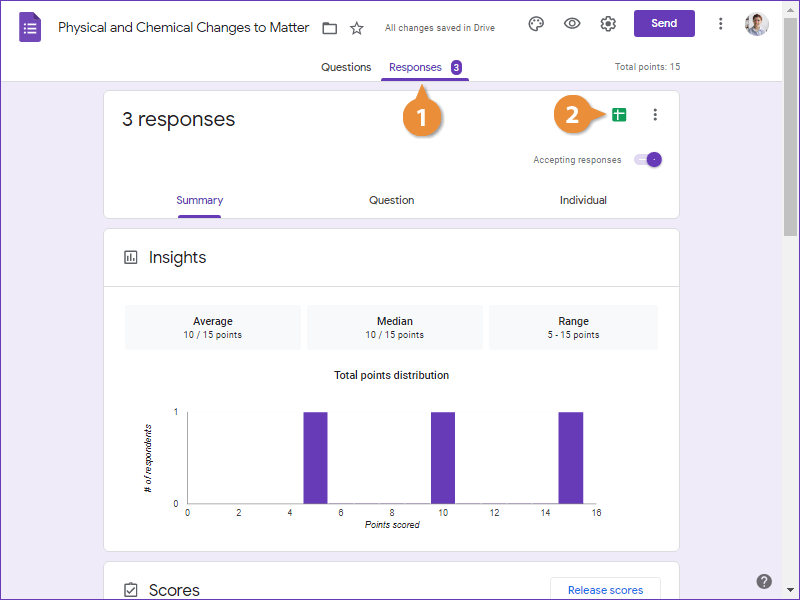
- Click the Responses tab.
- (Optional) Click the View responses in Sheets button to see the results in a spreadsheet.
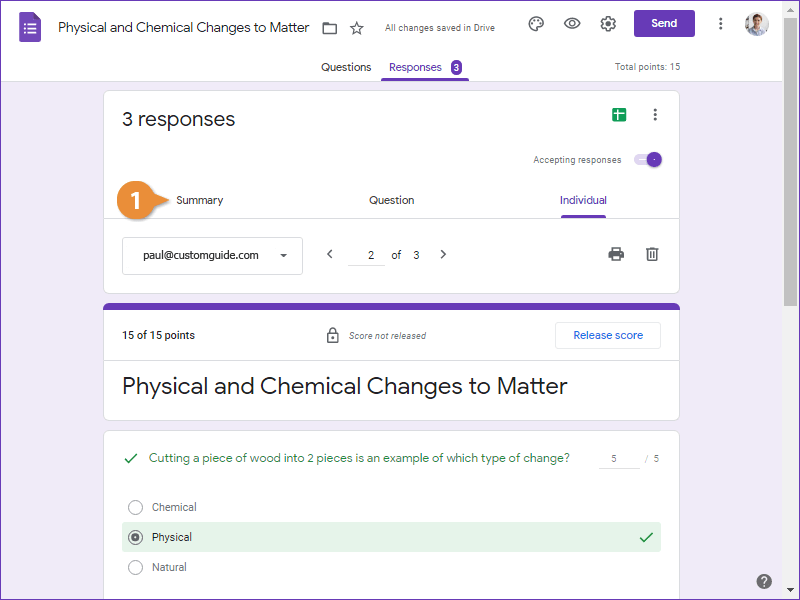
- Select a quiz response view:
- Summary shows an overview of the results with a graph, as well as who responded, and results by question.
- Question shows each question and its responses individually. Select a question from the drop-down list or use the navigation arrows to move through each question.
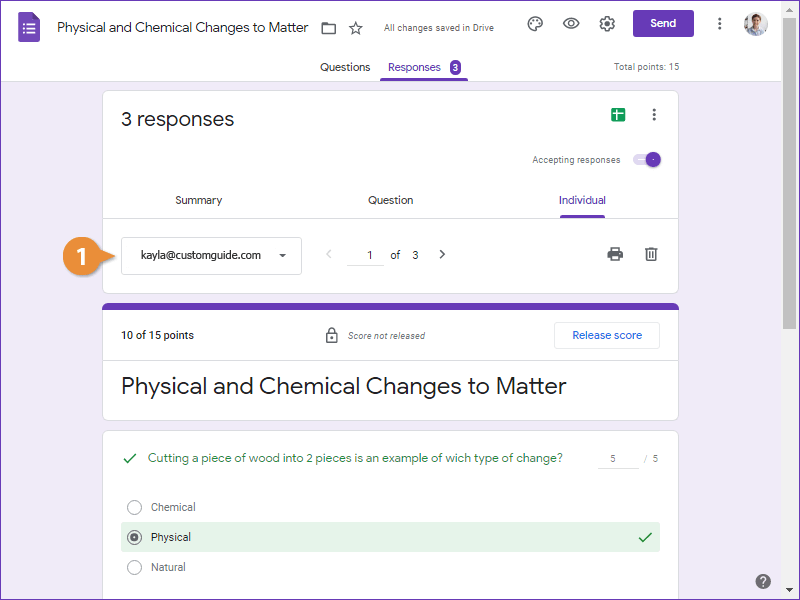
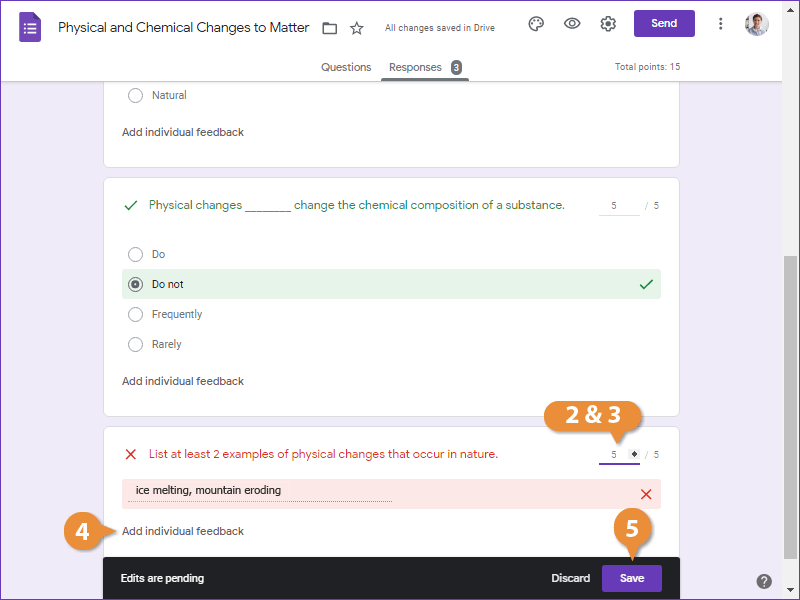
- Individual shows the responses of each student and manually grade questions.
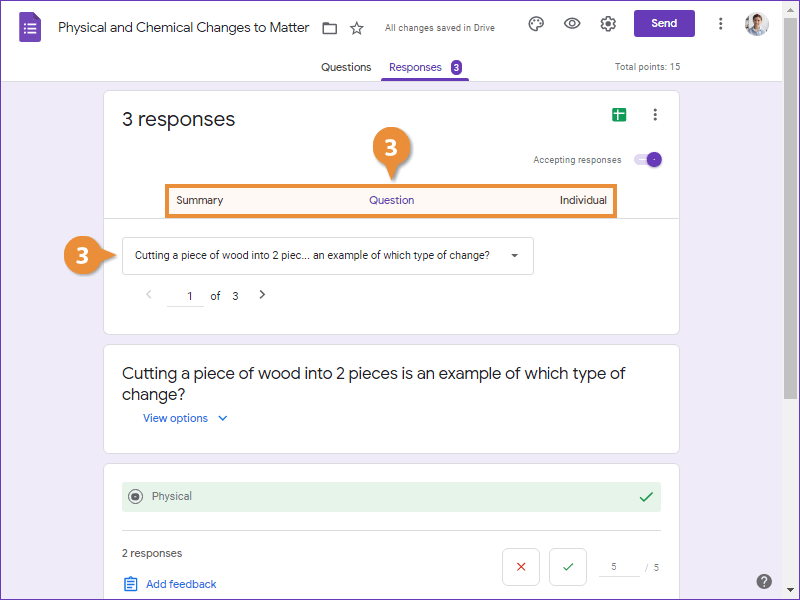
If you want to stop responses, you can also turn the Accepting responses toggle off to prevent anyone else from submitting the quiz.
Grade Quiz Questions
Return a Quiz
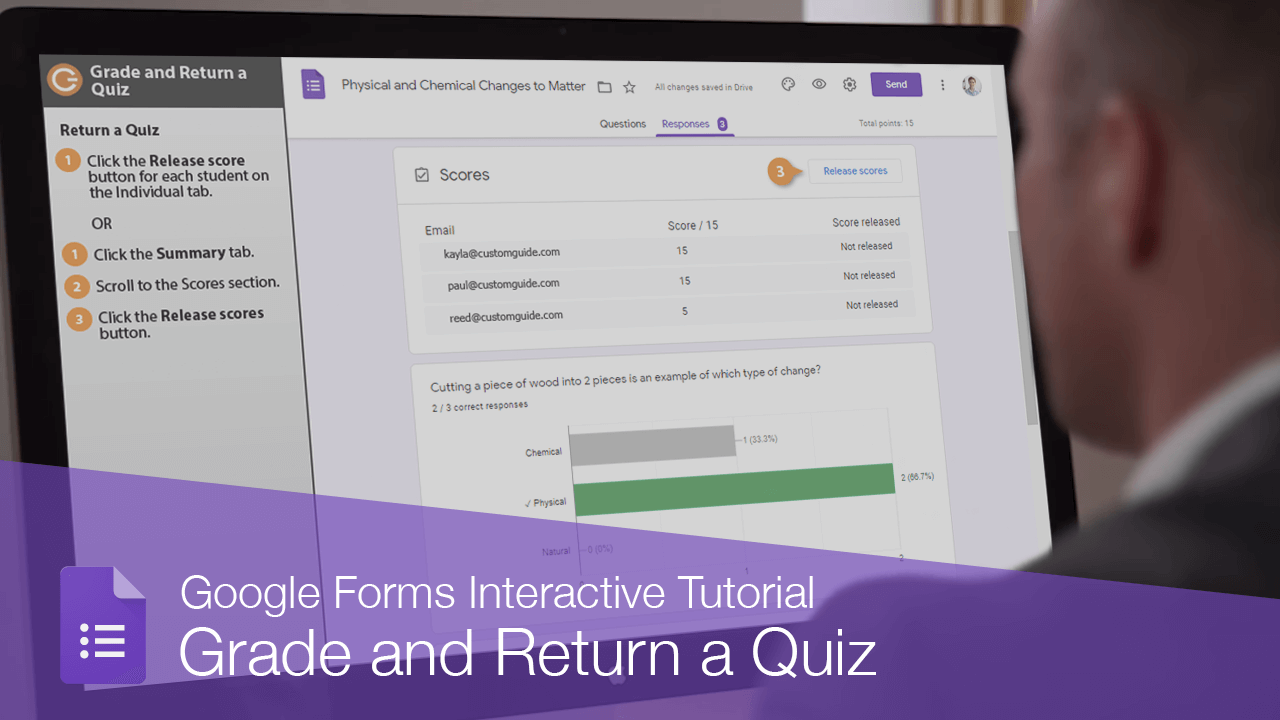
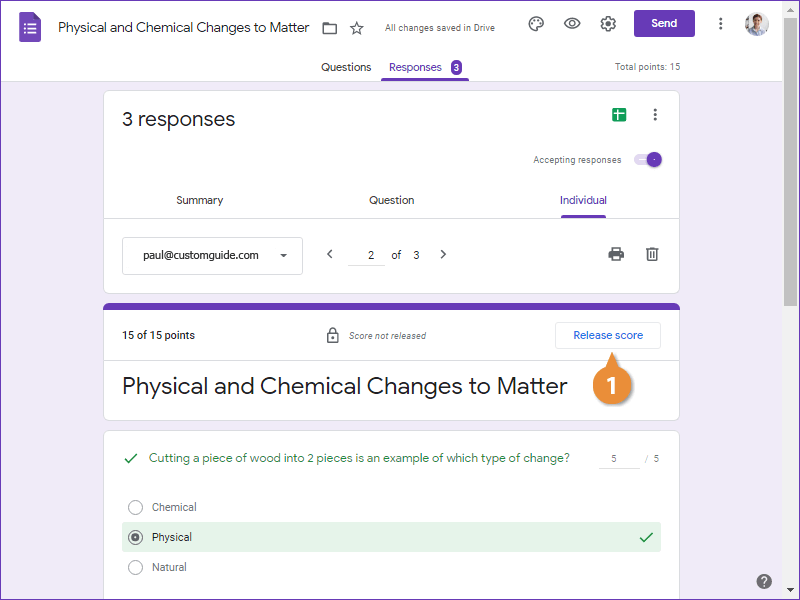
- Click the Release score button for each student on the Individual tab.
OR
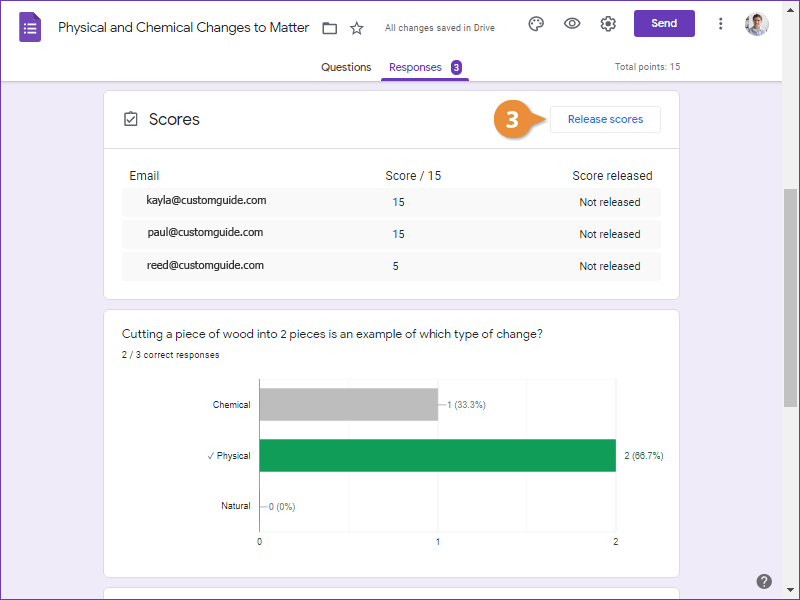
- Click the Summary tab.
- Scroll to the Scores section.
- Click the Release scores button.
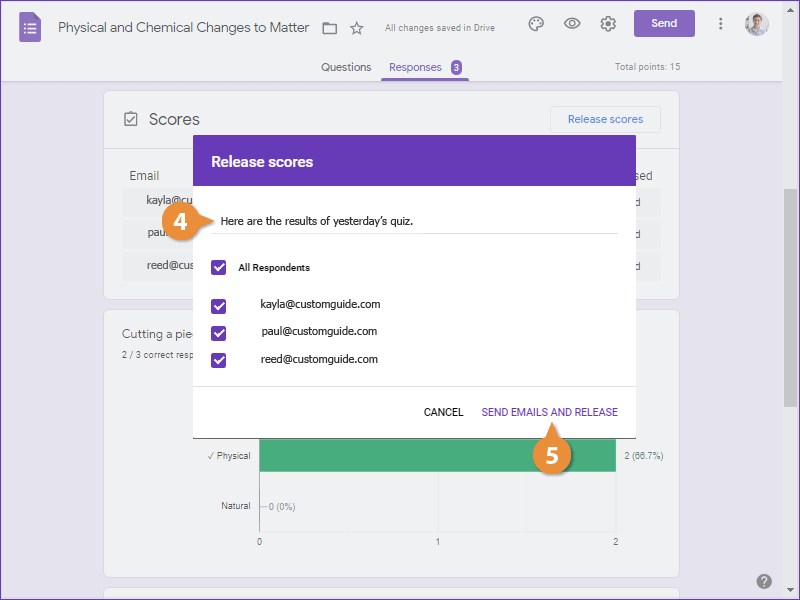
- (Optional) Add a message for all students in the Message field.
- Click Send emails and release.