
How to Create a Google Doc
Step-by-Step Guide to Creating and Formatting a New Google Doc
Try this Course with a Free Trial
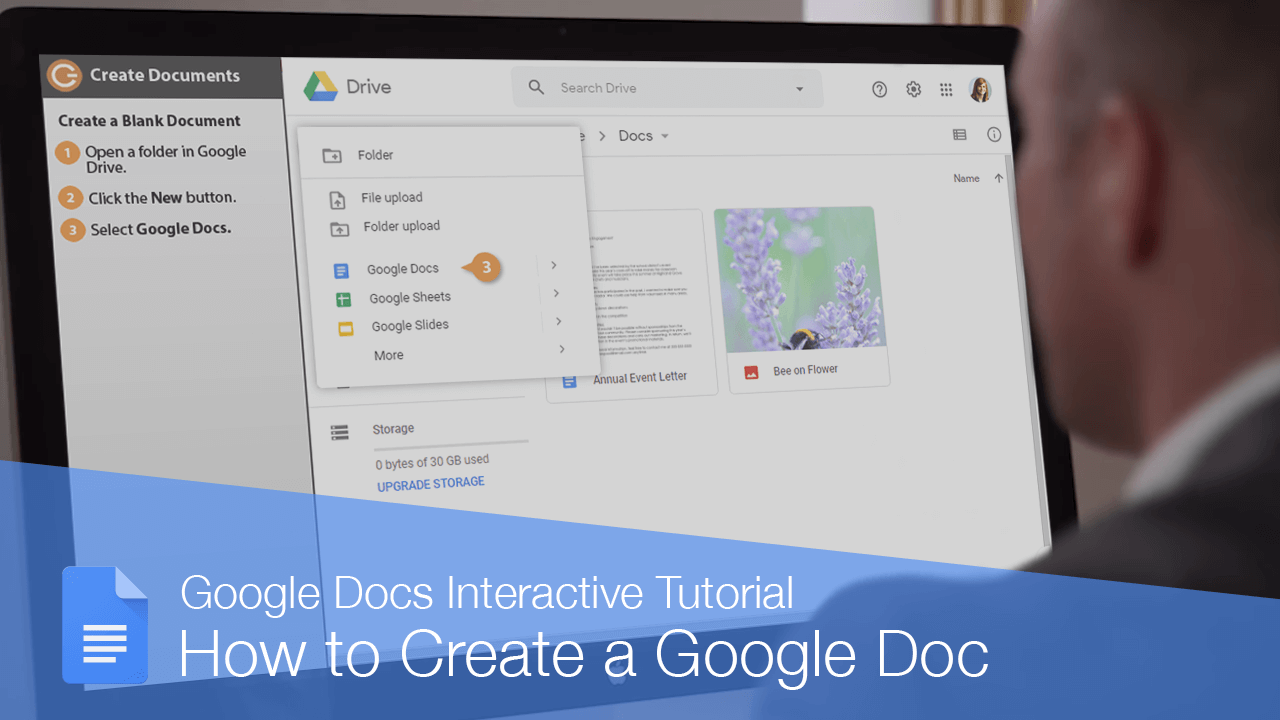
Creating a new document is one of the most basic commands you need in Google Docs. You can create a new blank document, or you can create a new document based on a template.
Create a Blank Document
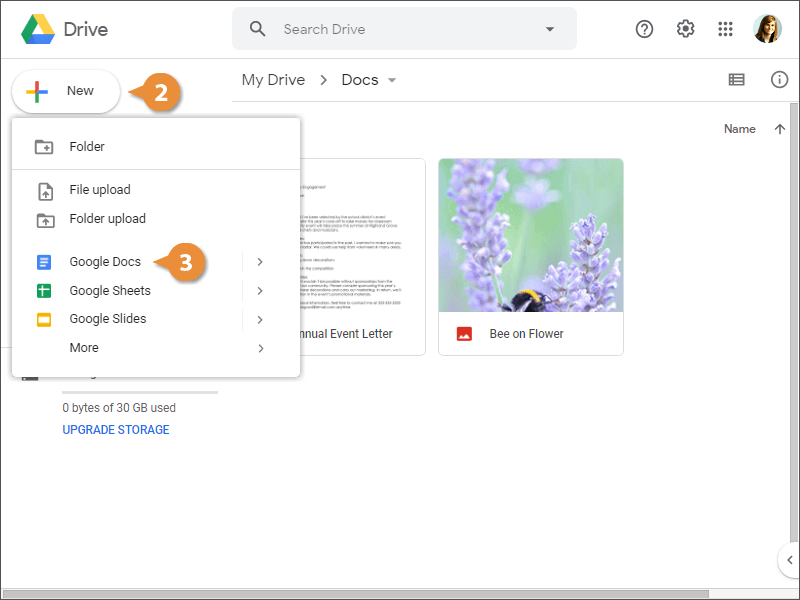
A new blank document is created.
Name a Document
- Click in the name field above the document.
- Type a new name, then press Enter.
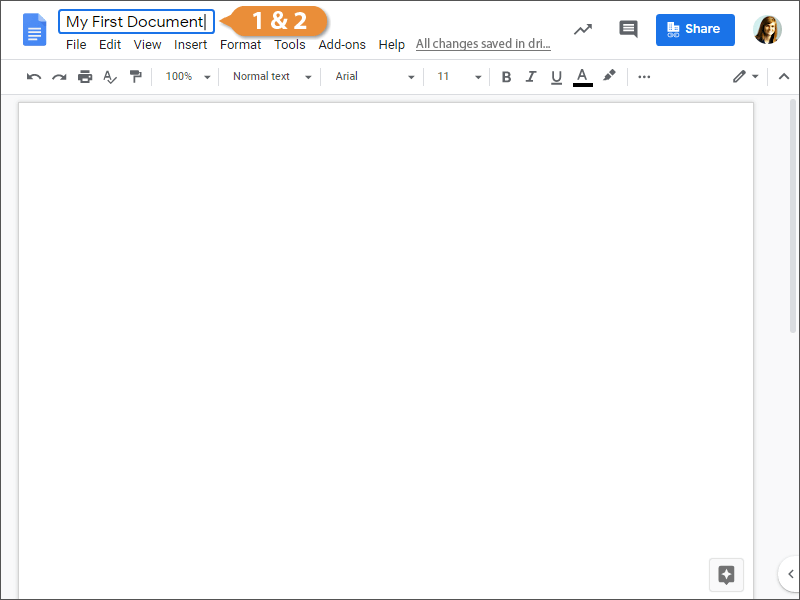
The file is renamed.
Save and Close
Now that you've created and named the document, you're free to start working in it.
- Make sure that changes have been automatically saved.
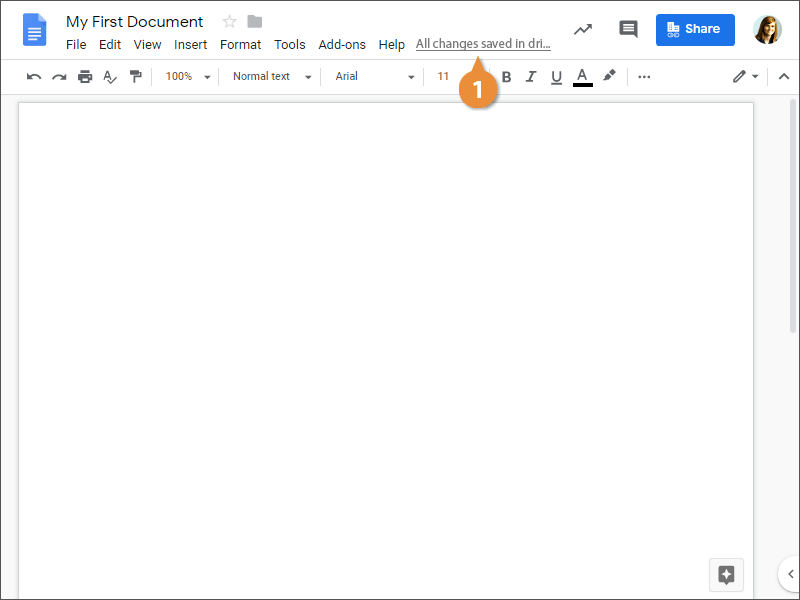
- Close the browser tab.
As long as you’re connected to the internet, Google Docs will automatically save your work.
Create a Document from a Template
You can also create a document from a premade template instead of creating one from scratch. Google Docs has templates for several different types of documents, such as brochures, newsletters, and resumes.
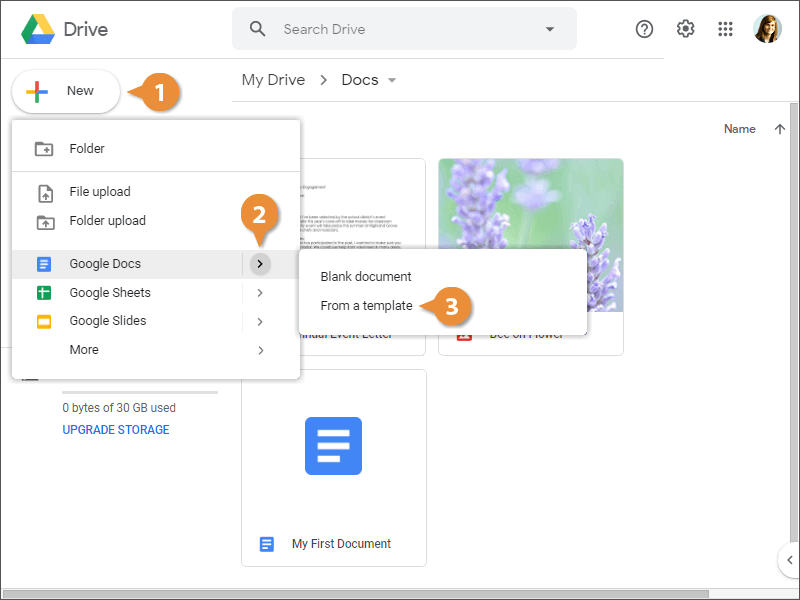
- Click New.
- Click the > next to Google Docs.
- Select From a template.
- Select a template gallery.
- Select a template.
The Template gallery appears, with tabs that sort templates into two groups. The first tab is for templates you, or others in your organization, have submitted. The second tab is for built-in templates.
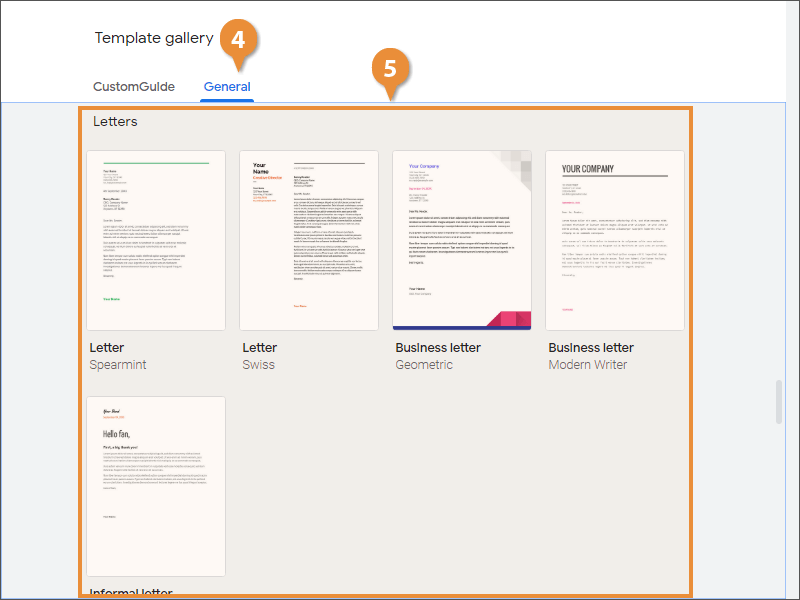
A new document from the template is created. Now, just fill in the placeholders.