Google Classroom Materials
How to Add and Organize Learning Materials in Google Classroom for Easy Student Access
Try this Course with a Free Trial

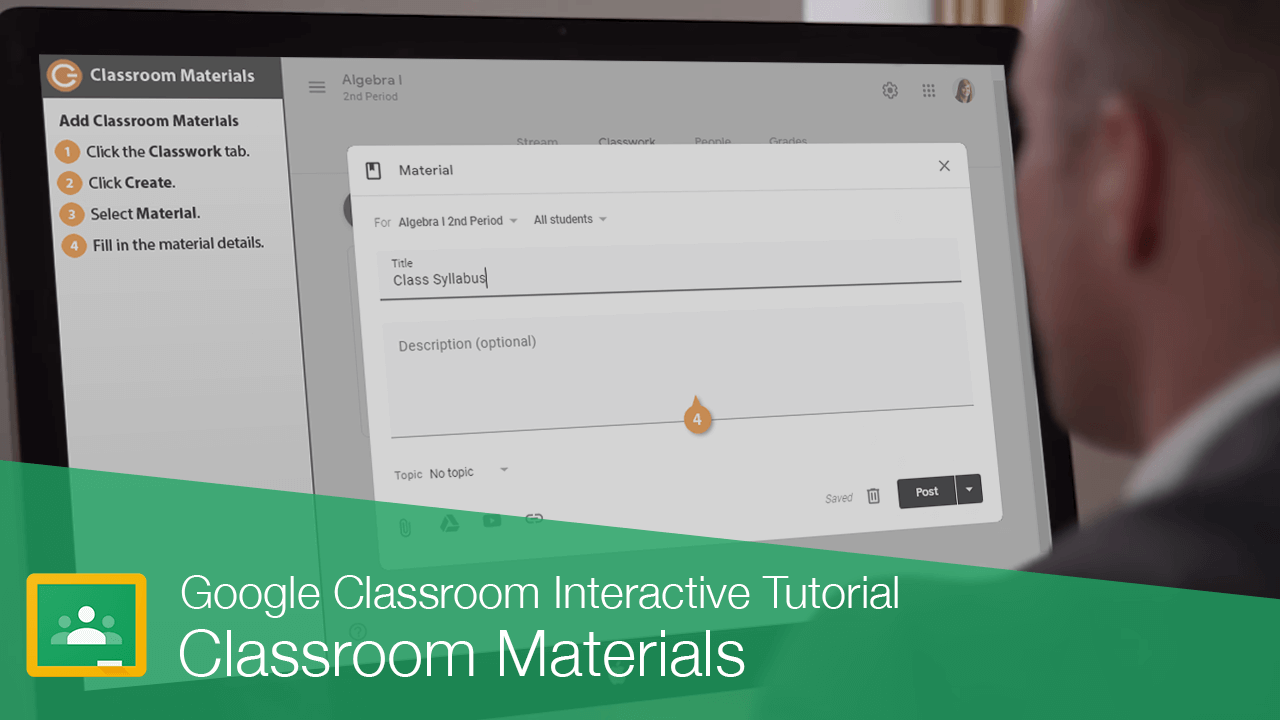
Classroom materials are anything a student needs to view or read. It could be a syllabus, a weekly article, or a document communicating classroom rules. These materials are not graded by the teacher.
Add Classroom Materials
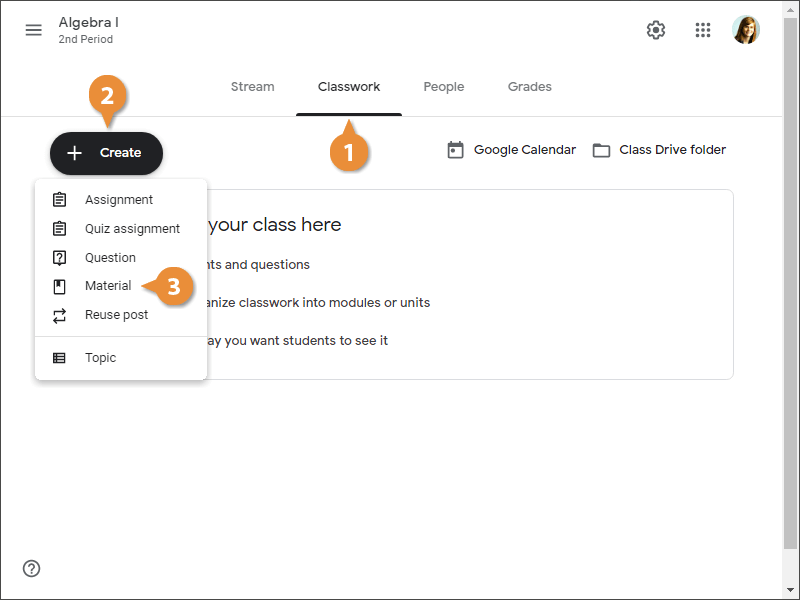
- Click the Classwork tab.
If you don’t have any assignments on the Classwork page, you’ll see some information for how to assign work.
- Click Create.
- Select Material.
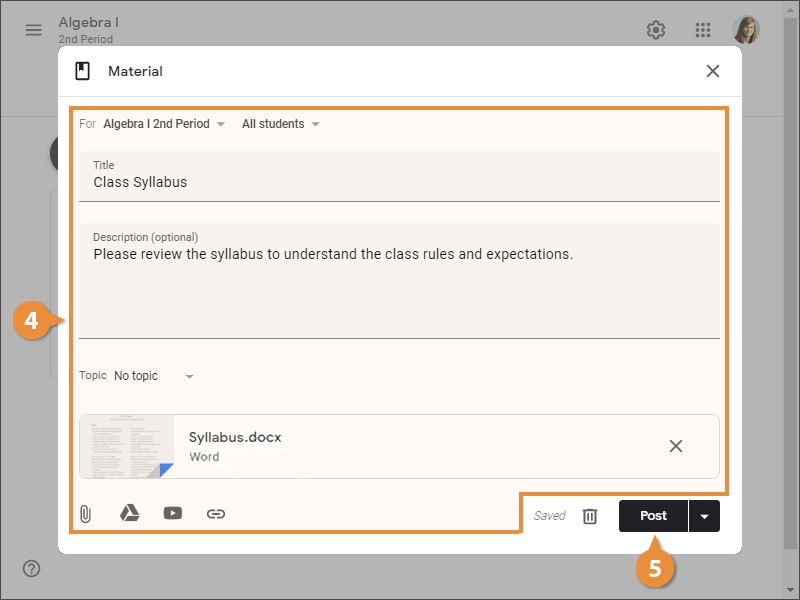
- Fill in the material details.
See the table below for a description of each option in the Material dialog box.
- Click Post or the Post list arrow.
- Post: The material is posted immediately.
- Post list arrow: Schedule a date for the material to be posted or save it as a draft to come back to later.
The Material Dialog Box
| Option | Description |
|---|---|
| For | Select the class and students to which you want to assign the material. You can create a material for multiple classes at once or assign it to only specific students in the current class. |
| Title | The name of the material. |
| Description | Add an optional description to instruct students what to do with the class material. |
| Topic | Assign a topic to group the material with other related class items. You might create a topic for tests, one for homework, and one for classwork as a means of organization. Or, you might create a topic for each unit. Topics are buckets used to categorize work. Apply an existing topic or create a new one from this menu. |
| Attachment | The material you attach can be:
 A file saved to your computer. A file saved to your computer.
 An item saved to your Google Drive. An item saved to your Google Drive.
 An online video. An online video.
 A web link. A web link. |
Delete Classroom Materials
If class material is no longer needed, you can delete it to remove it from the Classwork page.
- Hover over the item you want to delete and click the More button.
- Select Delete.
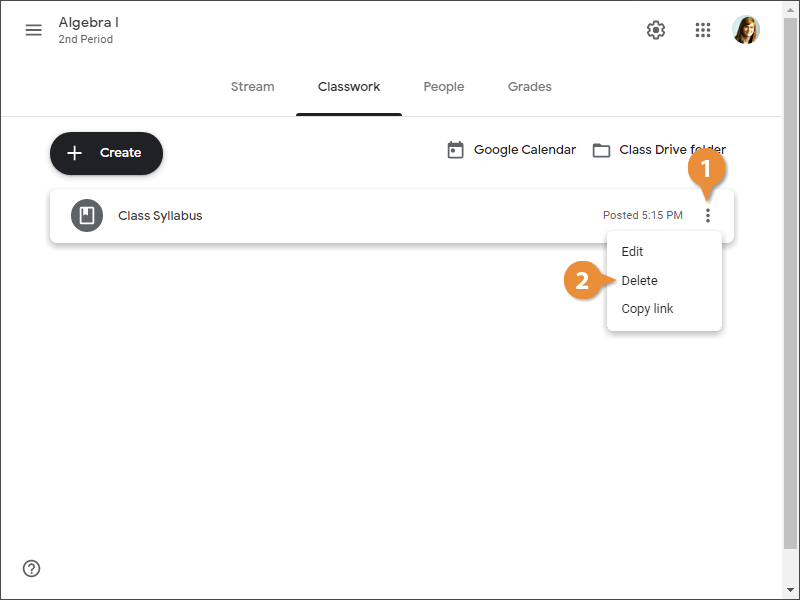
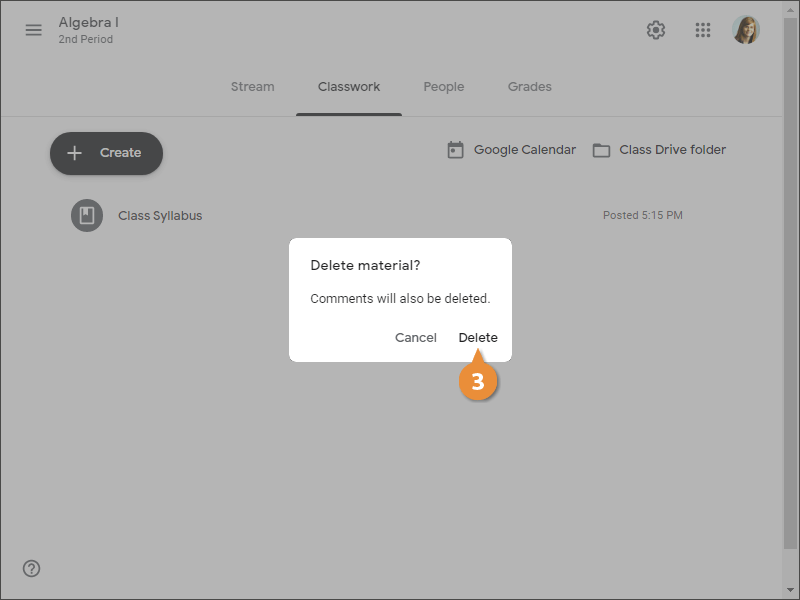
When the material is deleted, any comments added to it are deleted as well.
- Click Delete to confirm.