

Google Classroom Assignments
How to View, Complete, and Turn In Assignments in Google Classroom
Try this Course with a Free Trial
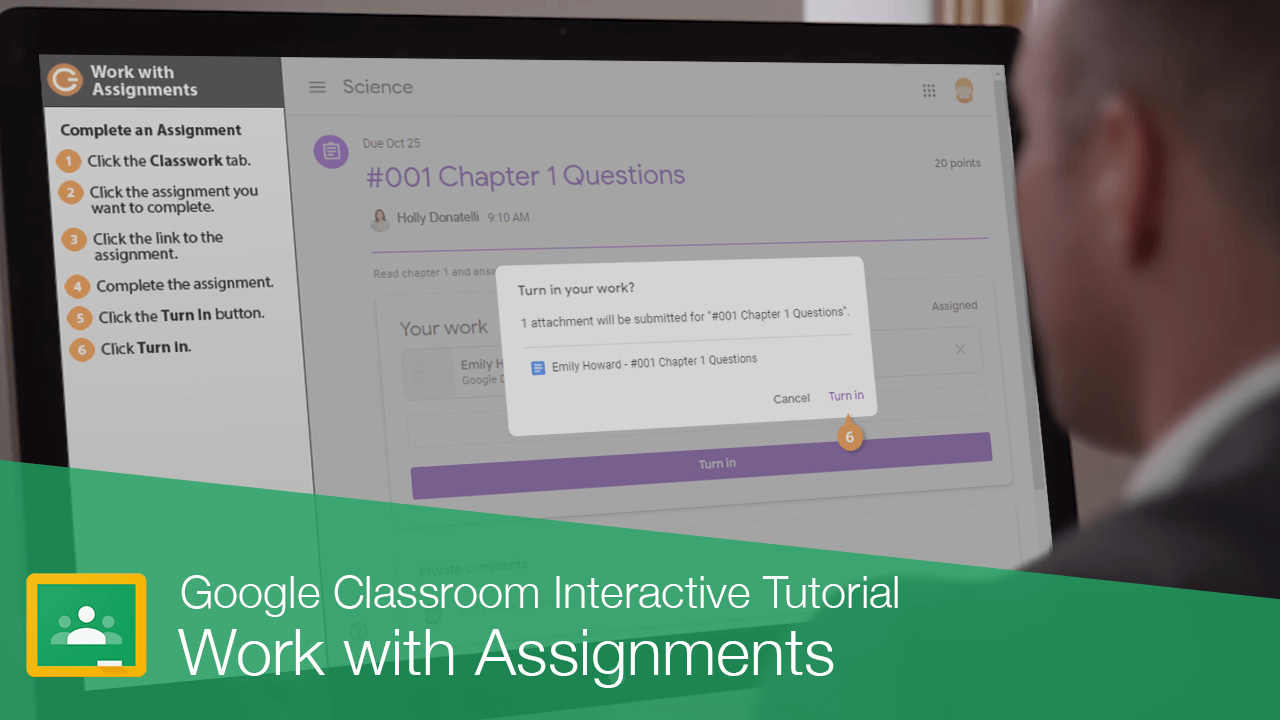
One thing you'll commonly do in Google Classroom is complete assignments. Let's check out how.
Complete an Assignment
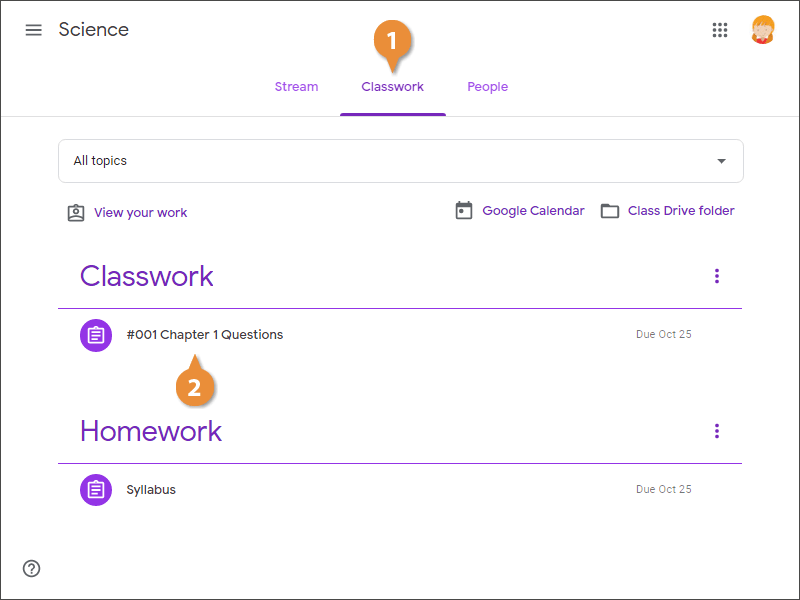
Remember, all of your assignments can be found on the Classwork page.
- Click the Classwork tab.
- Click the assignment you want to complete.
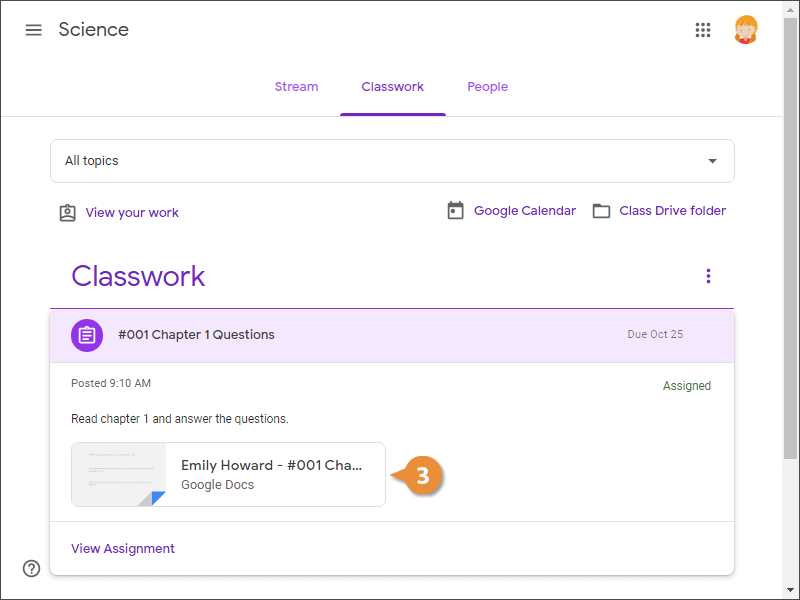
If the teacher has left any instructions, you'll see them here. You can also see that it is assigned, but not yet turned in.
- Click the link to the assignment.
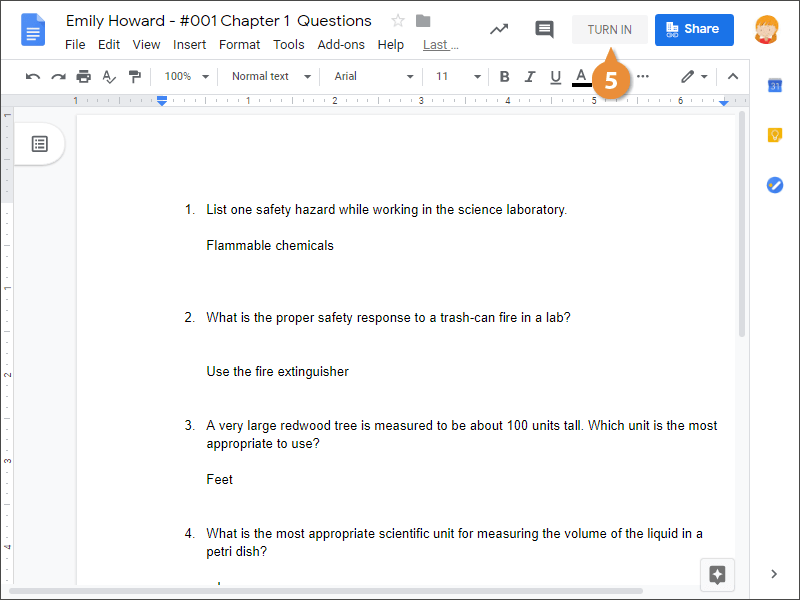
- Complete the assignment.
- Click the Turn In button.
- Click Turn In.
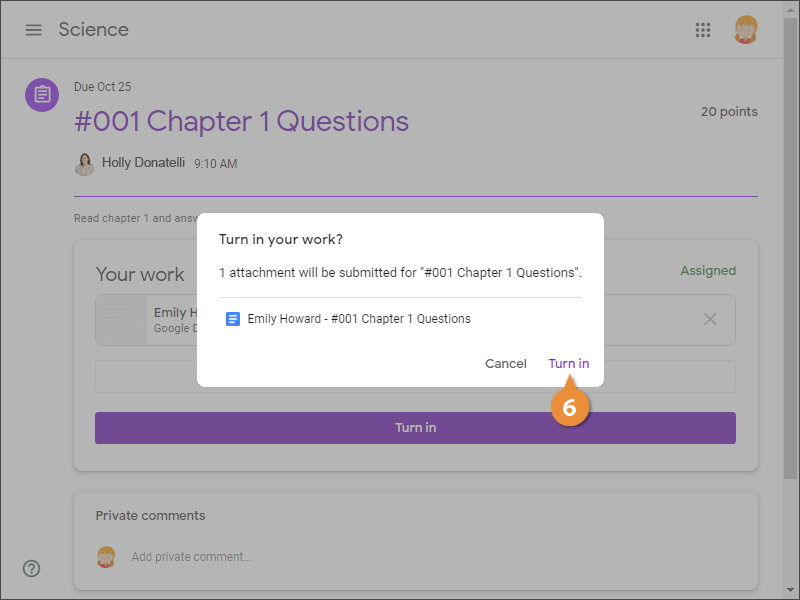
This page shows everything you need to complete. It could be an assignment, a question, or class material, but they're all completed in a similar way.
The pop-up lets you know that the assignment will be turned in as an attachment.
You now see the assignment is turned in and if you want, you can click the assignment from here to see your responses. If your teacher has allowed it, you will see an Unsubmit button and you can make changes before the due date.
Check Assignment Status
Now we saw how to view all of our assignments, but there's also a way to check the status of your assignments.
- Click the Classwork tab.
- Click the View your work button.
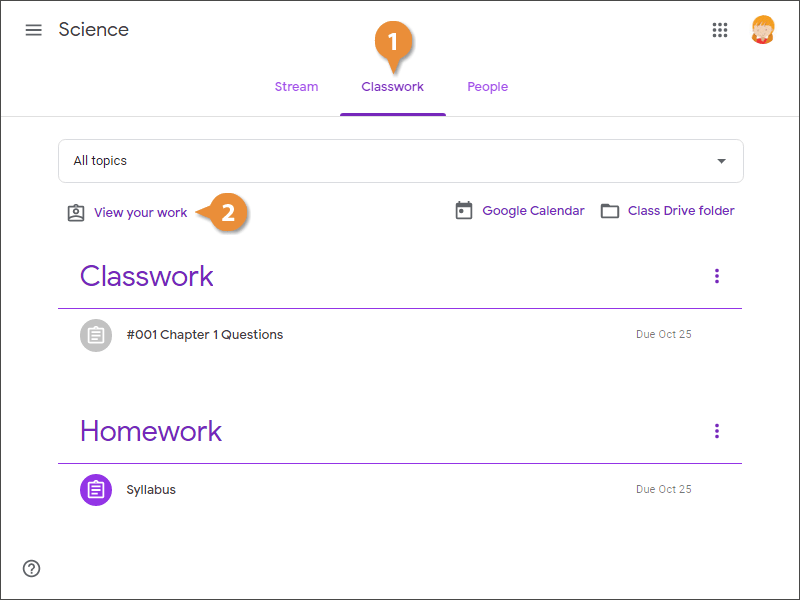
Here you get a snapshot of everything that has been assigned, the due dates, and, in the right column, what the status is. The status could be turned in, missing, assigned, or the grade you received on the assignment.