Class Settings in Google Classroom
Adjust Google Classroom Class Settings to Manage Student Access, Notifications, and Class Details
Try this Course with a Free Trial

Once you have a class created and students added, you may decide to adjust the class settings to control what students can do and how grading works.
Edit General Settings
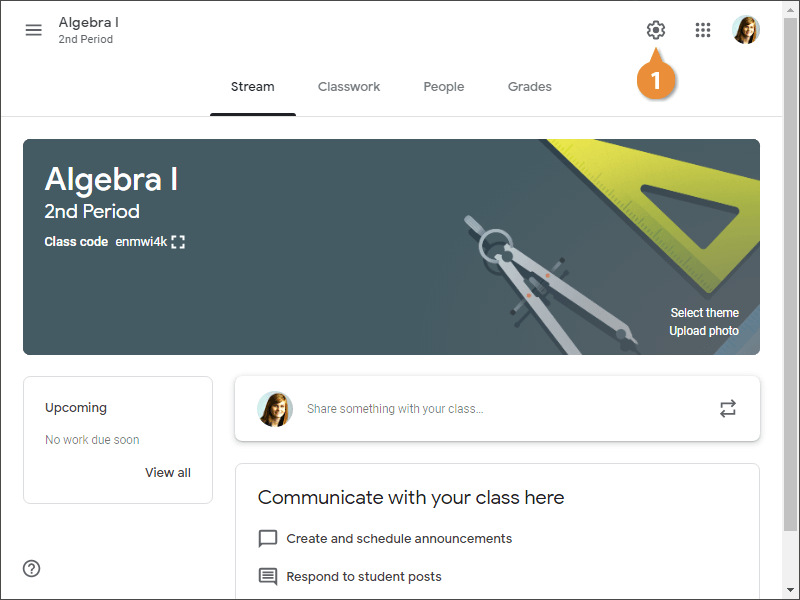
- Click the Settings button.
The settings on this screen only affect this specific class.
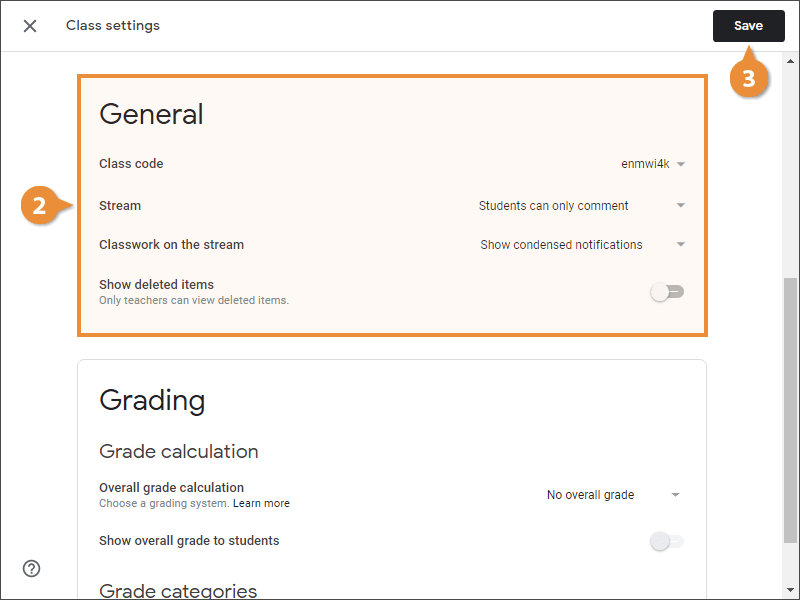
- Modify the General class settings.
- Class code: View, share, and modify the class code.
- Stream: Choose what students are able to do on the class stream page. Enable or disable student commenting from here.
- Classwork on the stream: Adjust how classwork appears on the stream. Classwork can appear with all the attachments and details, which will take up more space on the stream; in a condensed notification; or, you can hide classwork notifications on the stream altogether.
- Show deleted items: Choose whether deleted items appear. If enabled, only teachers can see deleted items.
- Click Save.
Set Up Grading
You have the ability to control how grading works in Classroom. You can turn grading off completely; or, you can have Classroom calculate grades for you using total points available or by weighting grades by category.
- Total points: An overall grade is calculated for you by dividing the total points a student earns by the total points possible for the class.
- Weighted by category: You assign weights to categories, such as assignments and tests. Classroom will then find the category's average and multiply it by the category's weight to calculate the overall class grade.
| Assignments | Tests | Points Earned/Points Possible | Overall Grade |
|---|---|---|---|
| Assignment 1: 16/20 | Test 1: 92/100 | 108/120 | 90% |
| Assignments: 60% of grade | Tests: 40% of grade | Overall Grade |
|---|---|---|
| Assignment 1: 16/20 | Test 1: 92/100 | |
| Assignment 2: 18/20 | Test 1: 88/100 | |
| • (80% + 90%) ÷ 2 = 85% avg • 85 x 0.6 = 51 | • (92% + 88%) ÷ 2 = 90% avg • 90 x 0.4 = 36 | |
| Category Score: 51% | Category Score: 36% | 51% + 36% = 87% |
- Click the Settings button.
By default, Classroom doesn't calculate grades.
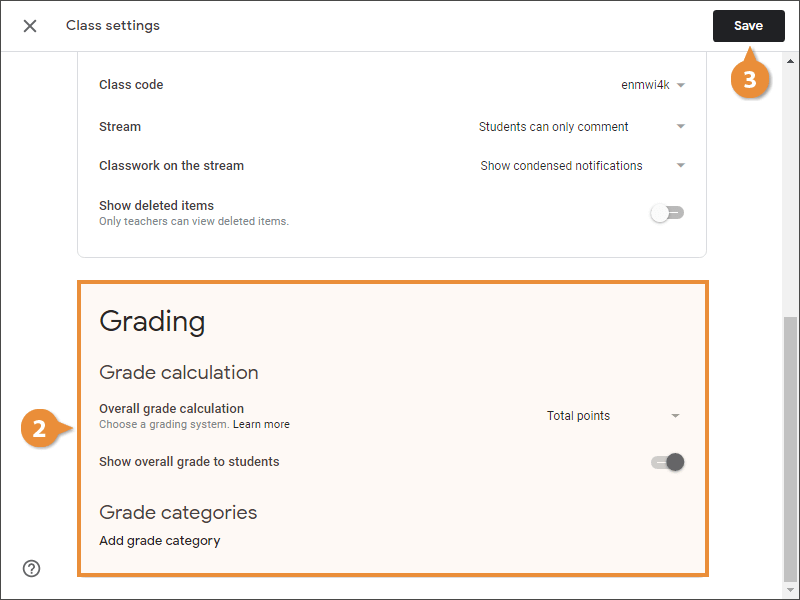
- Modify the Grade calculation settings.
- Overall grade calculation: Choose whether to calculate by total points, weighted by category, or not to calculate a grade at all.
- Show overall grade to students: Choose whether students are able to view their overall grade.
- Add grade category: If you chose to calculate grades weighted by category, define the categories here.
- Click Save.