How to Install Google Chrome Extension
Install, Use, and Manage Google Chrome Extensions to Enhance Your Browser’s Functionality
Try this Course with a Free Trial
Acess the Chrome Web Store
Extensions are small programs that you can add to Chrome to add extra features.
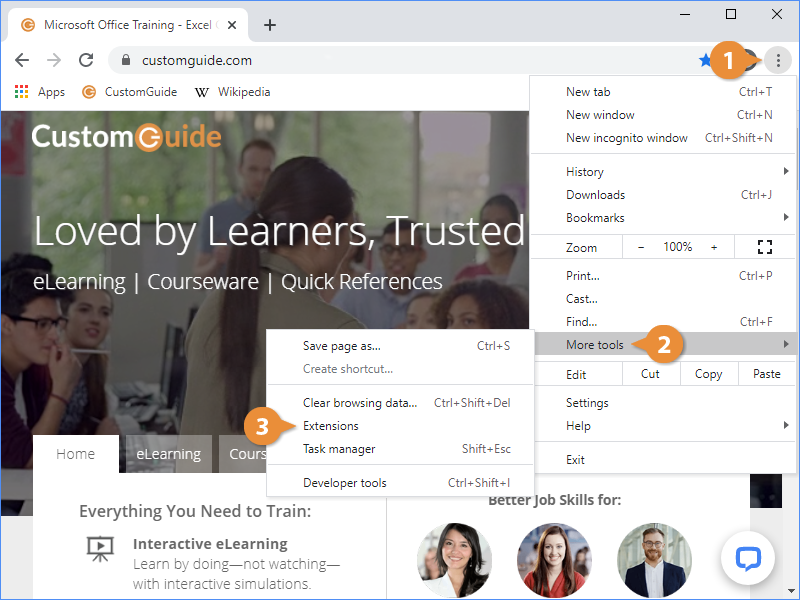
- Click the Customize and Control Google Chrome menu button.
- Select More tools.
- Select Extensions.
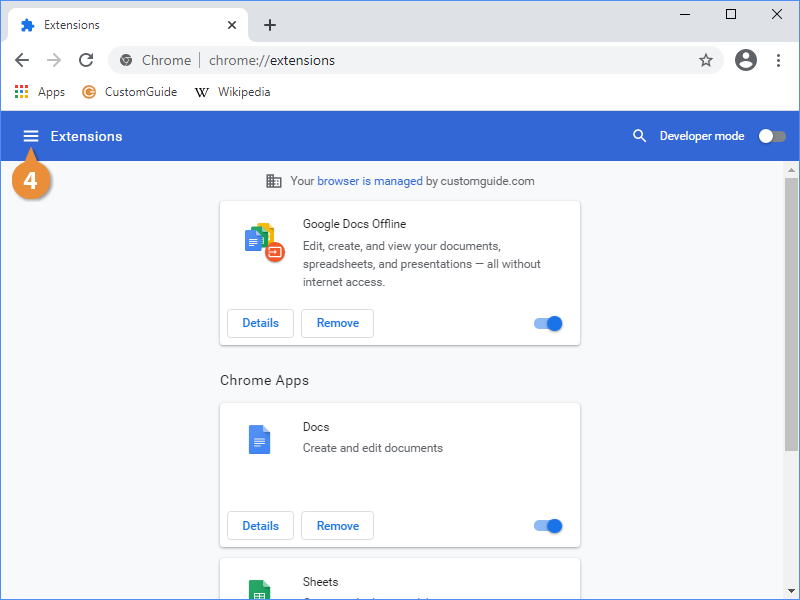
- Click the Main Menu button.
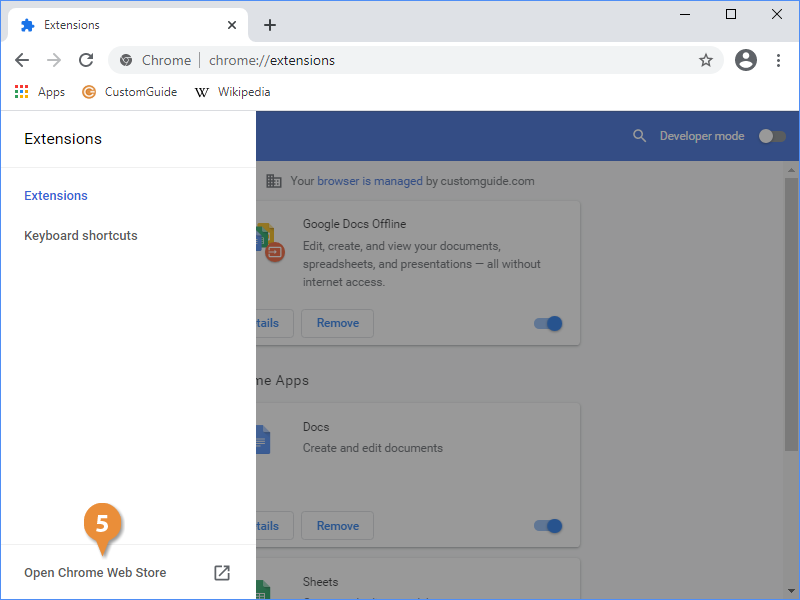
- Click the Open Chrome Web Store link.
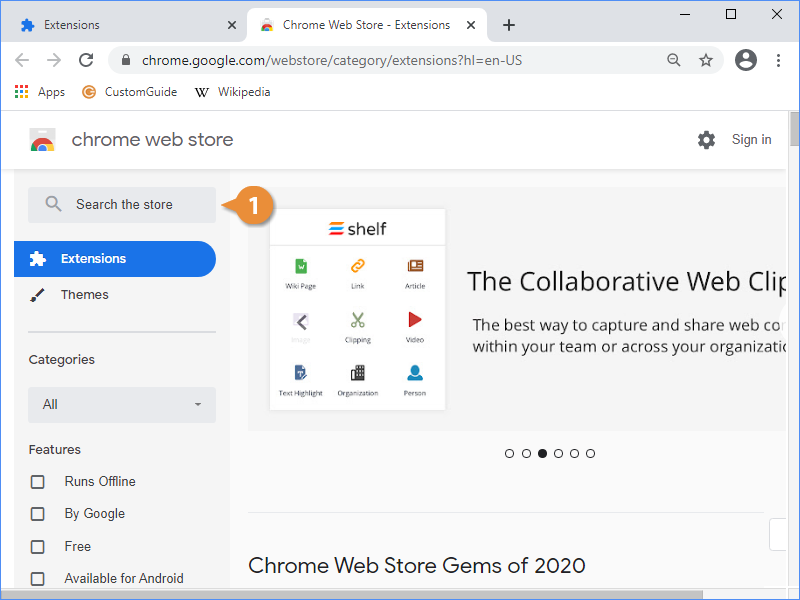
The web store lets you browse extensions from a large number of developers.
Browse Extensions
- Use the Search field to search for an extension.
OR
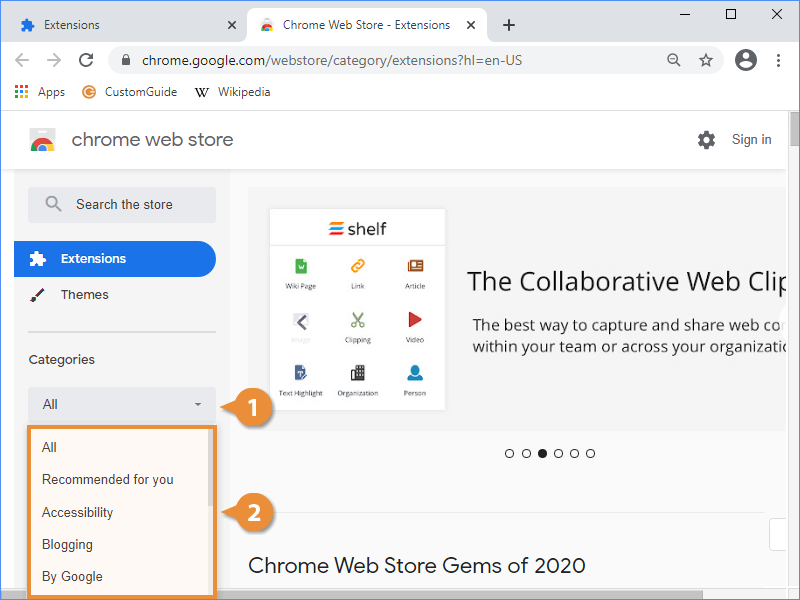
- Click the Categories menu arrow.
- Select a category.
Add an Extension
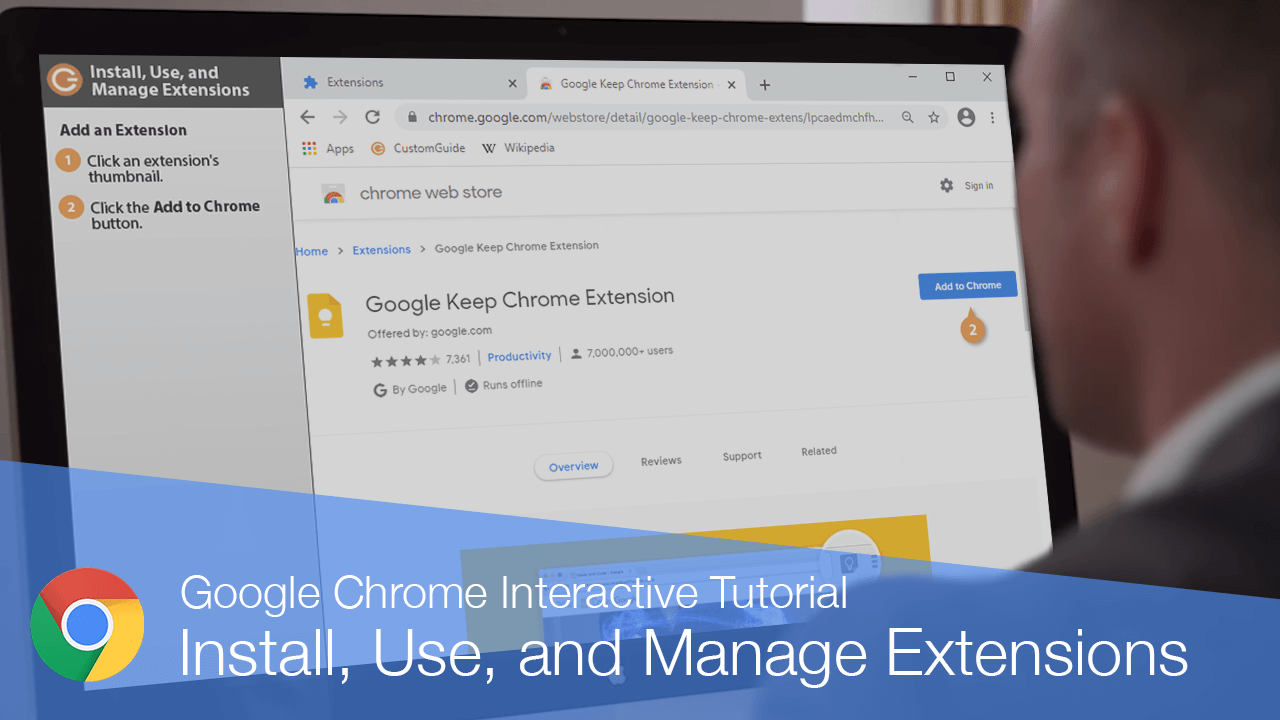
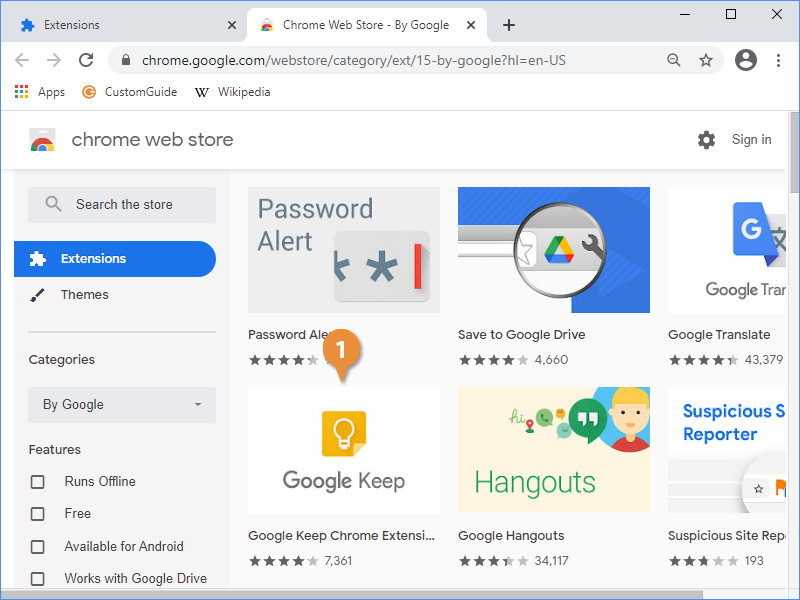
- Click an extension's thumbnail.
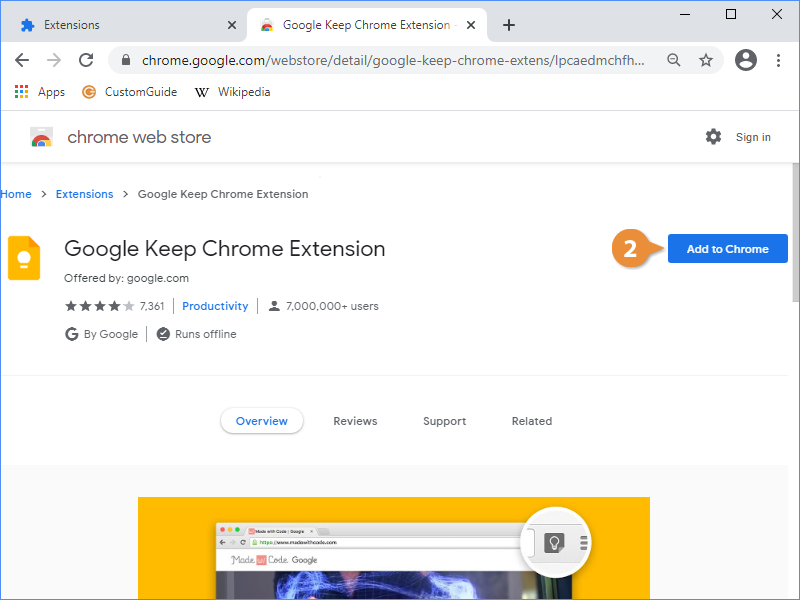
- Click the Add to Chrome button.
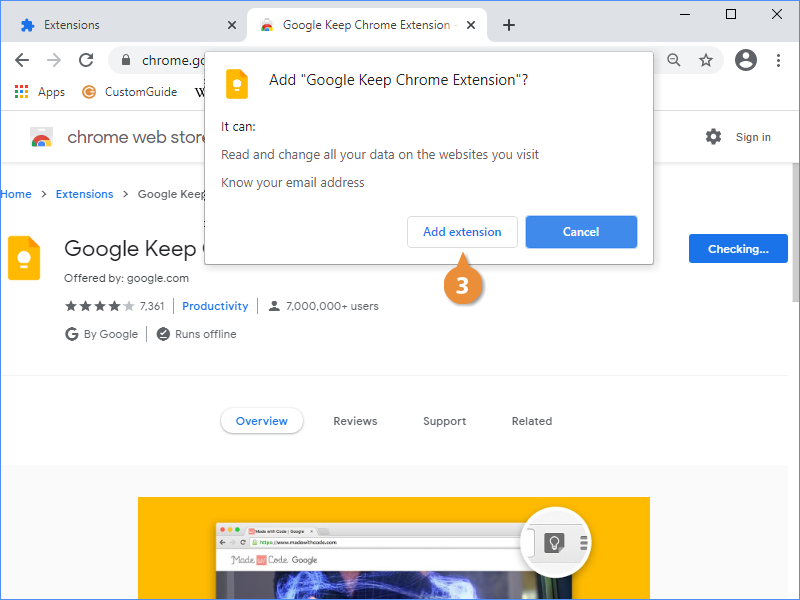
- Review the extension's requests for data, then click Add extension.
On an extension's page, you can read an overview of what the extension does, read user reviews, and browse other related extensions.
The extension is downloaded and added to Chrome. Once it's ready, a popup will appear to let you know.
Use an Extension
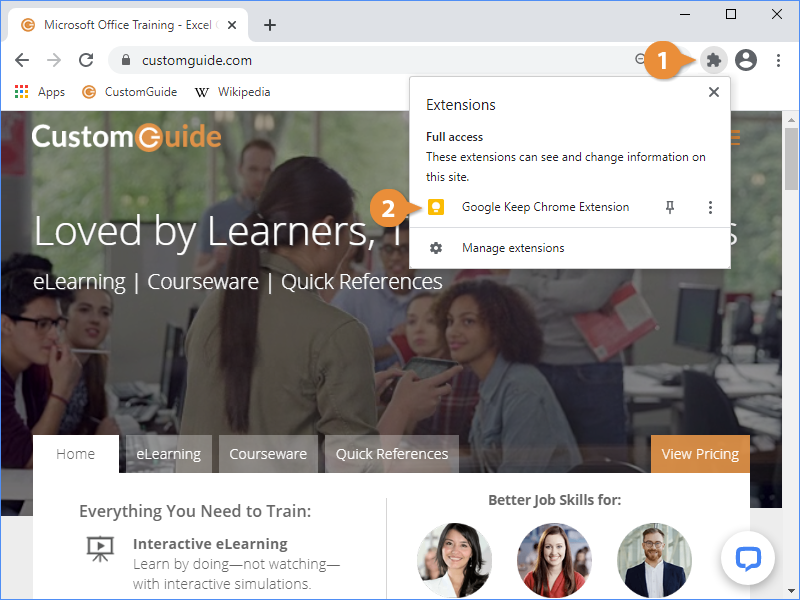
A new Extensions button will also appear on the ribbon, giving you quick access to the extensions you've installed.
- Click the Extensions button on the toolbar.
- Click an extension's name.
Manage Extensions
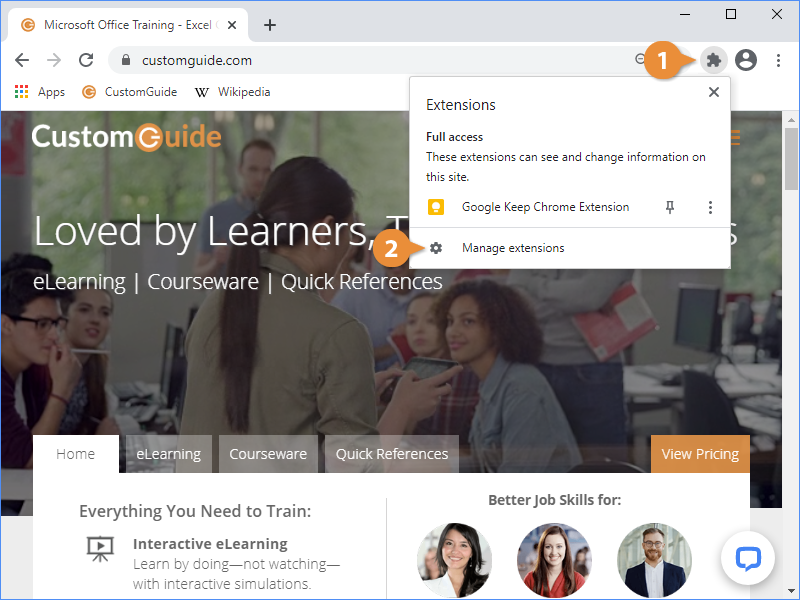
Once you've installed some extensions, you can toggle them on or off, and remove the ones you don't need, from the Extensions page we viewed earlier.
- Click the Extensions button on the toolbar.
- Select Manage extensions.
- Click an extension's toggle switch to turn it on or off.
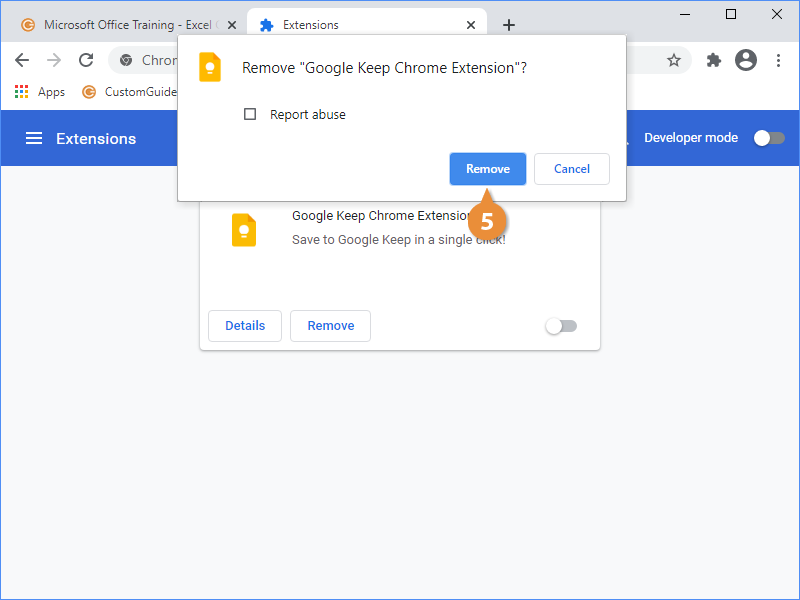
- Click an extension's Remove button.
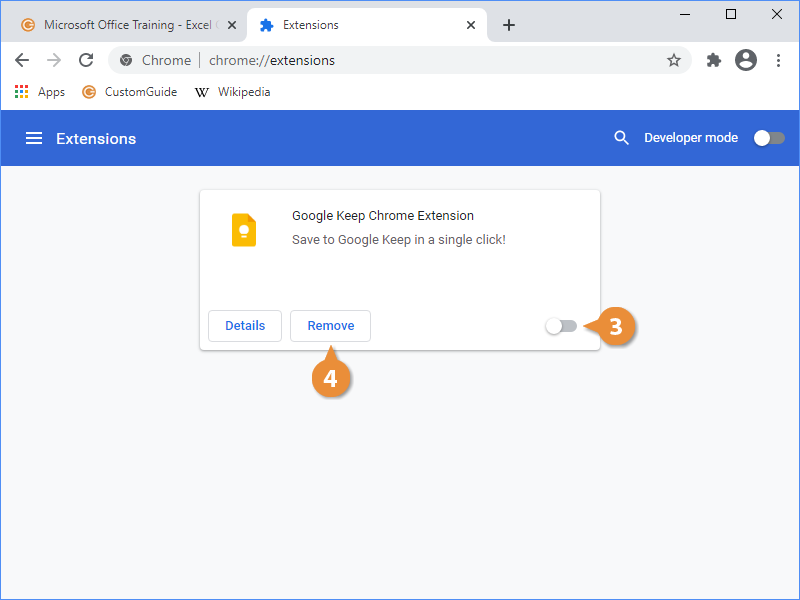
- Click Remove to confirm.