

Excel Pivot Table Calculated Field
Add Calculated Fields in Excel Pivot Tables to Create Custom Formulas and Enhance Data Analysis
Try this Course with a Free Trial
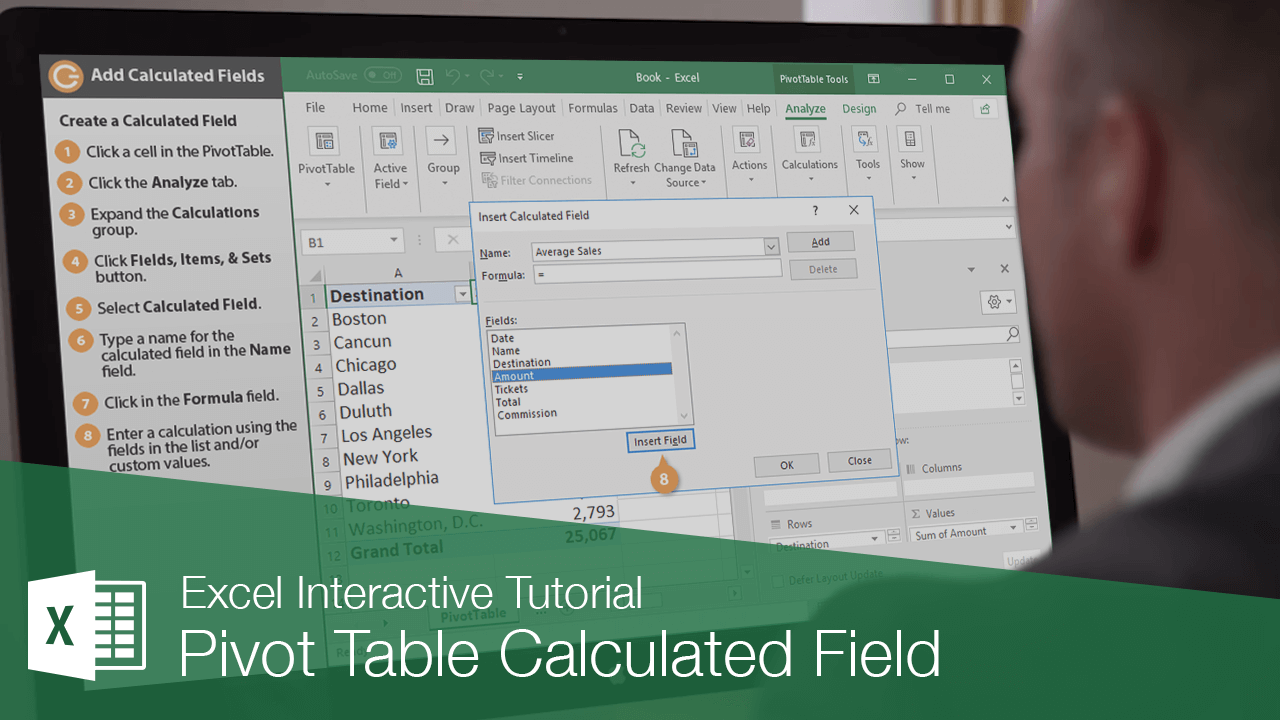
A calculated field is a new field that performs calculations based on existing fields in your PivotTable. For example, you could use a calculated field to find the average ticket sales using an existing total sales field and a field containing the number of tickets sold.
Create a Calculated Field
- Click a cell in the PivotTable.
- Click the Analyze tab.
- Expand the Calculations group, if necessary.
- Click the Fields, Items, & Sets button.
- Select Calculated Field.
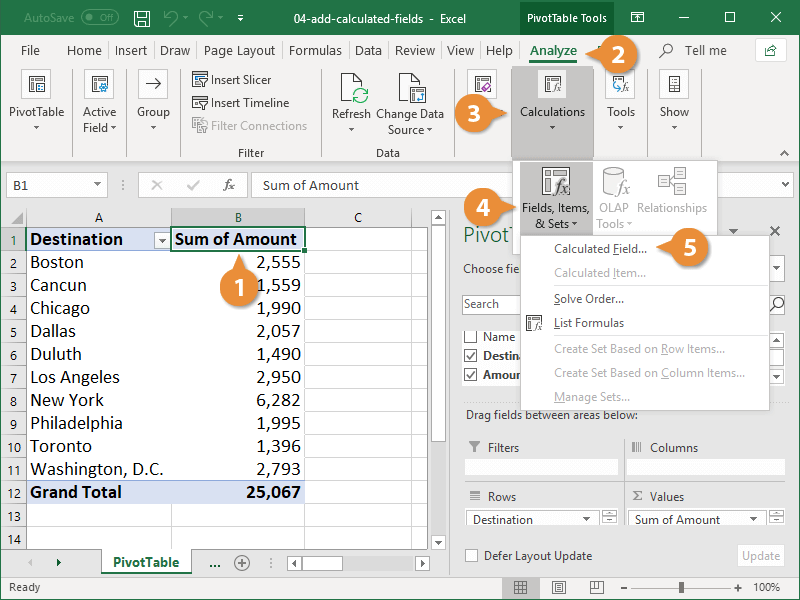
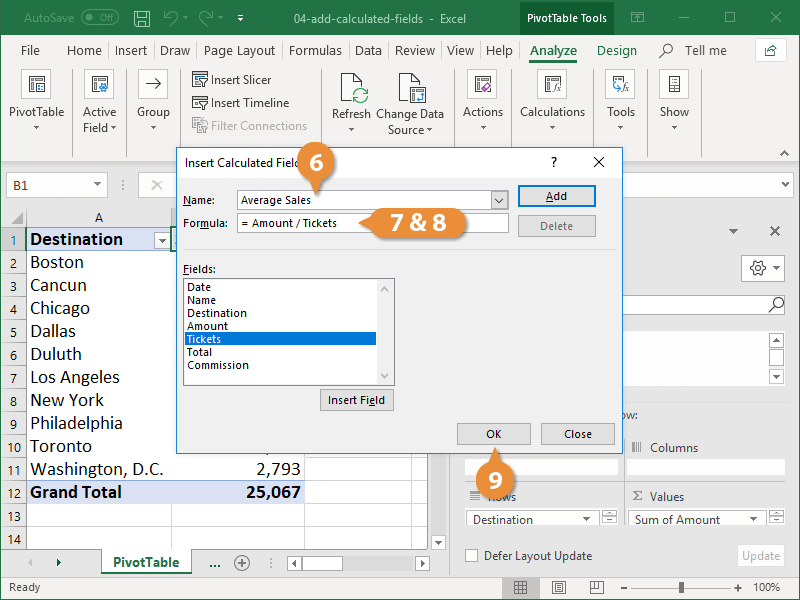
The Insert Calculated Field dialog box displays. This is where you’ll create and name the field.
- Type a name for the calculated field in the Name field.
- Click in the Formula field.
- Enter a calculation using the fields in the list and/or custom values.
You can also enter your own values in the formula. For example, you could find a monthly average by adding an existing field and then dividing by 12.
- Click OK.
The new calculated field is automatically added to the PivotTable.
Remove a Calculated Field
If you decide you don't need the calculated field in your PivotTable, it can be removed just like any other PivotTable field.
- Uncheck the calculated field in the PivotTable Fields pane.
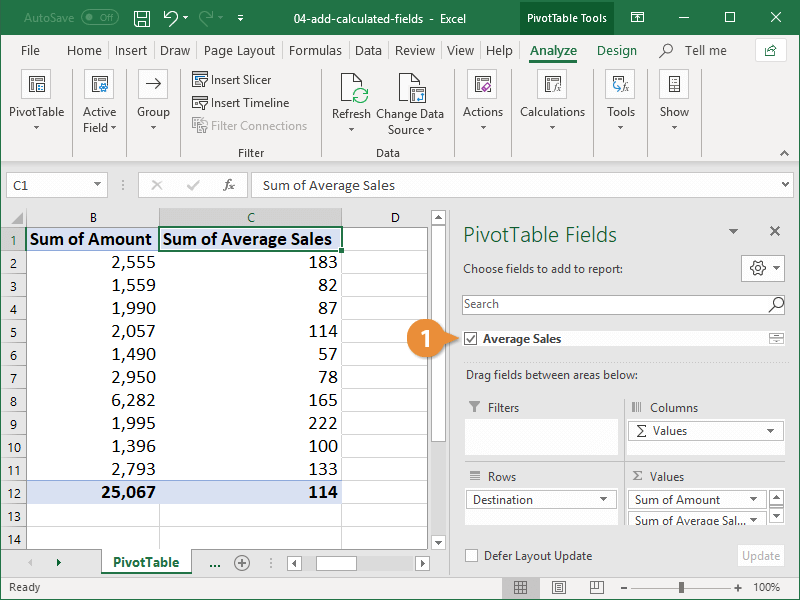
The calculated field is removed from the PivotTable; however, it remains in the field list to use again in the future.
If you want to remove the calculated field completely, you need to re-open the Insert Calculated Field dialog box, select the field you created in the Fields list, and click the Delete button.