

Insert Slides Captivate
Add and organize slides to build engaging eLearning content in Adobe Captivate
Try this Course with a Free Trial

Whether you're creating a project from scratch or editing an existing one, you're going to need to know how to add in new slides.
Create a New Slide
- Select where you want to insert a slide.
- Click the Slides button on the toolbar.
The Slides menu presents you with several different types of slides that you can insert:
- Content: Uses one of the layouts from the slide master, with placeholders you can use to insert text and graphics.
- Blank: Won't have any placeholders, leaving an empty canvas for you to work with.
- Question: Will include placeholders for a variety of question types. Responses to these questions can be checked and graded.
- Knowledge check: Is similar to a question slide, but without the grading of responses.
- Software simulation: Select this if you're working in a software simulation project, but need to add an extra slide for a step that you missed.
- Video demo: Select this to record additional video for one of those projects.
- PowerPoint slide: Imports PowerPoint slides into a project.
- 360 slide: If you're making a VR project, select a three sixty slide to add another VR image.
- Select a type of slide.
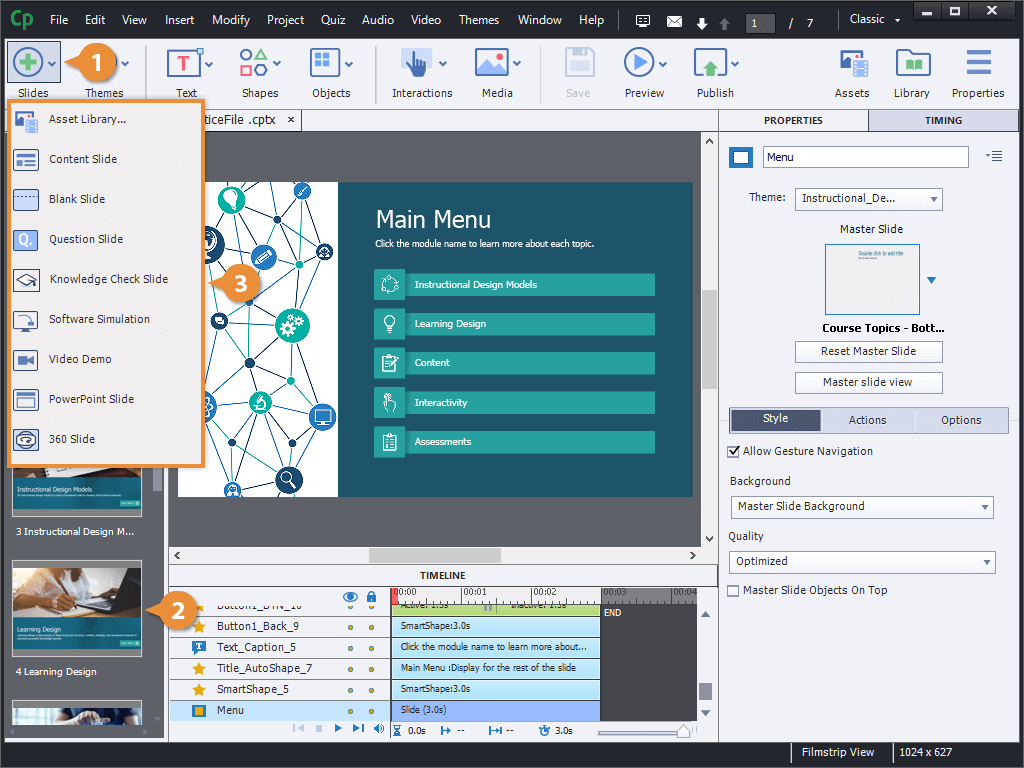
A new slide is added, using the same layout as the slide we had selected.
Copy a Slide
- select a slide.
- Click Edit on the menu bar.
- Select Duplicate.
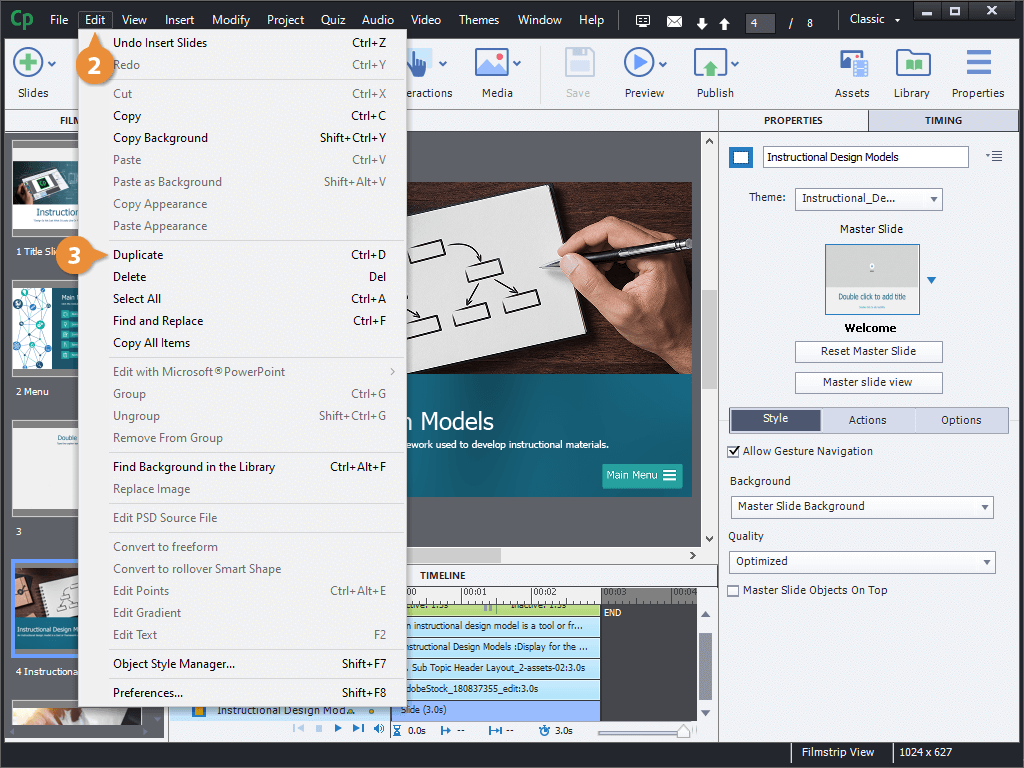
A copy of the selected slide is added to the filmstrip pane.
Move a Slide
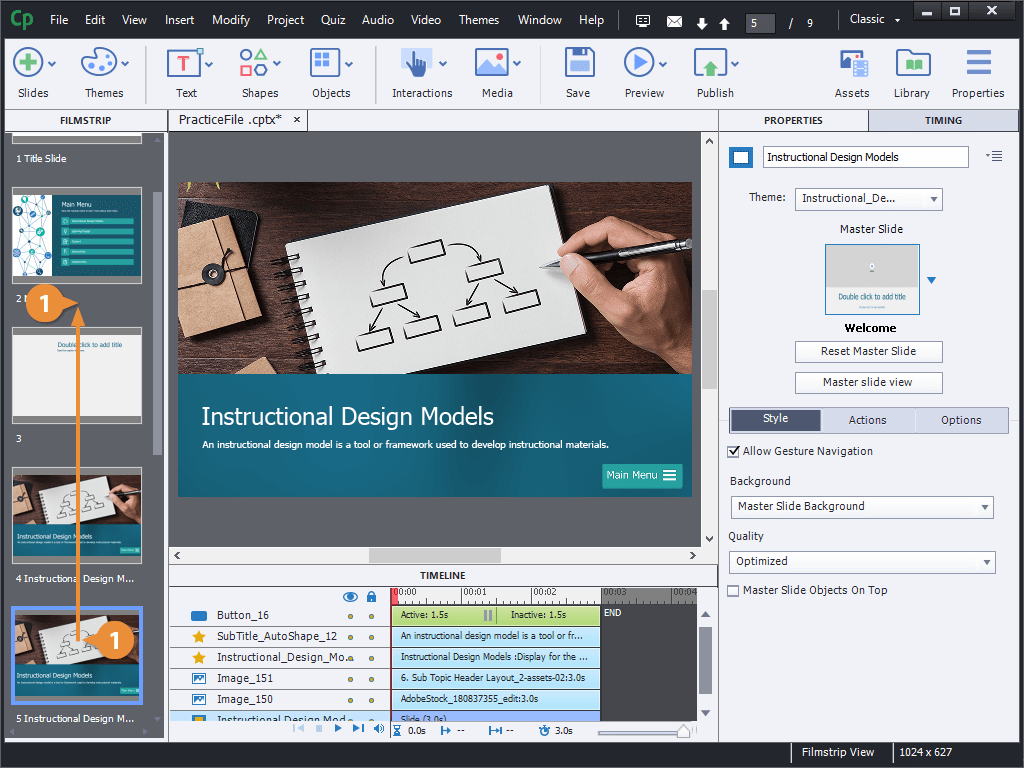
- Click and drag a slide in the filmstrip pane.
Delete a Slide
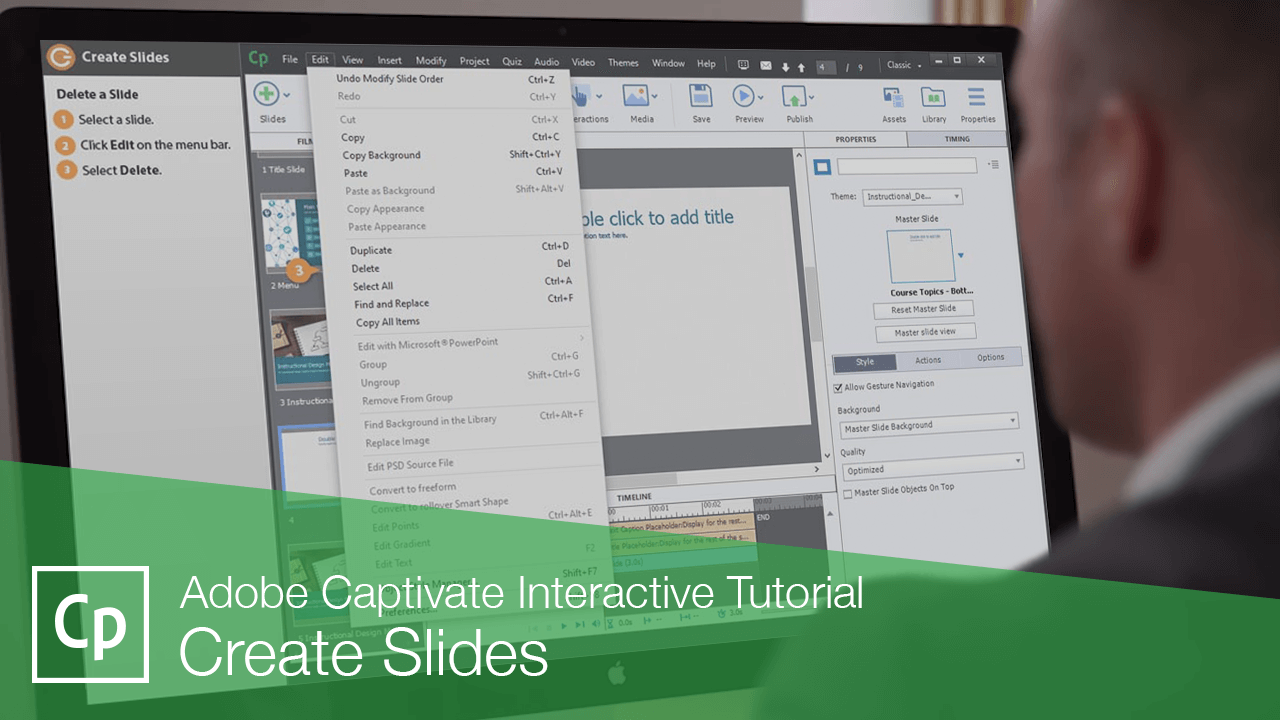
- select a slide.
- Click Edit on the menu bar.
- Select Delete.
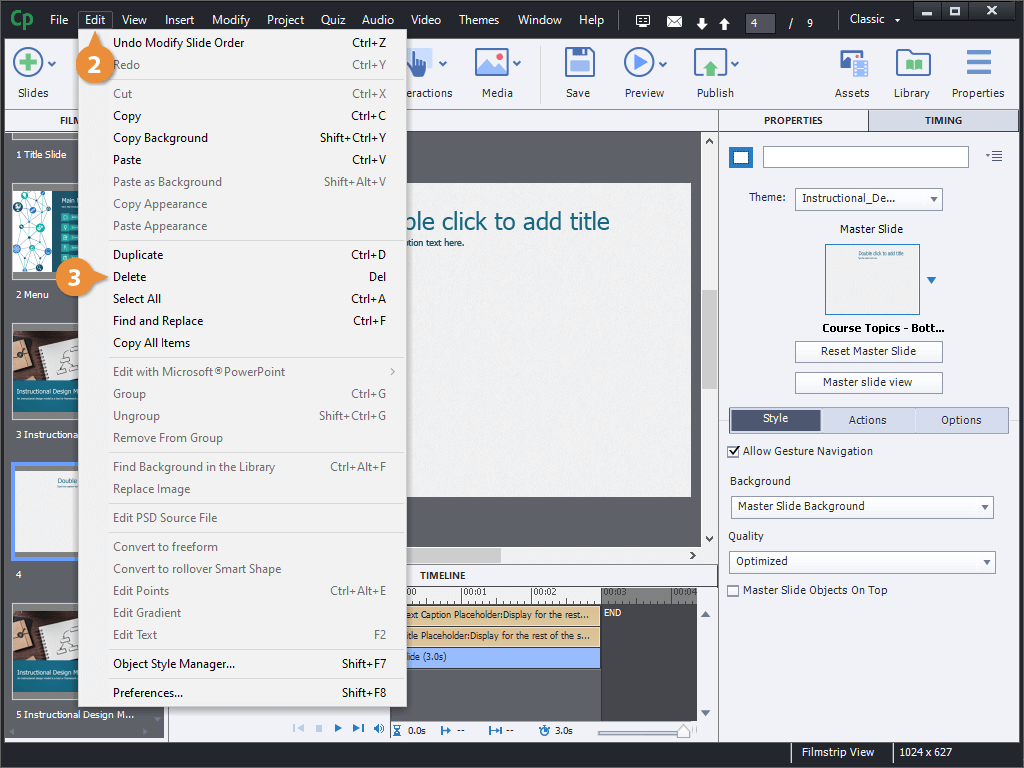
The slide is removed from the project.