Insert and Edit Shapes
Add visual elements and customize shapes to improve your Captivate presentations
Try this Course with a Free Trial

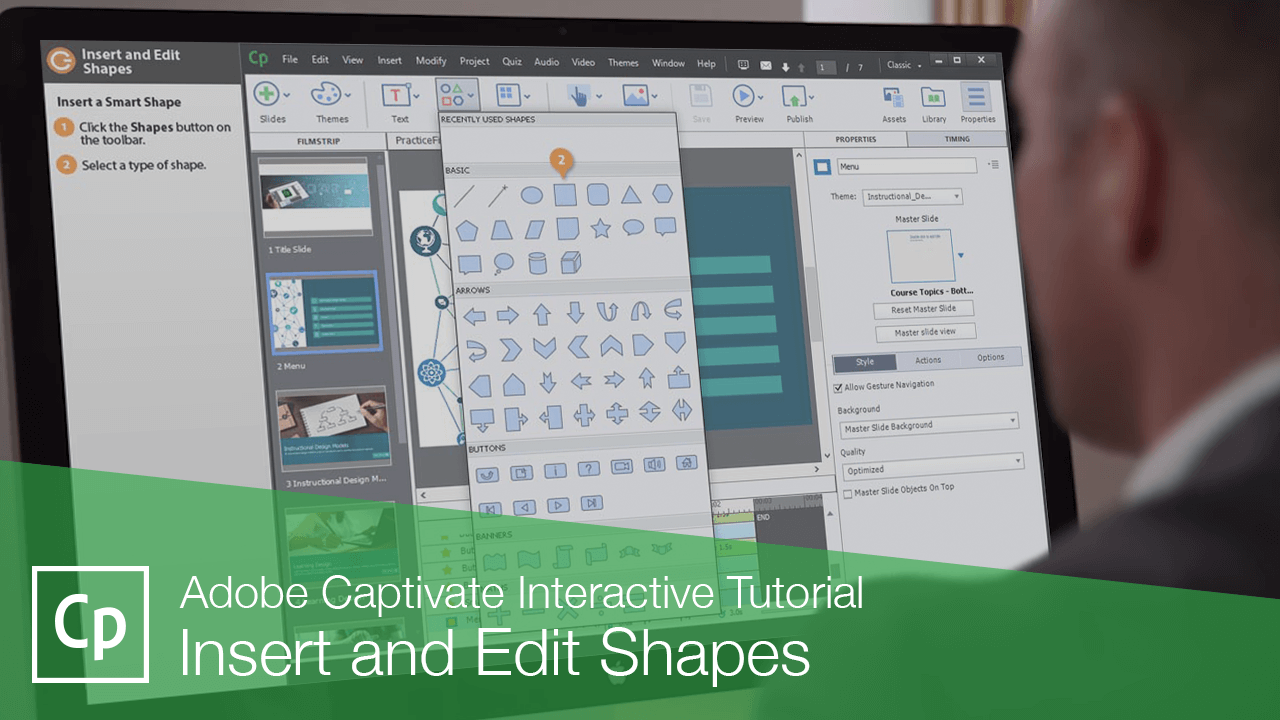
A smart shape is the most basic type of object you can add to a project, but they're also very versatile. There are lots of different types of shapes you can insert, and they can be edited to take on all kinds of appearances.
Insert a Smart Shape
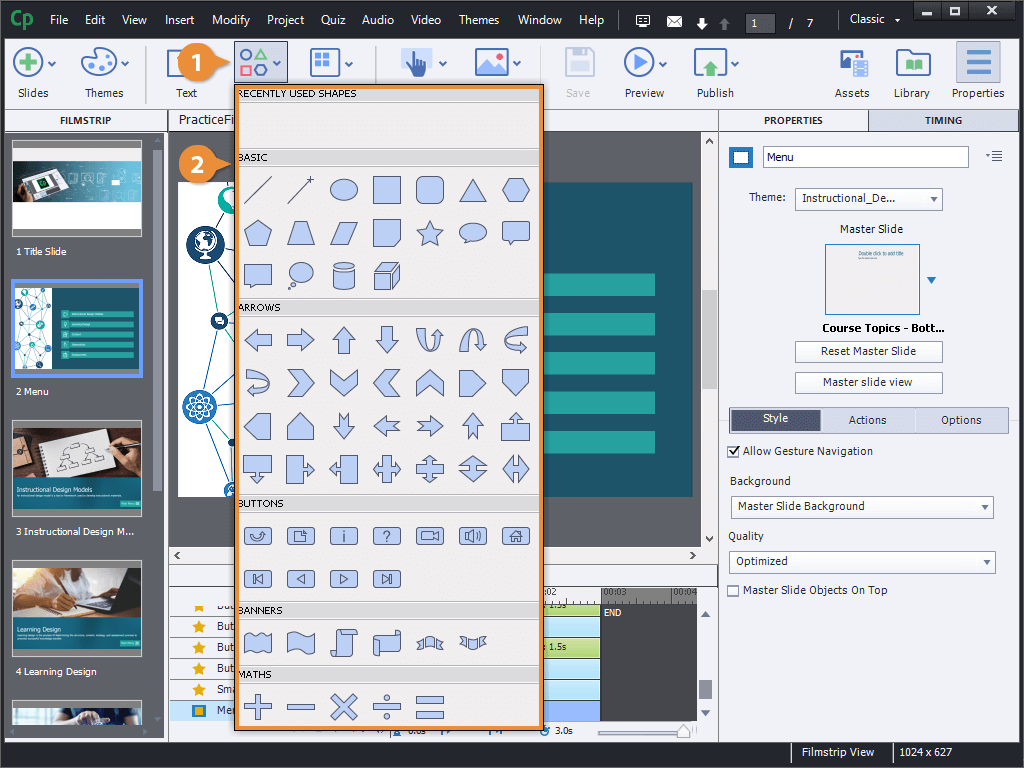
- Click the Shapes button on the toolbar.
- Select a type of shape.
- Click and drag to draw the shape on the stage.
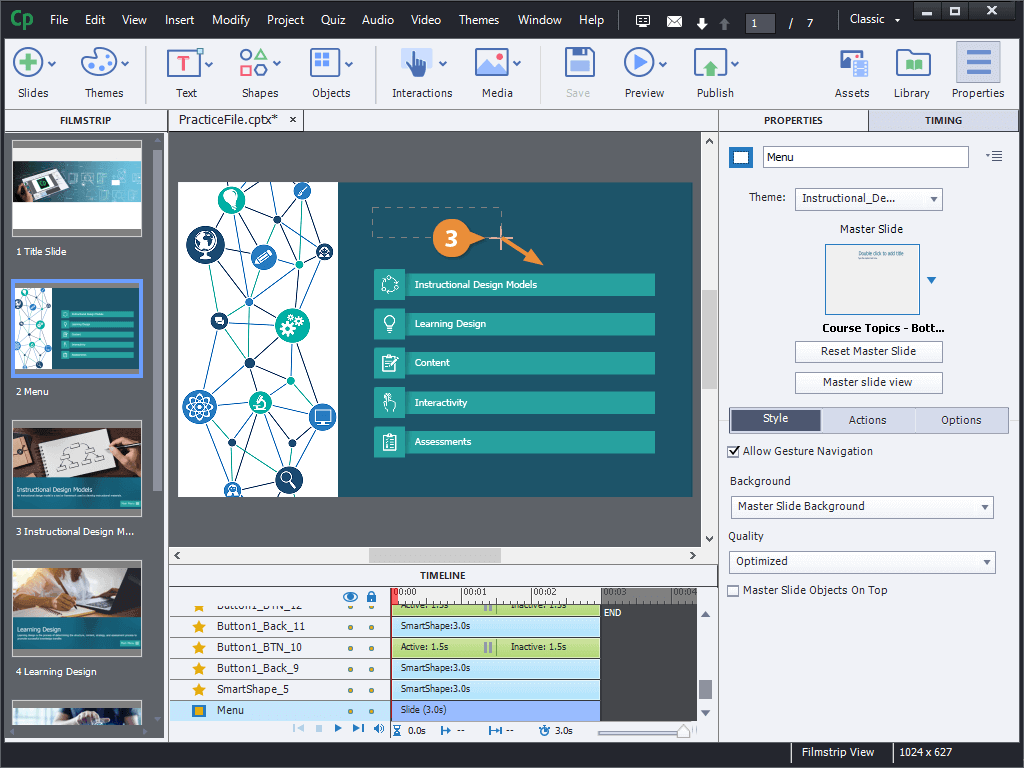
The shape is inserted. If we didn't get it the right size initially, the sizing handles allow you to make it bigger or smaller by clicking and dragging the edges or corners.
Edit a Smart Shape
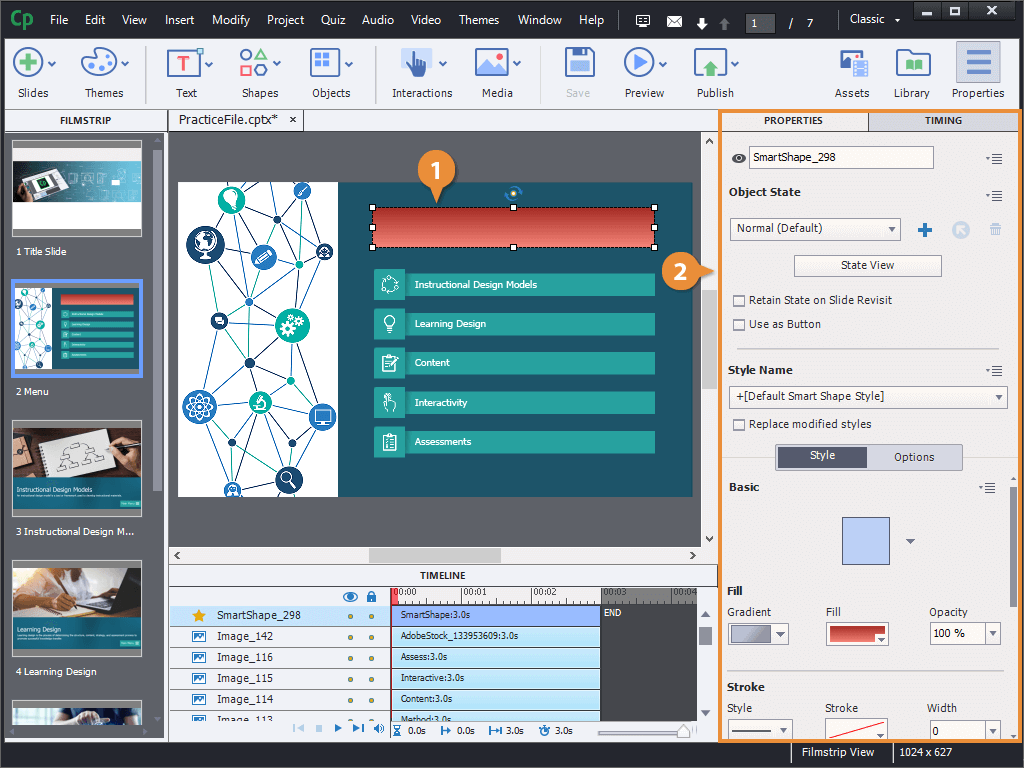
- Select a shape.
- Edit the shape's properties in the Properties panel.
- Shape name.
- Fill style, color, and opacity.
- Stroke style, color, and width.
- Drop shadow or reflection.
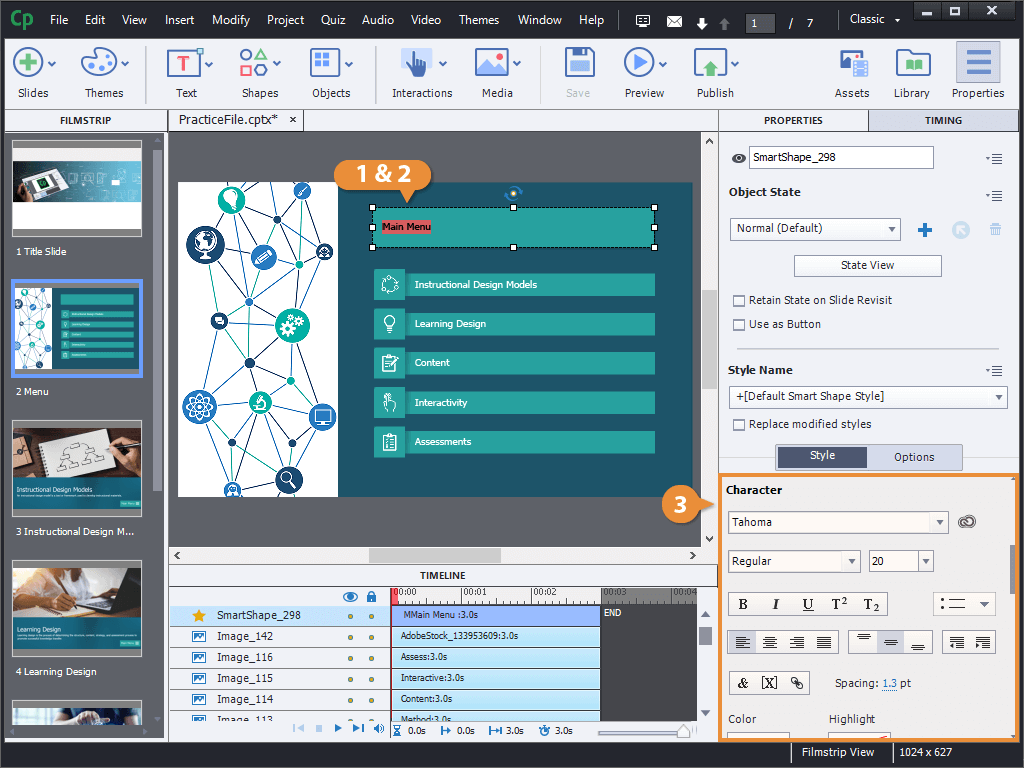
Add Text to a Smart Shape
- Double-click a shape.
- Type text.
- Format the text in the Character section of the Properties panel.