

Import Audio
Add narration or background sound to projects by importing audio files in Captivate
Try this Course with a Free Trial

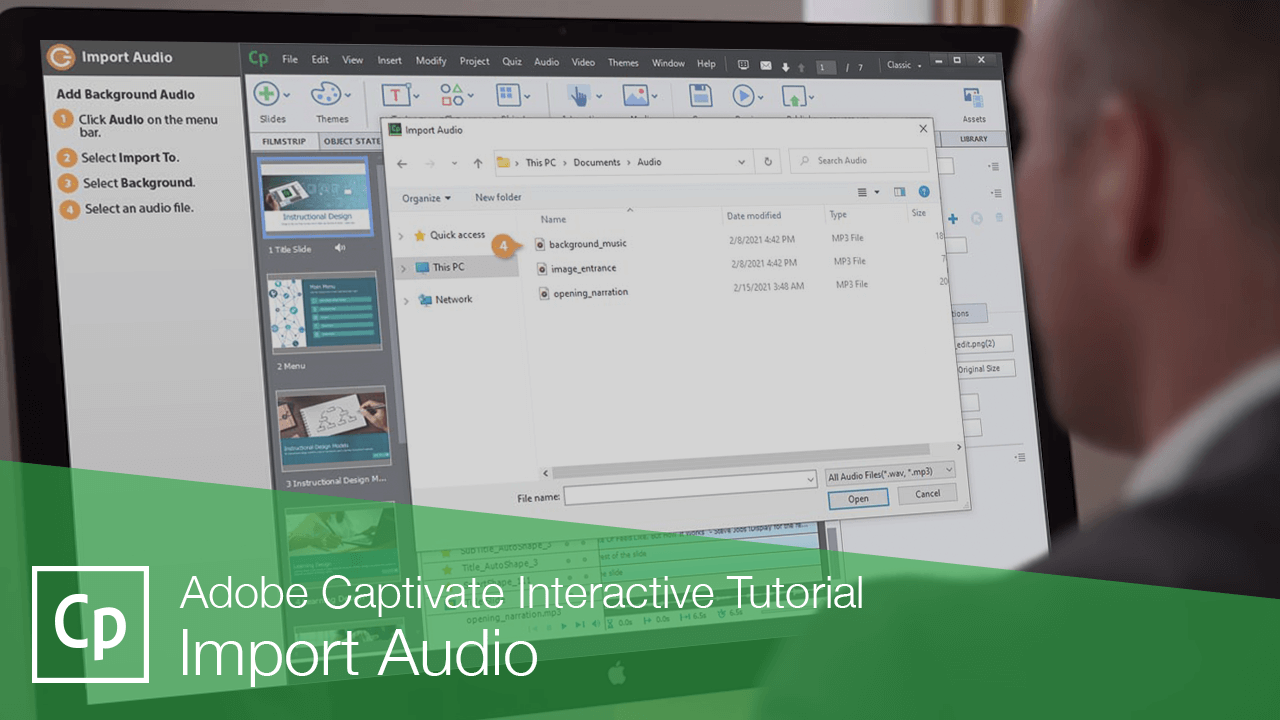
You can import audio to play on a slide, in the background throughout a project, or even to accompany a single object in a project.
Add Audio to a Slide
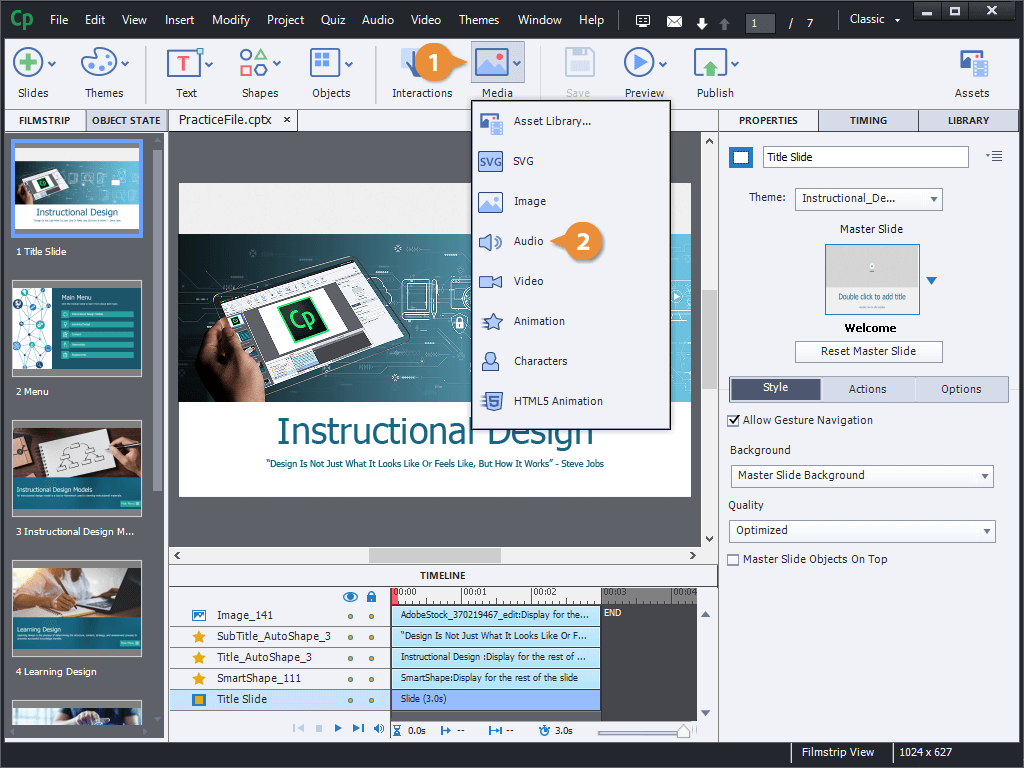
Add Background Audio
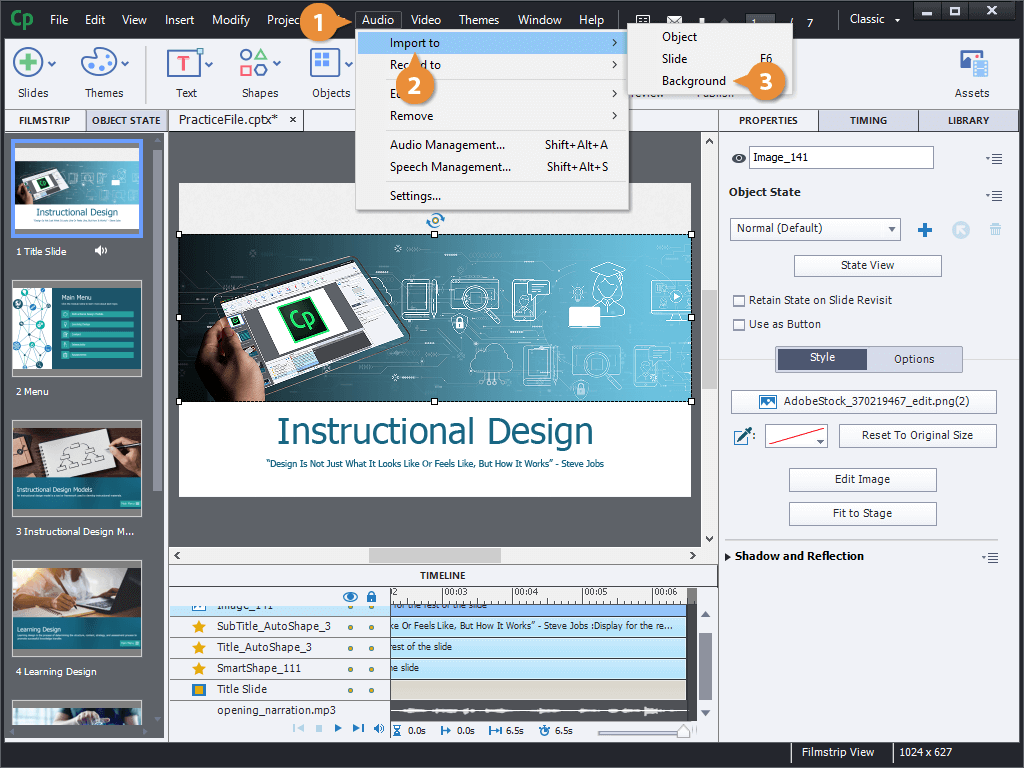
Next, let's look at adding some background audio to a project. Background audio isn't synced to any particular slide, and will play all the way through no matter how you move through the project. You can also loop background audio to repeat as long as the project runs.
- Click Audio on the menu bar.
- Select Import To.
- Select Background.
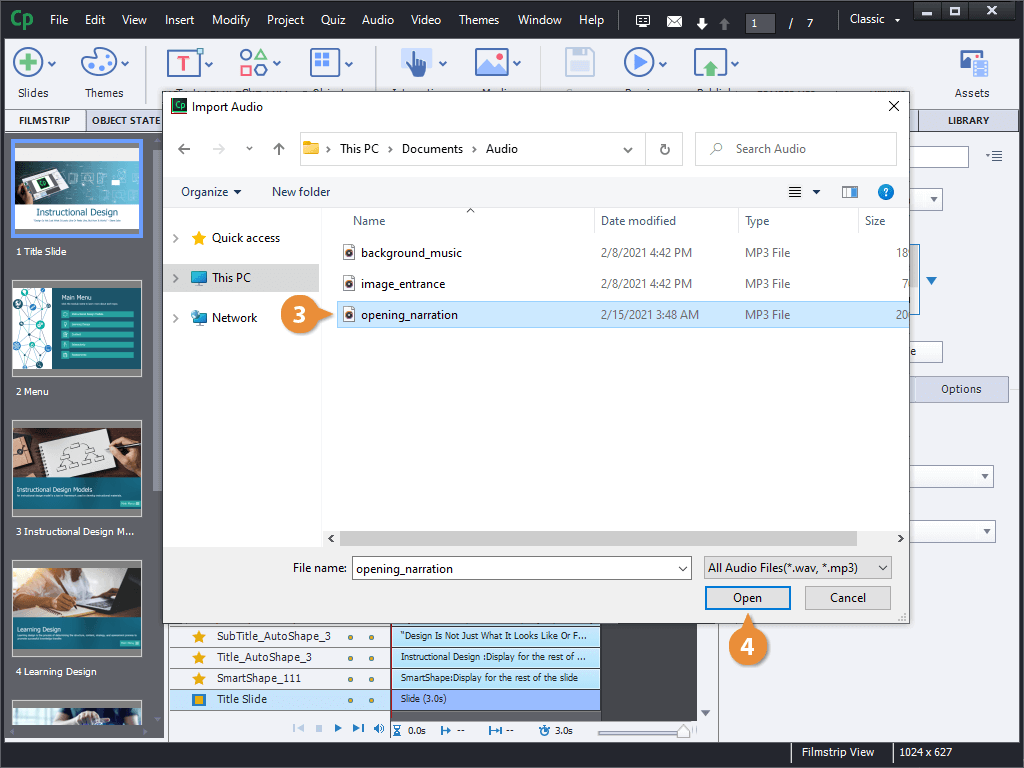
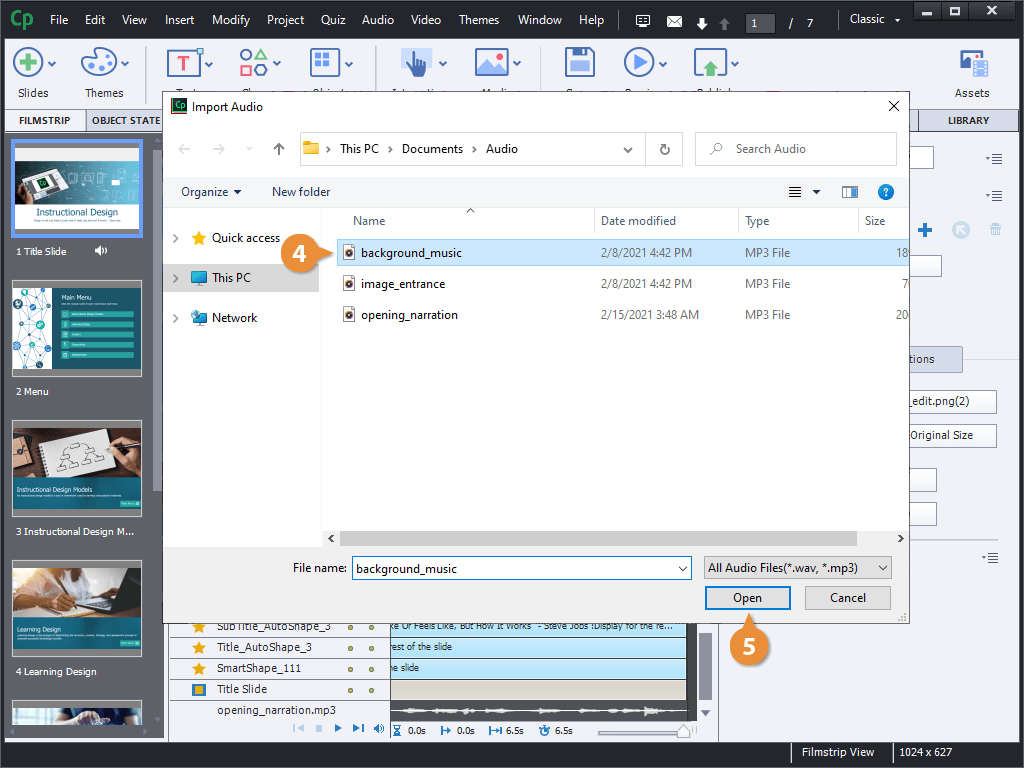
- Select an audio file.
- Click Open.
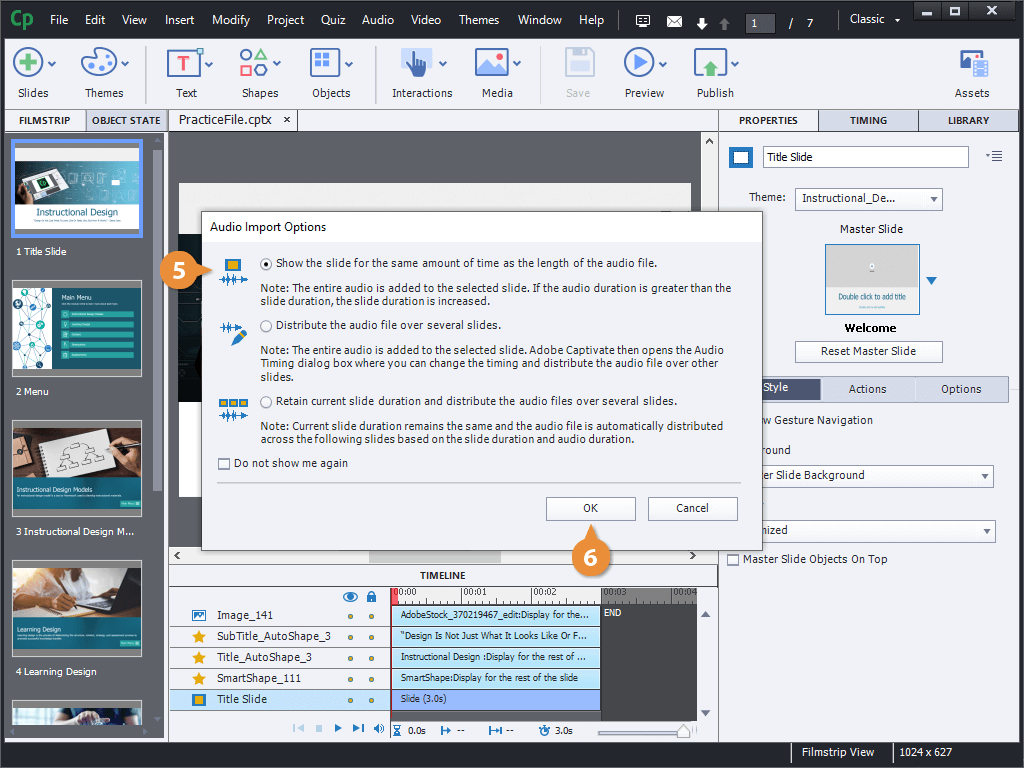
- Edit the audio file and choose playback options.
- Click Save.
- Click Close.
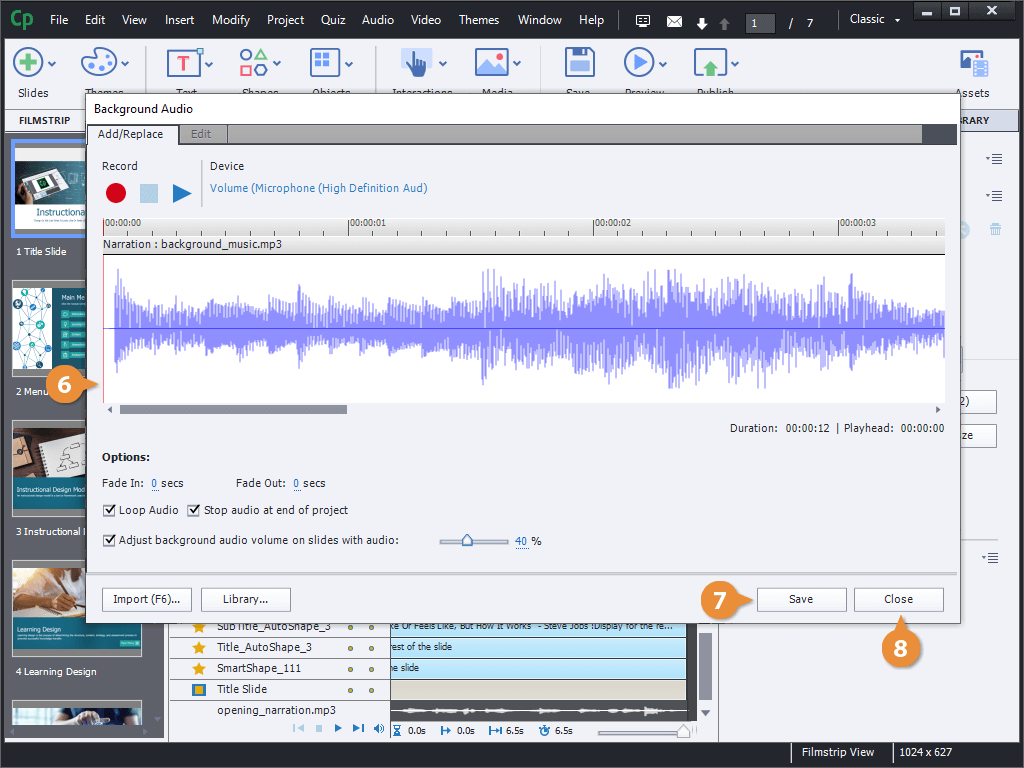
The audio file is added and appears in a preview editor window. Here, you can preview the audio file by clicking Play, or change its playback options.
You can fade the audio in or out, set it to loop, choose to stop it at the end of the project, and choose whether the background audio gets quieter when there's other audio on the slide.
Add Audio to an Object
Next, let's learn how to attach audio to an object on the slide. This will play the selected audio at the same time that the object appears.
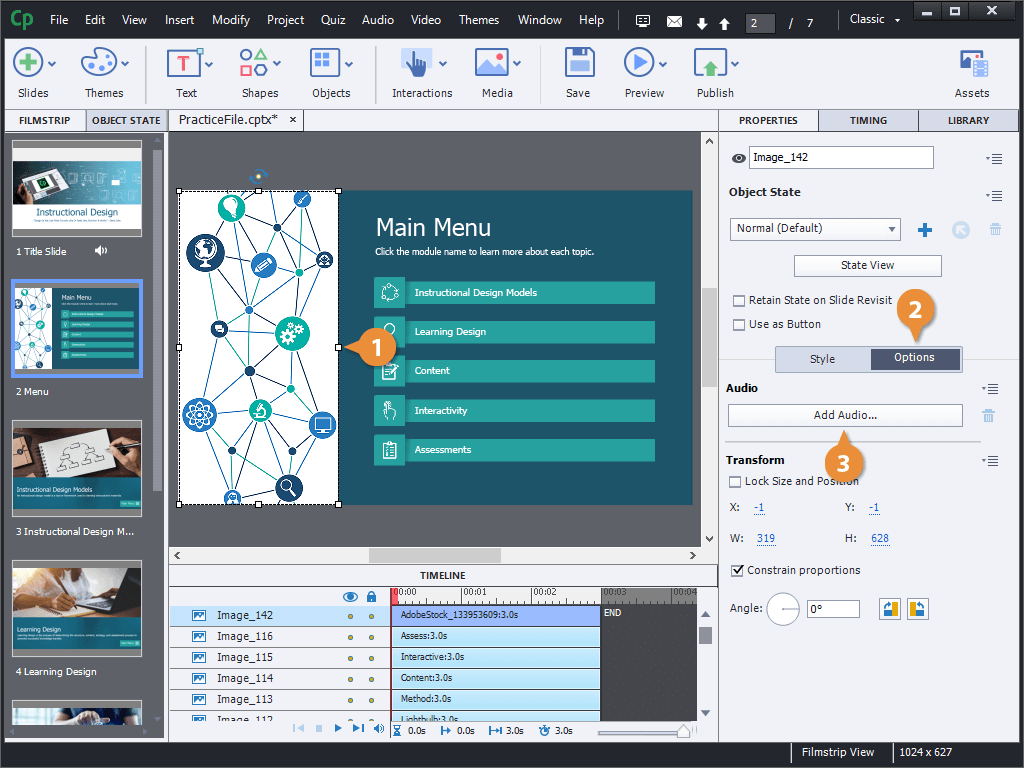
- Select an object.
- Click the Options tab in the Properties panel.
- Click the Add Audio button.
- Click Import.
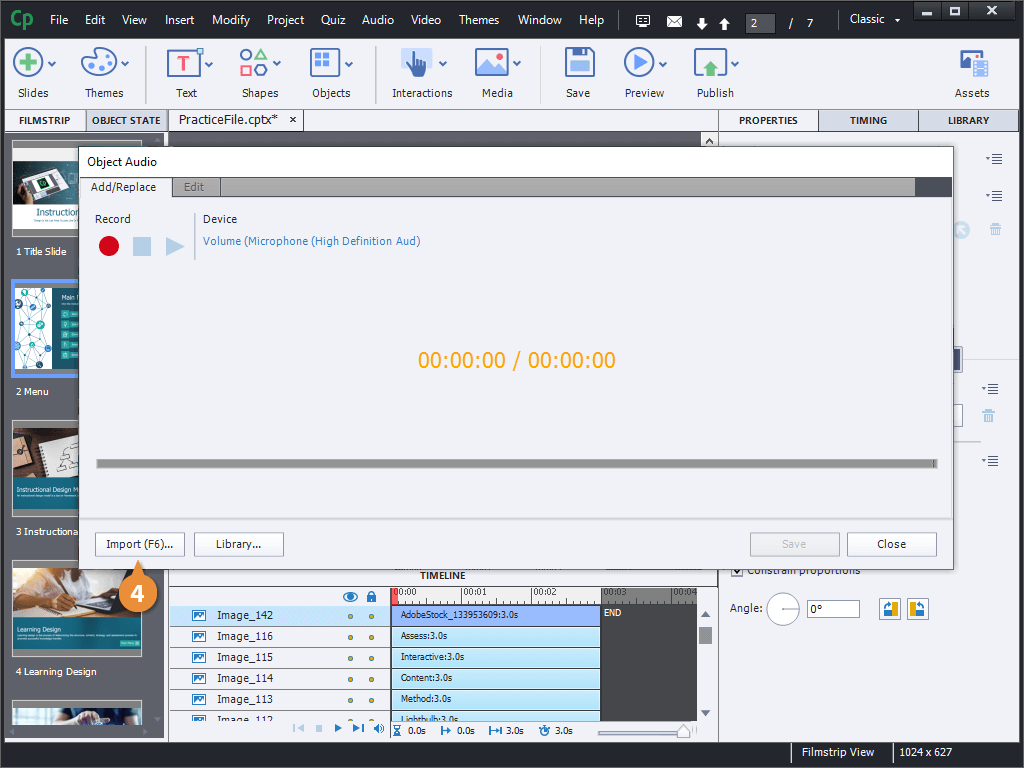
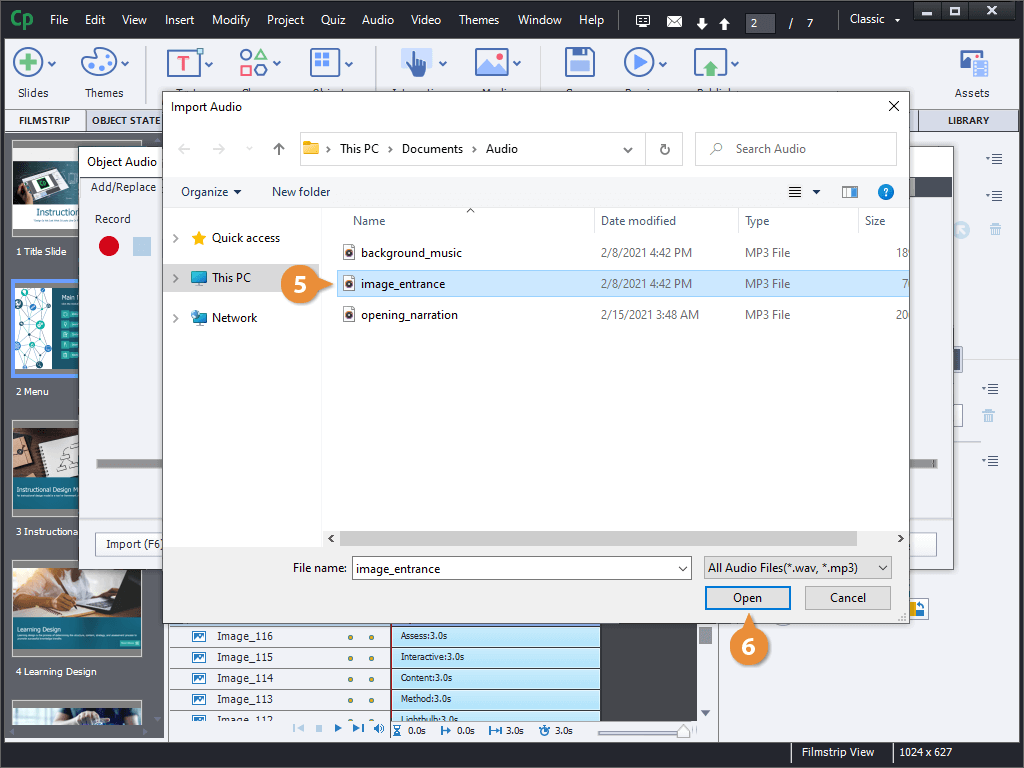
- Select an audio file.
- Click Open.
- Click Save.
- Click Close.
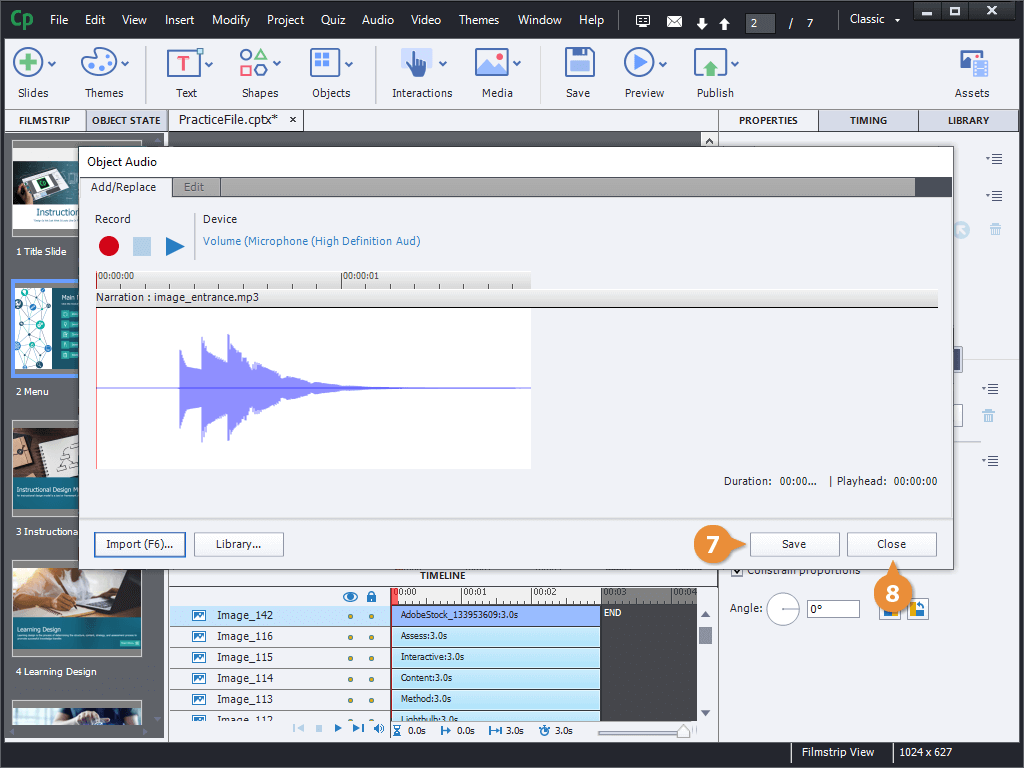
The Object Audio dialog box opens, and it's nearly identical to the Background Audio one. Choose whether to import an audio file, or select one from the library.