

Subforms in Access
Edit, manage, and update subforms to display linked data efficiently in Access
Try this Course with a Free Trial

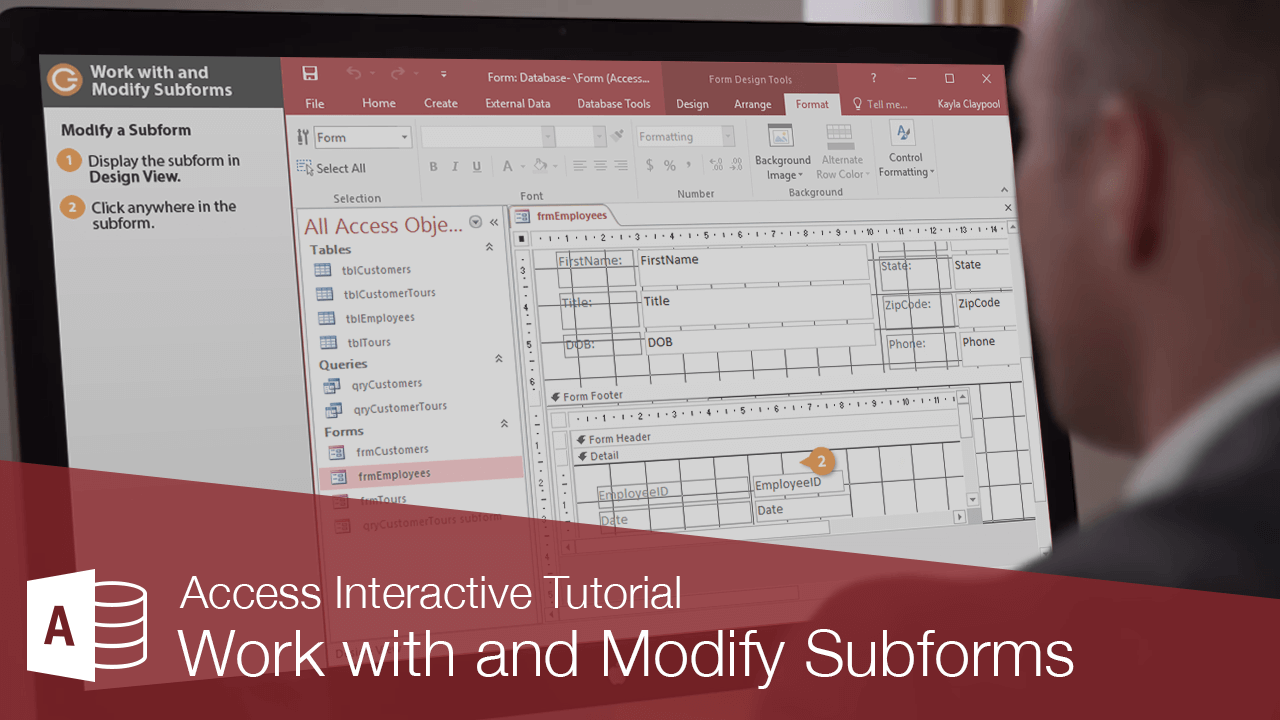
Subforms rarely come out the way you want them to the first time: They may need to be resized so that they fit nicely in the main form. You may need to change the subform layout.
Work with Subforms
- In Form View, click a button on the subform's Record Navigation bar to add or move between records.
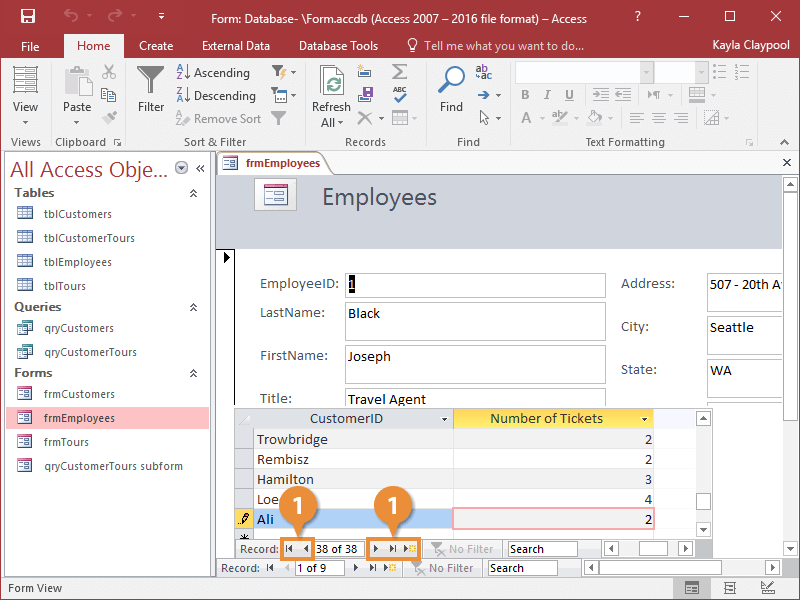
Notice that the main form and subform each have their own set of navigation buttons that you can use to add.
Entering a record in a subform works just like entering a record in a main form.
Modify a Subform
Now let's try modifying a subform.
- Display the subform in Design View.
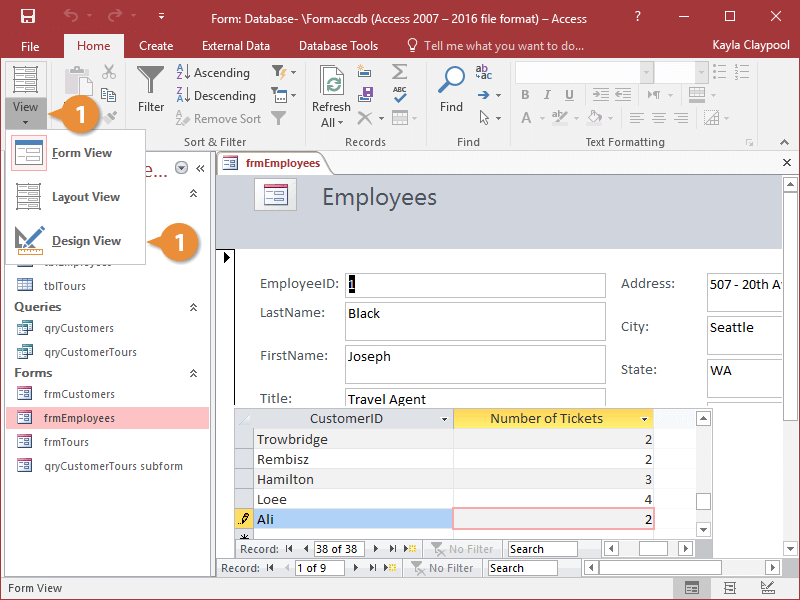
Access displays the form in Design View.
- Click anywhere in the subform to modify it.
- Edit the subform as needed.
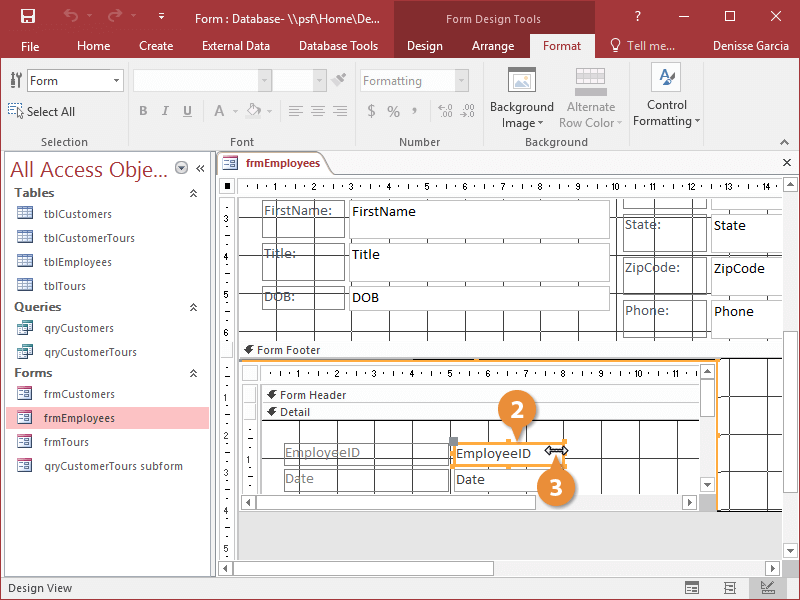
Then make the edits that you want.
The main form and sub form each have their own set of navigation buttons that you can use to add and move between records.
If you have set referential integrity between two or more related fields in a subform's underlying table or query, you will have to obey those referential integrity rules in order to add or edit a record in the subform. For example, you can't enter a number in the TourID field unless that number exists in the qryCustomerTours query.
Display a Subform’s Properties
Just like forms, subforms have their own set of properties that you can modify.
- In Design View, double-click the subform’s Form Selector.
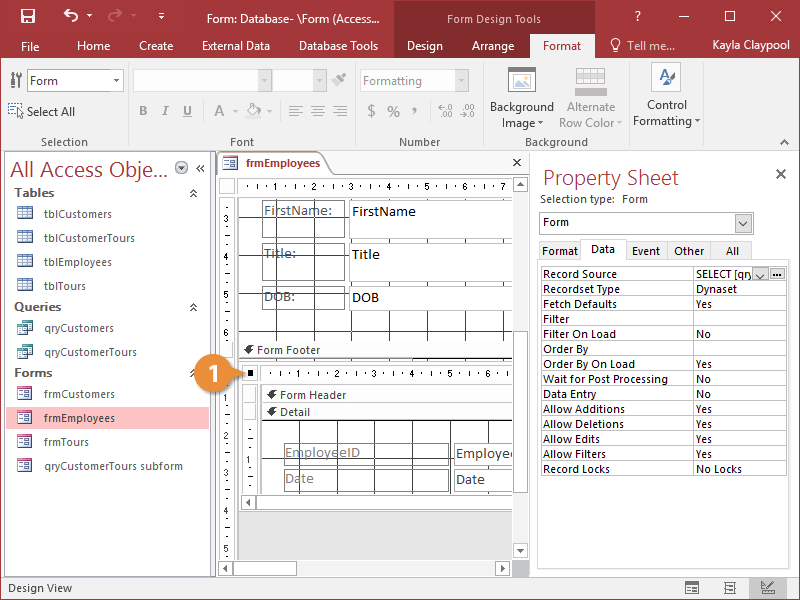
The subform’s properties are displayed in the Property Sheet pane.
- Display the subform in Design View.