

Select Query Access
Use Select Queries to filter, sort, and view specific data in Microsoft Access
Try this Course with a Free Trial

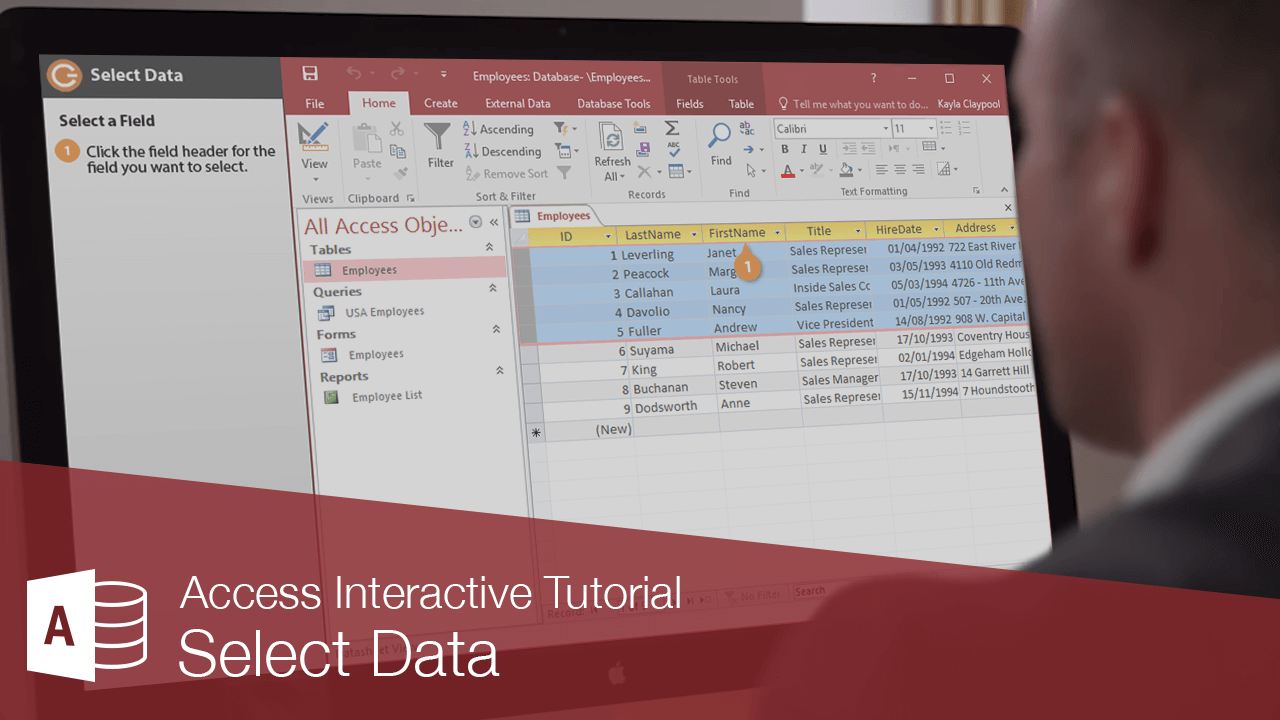
Often, before you can complete a task in Access, you must first select the data that you want to work with. Many common tasks such as editing, formatting, copying, cutting, and pasting all require you to know how to select information.
Select Text
The procedure for selecting text in Access is no different than selecting text in any other Microsoft Office program.
- Move the insertion point to the beginning of the text you want to select and drag the insertion point across it.
You can also select text by pressing and holding the Shift key while using the arrow keys to select the text you want. To replace text, select the text you want to replace, then type the new text with which you want to replace it.
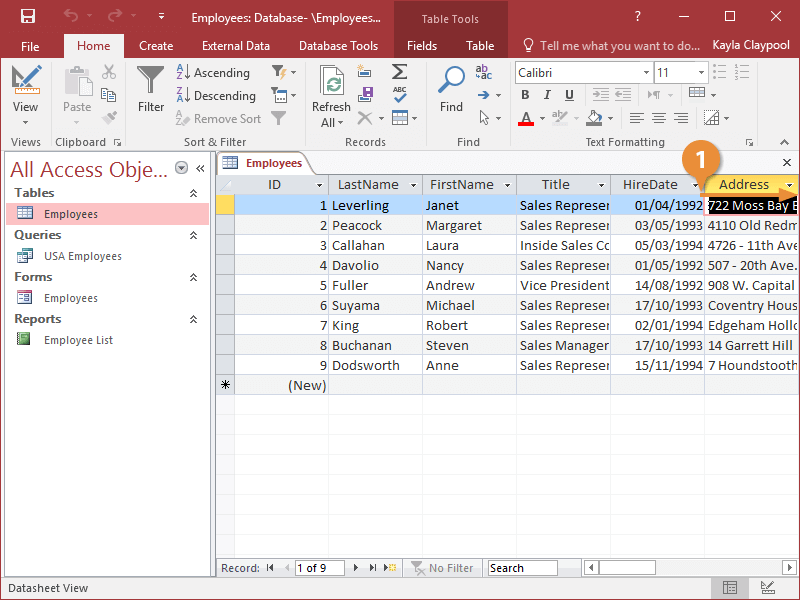
Select a Record
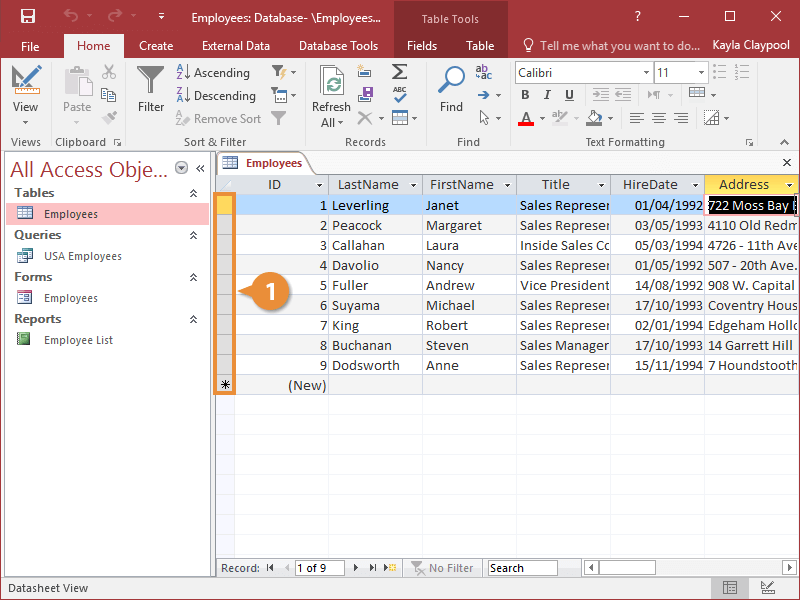
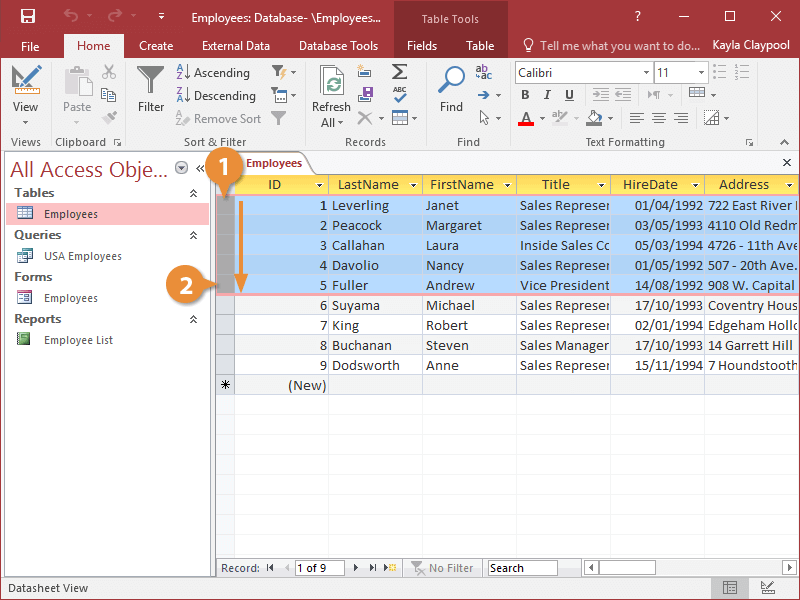
Select Multiple Records
- Click the record selector for the first record you want to select, holding down the mouse button.
- Drag down to the last record you want to select, then release the mouse button.
You can also select non-consecutive records by holding down the Ctrl key as you click each record.
Select a Field Column
- Click the field header for the field you want to select.
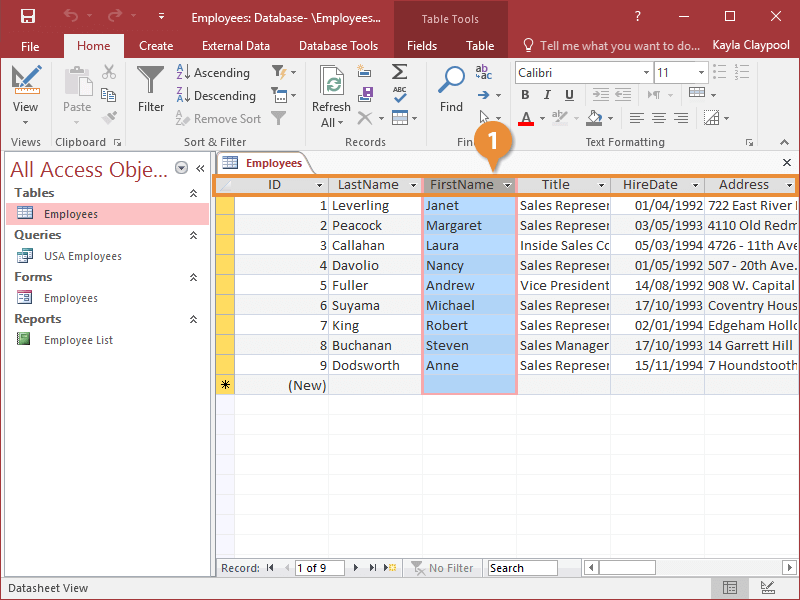
Data Selection Shortcuts Select a word Double-click anywhere in the word. Select a field value Position the mouse over the left edge of the cell you want to select and click to select the cell. Select a record or row Position the mouse over the record selector and click to select the record. To select multiple records, drag down until you have highlighted all the records you want to select. Select a field or column Position the mouse over the name of the field you want to select and click to select it.