

Print and Delete Relationships
Manage and organize your database by printing or removing table relationships in Access
Try this Course with a Free Trial
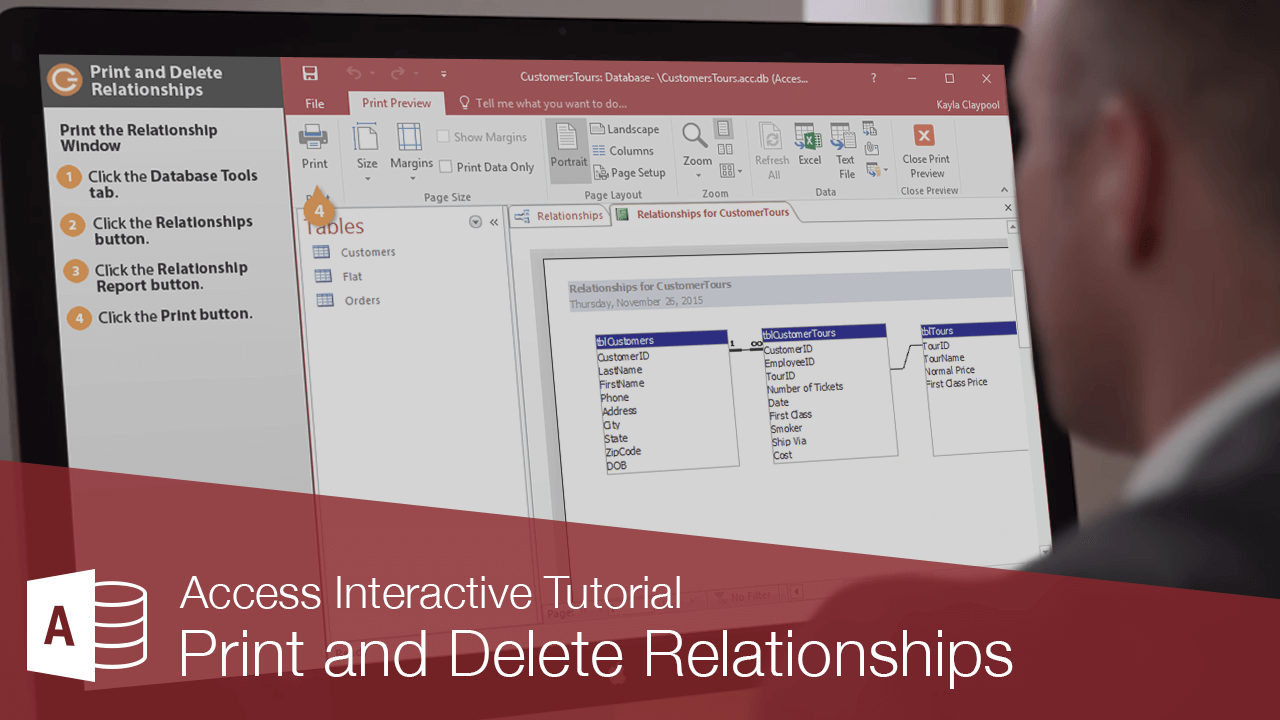
Sometimes you may want to print a hard copy of the Relationships window or you may want to delete the relationship between two tables.
Print the Relationship Window
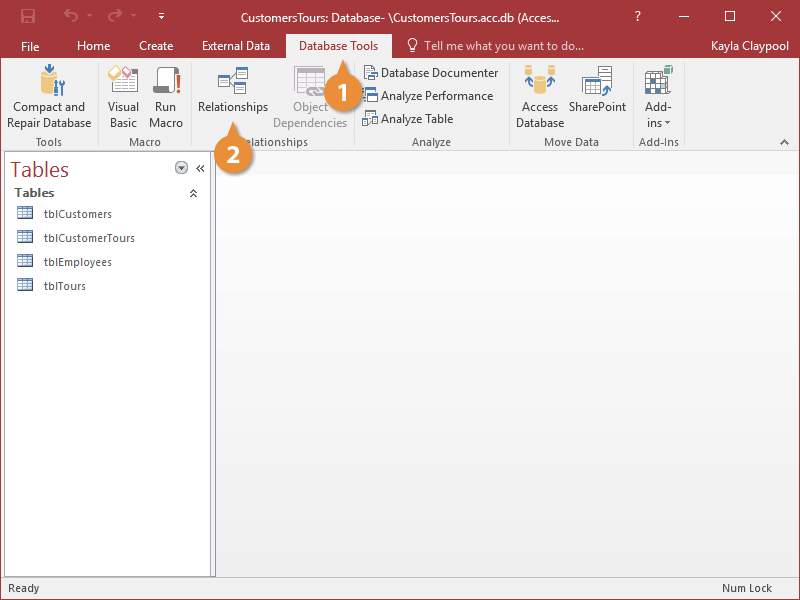
- Click the Database Tools tab.
- Click the Relationships button.
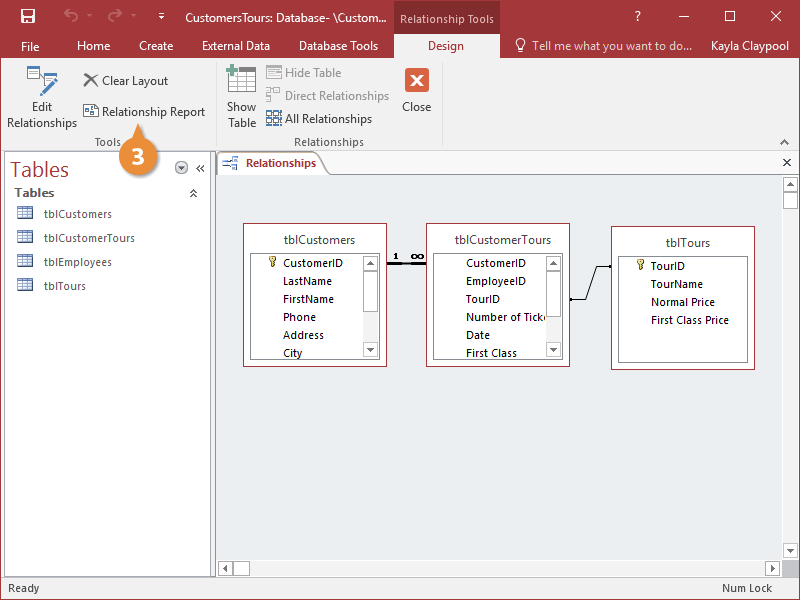
The Design contextual tab appears under Relationship Tools.
- Click the Relationship Report button.
A report showing the tables and relationships appears in Print Preview mode.
If you want to modify the report before printing, click the Close Print Preview button and edit the report in Design View.
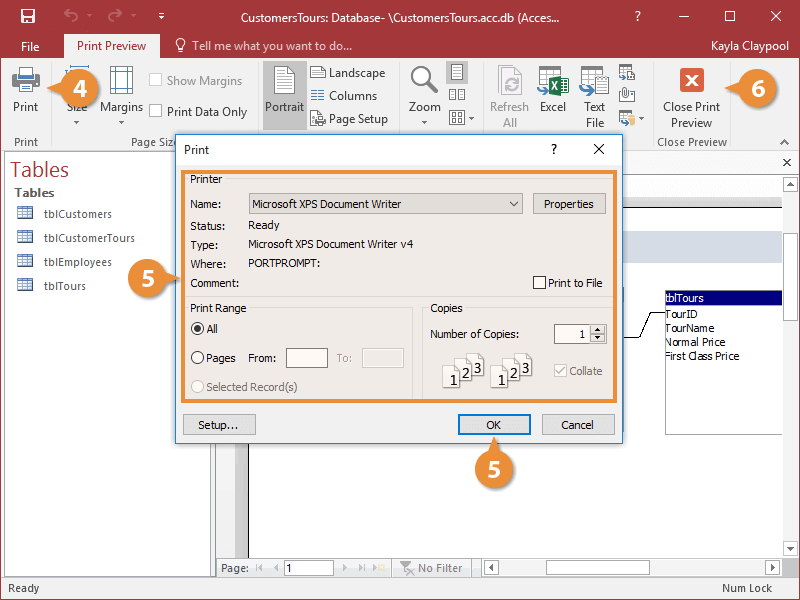
- Click the Print button.
The Print dialog box appears.
- Select the desired print settings and click OK.
The Relationships report is printed.
- Click the Close Print Preview button.
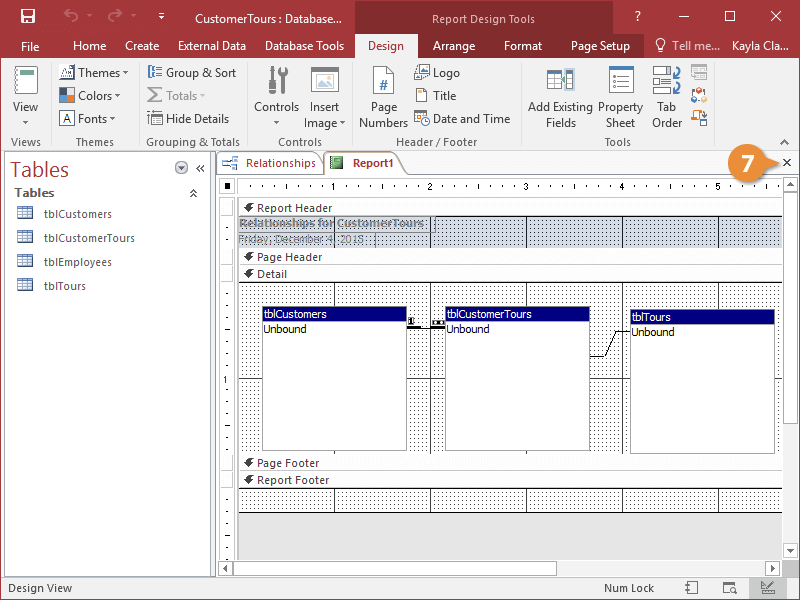
The report appears in Design View.
- Click the Relationships report's Close button.
Delete a Table Relationship
Access is very restrictive about letting you modify a related table, and often you must temporarily delete the relationship between two tables, modify one of the tables, and then re-connect them.
Here’s how to delete a table relationship.
- Click the join line that connects the tables.
- Press the Delete key.
Access asks you to confirm that you really want to delete the relationship.
- Click Yes.
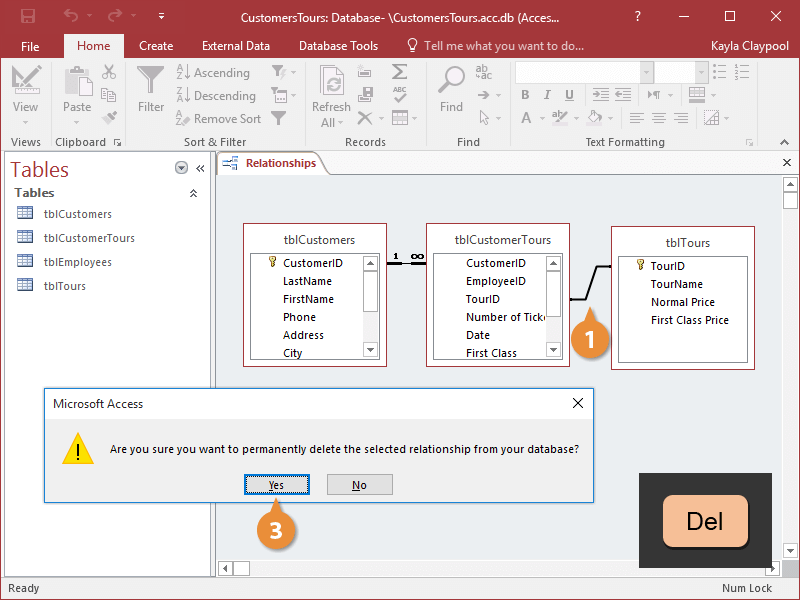
Access deletes the relationship between the two tables.
- Click the Relationship Report button.