

Modify Form Layout View Access
Easily adjust form design and layout using Access layout view tools
Pruebe este curso con una prueba gratuita

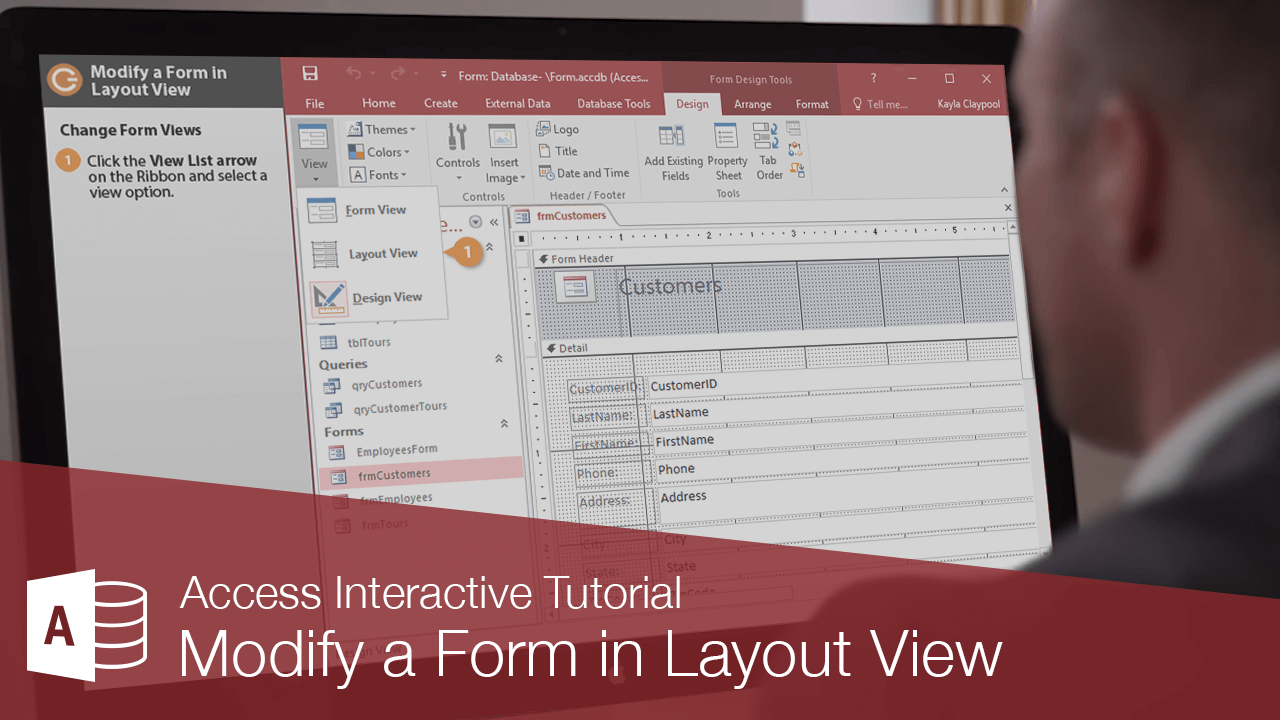
You can easily modify forms in Access.
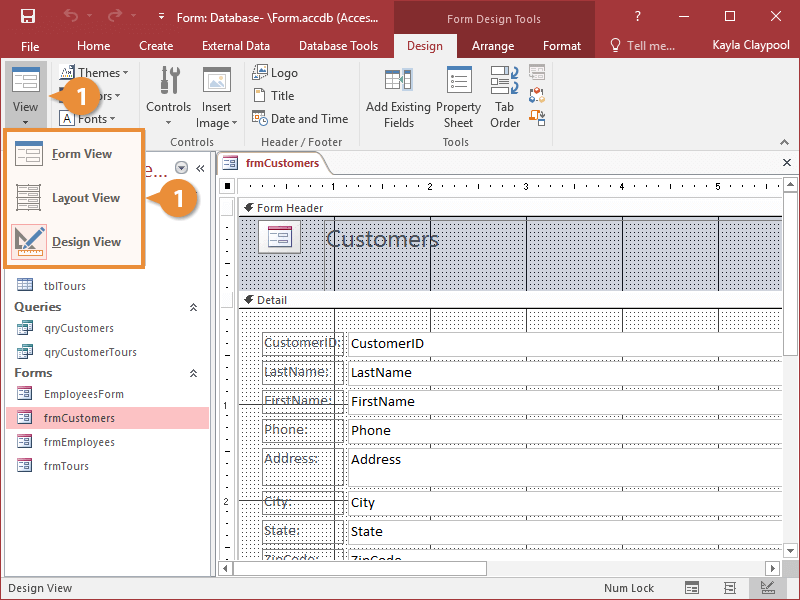
Change Form Views
Before modifying a form, you need to know that forms can be viewed several different ways:
- Form View: The normal view where you can view, add, and edit records. You can't modify the form's structure in this view.
- Layout View: Layout View allows you to apply formatting and rearrange fields while also displaying data.
- Design View: Use for in-depth modification and customization of your form. Live data is not visible—you're only working with the structure of the form.
- Datasheet, Pivot Table, Pivot Chart: These views are available only for certain types of forms.
- Print Preview: Displays a form as it would look when printed, although you'll rarely need to print a form—that's why you have reports.
- Click the View list arrow on the ribbon and select a view option.
Move a Control
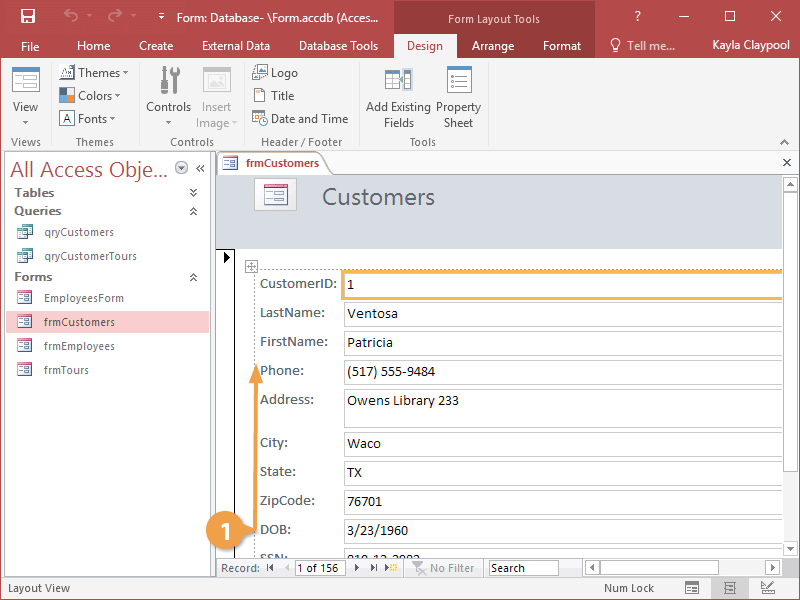
Any graphic object that appears on forms and reports is called a control. They can be moved anywhere on the form.
- Click and drag any control on the form to the desired location.
Delete a Control
You can also delete controls if you don't need them.
- Select the control you want to delete, then press the Delete key.
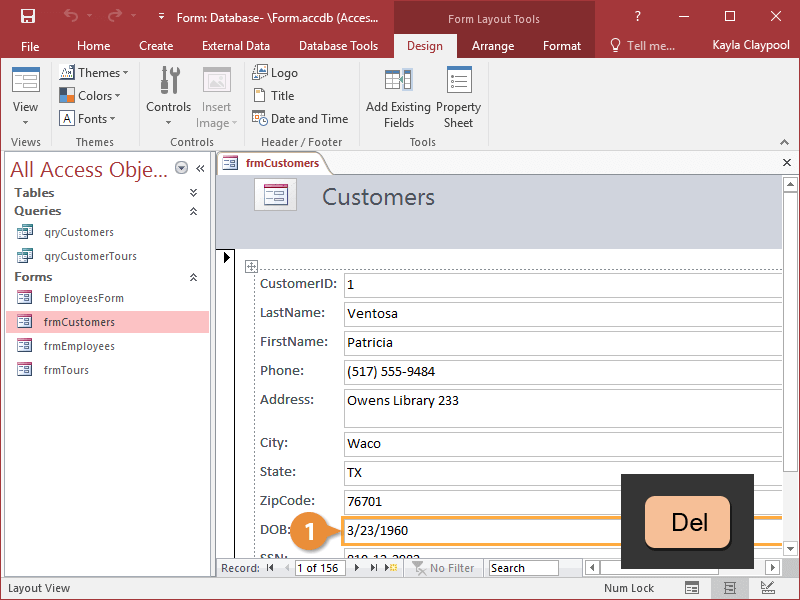
The control is removed from the form.
Add a Field
You can add fields to your form with the Field List pane.
- Click the Add Existing Fields button on the ribbon.
The Field List pane appears and lists the available fields that you can add to the form.
- Double-click the field you want to add.
You can also add a field by clicking and dragging the field you want to add from the Field List onto the form.
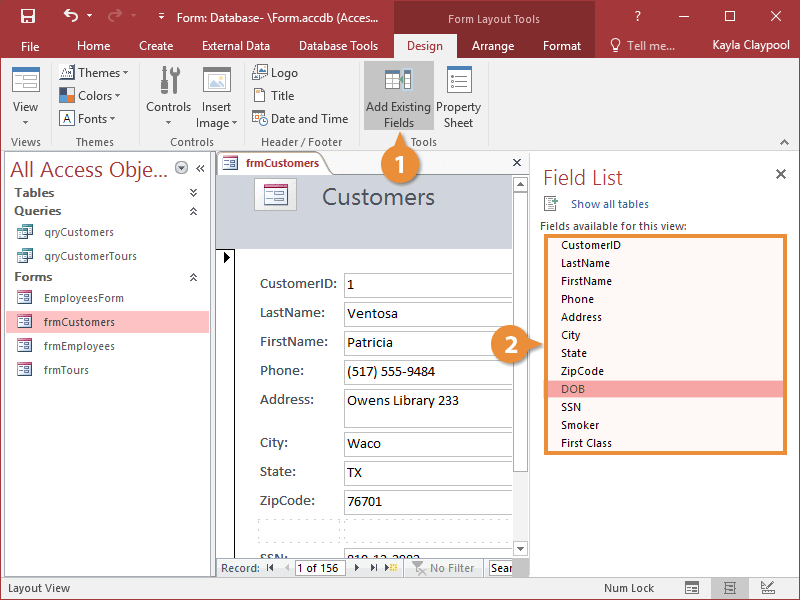
The field is added to the form. You may need to move the field to the desired location on the screen.
- Click the Add Existing Fields button on the ribbon.
- Select the control you want to delete, then press the Delete key.
- Click and drag any control on the form to the desired location.