

Microsoft Access Table Relationships
Link related tables to manage and organize data efficiently in Microsoft Access
Try this Course with a Free Trial

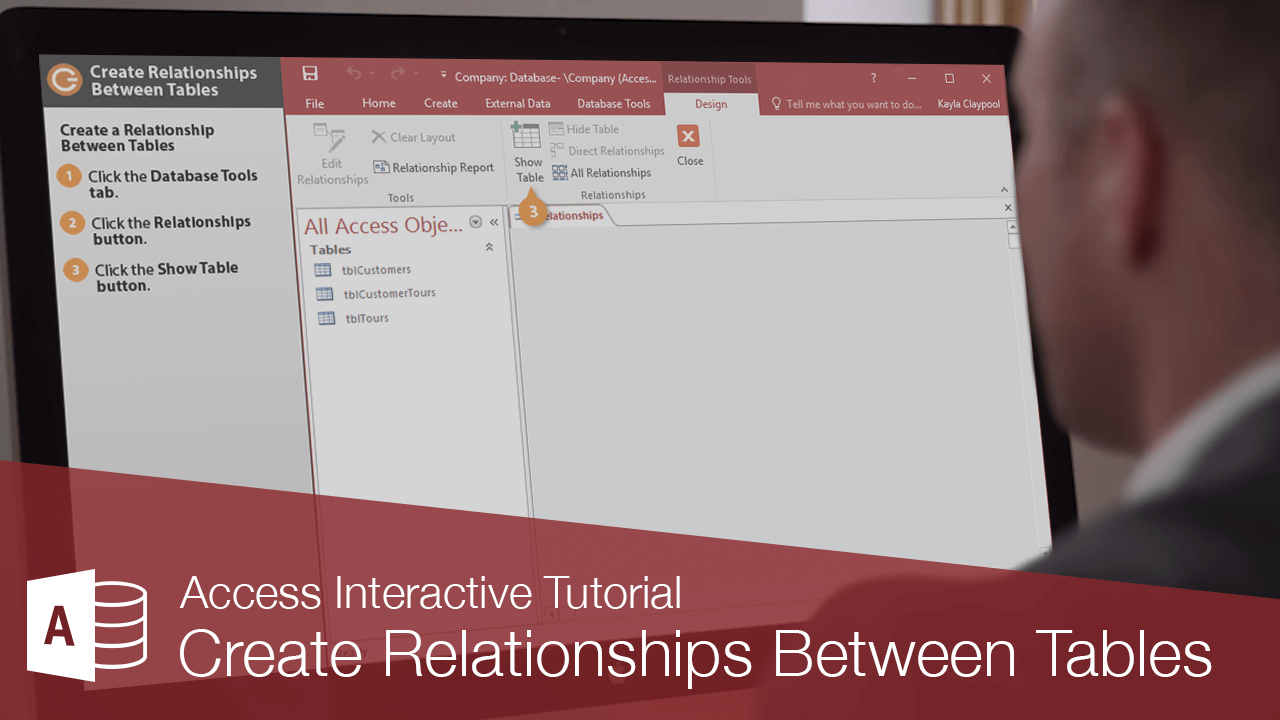
Once you begin to understand the concept of relational databases, the process of actually linking the tables in a database is rather simple.
Rules for Linking Two Tables
Make sure you keep these rules in mind when you link to tables together.
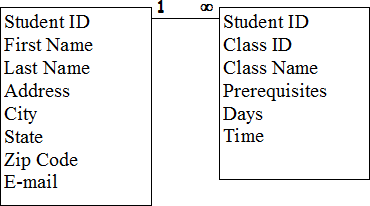
- Linked fields should be (almost) identical.
- Related fields must have the same data type and field size and must contain the same kind of information.
- The primary key in one table is usually linked with a matching field in the other table.
- Fields related to an AutoNumber primary key field must be Number fields with the Long Integer Field Size.
Create Relationships Between Tables
You need to display the Relationships window in order to view and create relationships between tables.
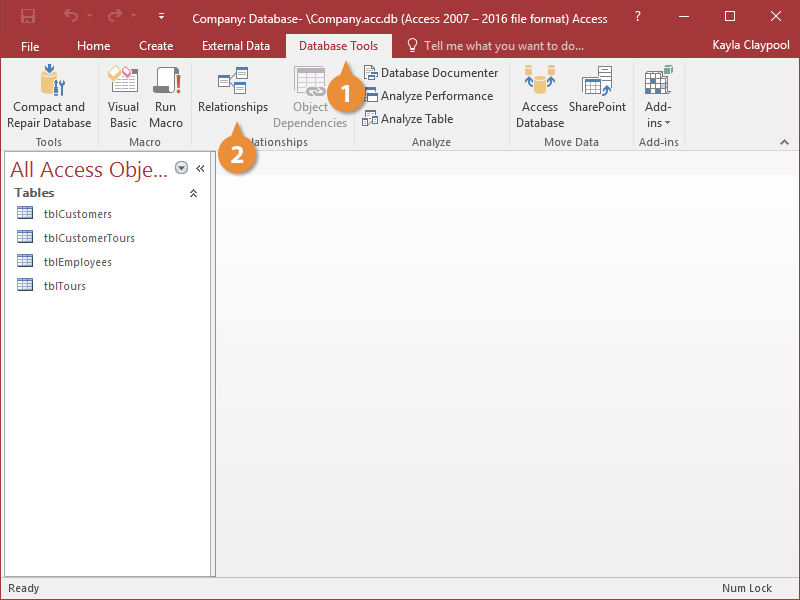
- Click the Database Tools tab.
- Click the Relationships button.
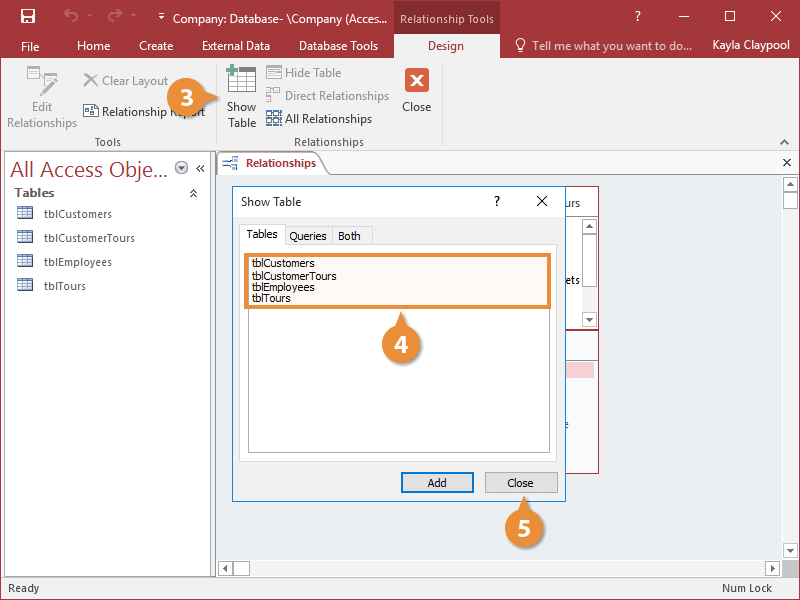
- Click the Show Table button.
- Double-click the table(s) you want to add.
- Click Close.
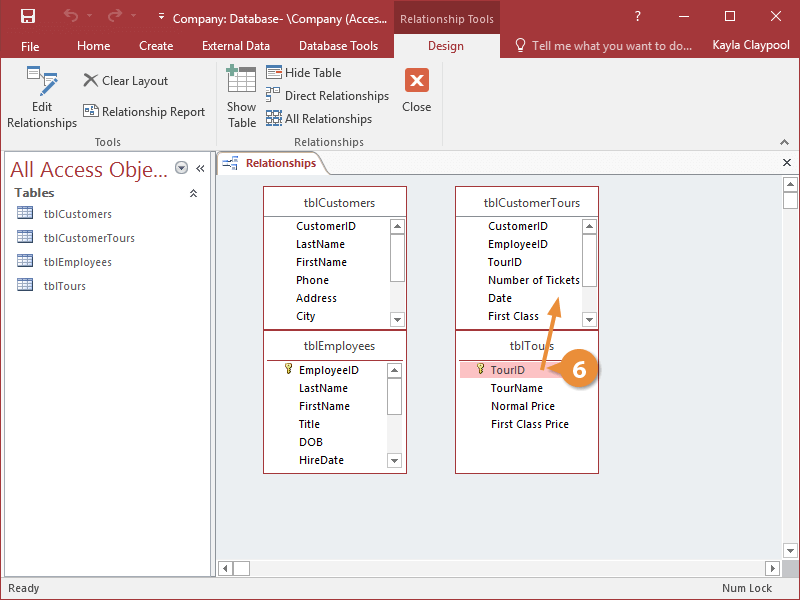
- Click the related field in the first table and drag it to the related field in the second table.
Whenever you link a primary key from one table to a field from another table, you create a foreign key.
- Check the Enforce Referential Integrity option (optional).
Referential integrity helps you avoid “orphan” records and maintains database accuracy.
- Click Create.
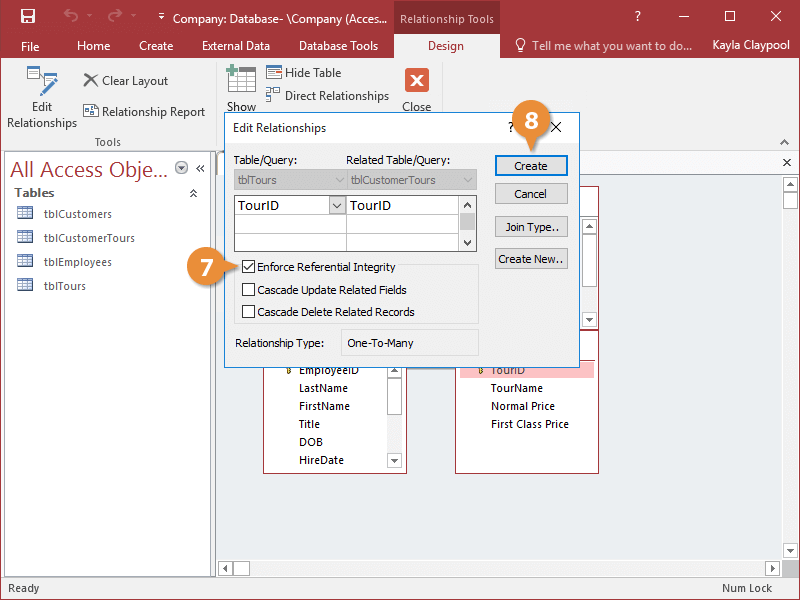
The two tables are now linked, indicated by the line linking the two related fields.