

Make Table Query Access
Create new tables automatically from query results in Microsoft Access
Try this Course with a Free Trial

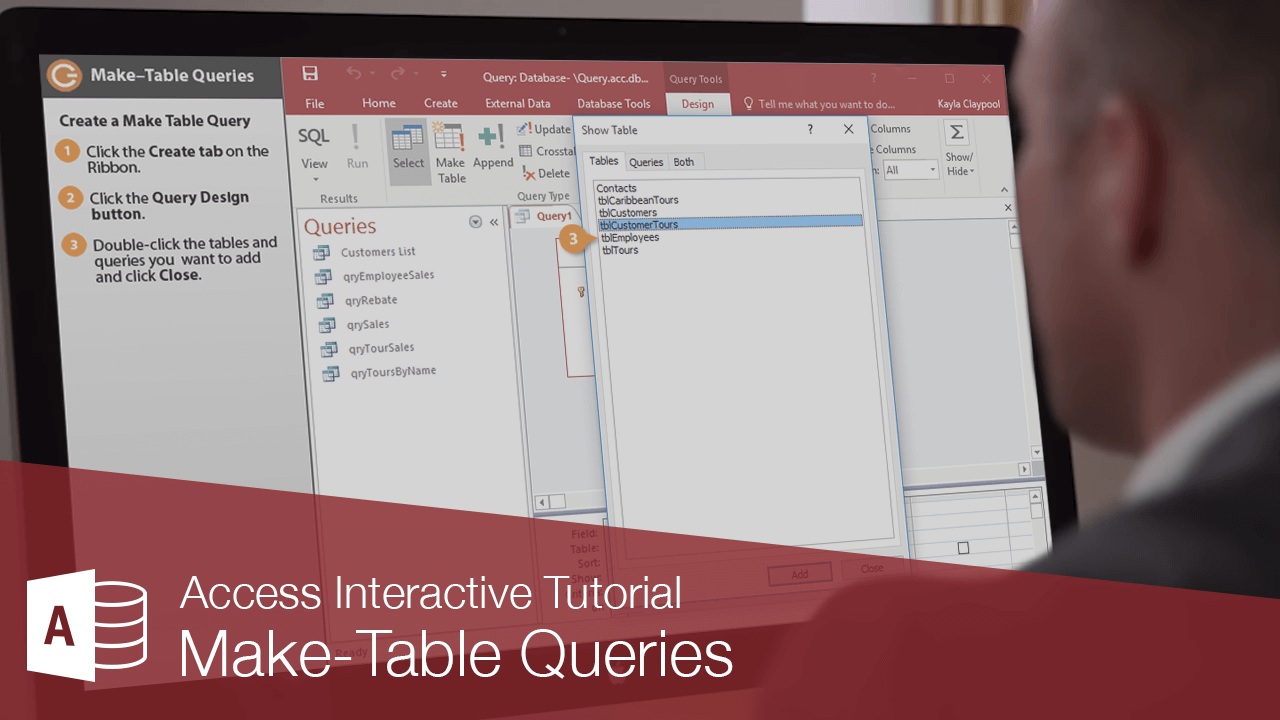
Create a Make Table Query
- Click the Create tab on the ribbon.
- Click the Query Design button.
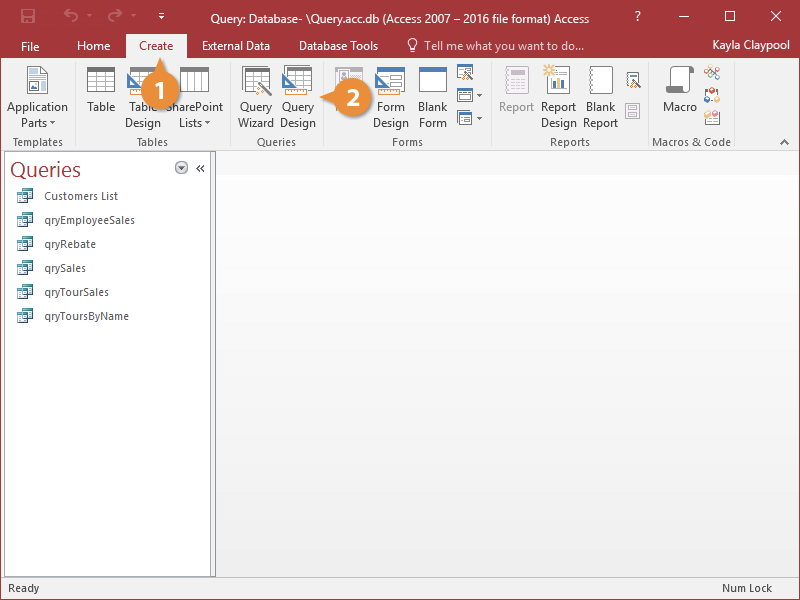
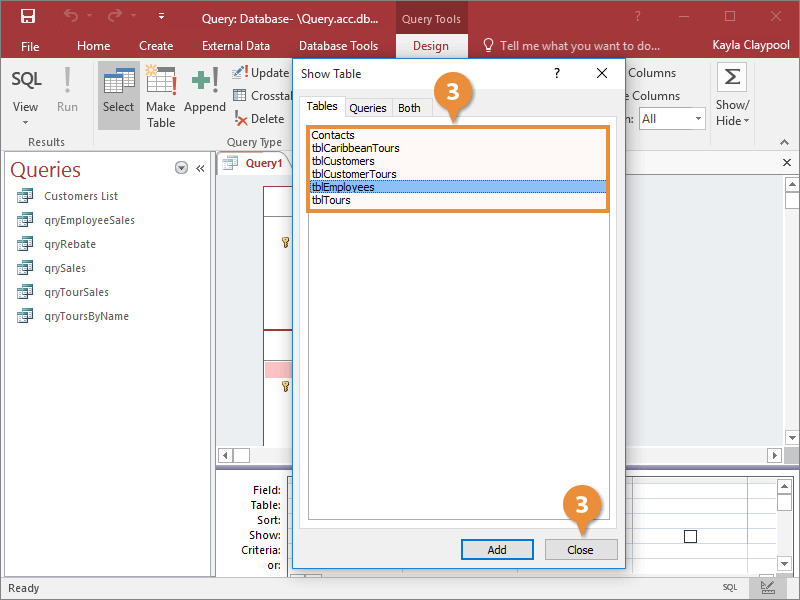
The Query Design window and Show Table dialog box both appear. Here you need to select the tables and/or queries containing the data you want to include in your new table.
- Double-click the tables and queries you want to add and click Close.
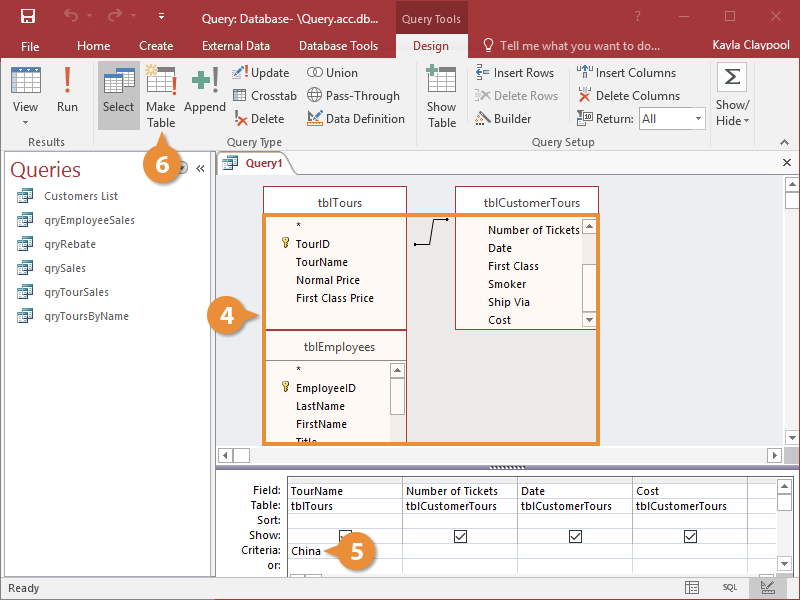
Now add the fields you want to use in your new table.
- Select the fields that you want to include and click Close.
- Add any limiting criteria.
Now you need to change the query type to make it a Make Table query.
- Click the Make Table button on the ribbon.
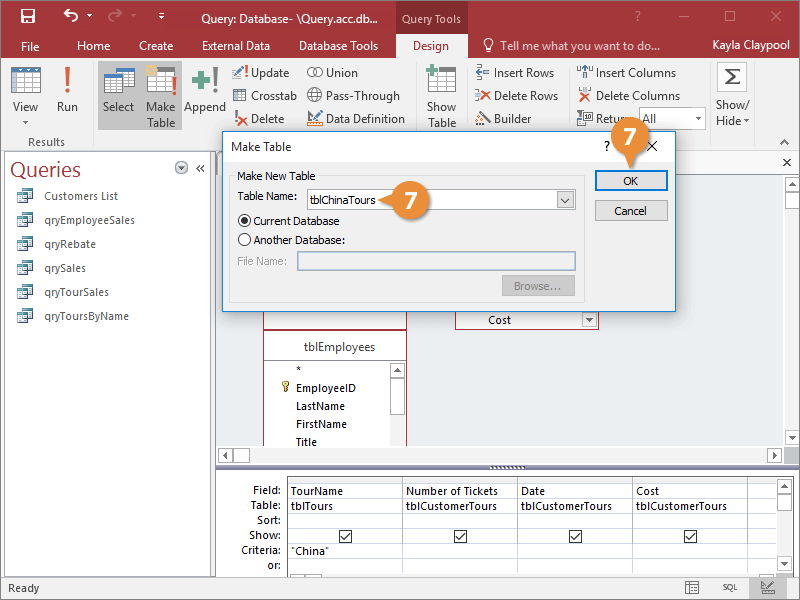
Access displays the Make Table dialog box. Here you need to tell Access the name of the new table.
- Enter a name for your table and click OK.
In the Table Name box, you can also choose to replace an existing table instead of creating a new one. To do this, click the Table Name list arrow and select a table. If the table you're replacing is in another database, first select the Another Database option and browse to the database.
Preview and Run a Query
Now you're ready to have the Make Table query create the new table. Preview the results of the query first.
- Click View to preview the query in Datasheet View.
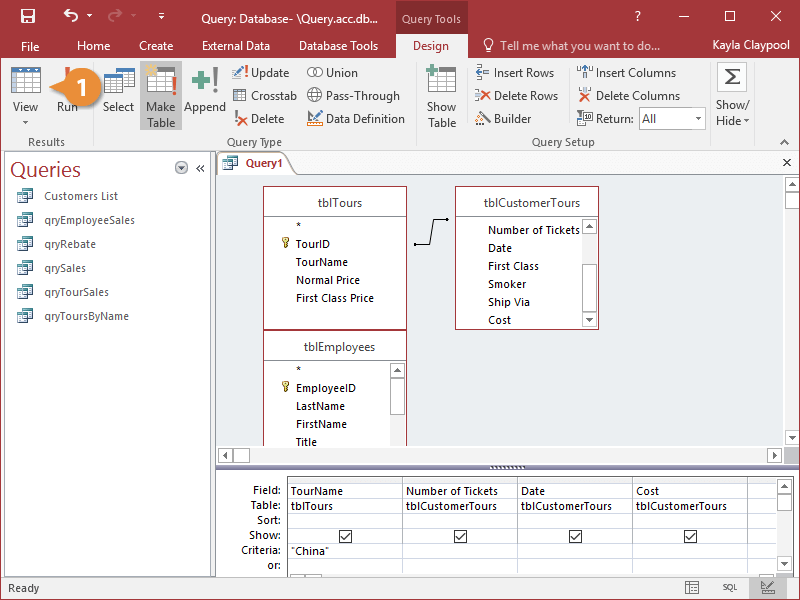
The Make Table query displays the records it will use to create the new table.
- Click View to return to Design View.
Now you can run the query to create the new table.
- Click the Run button on the ribbon.
Access asks you to confirm the creation of the table.
- Click Yes.
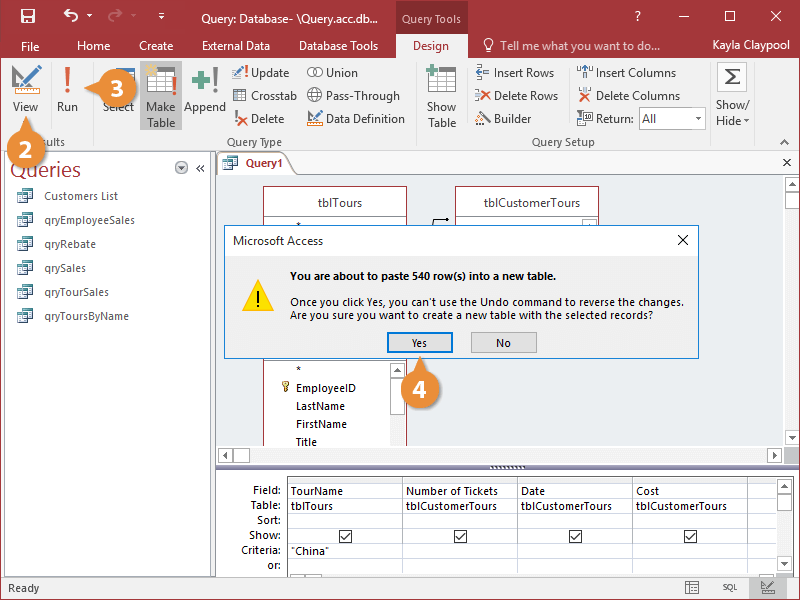
Access creates the new table based on the results of the Make Table query.
- Click View to return to Design View.
- Double-click the tables and queries you want to add and click Close.