

Layout View Access
Edit and adjust form or report designs instantly using layout view in Access
Try this Course with a Free Trial

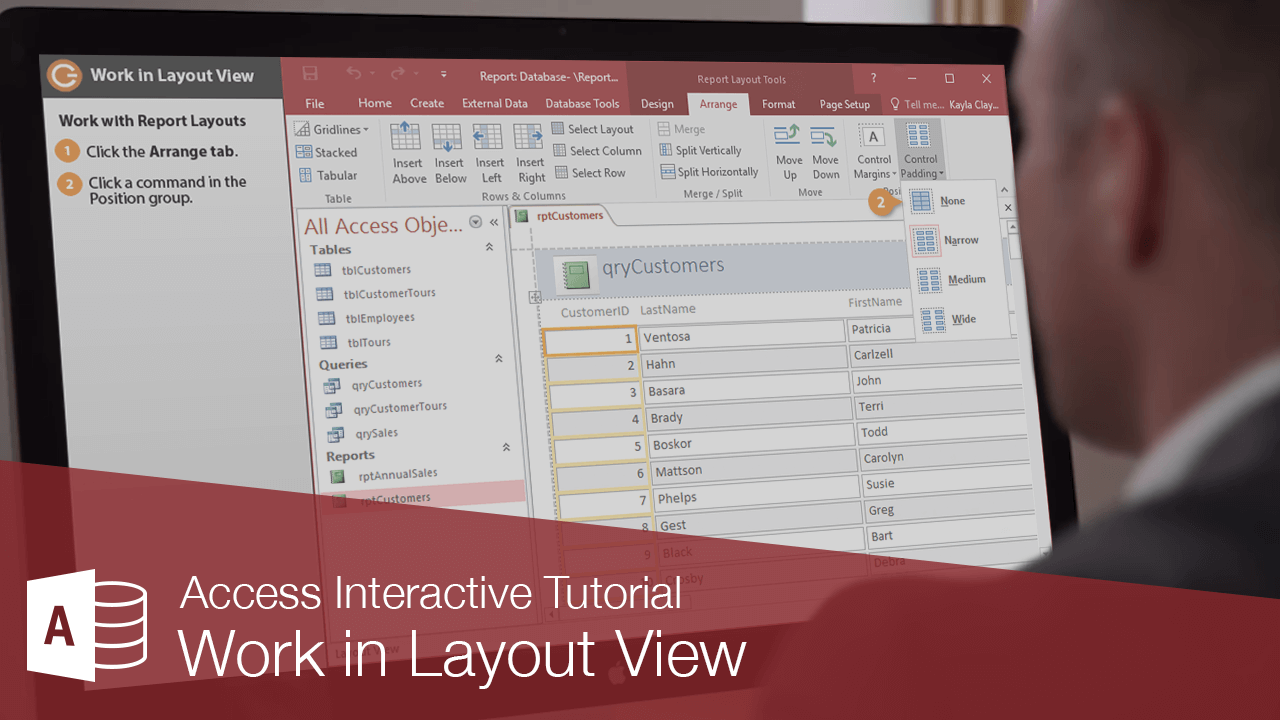
Much like with forms, you can modify reports in either Layout View (for simple changes) or Design View (for more complex changes). One advantage of Layout View is that it displays the report as it will look when printed—unlike Design View, which displays all the messy, behind-the-scenes report structure.
Change Report Views
- Click the View list arrow and select Layout View.
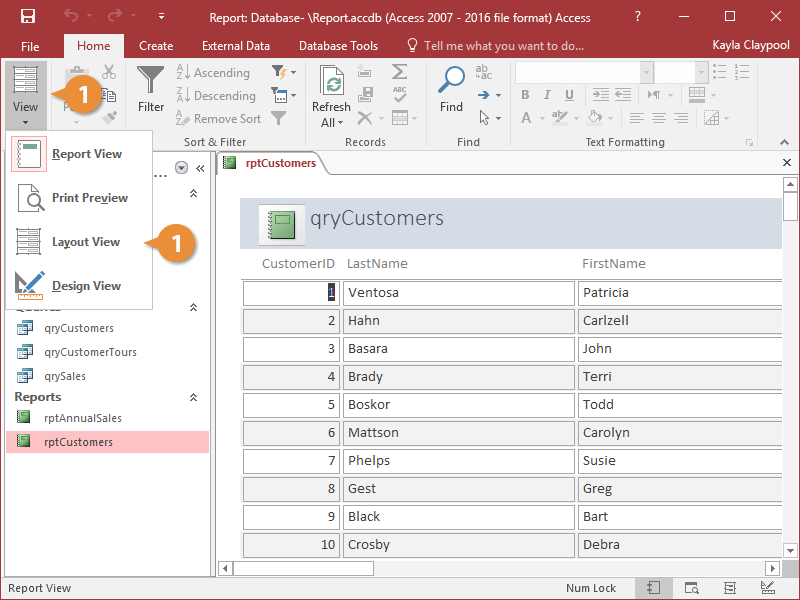
You can also change report views by clicking one of the view buttons on the Status bar.
Work with Report Layouts
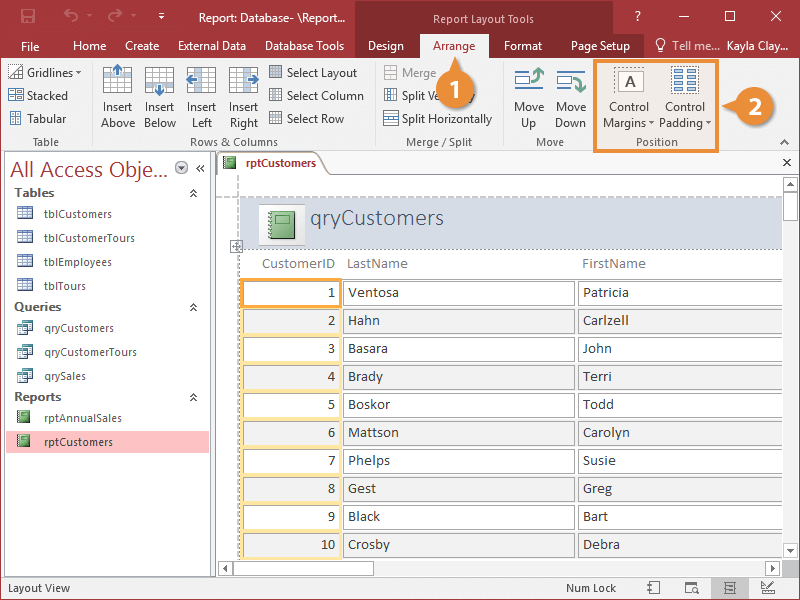
You can easily change the layout of a report in Layout View using the commands in the Position group on the Arrange tab.
- Click the Arrange tab.
The Position group contains commands for changing the format of and data within the fields.
- Click a command in the Position group:
- Control Margins: Change the location of data within fields.
- Control Padding: Change the distance between fields.
Resize a Column
- To resize a column, click and drag the right or left border of a column or control to make it larger or smaller.
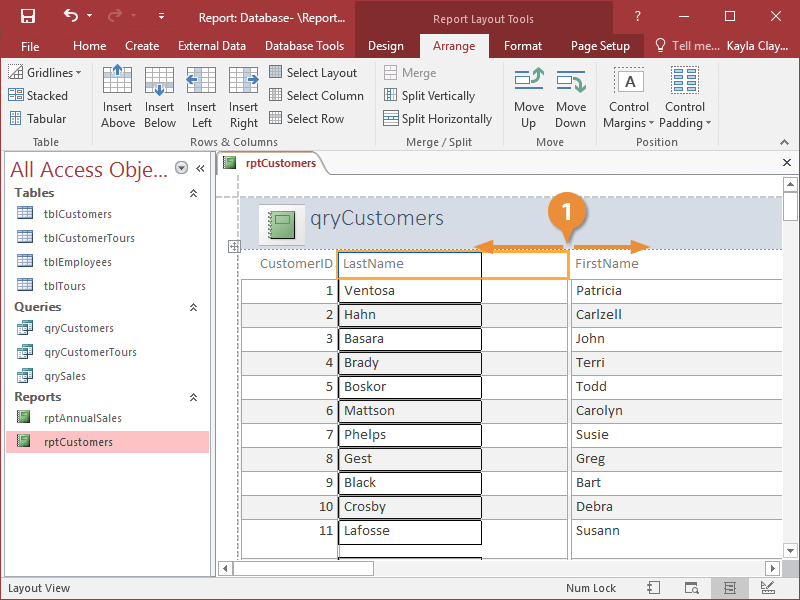
The space around each control on the report is reduced.
In Layout View, data is grouped together in columns and rows by Access so that it can be easily modified together.
Move a Column
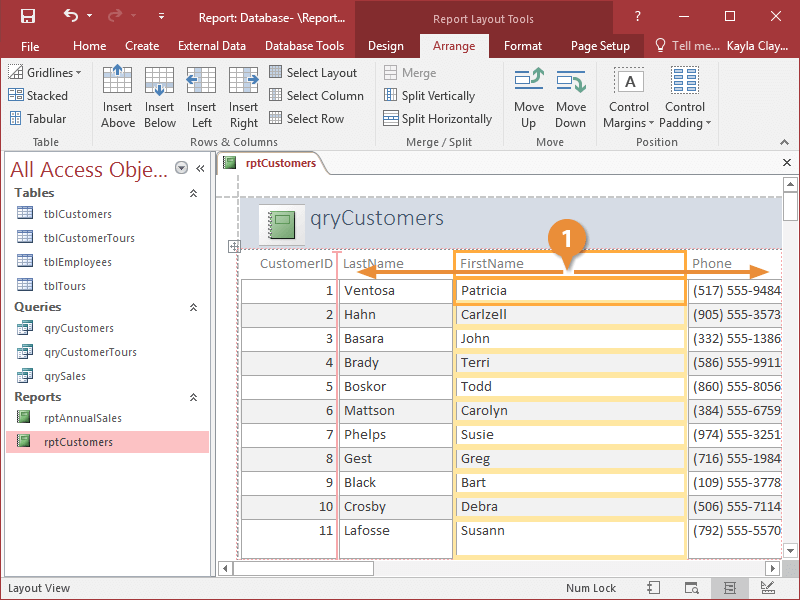
- Click and drag a column's heading to a new location to move a column, or simply click and drag a control to a new location.
Delete a Column
- Select a column or control and press the Delete key.
To change a field label's text, select the label, click inside the label, then edit or replace the text.
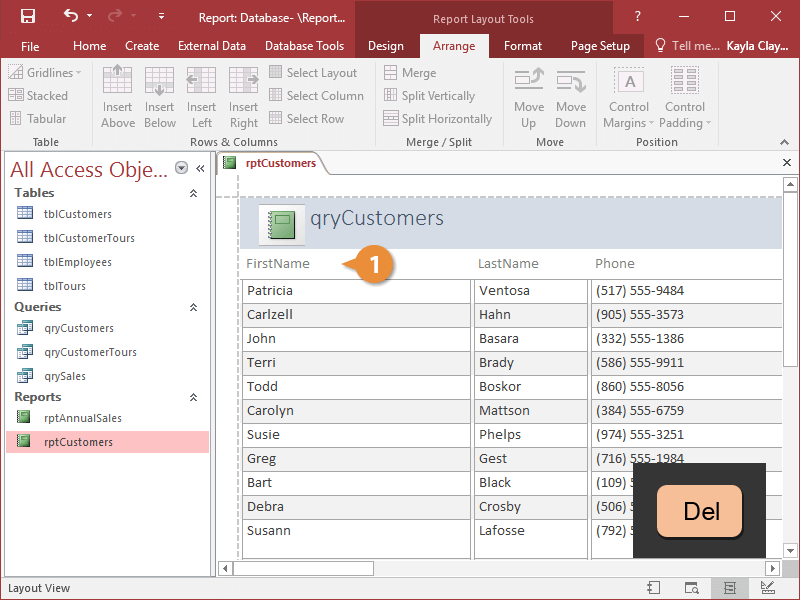
- Select a column or control and press the Delete key.
- Click and drag a column's heading to a new location to move a column, or simply click and drag a control to a new location.
- Click the Arrange tab.