

How Do You Password Protect a Database in Access
Secure your data by setting up password protection in Microsoft Access databases
Try this Course with a Free Trial

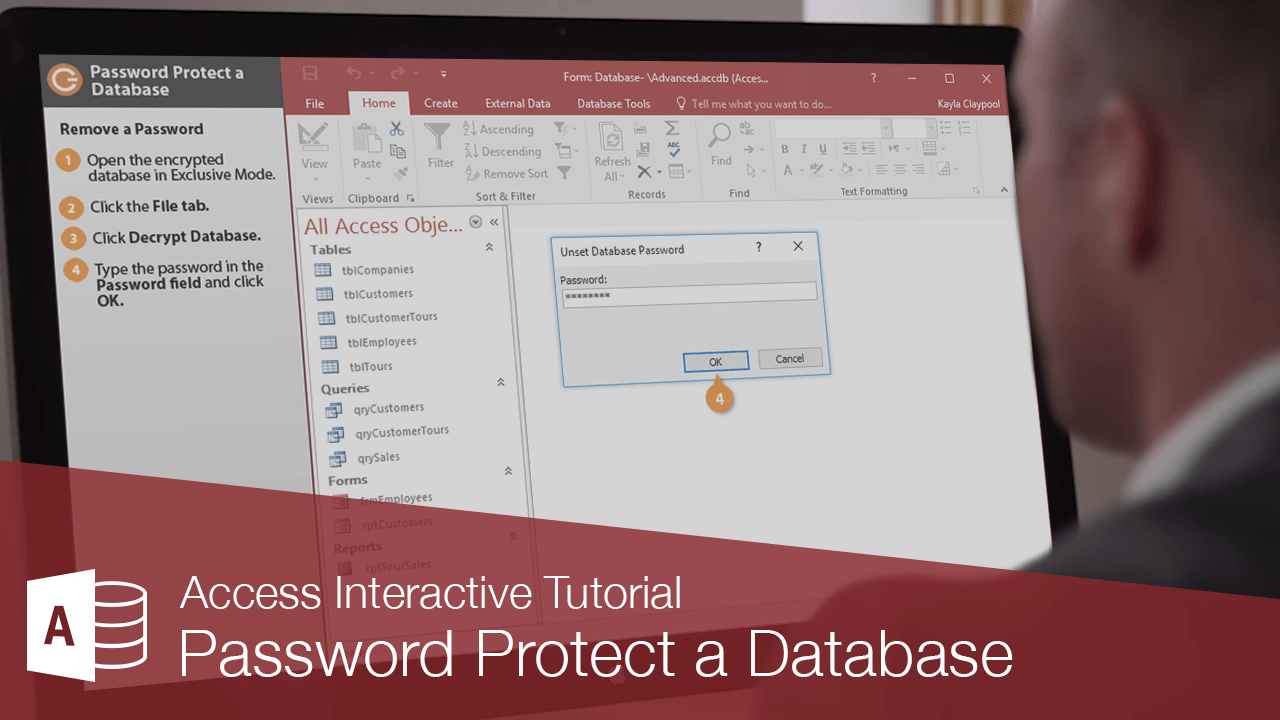
You can encrypt a database using a password to keep unauthorized users from opening the database.
Set a Password
To encrypt a database, you first need to open it in Exclusive mode.
- Click the File tab on the ribbon.

- Select Open.
- Click Browse.
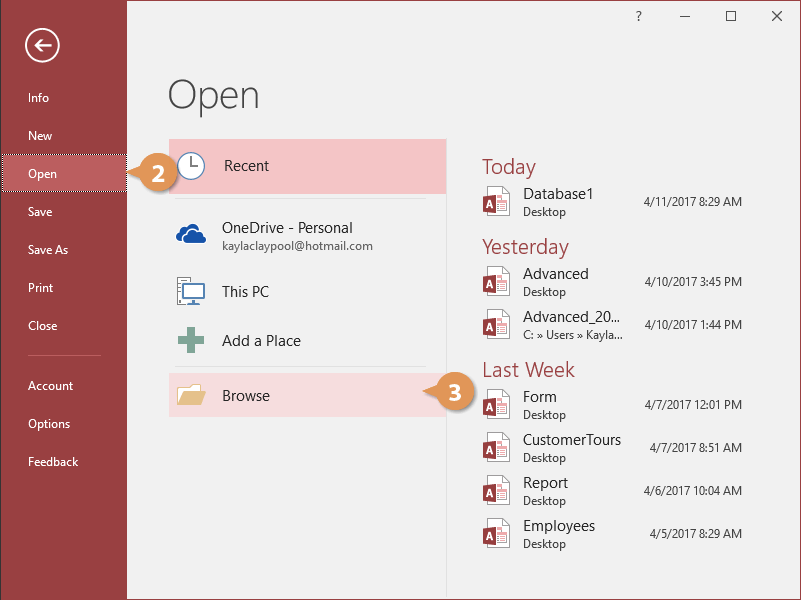
- Browse to and select the Access file you want to encrypt.
- Click the Open list arrow and select Open Exclusive.
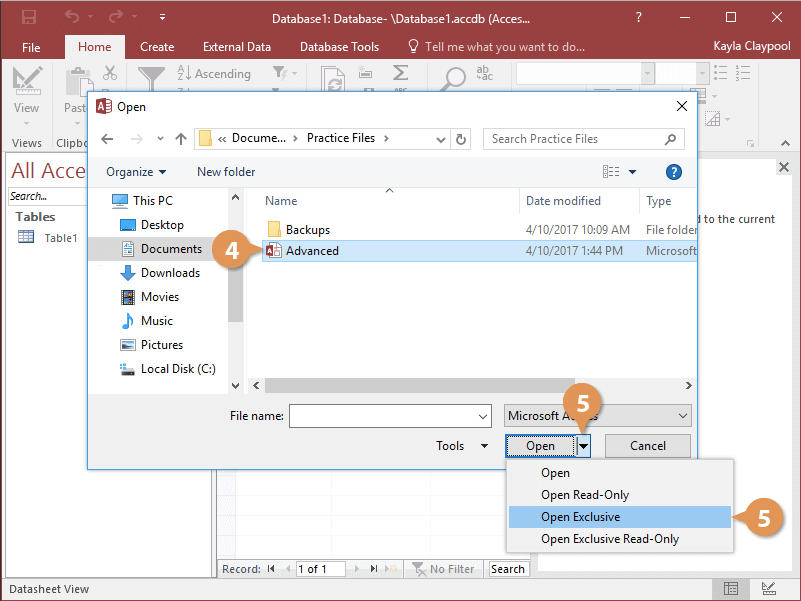
The database opens in Exclusive mode. Now we can encrypt it with a password.
- Click the File tab.

- Click Encrypt with Password.
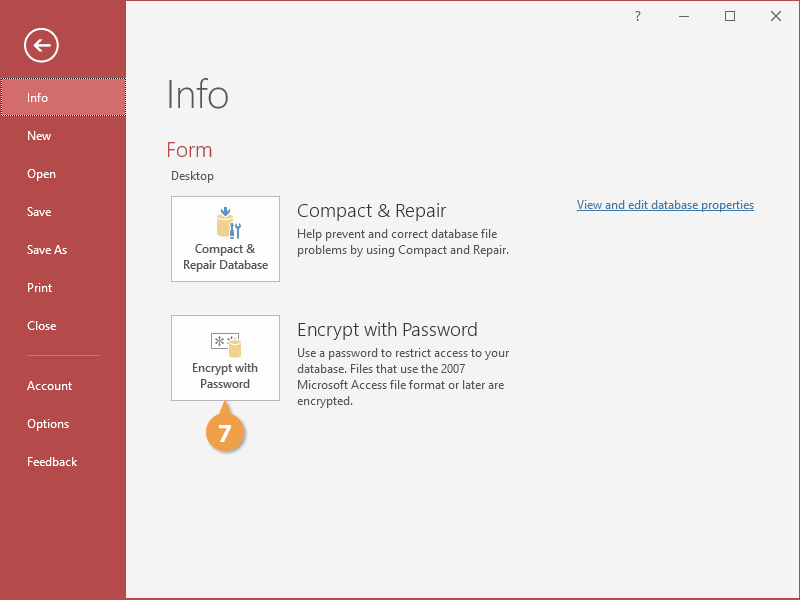
The Set Database Password dialog box appears.
- Type a password in the Password field, enter it again in the Verify field, and click OK.
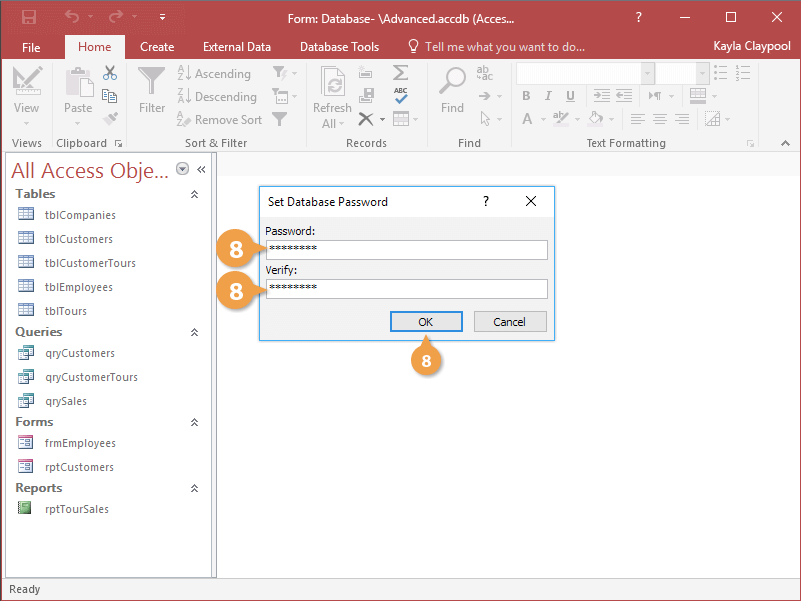
The password is set. In the future, whenever anyone tries to open the database, they will first be prompted to enter a password.
Remove a Password
You can remove a password at any time.
- Open the encrypted database in Exclusive mode.
- Click the File tab.

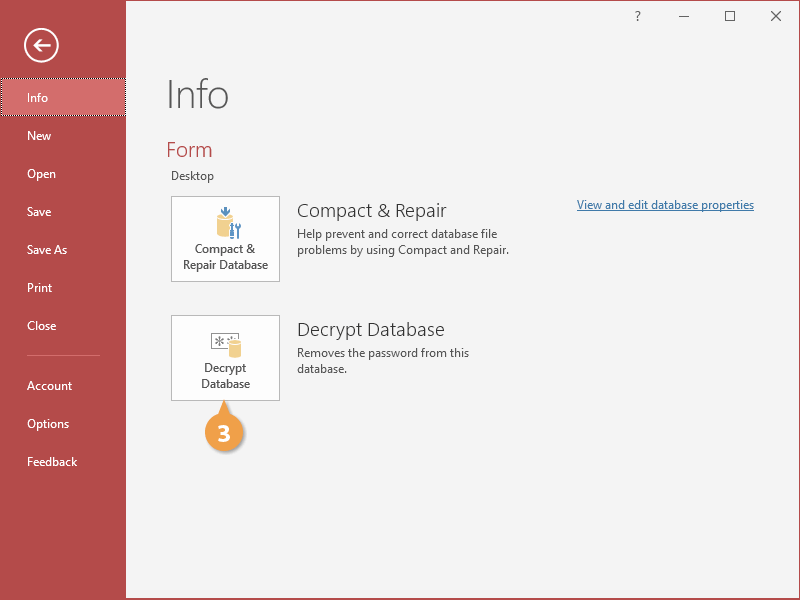
- Click Decrypt Database.
- Type a password in the Password field and click OK.
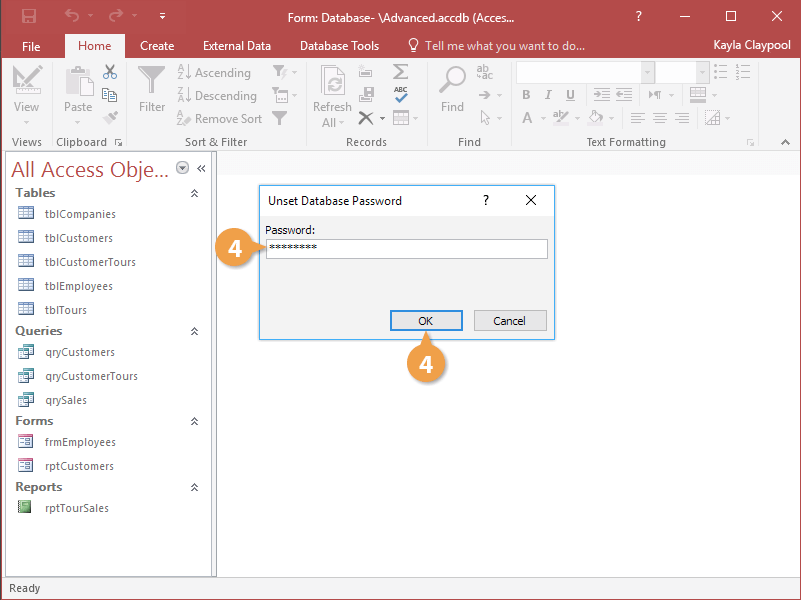
The password is removed from the database.
- Click Decrypt Database.