

Change Gridlines and Cell Effects
Customize table appearance by changing gridlines, cell borders, and shading in Access
Try this Course with a Free Trial

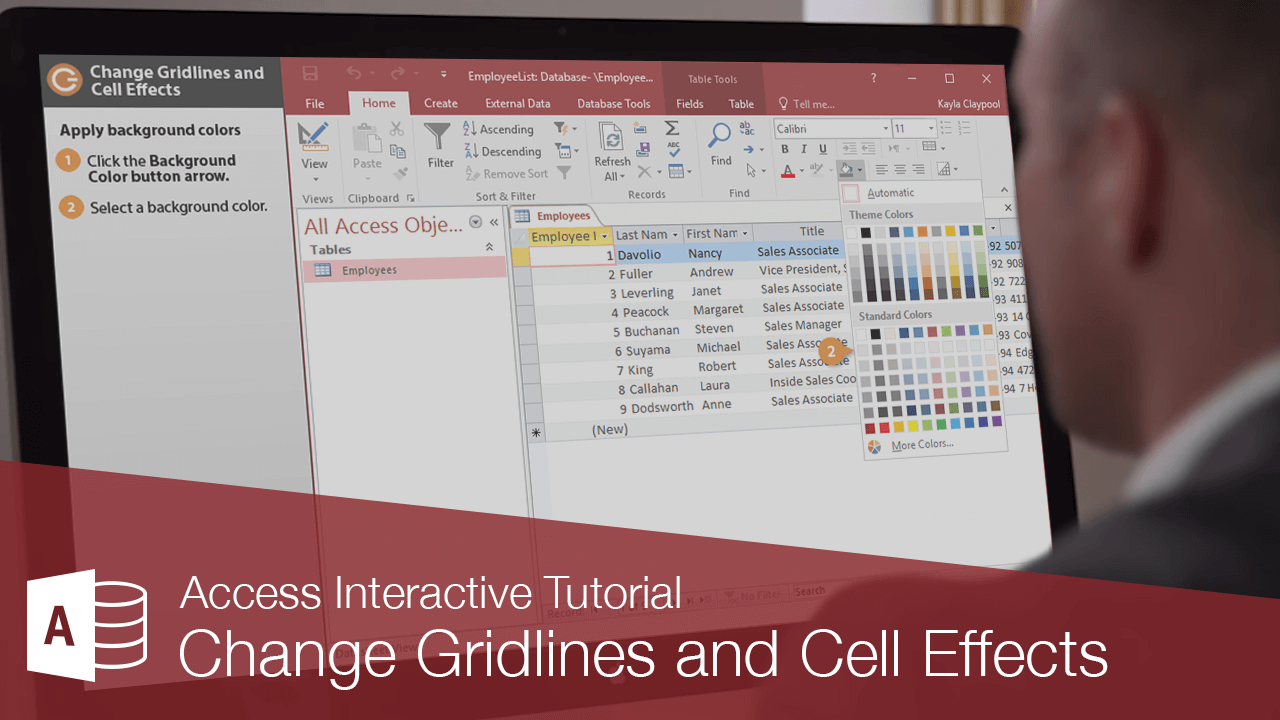
There aren’t endless formatting options for tables in Access, but you can change how gridlines appear, apply background colors, and add 3D effects to the table’s cells.
Change Gridlines
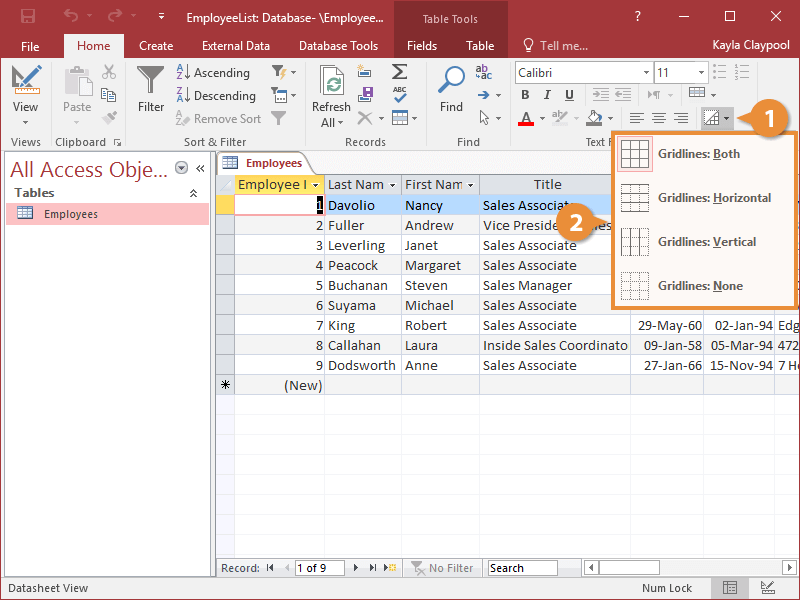
By default, Access displays both horizontal and vertical lines in a table, but you can choose to show Horizontal, Vertical, Both, or None.
- Click the Gridlines button on the ribbon.
- Select the gridline option you want to use.
You can also change gridlines by clicking the Home tab on the ribbon and clicking the Text Formatting group’s dialog box launcher. Then, select or deselect the Horizontal and Vertical boxes in the Gridlines Shown area.
Apply Background Colors
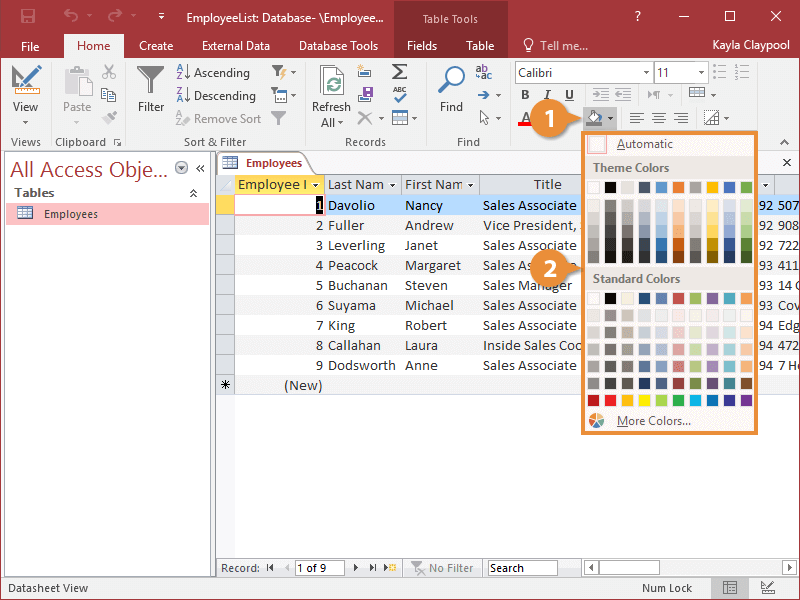
You can also apply background colors to your datasheet. Here's how…
- Click the Background Color list arrow.
- Select a color.
You can also apply a background color by clicking the Home tab on the ribbon and clicking the Text Formatting group’s dialog box launcher. Then click the Background Color or Alternate Background Color list arrow and select the color you want to use.
You can also apply a second color to the alternating rows.
- Click the Alternate Row Color list arrow.
- Select a color.
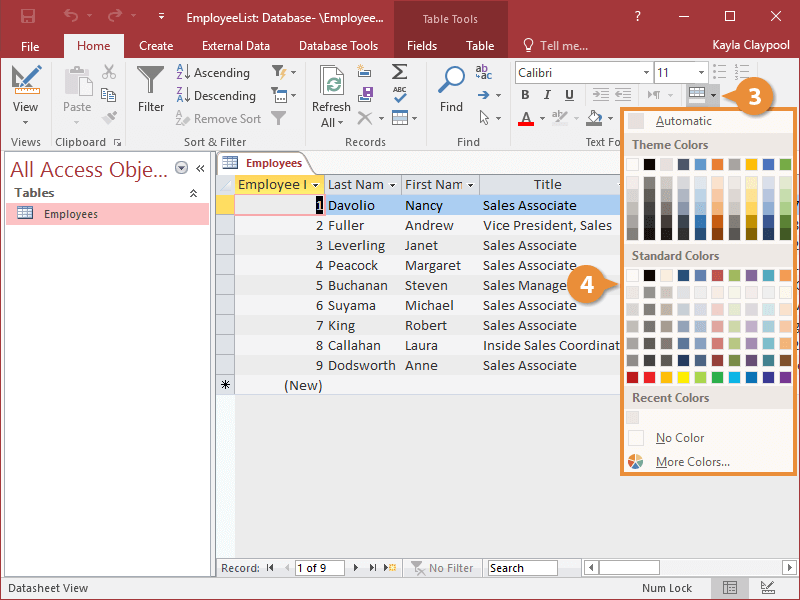
The alternate rows are filled with the color you chose.
Apply Cell Effects
You can also add a 3D effect to the table cells.
- Click the Text Formatting group’s dialog box launcher.
The Datasheet Formatting dialog box appears.
- Select Raised or Sunken.
- Click OK.
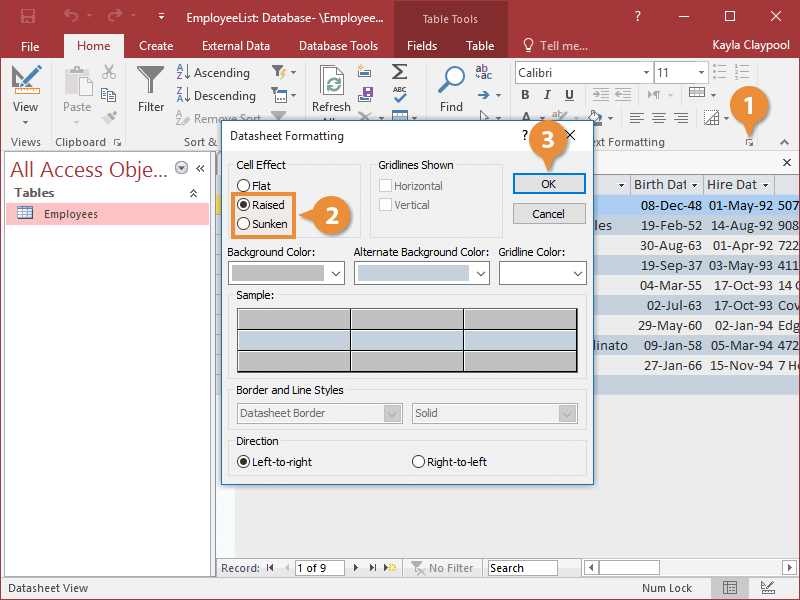
The selected effect is applied to the table cells.