Back Up and Restore a Database
Protect your data by learning how to back up and restore Access databases safely
Try this Course with a Free Trial

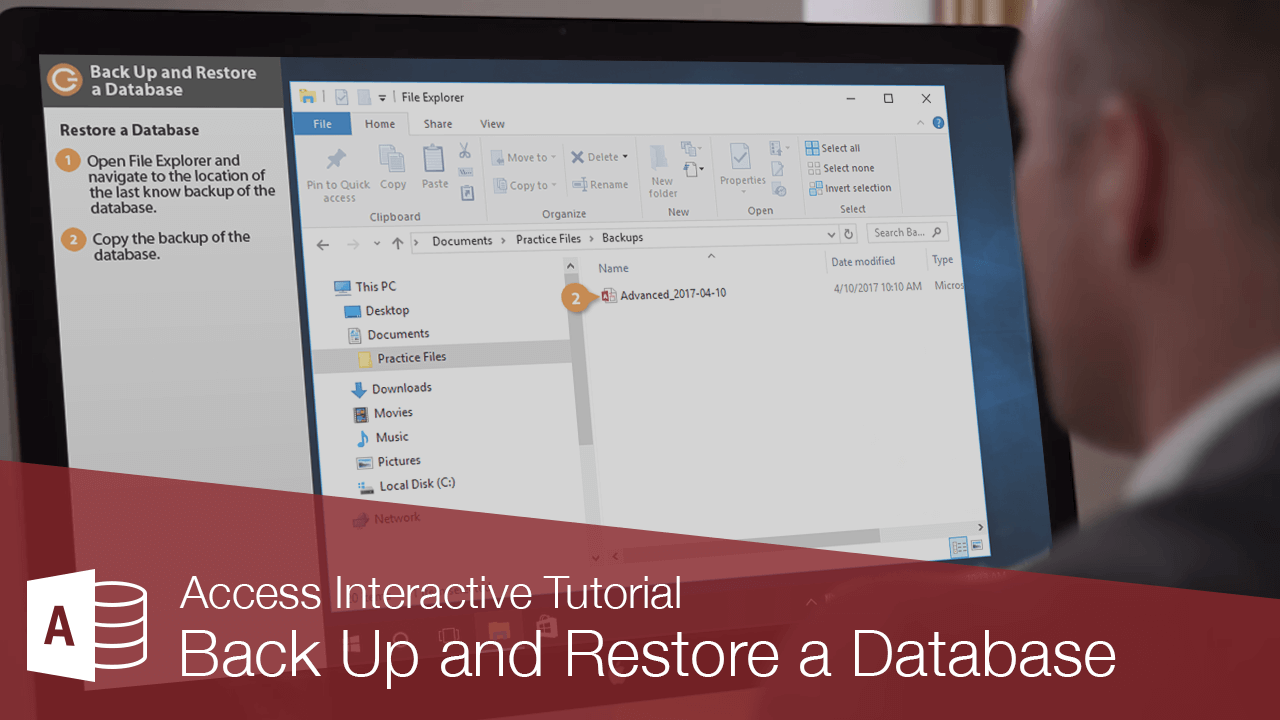
You can create a backup copy of your database in case of a system failure or if the Undo command isn't enough to fix a mistake.
Back Up a Database
It's important to back up your database on a regular basis, as without one you can't restore corrupted or missing objects.
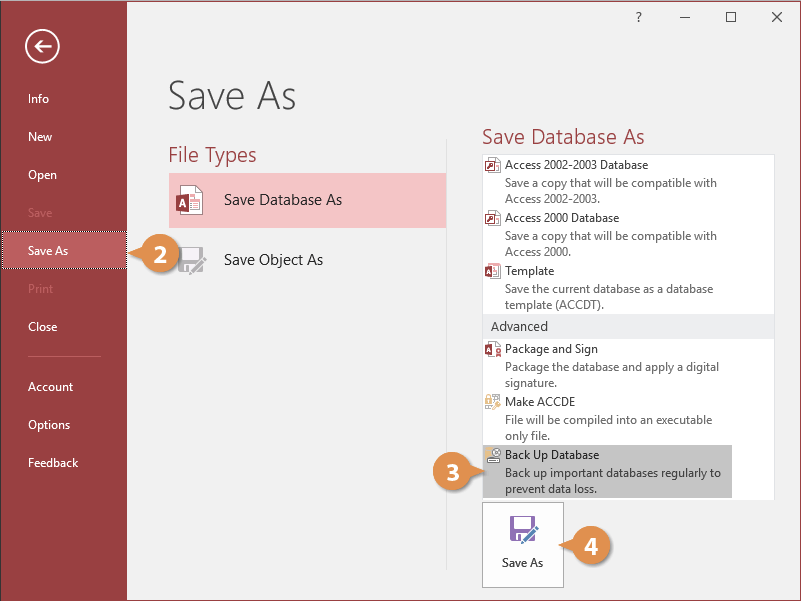
- Open the database you want to back up and click the File tab.

- Select Save As.
- Select Back Up Database.
- Click Save As.
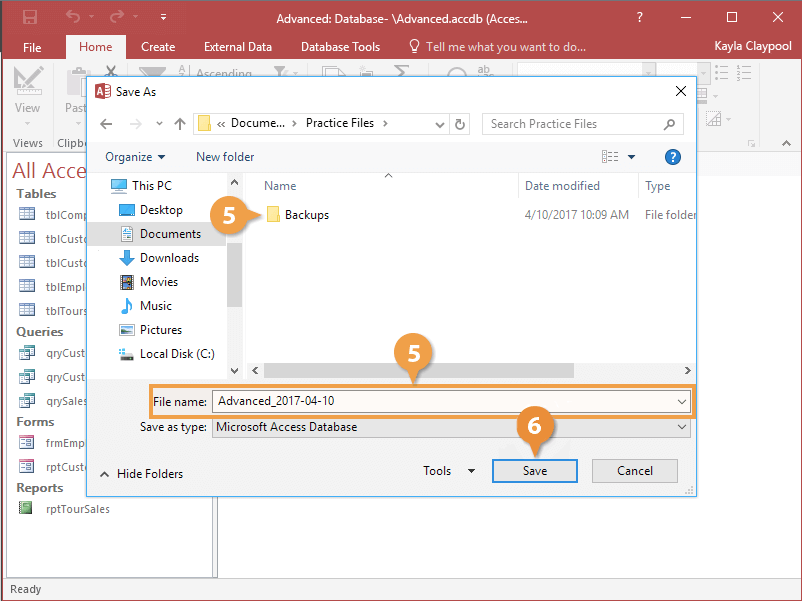
The Save As dialog box appears. Here you can specify where you want to save the backup.
- In the Save As dialog box, specify a location and name for the backup.
- Click Save.
Access creates a backup copy of the database.
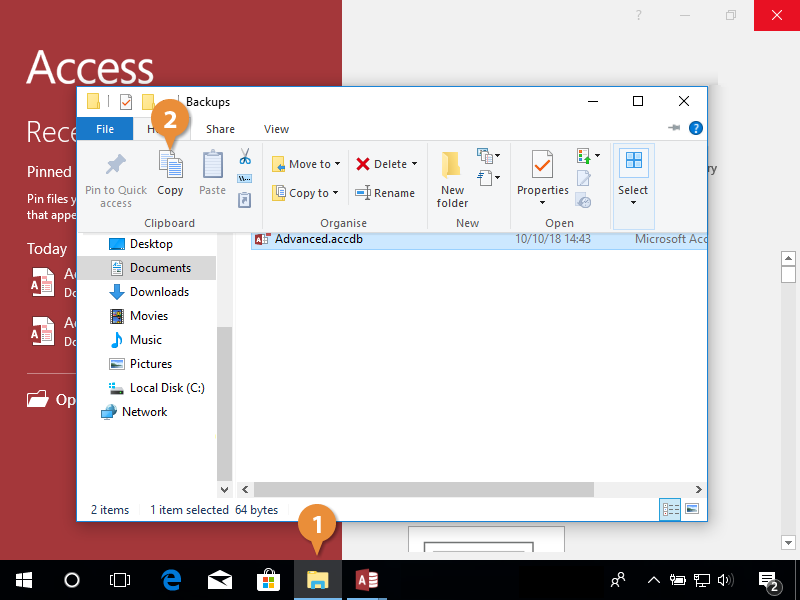
Restore a Database
When you restore a whole database, you replace a database file that is damaged, has data problems, or is missing completely with a backup copy of the database.